

MagicAI
MagicAI · Image · Video
MagicAI is a free browser and Android studio for AI image and video generation, bundling text to image, inpainting, and upscaling with short clip tools under one login.
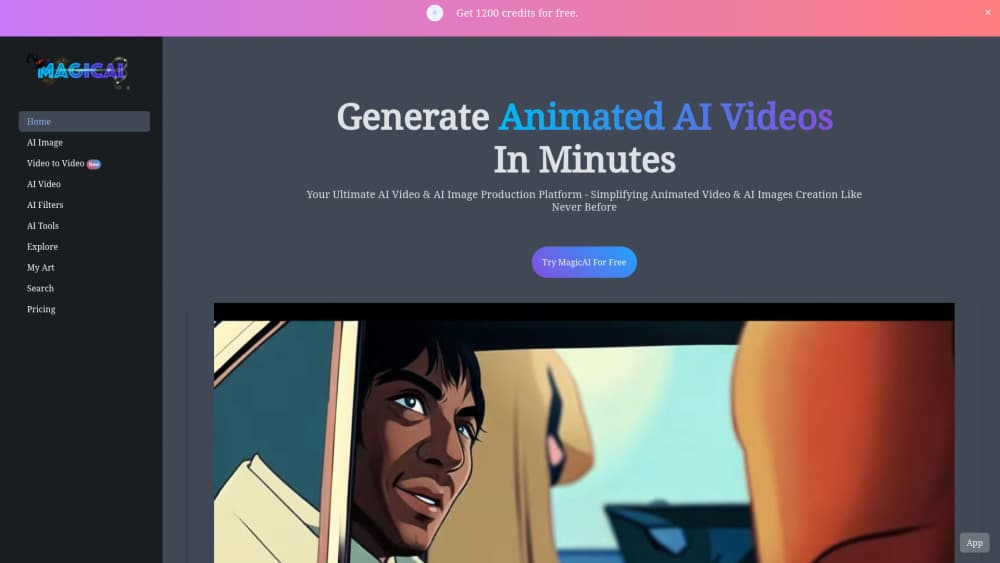
About MagicAI
What Is MagicAI
MagicAI, written Magic AI in the site's own page titles, is a generative media site at immagic.ai. You open a canvas, type a prompt or upload a photo, and the service returns art, an edited image, or a short video clip. There isn't a model lab behind it in the research sense. It's a consumer front end that gathers image and video models behind one simple interface, with a gallery of what other people made sitting next to the tools.
The problem it solves is friction. Making one AI picture usually means picking a model, learning its prompt syntax, then finding a separate tool for upscaling or for turning that picture into motion. MagicAI folds those steps into a single menu. Filters, clay effects, stickers, and the Ghibli AI tool sit in the same sidebar as the serious editors, so a casual user doesn't have to research which app does what.
The limits matter just as much. The free tier caps how many creations you can make before it asks you to upgrade, and the VIP membership and coin packs that the interface advertises aren't priced on the public pricing page yet, which still says plans are coming soon. Some tools also sit behind VIP. Treat MagicAI as a fast sandbox for ideas, not a production pipeline with guarantees.
Getting Started
- Open immagic.ai in a browser, or install the Android build from the download link on the site. No card is needed to start.
- Pick a tool from the sidebar: Text to Image, Image to Image, Text to Video, or one of the effect tools.
- Type a prompt, or upload a photo when the tool edits an existing image. Adjust the options the tool exposes, then run it.
- Check the result in My Creation, where past jobs are stored. Download what you like, or open Explore to copy a prompt from the community gallery.
Product Information
A quick look at MagicAI's pricing, supported platforms, and performance.
Best for
The users, tasks, and scenarios where this tool fits best.
Users
- Hobbyists who want AI art without a subscription
- Social media creators on a phone
- Anime and illustration fans
Tasks
- Turning a prompt into a poster or thumbnail
- Removing or extending part of a photo
- Making a still image move
Scenarios
- A weekend idea sprint
- Fixing a product photo before a listing goes live
- Building a mood board for a small project
Key features
Text to Image and Image to Image
The AI image generator takes a written prompt and returns a set of images, with a second mode that uses your uploaded picture as the base. That second path is the practical one for edits, since the model keeps the subject and changes the treatment. Both modes sit one click apart in the same workspace.
Inpainting, Outpainting, and ControlNet
Inpainting covers a selected area with new content, outpainting extends the canvas past its original edges, and ControlNet reads a reference pose or outline to steer the composition. Together they cover the repair work that most people end up doing by hand in a photo editor. ControlNet is the one that rewards patience, because a clean reference image does more for the result than a longer prompt.
Text to Video, Image to Video, Video to Video
The AI video generator packs three modes into one panel. You can describe a clip, animate a still, or restyle existing footage. Clips are short by design, so this fits teasers and social loops rather than anything with a narrative. Expect to run several attempts before motion looks right.
Filters, Clay, and Sticker Effects
One-click effects turn a photo into a clay figure, a sticker, or a filtered version of itself. These are the tools people share, and they're the quickest way to see what the engine can do. Quality depends heavily on the source image, so start with a sharp, well-lit photo.
AI Upscaling and Bigger
AI upscaling raises the resolution of a finished image, and the Bigger tool pushes a render further without rebuilding it from the prompt. This is the step that makes an AI image usable as a print or a store asset. Results on faces and text remain the weak spot, as with most upscalers.
Explore Gallery and Prompt Copying
Explore collects public creations with the prompt attached. You can copy a prompt, reuse it with your own tweaks, and download or share what you make. For a beginner this is the fastest way to learn what phrasing this particular engine responds to.
Pros and cons
Pros
- Image and video tools live under one login, so you don't juggle four tabs to produce one post.
- The free tier requires no card, which makes testing the image quality a low-risk decision.
- Inpainting and outpainting are included, covering edits that usually need a separate editor.
- The Explore gallery exposes prompts, which shortens the learning curve for new users.
- An Android build exists, and the interface is translated into more than ten languages.
Cons
- Free creations are capped, and the upgrade path isn't priced in public yet, so you can't budget before you commit.
- Short clips are the weakest output. Motion and consistency lag behind what dedicated video models deliver.
- There's no documented API and no team workspace, which rules it out for automated or collaborative production.
- Output quality swings with the prompt, and there's no seed control exposed to reproduce a good result exactly.
Frequently asked questions
Yes. You can generate images and clips without paying, up to a limit on how many creations an account gets. After that the site asks you to upgrade, and some tools are marked for VIP members only.
Related content
Explore related tools, skills, and articles for MagicAI.
MagicAI Alternatives

Google EmbeddingGemma 2
Google DeepMind · Writing · Image · CodingGoogle EmbeddingGemma 2 is a 740M-parameter open model that turns text, code, images, audio, and video frames into vectors in one 768-dimension space, running on phones and laptops.

Tractionwave
TractionWave · Image · MarketingTractionWave is an AI attention heatmap tool for static ads. Upload a PNG or JPG and it returns predicted attention, ranked hotspots, and fixes before you spend budget.

Imejis.io
Imejis.io · Image · MarketingImejis.io is an AI design studio for agents and marketing teams. Describe an image in plain words, and it writes the copy, builds the layout, reflows it to every size, then exports a finished file.