
Melina Studio
Melina Studio · Image · Other
Melina Studio is a free AI canvas tool that you talk to. Instead of clicking through menus to move shapes or build a board, you describe what you want in plain language and Melina handles the canvas for you. It reads what's already on your board, so the edits land in context rather than as generic output. Think of it as a prompt-driven canvas, or an AI whiteboard that keeps up with you instead of fighting you. You can switch between Claude, GPT-5.1, Gemini, DeepSeek, Kimi, and Llama depending on the job at hand.
About Melina Studio
What Is Melina Studio
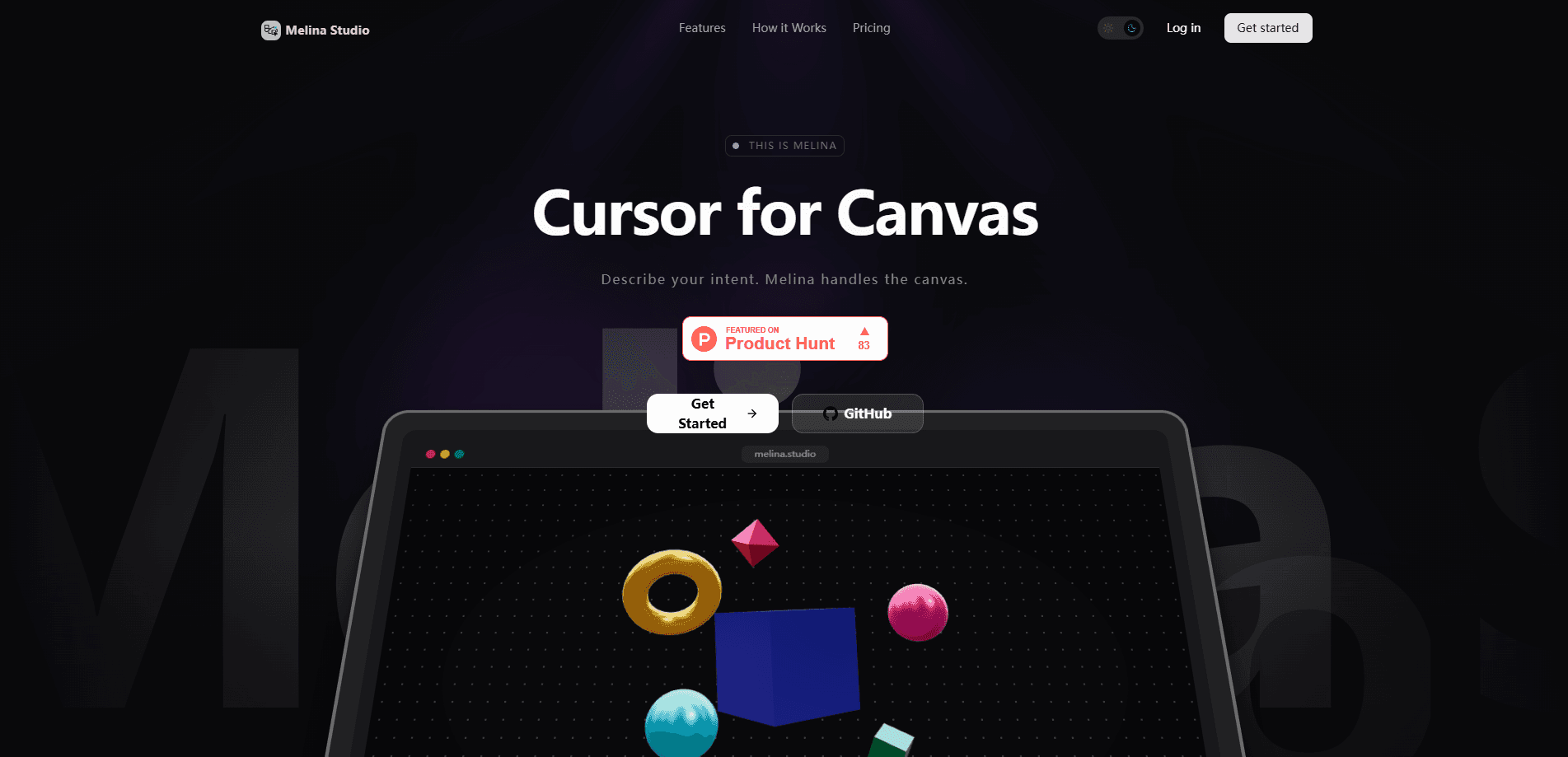
Melina Studio positions itself as "Cursor for canvas." The comparison is deliberate: just as Cursor lets developers write software by describing intent, Melina lets you build and edit on a canvas by describing intent. The product watches the shapes, structure, and layout already on your board, then acts on what it sees. It's part AI design canvas, part AI workspace tool, and the two sides feed each other.
The core idea is that the canvas should be a conversation, not a toolbar. You type or speak a request, and the change shows up on screen right away. There's no refresh cycle and no waiting for a preview to catch up. That immediacy matters when you're thinking out loud and want to see an idea take shape.
The bigger draw is the model switcher. One board, several brains. If a task calls for stronger reasoning, you pick a heavier model. If you want speed, you pick a lighter one. Most canvas tools lock you into a single model and a single pricing tier, and Melina doesn't.
The limits are worth knowing upfront. Melina Studio runs in the browser and has no mobile or desktop app, so there's nothing to install and nothing that works offline. And because it's a young product, the feature set is still expanding; you shouldn't expect the polish or the integrations of an older design suite. Want to know how it handles a task no one has tried yet? The honest answer is that it depends on the model you pick, which is exactly why the switcher exists.
Getting Started
- Open melina.studio in your browser and start a board. No credit card is required, and the basic tool is free to use.
- Add something to the canvas so Melina has context to work with. Drop in shapes, text, or the start of a layout.
- Describe your intent in the prompt bar. Say what you want to change, create, or explore in everyday language.
- Pick a model for the task. Switch to Claude, GPT-5.1, Gemini, DeepSeek, Kimi, or Llama right from the canvas.
- Watch the edit happen and keep refining. Every change saves as you go, so you can experiment without losing state.
Product Information
A quick look at Melina Studio's pricing, supported platforms, and performance.
Best for
The users, tasks, and scenarios where this tool fits best.
Users
- Product and UX teams
- Founders and solo builders
- Writers and researchers
Tasks
- Rapid brainstorming
- Diagram and flow drafting
- Model comparison
Scenarios
- Early project planning, when the shape of the idea is still moving and you need to see it before committing.
- Explaining a concept to someone else, where a live canvas carries more weight than a slide deck.
- Solo deep-work sessions, when you want a quiet board that stays out of the way until you ask for something.
Key features
Describe Your Intent
The prompt bar is the whole interface. You tell Melina what you want to change, create, or explore, and it does the work on the canvas. There's no need to learn a command set or hunt through panels, and there's no manual to read before your first useful edit. If you can explain the change to a colleague over coffee, you can explain it to Melina.
Canvas-Aware by Design
Melina doesn't just answer prompts in isolation. It reads what's on your board, including shapes, structure, and visual context, and acts on that. This is the difference between a chatbot that spits out text and a tool that edits the thing in front of you, and that gap is the reason canvas-aware prompts feel so much more useful than generic answers. Your existing work shapes every response.
Pick Your Model per Task
A single dropdown switches the underlying model between Claude, GPT-5.1, Gemini, DeepSeek, Kimi, and Llama, which means the same board can lean on six different reasoning engines without you exporting anything or opening a second tab. One canvas, different minds. That range lets you match the model to the moment: heavy reasoning for a messy problem, a faster model for a quick layout tweak, and a middle-of-the-road option when you're not sure which way the task will go. Few canvas tools give you that choice at all.
Instant, Visible Changes
When Melina edits the canvas, you see it as it happens. No refresh, no lag, no waiting on a preview. That responsiveness changes how you work, because you can course-correct in the middle of an idea instead of after it's finished. It turns the canvas into something closer to a live sketchpad, and for anyone who thinks by reacting to what they see, that shift in pace is the whole point of the tool.
Autosave and State Safety
Every change saves as you work. You can move fast without worrying that a wrong step will wipe out the board. For anyone who thinks by trying things, that safety net is what makes the session usable. Think freely, and let the tool hold the state while you chase the idea wherever it goes.
Calm, Focused Interface
This is a quiet canvas, not a crowded one. The layout adapts to your system and your working style, and it stays out of the way until you need a change. For long sessions, a low-distraction surface is worth more than a wall of features, and Melina leans in that direction on purpose rather than piling on buttons to look more capable.
Pros and cons
Pros
- Free to use with no credit card required, so you can test the whole workflow before deciding anything.
- Model switching on the fly covers reasoning-heavy and speed-focused jobs in one place.
- Canvas-aware prompts mean edits fit the board you already built, not a blank slate.
- Autosave keeps state safe, which suits fast, exploratory sessions.
- Browser-based access means nothing to install on any machine.
Cons
- No mobile or desktop app, so there's no offline use and no native performance.
- It's an early-stage product. Expect a smaller feature set than established design or whiteboard suites.
- API access isn't documented as publicly available. That rules out custom integrations for now, so you can't wire Melina into an existing pipeline and use it as a backend for other tools.
Frequently asked questions
It's an AI canvas tool for building and editing a board by describing what you want in plain language. People use it for brainstorming, diagramming, and turning rough ideas into something visible.
Related content
Explore related tools, skills, and articles for Melina Studio.
Melina Studio Alternatives

X Ray Interpreter
X-ray Interpreter · ImageX Ray Interpreter is a web-based AI radiology tool that turns X-rays, CT scans, MRI, ultrasound, and PET images into plain-language reports. You upload a scan, get a preliminary X-ray interpretation in moments, then ask follow-up questions if something needs explaining. It works as a second opinion and a learning aid, not as a medical diagnosis.

Aieasypic
AIEasyPic · ImageAIEasyPic is an AI image generator that turns plain text prompts into finished artwork in seconds. You can also train custom models on your own photos, swap faces in existing images, and create short video clips from text, all from a browser. It suits casual creators who want quick visuals and hobbyists who want to build a personal model without touching any code.

Chargen
Chargen · ImageChargen is an AI character generator and worldbuilding toolkit built for Dungeons & Dragons and other tabletop RPGs. It turns a one-line idea into a painted character portrait, spins up NPCs, monsters, maps and encounters from the same session, and keeps every creature's details close at hand. The tabletop RPG art side runs on a credit system called Gold, while the text generators stay free for everyone.