
My Drawer
Furkan KSL · Productivity
My Drawer is a local-first AI workspace built for macOS, and it lives in a sidebar you can call up while you work in other apps. It pulls your files, notes, and searches into one panel, then layers AI on top so you can find, summarize, and reorganize things without switching windows. It's aimed at Mac users who want an AI assistant close at hand but aren't comfortable shipping every document to a cloud service. The pitch is a personal AI workspace that stays on your machine first, which is what sets this local-first AI app apart from the browser chatbot you might already use.
About My Drawer
What Is My Drawer
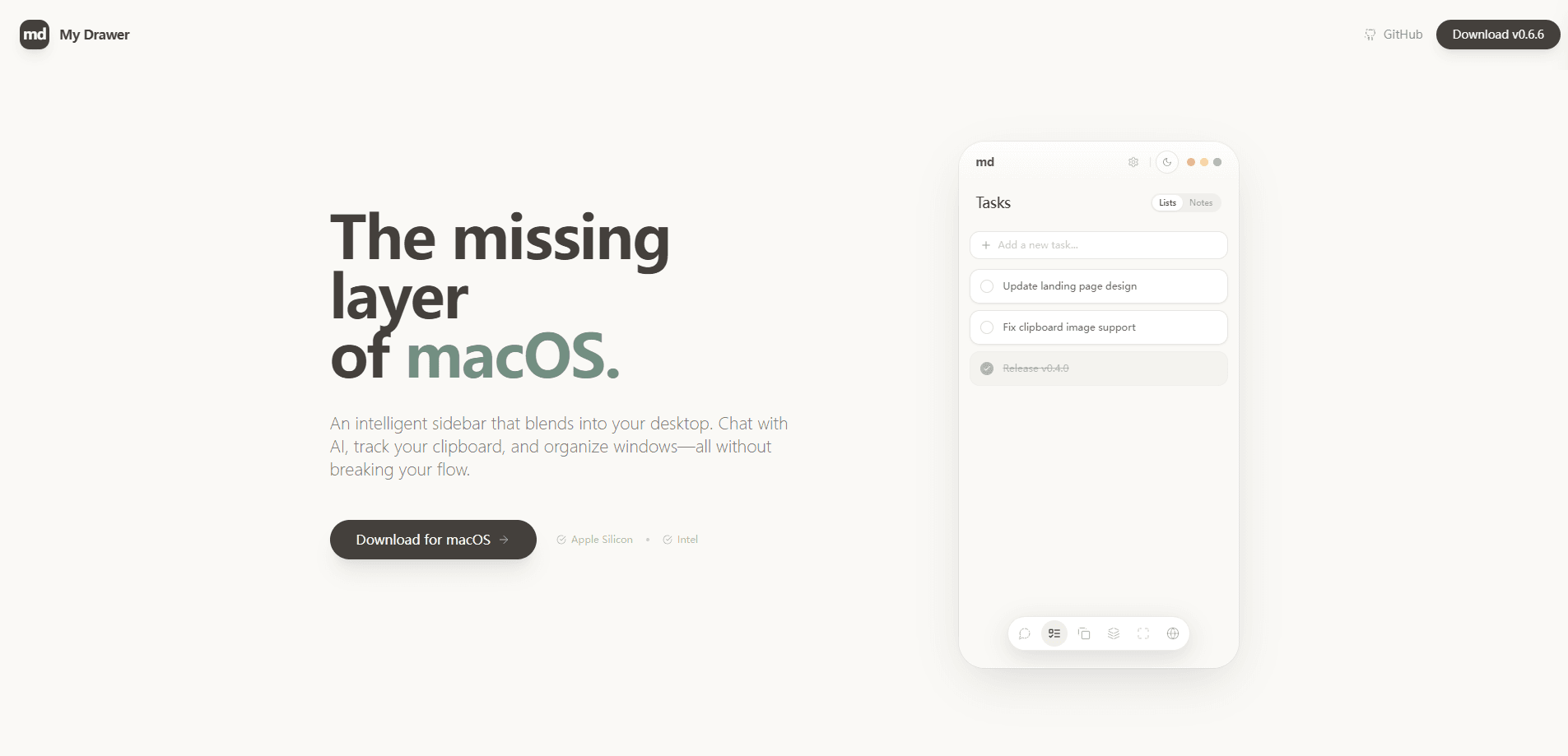
My Drawer is a macOS app that positions itself as the missing AI layer for the Mac. The core idea is a drawer: a customizable sidebar that slides in from the edge of the screen and holds the things you reach for constantly. Simple as that sounds, it's a real shift. Instead of hunting through Finder folders or juggling separate note apps, you keep a working set of files and notes one keystroke away.
What separates it from a plain launcher is the AI sitting on top. The app applies AI to organization and search, so you can describe what you're looking for in plain language rather than guessing at file names. It also runs local-first, which means content stays on your Mac by default instead of being uploaded for every request. That matters if you handle client work, drafts, or anything you'd rather not hand to a third party. The flip side is that local-first apps lean on your hardware, and My Drawer is a young product, so the polish of a mature suite isn't there yet.
So who should care? If your Mac is where you do most of your work and you've felt the friction of bouncing between Finder, notes, and a browser-based chatbot, this is built for that exact gap. If you live in a browser or need deep cross-platform sync, it won't replace the stack you already have. That's the honest bottom line.
Getting Started
- Open the My Drawer site at mydrawer.furkanksl.com and download the macOS build. Check your macOS version before you start, since the app targets recent releases.
- Install the app and launch it from Applications. The drawer loads as a background panel rather than a full window, so look for its icon in the menu bar.
- Grant the permissions it asks for, such as file and folder access. Without them the drawer can't index the locations you want it to watch.
- Add the folders, notes, or files you want quick access to, then arrange them in the customizable sidebar.
- Open the AI search and try a plain-language query like a project name or a rough description of a document. Refine your saved items as you use it day to day.
Product Information
A quick look at My Drawer's pricing, supported platforms, and performance.
Best for
The users, tasks, and scenarios where this tool fits best.
Users
- Mac-focused knowledge workers
- Freelancers and independent creators
- Developers and writers
Tasks
- Quick file retrieval
- Organizing a working set
- Summarizing and reading
Scenarios
- Deep-focus writing sessions
- Handling research across many files
- Working offline or on a flaky connection
Key features
Customizable Sidebar
The drawer itself is the centerpiece. It slides in from the screen edge and holds whatever you decide to keep there, so the panel matches how you actually work rather than a fixed layout. You arrange files, notes, and tools into the slots you reach for most, and the rest stays out of the way. No clutter. For anyone who hates a messy desktop, that flexibility is the whole point.
Local-First AI Workspace
My Drawer treats your Mac as the computer, not a thin client. Content is processed locally by default, which keeps prompts and documents away from third-party servers. That's the difference between an AI app you can trust with real work and one you only feed throwaway questions. The trade-off: heavy AI work rides on your own hardware, so older Macs may feel the strain.
AI-Powered Organization
The app groups and surfaces your material using AI rather than folders you maintain by hand. Think of it as an AI file organizer that reads what's in the drawer and suggests structure, so you spend less time filing and more time working. That's a real time saver. It's most useful once you've accumulated enough items that manual sorting stops being practical, which is right about when people give up on a system.
Advanced Natural-Language Search
Search works on descriptions, not exact names. You can ask for "the invoice from last spring" and let the app figure out which file you mean, which beats guessing at a filename you half-remember. That's the real win. This is the feature that turns a drawer of mixed files into something you can actually navigate as it grows.
macOS Workflow Integration
The drawer is designed to sit on top of the Mac rather than replace it. It stays available while you work in other apps, so summoning it doesn't mean breaking focus to open a separate window. The intent is to fit into the shortcuts and habits you already have, not ask you to learn a new operating system inside your operating system.
Pros and cons
Pros
- Local-first design keeps your documents on your Mac instead of shipping them to a cloud service.
- The customizable sidebar cuts window-switching by keeping your working set one shortcut away.
- Natural-language search means you don't have to remember exact file names to find something.
- Fits into existing macOS habits rather than forcing a whole new workflow.
Cons
- macOS only. There's no Windows, Android, or iOS version, so it won't help you across devices.
- Local processing leans on your Mac's hardware, which can feel slow on older machines.
- It's a young product, so expect rough edges and a thinner feature set than mature workspaces.
- No public pricing is listed, so you can't budget for it before you try it.
Frequently asked questions
My Drawer is a local-first AI workspace for macOS. It puts your files, notes, and AI search into a single customizable sidebar so you can find and organize things without leaving whatever app you're working in.
Related content
Explore related tools, skills, and articles for My Drawer.
My Drawer Alternatives

Base Code
Base44 (Wix) · Coding · ProductivityBase Code is a shared cloud development environment from Base44. Teammates describe changes to an existing GitHub codebase in chat, preview them live and send them back as pull requests.

Knocket
Knocket (Tencent RTC team) · Productivity · Business · ChatbotKnocket is a free live chat and contact page tool that lets visitors message you from your website, app, or a shareable link, with every reply handled from Telegram or one inbox.

FloorGen
Vinit Kumar (FloorGen) · Productivity · China AIFloorGen is a browser-based floor plan maker that turns a sentence or a sketch into an editable 2D plan and a 3D walkthrough. Export to PDF, DXF or video, and draw without an account.