

Pointer AI for Google Docs
Pointer · Productivity
Pointer AI for Google Docs is a Claude-powered writing assistant that edits inside Google Docs with native Suggestions you can accept or reject.
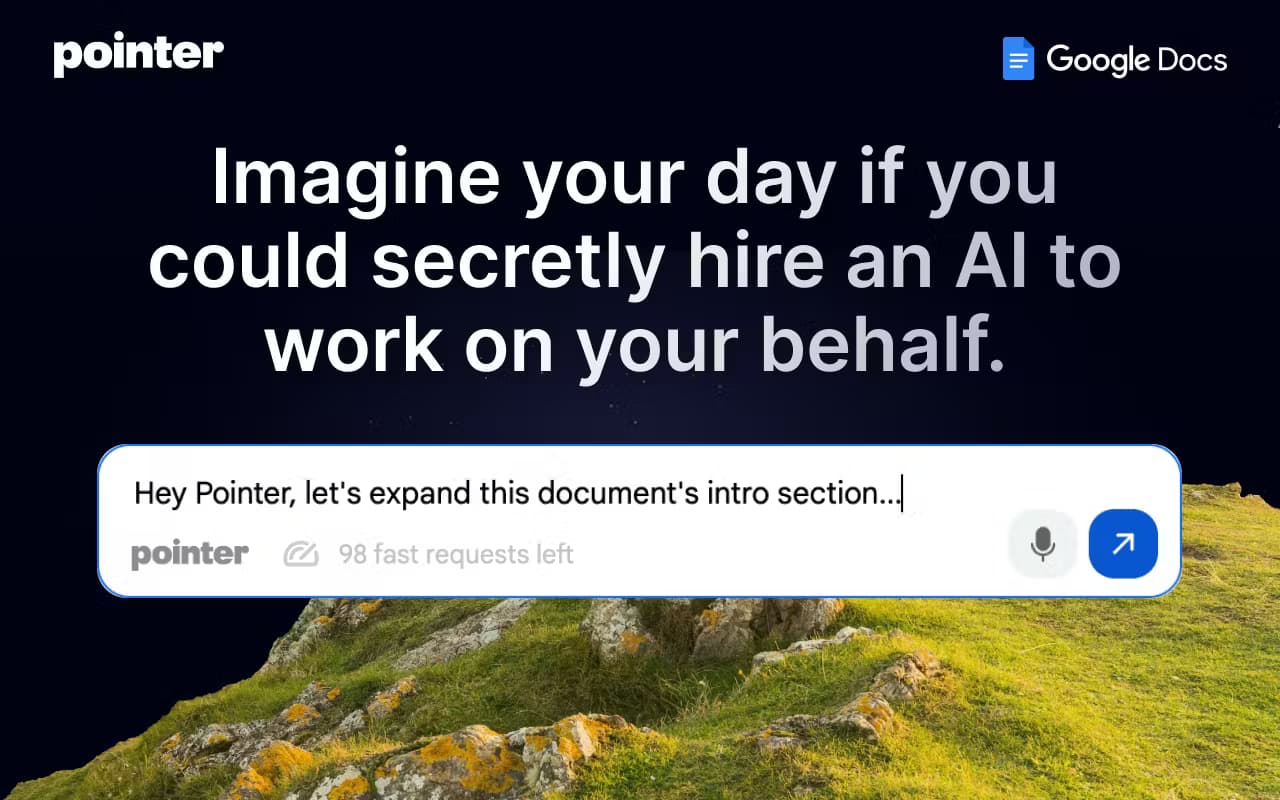
About Pointer AI for Google Docs
What Is Pointer AI for Google Docs
Pointer AI for Google Docs is a Google Docs AI editor that lives inside your document instead of in a separate tab. It's a Claude AI writing tool at heart. You ask for changes in plain language, and it proposes edits as native Google Docs Suggestions, the same tracked-change format you'd get from a coworker.
The problem it solves is friction. Most AI writing tools make you copy text into a chatbot, edit it there, then paste it back and fix the formatting that broke along the way. That's slow. Pointer skips the loop. As a Google Docs add-on, it works on the document you already have, keeps your formatting intact, and shows every change as something you approve or reject.
The main limits are worth knowing up front. It runs as a Chrome extension, so it only works in Google Docs on desktop Chrome, and it needs an internet connection to generate suggestions. The free tier is a trial, not a permanent plan. And it's built for editing existing text, not for drafting whole documents from scratch.
Think of it as AI proofreading and cleanup for drafts you've already written. It won't write your report, but it will make the report you wrote sound sharper.
Getting Started
- Install the Pointer extension from the Chrome Web Store and sign in with your Google account.
- Open any Google Doc, then select the text you want to work on or leave the cursor where you want changes.
- Type a request in plain language, like "make this more concise" or "fix the grammar."
- Review the suggested edits in the sidebar, which explain what changed and why.
- Accept or reject each suggestion with one click, then keep writing.
Product Information
A quick look at Pointer AI for Google Docs's pricing, supported platforms, and performance.
Best for
The users, tasks, and scenarios where this tool fits best.
Users
- Professionals
- Students and researchers
- Content writers and marketers
- Legal and business writers
Tasks
- Grammar and spelling fixes
- Tone adjustment
- Summarizing long passages
- Translation
- Rewriting for length
Scenarios
- Polishing a proposal before a client meeting
- Tightening a research paper at the deadline
- Editing on a laptop without a stable connection
- Turning a rough email into a polished one
Key features
Native Google Docs Suggestions
Pointer proposes every change as a Google Docs Suggestion, the same tracked-change format you already review from teammates. Each edit comes with a short explanation of why it was made, so you know what's changing and can decide case by case.
Broad Editing Requests in Plain Language
You don't pick from a fixed menu of commands. Ask Pointer to improve writing style, fix grammar, adjust tone, expand or summarize, translate, or simplify language, and it handles the request the way you'd brief a human editor.
Formatting Preservation
The extension edits in place and keeps your document's existing layout, fonts, and structure. No reformatting needed. That saves you the cleanup that usually comes after pasting text back from a chatbot, where spacing and headings tend to scramble.
Tone and Style Control
Pointer can move a passage between formal, casual, persuasive, and empathetic registers on request. Writers who juggle several audiences in one document can match each section to its reader without rewriting by hand.
Multi-Language Translation
Pointer translates text in more than 35 languages while keeping the original meaning and style. It's useful when you draft in one language and need a clean version in another without losing the document's voice.
Accept, Reject, or Undo Every Change
Nothing is applied without your say-so. You review each suggestion like you would a colleague's, accept or reject it in one click, and undo changes you don't want. That keeps you in charge of the final text.
Voice Input Support
Pointer works alongside Google Docs voice typing, so you can dictate a passage and then have the assistant clean it up. It suits anyone who talks faster than they type.
Offline Review
You need internet to generate suggestions, but once they're in your document you can review, approve, or reject them offline. Changes sync automatically when the connection comes back.
Pros and cons
Pros
- Edits happen inside Google Docs, so there's no copy-pasting between a chatbot and your document.
- Native Suggestions with explanations make every change easy to review and reverse.
- Formatting stays intact, which removes the usual cleanup after using a separate AI tool.
- Translation covers 35+ languages, handy for multilingual drafts.
- The free tier lets you try the tool before paying, and the paid plan is a flat $19.95/month.
Cons
- It's a desktop Chrome extension, so there's no mobile or non-Chrome support.
- It's built for editing existing text, not for drafting a document from nothing.
- The free tier is a trial with only 5 fast requests, so real use needs the paid plan.
- It only works inside Google Docs right now, and Google Sheets and Slides support is still planned rather than available.
Frequently asked questions
It edits text you've already written inside Google Docs. You can ask it to improve style, fix grammar and spelling, adjust tone, expand or summarize a passage, translate it into another language, or simplify complex wording, and it returns each change as a suggestion you review.
Related content
Explore related tools, skills, and articles for Pointer AI for Google Docs.
Pointer AI for Google Docs Alternatives

Base Code
Base44 (Wix) · Coding · ProductivityBase Code is a shared cloud development environment from Base44. Teammates describe changes to an existing GitHub codebase in chat, preview them live and send them back as pull requests.

Knocket
Knocket (Tencent RTC team) · Productivity · Business · ChatbotKnocket is a free live chat and contact page tool that lets visitors message you from your website, app, or a shareable link, with every reply handled from Telegram or one inbox.

FloorGen
Vinit Kumar (FloorGen) · Productivity · China AIFloorGen is a browser-based floor plan maker that turns a sentence or a sketch into an editable 2D plan and a 3D walkthrough. Export to PDF, DXF or video, and draw without an account.