

Recap
Zero24 LLC · Productivity
Recap is an AI summarizer that turns any source, such as a message, screenshot, link or PDF, into a structured, readable document, then offers three next steps: Calendar, workspace export or Learning.
About Recap
What Is Recap
Recap is an AI productivity tool that doubles as a document summarizer. It gives useful information a clear home. You bring in the source you already have, whether it's a chat message, a screenshot, a link, a PDF, a video or a saved post, and Recap turns it into a structured document you can actually read and act on.
The problem it targets is specific. Information arrives faster than people can sort it, and the hard part is never the capture. It's the moment right after, when you have something valuable in front of you but no clear next step. Recap addresses that gap by organizing the source first, then holding three options open together.
A key design choice is that Recap keeps the source visible next to each point it extracts. You can check the summary against what you actually received instead of trusting it blind. It also picks a structure that fits the content, leaning toward Action, Decision, Understanding or Reference, so a meeting note and a travel plan don't come back looking the same.
The main limit is that Recap sits in front of your other tools rather than inside them. It prepares the material, then you still decide what to schedule, save or study. It is built for people who receive more than they can comfortably sort, not for anyone who wants raw transcription or a full note-taking system.
Getting Started
- Open Recap in the browser or on iPhone and bring in a source: a message, screenshot, link, PDF or document.
- Read the structured Recap Document and check the extracted points against the original source shown beside them.
- Choose a next step. On iPhone, confirm the date, meeting or deadline in the Apple Calendar sheet before you add it.
- Export the result to a workspace like Notion, Google Drive, Obsidian, Apple Notes or Todoist, or start a question-driven Learning session.
Product Information
A quick look at Recap's pricing, supported platforms, and performance.
Best for
The users, tasks, and scenarios where this tool fits best.
Users
- Daily information managers
- High-information-density workers
- Decision makers weighing options
- Continuous learners
Tasks
- Turning a screenshot or message into a note
- Building a quick mind map from a document
- Pulling dates out of a PDF
- Filing research into a workspace
Scenarios
- Clearing a backlog of unread sources
- Preparing for a meeting or deadline
- Studying a difficult document
Key features
Structured Recap Document
Every source becomes a source-grounded Recap Document first. Recap chooses a useful structure, such as Action, Decision, Understanding or Reference, and keeps the original evidence close to each point. You can compare the organized result against what you actually received, so the structured summaries stay checkable rather than opaque.
Calendar Sheet
On iPhone, Recap raises an Apple Calendar confirmation sheet as soon as it spots a date, meeting or deadline in a source. You review, edit or cancel before anything is added. That step matters because a schedule pulled from a screenshot is easy to get wrong, and Recap leaves the final call with you.
Workspace export
The organized result travels into the systems you already use. Recap sends documents to Notion, Google Drive, Obsidian, Apple Notes, Todoist and many other tools, so a useful summary lands where your work already lives. It doesn't replace your workspace, it feeds it.
Problem-based Learning
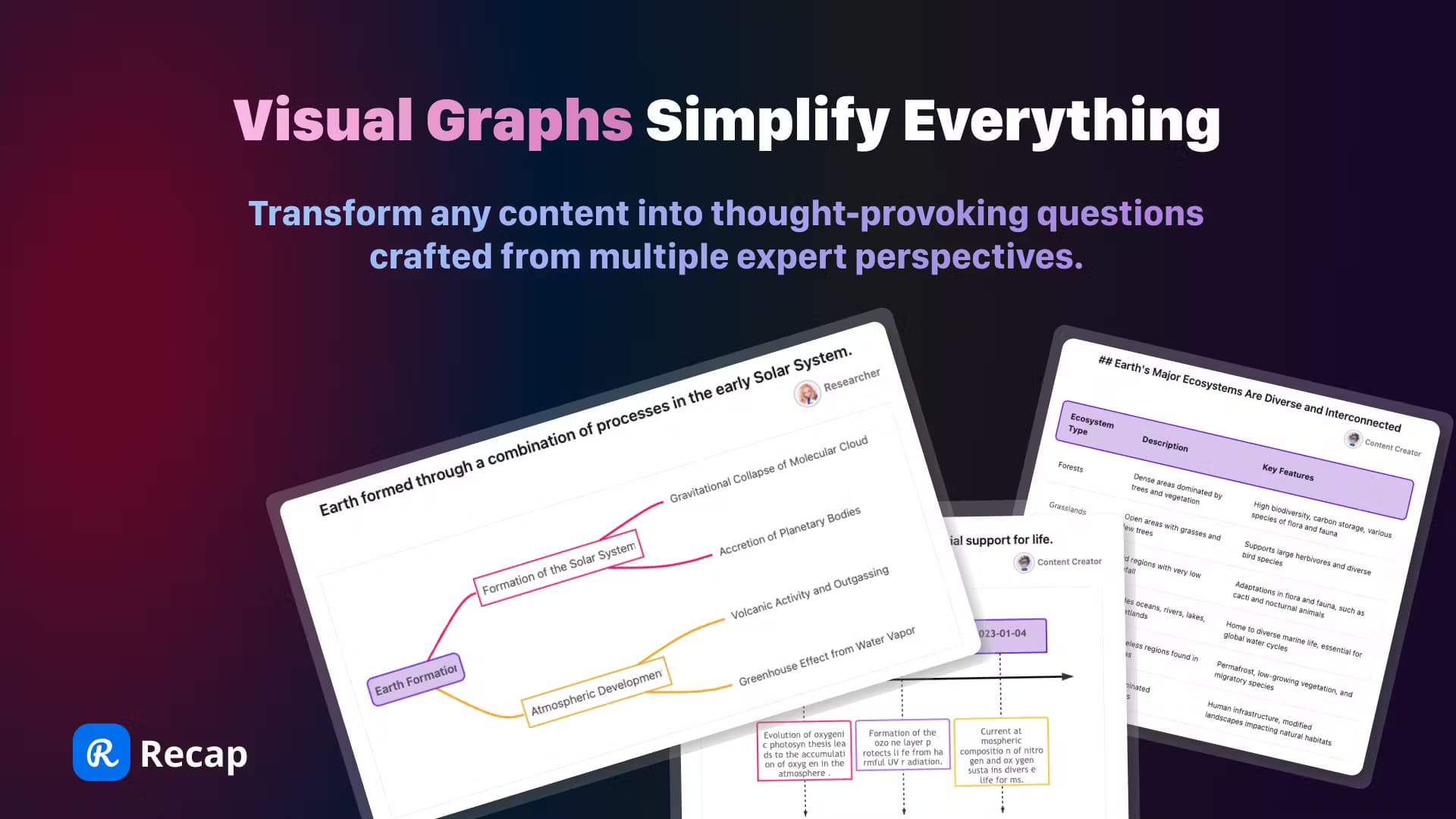
The Learning mode works through perspectives, questions and visual answers instead of handing you a flat recap. Different expert agents examine one source from a fact, business, legal, design or research angle, then PBL questions and answer maps make the reasoning easier to follow and revisit. You finish with a 360-degree view of the source rather than a lazy summary.
Expert perspectives and answer maps
Multiple expert agents pull the same source in different directions, and the visual answers connect each claim back to its source and web evidence. That trail is what separates a map you can trust from a pretty picture, since you can see why an idea is there. It suits learners who want to remember and defend what they think, not just skim it.
Source types and uploads
Recap accepts messages, screenshots, links, PDFs, documents, videos and saved posts, which matches how information actually arrives. Free accounts upload up to 10 MB, and Pro lifts the source limit to 500 new sources a month. Pro also unlocks Web Enrich for Learning answers and mind-map PNG downloads, so you can take the map out of Recap.
Pros and cons
Pros
- It works with the sources people already have. Messages, screenshots, PDFs and links all become one readable document, so nothing useful stalls in a chat thread.
- The result stays checkable. Recap keeps the source next to each point, which cuts the risk of acting on a wrong detail.
- Calendar, Workspace and Learning sit together, so you decide the next step after reading instead of committing to one path upfront.
- The Learning mode goes past summarizing. Expert perspectives, PBL questions and answer maps push you to reason about a source, not just skim it.
Cons
- No public API or developer access is listed, so teams that want to wire Recap into their own workflow cannot build on it yet.
- It prepares information rather than replacing your tools. You still need a workspace, a calendar and a study habit for the next step to pay off.
- The source limit is tight on free, at 3 new sources a day, so heavy users will hit the Pro upgrade fast at $9.90 a month.
- Some features lean Apple. The Calendar Sheet and Apple Notes export assume an iPhone or Apple setup, which narrows the fit on other platforms.
Frequently asked questions
Recap turns any source you bring in, such as a message, screenshot, link, PDF or video, into a structured, readable document. From there it keeps three next steps open: add a date to Calendar, export the document to a workspace, or start a question-driven Learning session.
Related content
Explore related tools, skills, and articles for Recap.
Recap Alternatives

Udon
Udon · Coding · ProductivityUdon turns an Apple Silicon Mac into a home server you run from a browser, with container controls, file shares, and an optional AI sysadmin.

offstage
offstage cloud · Coding · Productivityoffstage gives AI coding agents and CI jobs a real Mac: a fresh macOS account on Apple silicon, driven over an API and billed by the second.

BotBus
Chengdu Tuyang Tusen Technology Co., Ltd. · Coding · ProductivityBotBus lets you control AI coding agents from your phone and watch: approve commands, start tasks and read results while the code stays on your desktop.