

Screenhelp
Screenhelp · Productivity · AI Assistant
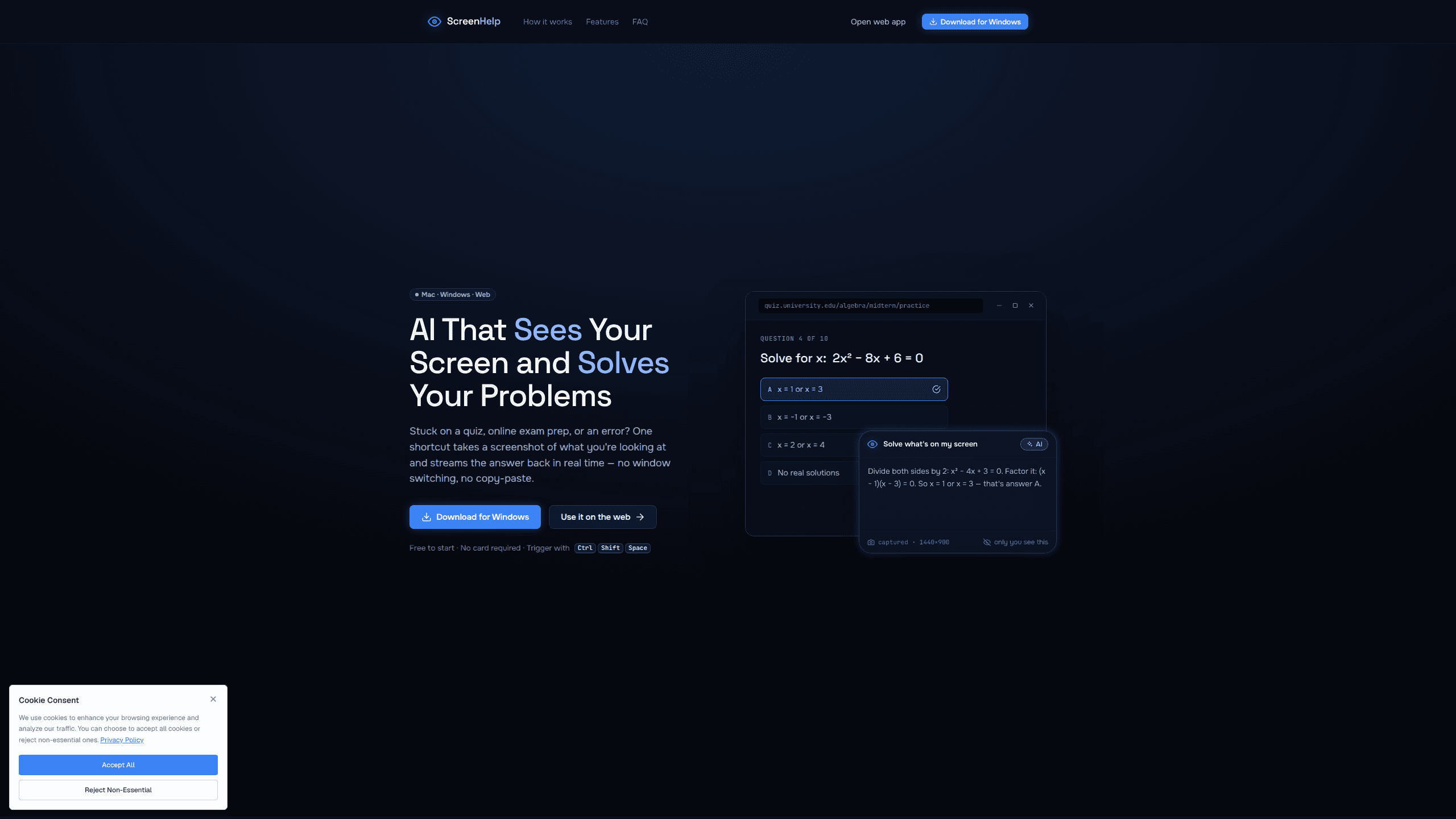
Screenhelp is an AI screen assistant that turns a single keyboard shortcut into real-time help. You press Ctrl+Shift+Space, it captures what's on your screen, and it streams an answer into a private panel in about two seconds. Think of it as an AI screenshot helper you trigger on demand. It runs on Mac, Windows, and the web, starts free with 30 answers a month, and stays invisible during screen sharing on Zoom, Teams, and Google Meet.
About Screenhelp
What Is Screenhelp
Screenhelp is a desktop overlay that watches nothing until you ask it for help. When you hit the shortcut, it grabs a screenshot of the current screen, sends it to an AI vision model, and returns the answer in a panel that only you can see. That matters most during quizzes, online exam prep, coding errors, spreadsheets, and forms where switching windows or copying text breaks your focus. Sound familiar? Most people lose the thread the moment they leave the window.
The product is built for people who get stuck mid-task and want the fix without leaving what they're doing. Instead of pasting a question into a chatbot, you point at the actual problem on screen and let the AI read it. Screenhelp says it's used by thousands of people worldwide. The free tier keeps every core feature rather than locking them behind a paywall.
There are two real limits to know up front. First, the free plan caps you at 30 answers a month, so heavy users need the paid upgrade sold inside the app. Second, the browser version leaves out the native shortcuts, chat memory, and invisibility that the desktop app adds, which makes the web build a lighter fallback rather than a full replacement. Know the trade-off before you commit.
Getting Started
- Go to screenhelp.ai and install the desktop app for Mac or Windows, or open the browser version. No card is required to start.
- Launch Screenhelp. It runs as an invisible overlay and captures nothing until you trigger it.
- Press Ctrl+Shift+Space whenever you're stuck. The app screenshots your screen and runs the prompt you set up.
- Read the answer as it streams into the panel, then ask follow-ups in the chat overlay if you need more context.
- Set custom prompts and key combinations to match your own workflow, and upgrade inside the app when you pass 30 answers a month.
Product Information
A quick look at Screenhelp's pricing, supported platforms, and performance.
Best for
The users, tasks, and scenarios where this tool fits best.
Users
- Students working through quizzes and online exam prep
- Developers debugging code
- Remote workers on calls
Tasks
- Solving math and quiz questions
- Reading and explaining errors
- Understanding unfamiliar documents and forms
Scenarios
- Mid-study sessions where switching to a chatbot would break concentration
- Live presentations or screen-shared meetings where you can't be seen looking things up
- Long spreadsheet or form-filling sessions
Key features
One-Shortcut Screen Capture
Screenhelp's core move is mapping everything to a keyboard shortcut. Press Ctrl+Shift+Space and the app takes a screenshot of whatever is on screen, then fires the prompt you've assigned to that combination. You don't drag a selection box or paste anything. Nothing to click. Define several key combinations for different jobs and the right prompt runs the moment you need it.
AI Vision That Reads Your Screen
The app doesn't just OCR text. As a screen analysis tool, it reads layout, formulas, code, and interface elements so it can help with a quiz question, a coding challenge, or a confusing settings screen. Screenhelp says answers usually land in under two seconds. That's fast. It's fast enough to feel like part of your workflow rather than a separate app you switch to.
Invisible During Screen Sharing
This is the feature that separates Screenhelp from a plain chatbot. As a screen overlay assistant, the desktop app never shows up in screens shared over Zoom, Microsoft Teams, or Google Meet, and it stays out of recordings and screenshots taken by other apps. Only you see the panel. For anyone who needs help while presenting or on a call, that invisibility is the whole point. It's the difference between a tool you can use live and one you can't.
Chat Overlay With Context Memory
Answers stream into a chat-style panel, and you can ask follow-up questions without recapturing the screen. The overlay remembers the context of your past captures, so a thread of questions about the same error or document stays coherent. It turns a one-shot answer into a short working session. Think of it as an AI vision assistant that keeps the thread alive.
Custom Prompts
You can save standing instructions that ride along with every capture. Set a prompt that always asks for a step-by-step explanation, or one that always returns code fixes in a specific style, and Screenhelp applies it automatically. No retyping. This is what makes repeat use faster than typing a fresh question each time.
Cross-Platform Coverage
The desktop app runs on Mac and Windows, and the browser version works in any modern browser with answers that can stream to your phone. The web build is the light option for a quick look, while the desktop app adds the native shortcuts, chat memory, and invisibility that make daily use practical. Pick the one that fits your setup.
Pros and cons
Pros
- The keyboard-shortcut workflow removes the copy-paste step that slows down most AI help.
- Real invisibility during Zoom, Teams, and Google Meet sharing, not just a small window.
- The free plan keeps every core feature and only limits volume, not capability.
- Chat memory keeps follow-up questions grounded in what was captured before.
Cons
- The 30-answers-a-month free cap runs out fast for daily users, and pricing for the paid tier isn't published on the site.
- The browser version drops native shortcuts, chat memory, and invisibility, so it can't replace the desktop app.
- Mac and Windows only for the full experience, so Linux users get just the web fallback.
- It leans on screen capture, which raises privacy questions for anyone handling sensitive material.
Frequently asked questions
It reads your screen and answers questions about it. You press a shortcut, it screenshots the current view, and an AI vision model streams back help on a quiz, an error, a spreadsheet, or a document. That's the whole loop. Answers usually arrive within two seconds.
Related content
Explore related tools, skills, and articles for Screenhelp.
Screenhelp Alternatives

Udon
Udon · Coding · ProductivityUdon turns an Apple Silicon Mac into a home server you run from a browser, with container controls, file shares, and an optional AI sysadmin.

offstage
offstage cloud · Coding · Productivityoffstage gives AI coding agents and CI jobs a real Mac: a fresh macOS account on Apple silicon, driven over an API and billed by the second.
BotBus
Chengdu Tuyang Tusen Technology Co., Ltd. · Coding · ProductivityBotBus lets you control AI coding agents from your phone and watch: approve commands, start tasks and read results while the code stays on your desktop.