

Slashspace AI
Slashspace · Productivity
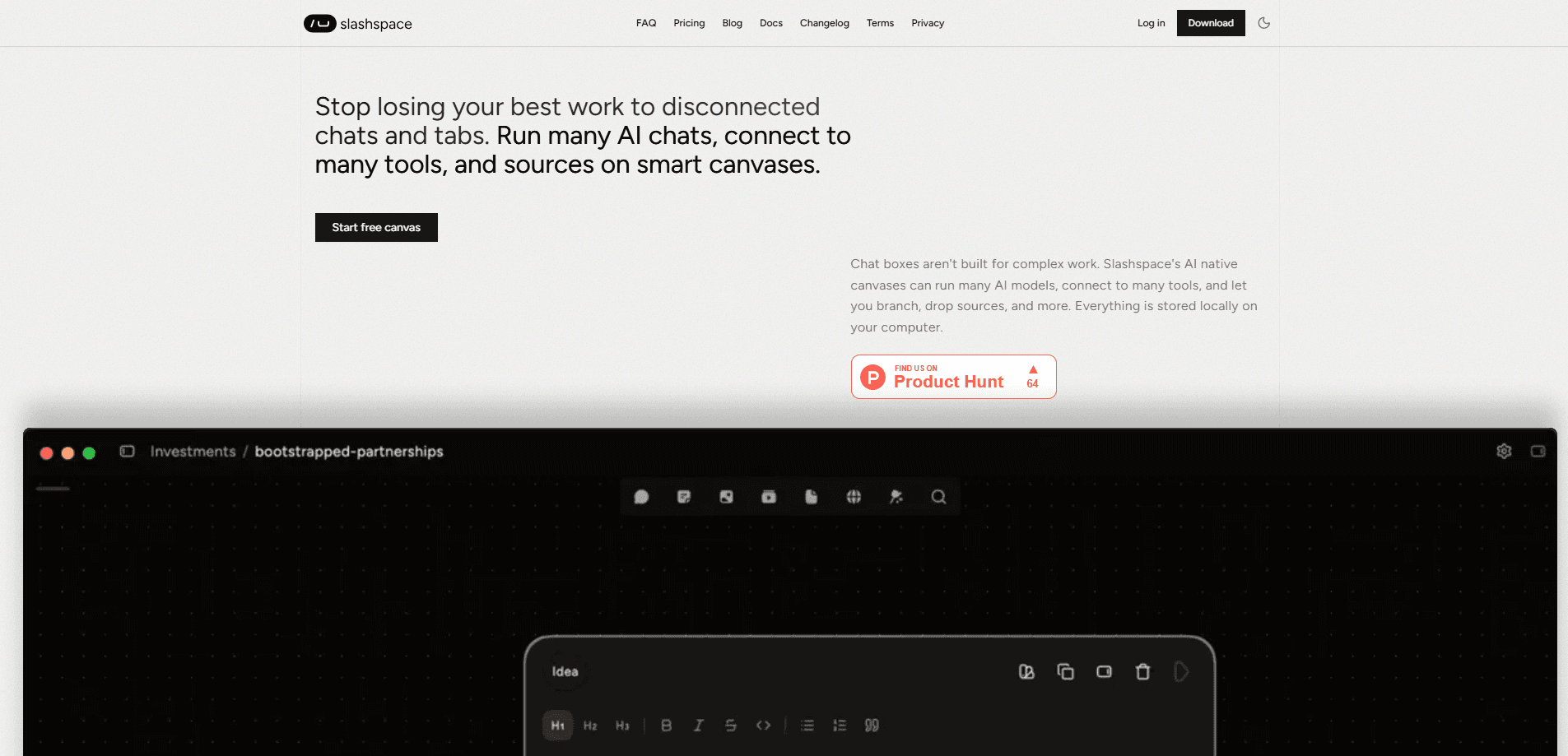
Slashspace AI is a local-first AI workspace built around an infinite canvas. Instead of stacking browser tabs, you spread multiple model conversations across one board, connect them so context flows between chats, and keep your prompts on your own device. It supports your own API keys, local models through Ollama, and a built-in hosted option, so researchers, developers, and founders can run several AI threads without copy-pasting between tools.
About Slashspace AI
What Is Slashspace AI
Slashspace AI (previously Rabbitholes AI) is a desktop app for thinking with AI on a spatial canvas. Every piece of content is a node: a chat, a document, a web page, an image, or a post. When you connect one node to another, the second can pull context from the first, which turns a pile of separate conversations into a working map you can read at a glance. The whole thing runs on your machine, and it keeps working when you go offline.
The problem it targets is tab sprawl. Most people bounce between ChatGPT, a PDF reader, and Slack, copying text back and forth and losing track of which answer came from where. Slashspace replaces that loop with one board where branches sit next to each other and context moves left to right along the wires you draw. It also lets you bring your own API keys, so your prompts don't have to pass through a vendor you don't control.
The main limits are worth knowing up front. It's a desktop-only app, not a web tool, so there's no browser version and no mobile client. The built-in models use a credit wallet, and some hosted features like scraping, parsing, and hosted image generation draw on that balance. If you want everything free of that wallet, you'll be leaning on your own keys or local models most of the time.
Getting Started
- Download the installer for your OS from slashspace.ai and run it, then launch the app.
- Click Sign in and authenticate in the browser window that opens. If the redirect fails, use Paste login token instead.
- Open the Untitled Canvas or create a new one. A chat node is already there, set to Agent mode on the Auto model.
- Type a prompt and press Enter. To add context, drag a connection from another node's right handle into the chat.
- Optionally open Settings → AI Settings to add your own provider key or a local Ollama model.
Product Information
A quick look at Slashspace AI's pricing, supported platforms, and performance.
Best for
The users, tasks, and scenarios where this tool fits best.
Users
- Researchers
- Developers
- Founders and writers
Tasks
- Comparing answers from several models
- Working through a long PDF or report
- Turning a YouTube or social post into notes
- Building a research map that grows over weeks
Scenarios
- Drafting a strategy doc where each section gets its own model thread but shares one source of truth.
- Studying a topic offline on a laptop, then syncing nothing because it never left the device.
- Wiring up tools and MCP servers in Agent mode for a small workflow you run often.
Key features
Infinite Canvas With Connected Nodes
The canvas is the core idea, and it changes how you use AI. Each conversation, file, page, or image is its own node, and you draw connections to decide what context the model sees. Context flows left to right, so a source node on the left feeds every chat wired to it on the right. That makes branching natural. You keep the original answer and spin off variants without overwriting anything.
Local-First Privacy and Offline Use
Slashspace runs on your device. Cloud features are off by default. The two opt-ins, Cloud vector DB and Analytics, only turn on when you enable them, and disabling the vector DB means your node content simply isn't indexed in the cloud. Your prompts stay on your machine, and the app keeps working without a connection. For anyone handling sensitive material, that matters most.
Bring Your Own Key and Local Models
You're not locked to one provider. Settings → AI Settings lets you add keys for OpenAI, Anthropic, Google, and others, connect a local model through Ollama, point at any OpenAI-compatible endpoint, or hook in agent providers like Cursor and Claude Code. BYOK models don't touch your credits. You pay the provider directly. That mix of cloud and local keeps it flexible.
Chat Nodes With Three Modes
A chat node runs in Agent, Chat, or Image mode. Agent mode gives the model tools, MCP support, and sub-agents, which is where multi-step workflows happen. Chat mode strips tools away for focused back-and-forth. Image mode is a generation studio that also handles image-to-image work when you wire image nodes together. Slash commands, @ mentions, personas, RAG mode, and voice input work across them.
Context You Actually Control
What does the AI read? You decide. Connections, context modes, and RAG let you pick exactly what goes in, rather than dumping every past message into each prompt. A Text node holding instructions can be plugged into several chats as reusable context, and selecting text inside one lets you ask about just that snippet. It's a real difference. A tidy workspace beats a scroll of forgotten messages.
Rich Node Types for Real Sources
Beyond chat, there are Text, Image, Post, Web, Document, and Group nodes. A Web node parses any public URL into a screenshot plus extracted text. A Post node pulls transcripts from YouTube, TikTok, Instagram, Facebook, X, or LinkedIn. A Document node handles PDFs, Word, PowerPoint, Excel, CSV, and Markdown, and indexes them for RAG, so you can chat before indexing finishes. Group nodes bundle related work into one movable container.
Sign-In, Devices, and a Simple License
There's no license key anymore; sign-in is email-based. Settings → Account shows your license status, your optional hosted wallet, and a Devices card that lists every registered device against your seat count. Removing a device happens on the web, not in the app. That keeps the in-app view clean. Invoices download from the same place.
Pros and cons
Pros
- Context flows between nodes, so you stop re-pasting the same background into every new chat.
- Local-first design with cloud features off by default keeps prompts on your device.
- BYOK, Ollama, and custom OpenAI-compatible endpoints mean you can avoid credit costs entirely.
- Rich node types turn documents, web pages, and social posts into chattable sources.
- Document processing lets you start asking questions before indexing finishes.
Cons
- Desktop only, so there's no web or mobile version if you work across devices.
- The built-in models run on a credit wallet, and hosted tools like scraping and hosted image generation draw on that balance, so costs add up if you lean on them.
- The canvas model has a learning curve; if you just want a single chat window, it's more structure than you need.
- Cloud vector DB must be enabled for RAG mode and AI Search, which some privacy-focused users won't want to switch on.
Frequently asked questions
It's a workspace for running and organizing AI conversations on one canvas. You use it to compare models, chat against documents and web pages, and keep a visual map of how your thinking developed, instead of juggling separate tabs.
Related content
Explore related tools, skills, and articles for Slashspace AI.
Slashspace AI Alternatives

Base Code
Base44 (Wix) · Coding · ProductivityBase Code is a shared cloud development environment from Base44. Teammates describe changes to an existing GitHub codebase in chat, preview them live and send them back as pull requests.
Knocket
Knocket (Tencent RTC team) · Productivity · Business · ChatbotKnocket is a free live chat and contact page tool that lets visitors message you from your website, app, or a shareable link, with every reply handled from Telegram or one inbox.

FloorGen
Vinit Kumar (FloorGen) · Productivity · China AIFloorGen is a browser-based floor plan maker that turns a sentence or a sketch into an editable 2D plan and a 3D walkthrough. Export to PDF, DXF or video, and draw without an account.