

SlimSnap
SlimSnap · Image · Coding
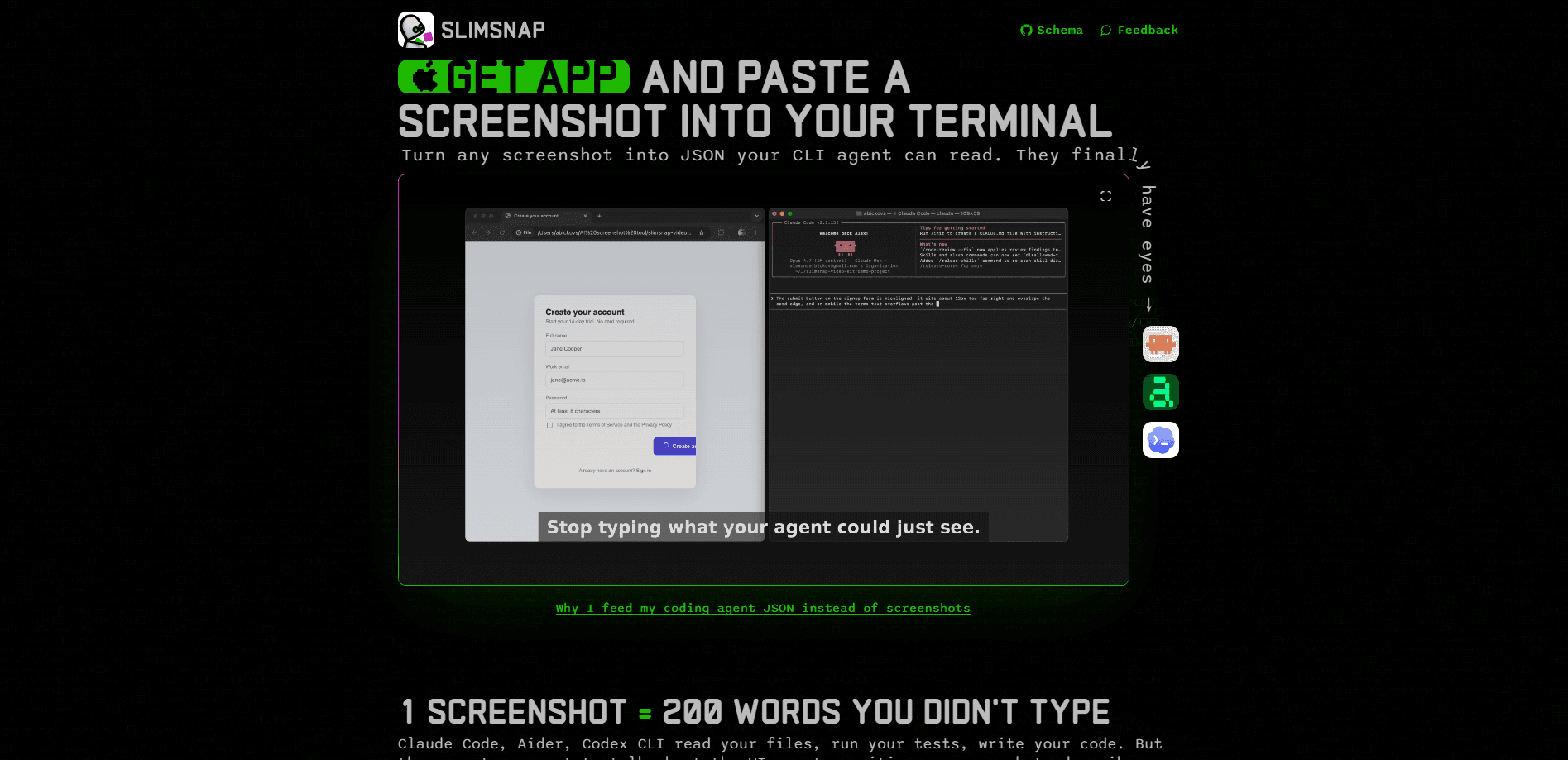
SlimSnap is a free screenshot to JSON tool built for AI coding. You capture a screen region, annotate it with arrows or callouts, and copy structured text instead of a picture. OCR and deterministic bounding boxes come built in, so an agent sees the exact text and position of every element on screen. It runs locally, costs nothing, and works anywhere text can go. So why reach for it instead of a normal screenshot? Because a normal screenshot is a dead end in a terminal.
About SlimSnap
What Is SlimSnap
SlimSnap is a desktop utility that closes a gap in AI coding workflows. Tools like Claude Code, Aider, and Codex CLI can read your files and run your tests, but they can't look at your screen. The moment you want to talk about a UI bug, you end up typing a paragraph to describe what a screenshot would show in a glance. Terminals don't accept images, so SlimSnap turns the screen into something they do accept: text. It's a structured screenshot for agents, not another image file.
The core idea is simple. A screenshot is pixels, and pixels lose information before a model ever reads them. SlimSnap instead exports a structured document. Every label, button, and error message shows up with its text, its position in normalized coordinates, and any annotation you drew. Because the data is deterministic, the agent stops guessing where things are and starts fixing the thing you marked.
The main limitation is scope. SlimSnap covers macOS and Windows only, and it's a companion for coding agents rather than a general image editor. Linux users have to email the team and wait. It also doesn't edit or replace your existing screenshots, so if you need a polished image for a bug report, you'll still reach for another tool. Fair enough.
Getting Started
- Download the free app from the official site for macOS (Apple Silicon) or Windows 10/11.
- Press ⌘⇧S on Mac or Ctrl+Shift+S on Windows and drag to select any screen area, or ⌘⇧L / Ctrl+Shift+L for a whole scrolling page. That's the whole capture step.
- Add arrows, callouts, or highlights to point at the element you mean.
- Copy the capture as JSON, then paste it into Claude Code, Aider, or any agent that takes text.
- Optional: install the connector so Claude reads captures straight from your machine without pasting anything.
Product Information
A quick look at SlimSnap's pricing, supported platforms, and performance.
Best for
The users, tasks, and scenarios where this tool fits best.
Users
- Developers using AI coding agents
- QA and test engineers
- Accessibility-minded teams
Tasks
- Reporting UI bugs to a coding agent
- Describing a screen state inside a terminal or SSH session
- Capturing long scrolling pages
Scenarios
- You're debugging a layout issue and typing "the button under the header on the left" gets you nowhere.
- You're working over SSH on a remote box and want to show an agent what a local window looks like.
- You're pasting into a git commit message or a CI log and need the screen as text, not an attachment.
Key features
Screenshot to structured JSON
The whole point of SlimSnap is its output format. Instead of a flat image, you get a document where every element carries an id, a type, its text value, and a bounding box. That structure is what lets a coding agent reason about the screen the way it reasons about code. It's the one step that turns a capture screen region for coding agents into something they can act on.
Annotations that carry intent
An arrow or callout is intent, not decoration. When you point at a button, SlimSnap records which element the mark targets by id, so the exported intent says "fix e4" rather than leaving the agent to guess what you meant. Marking becomes a precise instruction. One arrow. One target. No ambiguity left.
Built-in OCR and deterministic layout
OCR is baked in, so every label, button, and error message in the shot arrives as real text. This is what a plain OCR screenshot can't give you. Bounding boxes live in normalized 0 to 1 coordinates, which means positions stay stable across resolutions. The agent sees the words you see, at the spot you see them.
Scrolling whole-page capture
Press ⌘⇧L or Ctrl+Shift+L for a full-page grab. Scroll yourself or let Autoscroll drive, and long pages split into readable frames wrapped in a single JSON. Tall pages are the whole problem. This matters because an AI tool can't read one very tall image, and a resized tall page often loses its body text entirely.
Local-only by design
Capture and OCR run on your machine. There's no upload, no account, and no server in the loop, so your screens never leave the device. That's rare. For people handling sensitive interfaces, that's the difference between a tool they can use and one they can't.
Open MIT schema
The JSON schema is published on GitHub under MIT. You can read it, validate against it, or write your own exporter without asking anyone. No lock-in. An open format also means you're not stuck if you later want to wire captures into a custom pipeline.
Agent connector, no pasting
Install the connector and Claude reads your captures straight off the machine, so you can capture, mark, and just ask. No pasting at all. It ships as a Claude Desktop bundle, a one-line Claude Code command, or a Cursor deep link.
Pros and cons
Pros
- Free with no registration, and it takes seconds to install.
- Structured output preserves text and positions that image resizing would destroy. Nothing gets lost.
- Annotations map to specific elements by id, so intent survives the trip to the agent.
- Local processing keeps screens on the machine with no account required.
- Open MIT schema lets you validate, extend, or build your own exporter.
Cons
- macOS and Windows only; Linux support is unbuilt and driven by email requests.
- It's a companion for coding agents, not a general screenshot editor, so it won't replace a tool for polished bug-report images.
- The connector route centers on Claude and Cursor, so other agents lean on copy-paste.
- No API, which limits automation for teams that want to script captures server-side.
Frequently asked questions
It turns a screen region into structured JSON that AI coding agents can read. You capture, annotate, and copy the JSON instead of an image, so the agent gets exact text and positions rather than a picture it has to interpret. It's the cleanest way to make a screenshot for Claude Code or any terminal-based tool.
Related content
Explore related tools, skills, and articles for SlimSnap.
SlimSnap Alternatives

X Ray Interpreter
X-ray Interpreter · ImageX Ray Interpreter is a web-based AI radiology tool that turns X-rays, CT scans, MRI, ultrasound, and PET images into plain-language reports. You upload a scan, get a preliminary X-ray interpretation in moments, then ask follow-up questions if something needs explaining. It works as a second opinion and a learning aid, not as a medical diagnosis.

Aieasypic
AIEasyPic · ImageAIEasyPic is an AI image generator that turns plain text prompts into finished artwork in seconds. You can also train custom models on your own photos, swap faces in existing images, and create short video clips from text, all from a browser. It suits casual creators who want quick visuals and hobbyists who want to build a personal model without touching any code.

Chargen
Chargen · ImageChargen is an AI character generator and worldbuilding toolkit built for Dungeons & Dragons and other tabletop RPGs. It turns a one-line idea into a painted character portrait, spins up NPCs, monsters, maps and encounters from the same session, and keeps every creature's details close at hand. The tabletop RPG art side runs on a credit system called Gold, while the text generators stay free for everyone.