

Squint
HEYSQUINT LLC · Productivity · Chatbot
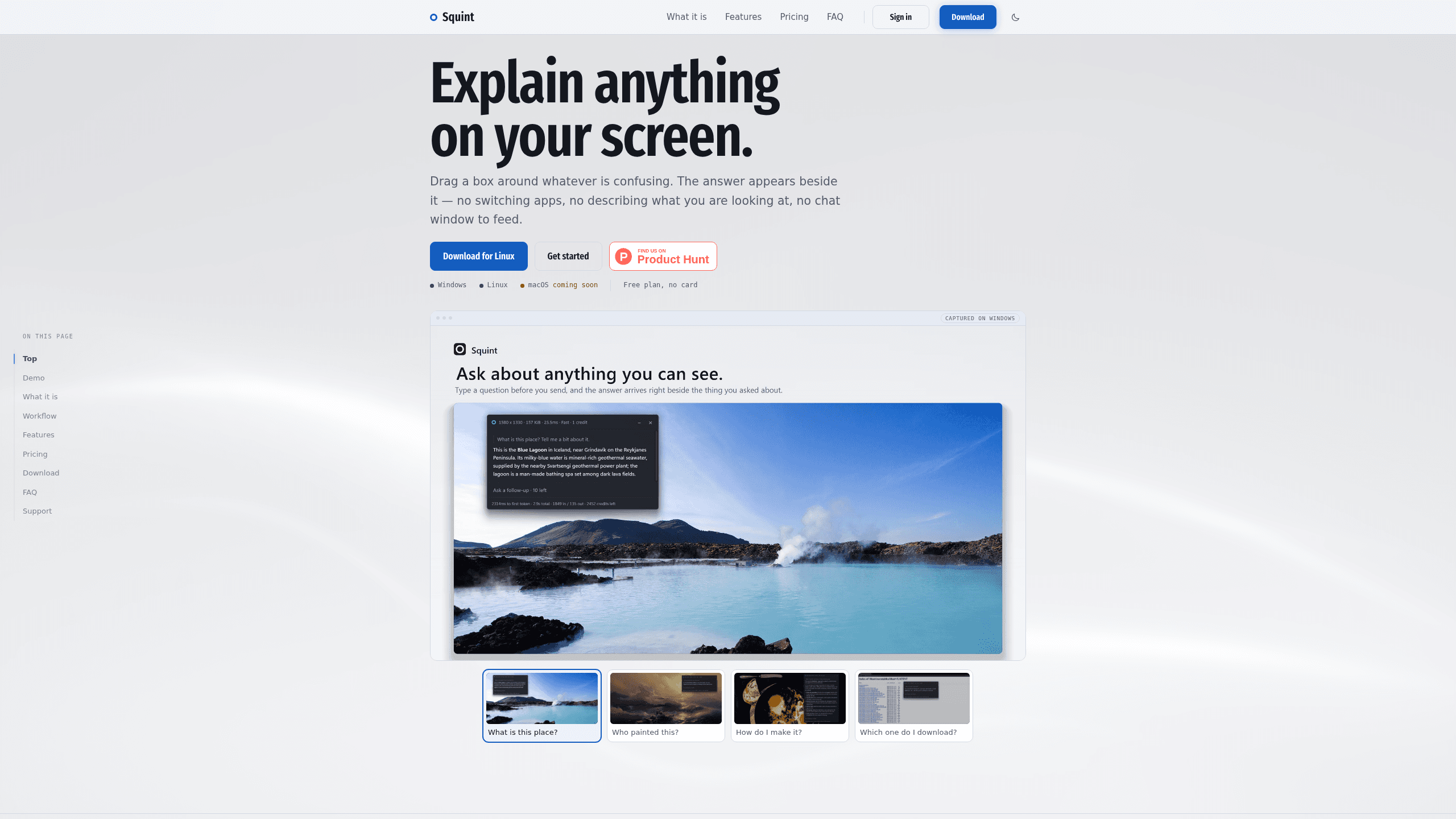
Squint is a desktop AI screen explainer for Windows, macOS and Linux. Press a hotkey, drag a box around anything on your screen, and the answer streams in beside it.
About Squint
What Is Squint
Squint is a desktop AI assistant that answers questions about whatever is on your screen. The app idles in the system tray, or the menu bar on a Mac, and does nothing until you press its hotkey. Then the display freezes, you drag a box around a chart, an error message, a paragraph in another language or a line of code, and an answer starts writing itself in a panel next to the selection.
The capture is the prompt. Squint is an AI screen explainer in the literal sense: the box you draw carries the context, so you skip the screenshot, the tab switch and the sentence describing what you were looking at. Most screenshot AI tools open with an upload dialog. This one opens with a selection, which is the entire point of the app and the reason it isn't built to become a general chat window.
Under the hood, each AI screen capture sends only the cropped region to a model served through OpenAI's API. Nothing else on your display leaves the machine, and answers come back in your computer's language, with Spanish, French, German, Portuguese, Japanese, Chinese and Arabic among the supported ones. One limit follows from that design: the model does the reading over the network, so nothing here works offline.
Getting Started
- Download the installer from heysquint.com. Builds exist for Windows, macOS and Linux, and a free account needs an email address, no password and no card.
- Press Win+Shift+Q, or Cmd+Shift+2 on a Mac. The display under your cursor freezes and the selection overlay appears.
- Drag a box around the part you care about. Hold Shift to add another region, up to four in one capture.
- Type a prompt if the visual alone isn't clear, then read the answer as it arrives. The model choice, Fast or Best, sits in the prompt box.
- Ask follow-ups in the same panel while the context is fresh. Closed chats stay in local history, where you can search them and pick one up again.
Product Information
A quick look at Squint's pricing, supported platforms, and performance.
Best for
The users, tasks, and scenarios where this tool fits best.
Users
- Students working through a dense PDF
- Developers debugging unfamiliar code
- Designers and marketers reviewing a competitor's page
- Multilingual readers
Tasks
- Reading an error dialog
- Checking a chart or dashboard
- Understanding a formula in a paper
- Lifting text out of a screenshot or a paused video
Scenarios
- A support agent walks a customer through a settings screen
- A lecture or tutorial runs on a second monitor
- A question lands mid-meeting
Key features
One Hotkey, Frozen Screen
Pressing Win+Shift+Q or Cmd+Shift+2 freezes the display so the frame can't change while you draw. The overlay runs at the resolution and scale of whichever monitor holds the cursor, and it turns a portrait display upright before the crop happens. Rebind the keys in settings if the defaults clash with another app.
Answers That Stream In
The first words appear while the selection border is still on screen. Squint sizes the panel to the length of the reply, so a two-line answer doesn't open a full window. If the pace feels rushed, a setting slows the reveal.
Fast and Best Models
Fast is the default and is tuned to start answering quickly. Best is there for dense screenshots such as contract terms, medical labels or a page of small print. You choose per capture from the pill in the prompt box, not from a settings menu you have to visit first.
Multiple Regions in One Capture
Hold Shift while dragging to add a second, third or fourth region, which helps when an answer depends on two parts of a page. The cap is four, and the model reads them together in one request.
Markdown, Math and Code
Answers arrive as formatted text: headings, lists, tables, LaTeX math and fenced code blocks, all inside the panel. For a student reading a paper or a developer checking a regular expression, that formatting separates a usable answer from a wall of plain text.
Local, Searchable History
Every closed conversation stays on your own machine and can be searched by what it contained. Reopen one and continue with the follow-ups it has left, or switch the archive off entirely. None of it syncs to your account.
Pros and cons
Pros
- The selection replaces the upload step, so a question costs one hotkey and one drag instead of a screenshot, a browser tab and a paste.
- Answers stream in about as fast as you can read, and code, tables and math keep their formatting.
- The free plan unlocks every feature, including multiple regions, the sixteen color themes and the local archive. Only the capture counts are limited.
- Follow-ups share the original image, so you can dig into a detail without capturing the screen again.
Cons
- Three captures a day and ten a week run out fast for all-day use, which pushes regular users toward the $5 Plus plan.
- The Best model is Plus only, and at 20 credits per capture a 2,000 credit month covers 100 of them.
- Nothing works offline, because the reading happens on OpenAI's servers.
- The cropped region leaves your machine and reaches OpenAI's API, which rules Squint out for confidential documents unless your policy allows it.
Frequently asked questions
Squint is a desktop app built to explain anything on your screen. You press a hotkey, drag a box around a region, and an AI model reads that image and streams an answer in a panel beside it.
Related content
Explore related tools, skills, and articles for Squint.
Squint Alternatives

Base Code
Base44 (Wix) · Coding · ProductivityBase Code is a shared cloud development environment from Base44. Teammates describe changes to an existing GitHub codebase in chat, preview them live and send them back as pull requests.

Knocket
Knocket (Tencent RTC team) · Productivity · Business · ChatbotKnocket is a free live chat and contact page tool that lets visitors message you from your website, app, or a shareable link, with every reply handled from Telegram or one inbox.

FloorGen
Vinit Kumar (FloorGen) · Productivity · China AIFloorGen is a browser-based floor plan maker that turns a sentence or a sketch into an editable 2D plan and a 3D walkthrough. Export to PDF, DXF or video, and draw without an account.