
Tab Dock
JC Vasselon · Productivity
Tab Dock is a free, open-source browser extension that groups your open tabs by website into a dock, so you can find and switch between them fast.
About Tab Dock
What Is Tab Dock
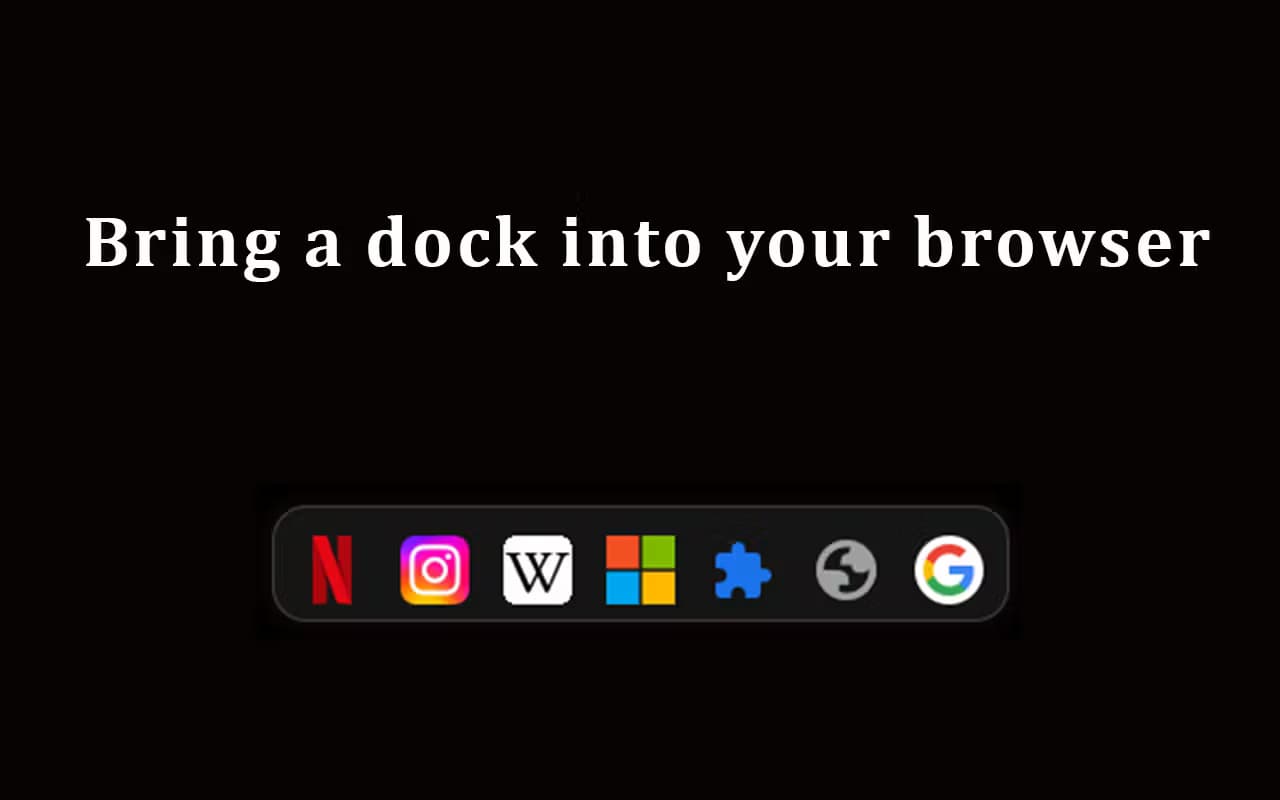
Tab Dock is a tab manager that lives in your browser. It turns the mess of open tabs into a dock at the bottom of your window. Every site you have open shows up as one icon, and all the tabs from that site sit behind it. Hover the icon to see what's open, click to jump straight to the tab you want.
You might call it a tab organizer. That's fair. It doesn't sort anything for you in a clever way; it just puts every site in one place so you can see it.
The problem it fixes is familiar. You keep a Google Meet tab open for a meeting, park an article to read later, and within an hour both are lost somewhere in a strip of 40 tabs. A desktop dock keeps your apps in one place. This Chrome tab manager does the same thing for your browser.
It stays out of your way, which matters more than it sounds. Everything runs locally and nothing leaves your browser, so there's no account to create and no data sent anywhere. It's also open source, so you can read the code yourself if you care about that.
What it doesn't do: it won't close tabs for you, and it won't save them into a session you can restore later. It shows you what's open and lets you tidy up by hand. For some people that's a dealbreaker.
Getting Started
- Install Tab Dock from your browser's extension store, or grab the build from its GitHub releases page.
- Pin the extension and reload the browser so the dock can load on your pages.
- Move your cursor to the bottom edge of the window to reveal the dock.
- Hover a site icon to preview its open tabs, then click one to switch to it.
- Close tabs you don't need straight from the dock to keep the list short.
Product Information
A quick look at Tab Dock's pricing, supported platforms, and performance.
Best for
The users, tasks, and scenarios where this tool fits best.
Users
- People who work with dozens of tabs open
- Remote and hybrid workers juggling meetings, docs, and email
- Privacy-conscious users
Tasks
- Switching between open tabs of the same site
- Spotting tab clutter
- Keeping a reference tab alive while you work
Scenarios
- A long research session with many articles open at once
- Running a video call while browsing
- Working across several web apps at the same time
Key features
A Dock That Shows Up on Every Page
The dock sits at the bottom of your window and shows one icon per website. Every tab from that site is grouped behind its icon, so a dozen open tabs collapse into a handful of recognizable logos. Move your mouse to the bottom edge and the dock expands.
Group by Domain
Tabs are organized by the site they belong to rather than the order you opened them. That means everything from one service stays together, which makes it obvious at a glance how much of your browsing belongs to each app. On a Firefox tab manager or a Chrome one, the effect is the same. It's simple tab grouping, done for you. No setup. No dragging tabs into groups by hand. It just works.
Quick Navigation
Click any tab in the dock to switch to it instantly. Hovering an icon previews its open tabs first, so you can scan a site's tabs and pick the right one without opening a tab switcher. Switching also becomes a way to review what's open. Is anything here still worth keeping? Now you can tell at a glance.
Smooth Animations
The dock's motion is deliberate. Opening, closing, and hovering all animate, which keeps the interface feeling responsive instead of jarring. It's a small thing, but a dock that snaps in and out gets annoying fast, and this one doesn't.
Runs Entirely on Your Machine
Tab Dock sends nothing to a server. The developer states plainly that everything stays on your computer and nothing leaves your browser, so there's no sign-in, no sync account, and no analytics on your browsing. For anyone who avoids extensions that phone home, that's the whole point, and it's the kind of guarantee that matters more than any feature list when you're deciding what to install.
Open Source and Free
The extension is open source, and the code lives on GitHub, so you can inspect it, report issues, or build it yourself. It's free to use, and the developer asks for a coffee tip if you find it useful, which is a refreshing change from the subscription models most browser extensions now push on you.
Pros and cons
Pros
- Groups tabs by site automatically, so you never have to set up groups yourself.
- Keeps tabs one hover away, which cuts down the time spent hunting through the tab strip.
- Runs locally with no account, no sync, and no tracking, so your browsing stays private.
- Free and open source, so you can audit the code and there's no subscription to cancel.
- Works across Chrome, Edge, Brave, and Firefox instead of locking you into one browser.
Cons
- It's read-and-organize only. It won't auto-close stale tabs or save a session to restore later, so keeping things tidy is still on you.
- The dock occupies the bottom of every page, which can cover content or clash with a site's own bottom bar. You can collapse it, but it's always injecting into pages.
- There's no cloud sync, so your dock is per-browser and won't follow you to another machine. That's the price of staying local.
Frequently asked questions
Yes. Tab Dock is free and open source. There's no paid tier and no subscription. The developer takes optional tips through PayPal if you want to support it.
Related content
Explore related tools, skills, and articles for Tab Dock.
Tab Dock Alternatives

Base Code
Base44 (Wix) · Coding · ProductivityBase Code is a shared cloud development environment from Base44. Teammates describe changes to an existing GitHub codebase in chat, preview them live and send them back as pull requests.

Knocket
Knocket (Tencent RTC team) · Productivity · Business · ChatbotKnocket is a free live chat and contact page tool that lets visitors message you from your website, app, or a shareable link, with every reply handled from Telegram or one inbox.

FloorGen
Vinit Kumar (FloorGen) · Productivity · China AIFloorGen is a browser-based floor plan maker that turns a sentence or a sketch into an editable 2D plan and a 3D walkthrough. Export to PDF, DXF or video, and draw without an account.