

Trace
trace.ai · Productivity
trace is a Mac productivity app that tracks your work automatically by watching your screen, then uses AI to sort your activities into tasks and projects so you can see where your time went.
About Trace
What Is trace
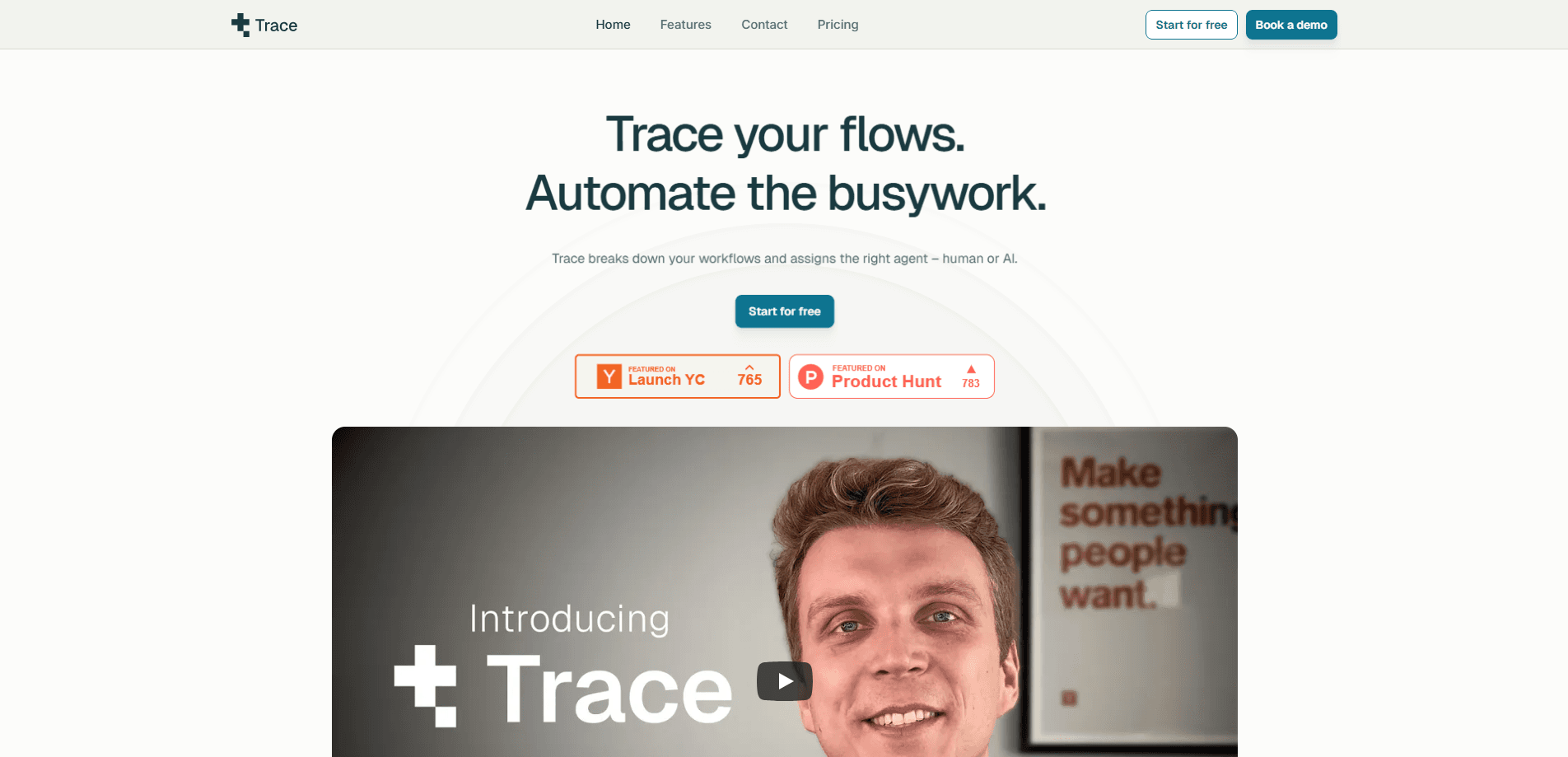
trace is an automatic time tracking app for Mac. It runs in the background, watches what's on your screen, and logs your activity without you starting or stopping a timer. An AI layer then reads those activities and assigns them to tasks, so a block of raw screen time turns into something you can actually read: when you edited a deck, answered email, or spent an hour in code.
The pitch is simple. Manual timers fail because people forget to click start and stop. trace removes that step. You install it, give it the permissions it needs, set up a project or two, and it fills in the picture for you. It then shows your day in calendar, list, or project views so you can check where the hours went and correct anything the AI got wrong.
Two limits matter before you commit. trace is a Mac-only app, so Windows, Linux, Android, and iOS users are out. And because it works by watching your screen, it needs broad system permissions, which is the main thing to weigh if you handle sensitive work.
Getting Started
- Download trace for Mac from the official site, choosing the Apple Silicon build or the Intel build.
- Install the app and grant the accessibility and screen permissions it asks for.
- Create your first project and, if you have one, import your to-do list.
- Let trace run in the background, then open the timeline to review the activities it detected.
- Fix any mislabeled activities and set how often it captures data so it matches your privacy comfort level.
Product Information
A quick look at Trace's pricing, supported platforms, and performance.
Best for
The users, tasks, and scenarios where this tool fits best.
Users
- Freelancers
- Remote knowledge workers
- Consultants and agencies
Tasks
- Checking where the hours went
- Building accurate timesheets
- Planning the week against your to-do list
Scenarios
- Ending a day unsure how it was spent
- Handling several clients at once
- Wrapping up a month for billing
Key features
Automatic Screen Tracking
trace watches what you're working on without a start or stop button. You launch it, it runs quietly, and it captures your activity as you go. That removes the single biggest reason manual timers fail, which is forgetting to run them.
AI Task Assignment
An AI layer looks at your captured activity and sorts it into tasks. It learns from your patterns over time, so the labels get closer to how you'd file the work yourself. You still review and correct anything it gets wrong.
Multiple View Modes
You can read your time as a calendar, a list, or by project. The calendar view suits a quick scan of the day, while the project view is where you go when you need to see time by client or workstream.
Project Management
You create, edit, and archive projects as your work changes, and track time across several at once. It's the feature that turns a pile of tracked activity into something you can hand to a client or a manager.
Bulk Task Import
You can paste in a whole to-do list, with the app handling bullet points, numbered lists, and checkboxes. Once your tasks are in, trace tries to match your real activity to the work you planned, so the gap between plan and reality shows up on its own.
Activity Timeline
The timeline presents your full work history in a calendar. Each activity is marked as manual, AI-detected, or imported, so you can tell what you logged by hand from what the app caught for you.
Fine-Grained Collection Settings
You control what trace tracks and how often, including screenshot intervals and how frequently it records activity data. That matters because a screen-watching tool lives or dies on how much you trust its data handling.
Reports and Export
The Pro plan adds detailed reports and analytics plus export options, so tracked time can move into invoices, spreadsheets, or a manager's dashboard instead of staying locked in the app.
Pros and cons
Pros
- No timers to remember, since the screen-based tracking runs on its own in the background
- AI task assignment cuts the manual sorting that makes most time trackers tedious
- Calendar, list, and project views cover both a quick daily scan and per-client billing
- Bulk task import lets you compare what you planned against what you actually did
- Free plan and a 14-day trial on paid plans mean you can test it before paying
Cons
- It's macOS only, so Windows, Linux, Android, and iOS users can't use it at all
- Automatic screen tracking needs broad system permissions, which is a real concern for anyone handling confidential work
- Team features, including shared projects and an admin dashboard, are still listed as coming soon
- The export and reporting tools sit behind the €6/month Pro plan, so light users hit the paywall for those
Frequently asked questions
trace is a Mac app that tracks your working time automatically by watching your screen, then uses AI to sort those activities into tasks and projects. It replaces manual start and stop timers with background tracking you review afterward.
Related content
Explore related tools, skills, and articles for Trace.
Trace Alternatives

Base Code
Base44 (Wix) · Coding · ProductivityBase Code is a shared cloud development environment from Base44. Teammates describe changes to an existing GitHub codebase in chat, preview them live and send them back as pull requests.

Knocket
Knocket (Tencent RTC team) · Productivity · Business · ChatbotKnocket is a free live chat and contact page tool that lets visitors message you from your website, app, or a shareable link, with every reply handled from Telegram or one inbox.

FloorGen
Vinit Kumar (FloorGen) · Productivity · China AIFloorGen is a browser-based floor plan maker that turns a sentence or a sketch into an editable 2D plan and a 3D walkthrough. Export to PDF, DXF or video, and draw without an account.