
Vance Video AI
VanceAI · Video
Vance Video AI is VanceAI's video enhancement suite. It upscales clips to 4K, removes noise, smooths motion, fixes shaky footage and converts video to HDR.
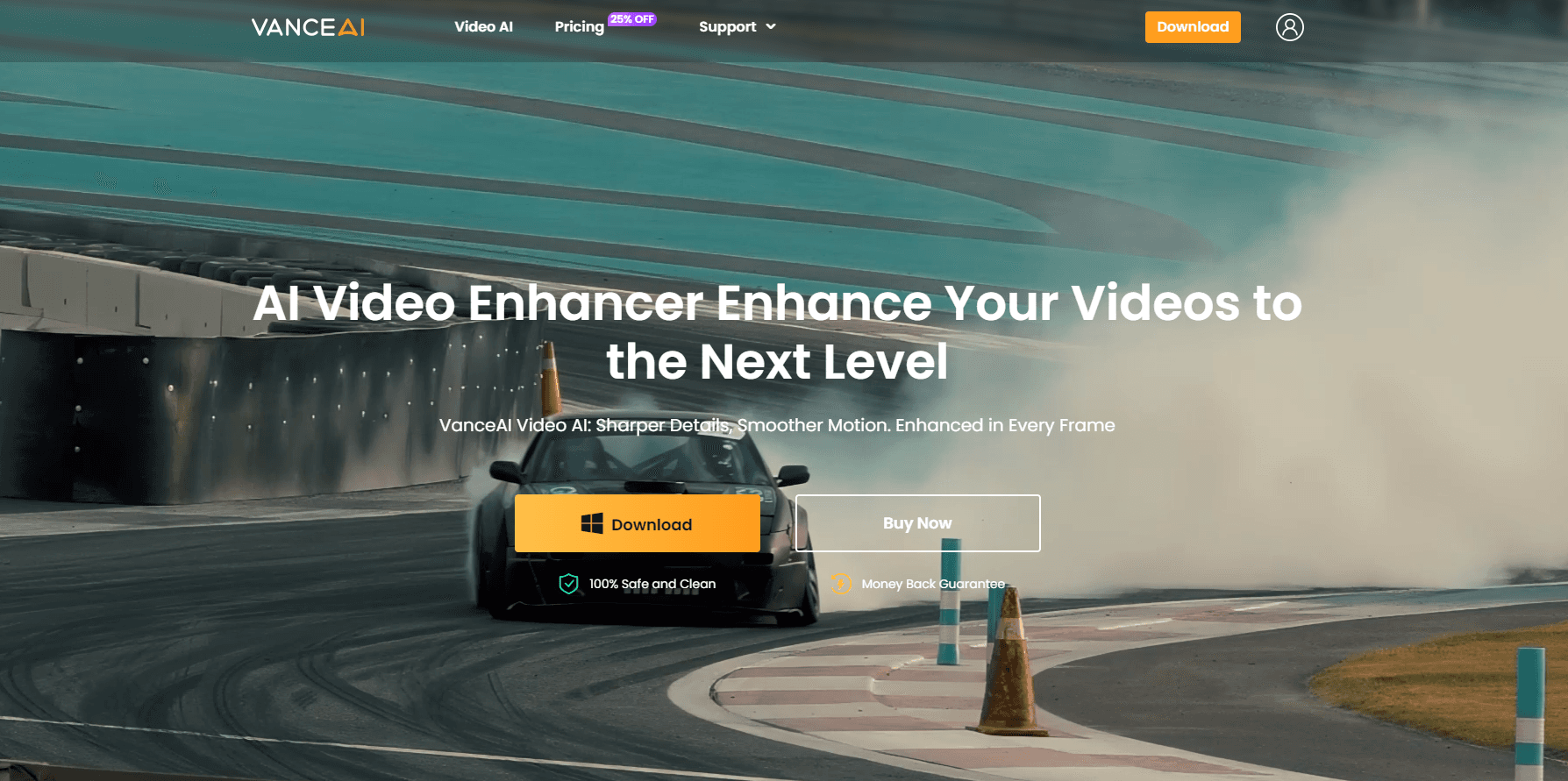
About Vance Video AI
What Is Vance Video AI
Vance Video AI is the video arm of VanceAI, a platform best known for photo tools. As an AI video enhancer, it bundles six tools into one workspace: an upscaler, a denoiser, a smoother, an HDR upconverter, a colorizer and a subtitle generator. You upload a clip, pick a tool, set the output, and the cloud does the rendering.
The pitch is simple. Most people have footage that looks worse than it should. A phone clip from years ago. A compressed download. A tape from a family event. Vance Video AI targets exactly those files, where resolution is low and detail has been crushed by compression. According to VanceAI, its models are trained on millions of frames, and the upscaler can push 480p footage toward 4K by inferring detail that was never recorded. Treat that as the vendor's claim, not a guarantee.
What separates it from a one trick upscaler is the range of fixes. Autopilot strings several tools together in a set order, so a single run can denoise, upscale, smooth and add HDR. That saves you from exporting and re-uploading between steps, which is where a lot of time usually goes.
Two limits matter up front. Processing runs in the cloud, so a long clip takes real time and eats credits, and uploads are capped at 10MB on the free tier. And no enhancer can invent detail the camera never captured. Clean footage sharpens well; out of focus or badly damaged material only improves so far.
Getting Started
- Create a VanceAI account and open the video workspace in a browser or in the desktop app for Windows
- Upload a clip, or pick one of the sample files to test a tool first
- Choose a single tool such as the upscaler, or let Autopilot run denoise, upscale, smoother and HDR in order
- Set the output scale, resolution and frame rate, then check the credit estimate shown before you start
- Run the job, preview the result, and download the clean file once the render finishes
Product Information
A quick look at Vance Video AI's pricing, supported platforms, and performance.
Best for
The users, tasks, and scenarios where this tool fits best.
Users
- Video editors
- Content creators
- Families and archivists
- Social media managers
- Ecommerce teams
Tasks
- Upscaling video to 4K
- Removing noise and grain
- Smoothing motion
- Converting to HDR
- Detecting and restoring faces
Scenarios
- Reviving a family tape
- Prepping a YouTube upload
- Fixing phone footage for a listing
- Stretching a short clip
- Batch processing an archive
Key features
AI Video Upscaler
The core tool. It takes low resolution footage and rebuilds detail instead of just stretching pixels, with scale options that reach toward 4K. According to VanceAI, its model is trained on millions of custom frames and infers missing detail rather than guessing broadly. In practice the source sets the ceiling, so clean 480p or 720p clips gain the most, and the tool is priced from 1 credit per minute based on resolution, frame rate and scale.
AI Video Autopilot
Autopilot chains several tools in a fixed order: denoiser, upscaler, smoother, then HDR. Each step is priced from the previous step's output, and the workspace shows an estimate before you commit. This is the feature to reach for when a clip needs more than one fix, because it removes the export and re-upload loop that slows a manual workflow.
Smoother and Slow Motion
The smoother raises frame rate and cleans up motion, which suits fast action, sport and animation. It also handles slow motion, so you can stretch a moment and keep the movement natural. Pricing runs on duration, resolution and the frame rate or slow motion factor you pick, with a one minute minimum, so short clips are cheap and long ones add up fast.
HDR Upconverter
This tool expands color and contrast on standard footage so it looks better on an HDR display. VanceAI prices it at 1 credit per minute up to 1080p, 2 credits at 2K and 4 credits at 4K at 24 fps. It is a good fit when you have SDR footage that looks flat next to modern content and you want a richer result without a full color grade.
Video Denoiser and Colorizer
The denoiser strips grain and compression artifacts, with a 2x option that costs no extra credits. The colorizer handles black and white or faded footage, adding color where the original had none. Both fill specific gaps: the denoiser for grainy phone and archive clips, the colorizer for old film that you want to bring forward into color.
Desktop App and Privacy
VanceAI runs in the browser and as a Windows app. On the desktop, processing happens locally, so files stay on your PC, jobs skip the queue and large files are fine. The web side encrypts uploads in transit and, according to VanceAI, deletes them within 24 hours. Desktop plans run $39.90 for a month, $99.90 for a year or $129.90 once for lifetime, each including a batch of web credits.
Pros and cons
Pros
- Six video tools under one roof, so upscaling, denoising, smoothing, HDR, colorizing and subtitles share a single workspace
- Autopilot chains the main fixes in one run, which cuts the export and re-upload loop
- Web credits and desktop licenses cover both cloud and local processing, and the Windows app keeps files private
- A free tier with 10 credits lets you test the tools before paying
- Face detection and restoration work on interviews, group shots and crowd footage, not just single portraits
Cons
- Cloud jobs cost credits fast on long clips, so a big archive adds up quickly
- The free tier caps uploads at 10MB, which rules out most longer footage
- Upscaling cannot recover detail the camera never captured, so out of focus or heavily damaged clips stay limited
- The best value sits in the higher web plans, and the desktop app is Windows only
- Results depend on the source quality, so the same tool can look strong on one clip and weak on another
Frequently asked questions
This AI video enhancer raises video quality. You can upscale a clip toward 4K, remove noise and grain, smooth motion, convert SDR footage to HDR, colorize black and white video and generate subtitles. It is built for footage that looks soft or compressed and needs to be brought back up.
Related content
Explore related tools, skills, and articles for Vance Video AI.
Vance Video AI Alternatives

Syllaby AI Avatar 2.0
Syllaby · Video · MarketingSyllaby AI Avatar 2.0 turns a script into a presenter-led video with a reusable AI avatar, natural voice, B-roll and automatic subtitles, all in one browser workflow.

Vitra.ai
Vitra.ai · Voice & Language · Video · MarketingVitra.ai is an agentic content platform that creates, translates, reviews, and publishes video, images, documents, and app content in 120 languages from one shared brief.

Pexo
EXTREMO LIMITED · Video · MarketingPexo is an AI video agent that turns a brief, link, image, or audio clip into a finished video with voiceover, music, and motion graphics, then revises shots you mark in chat.