

What's Up With That?
Marshall Kirkpatrick · Leaning · Business
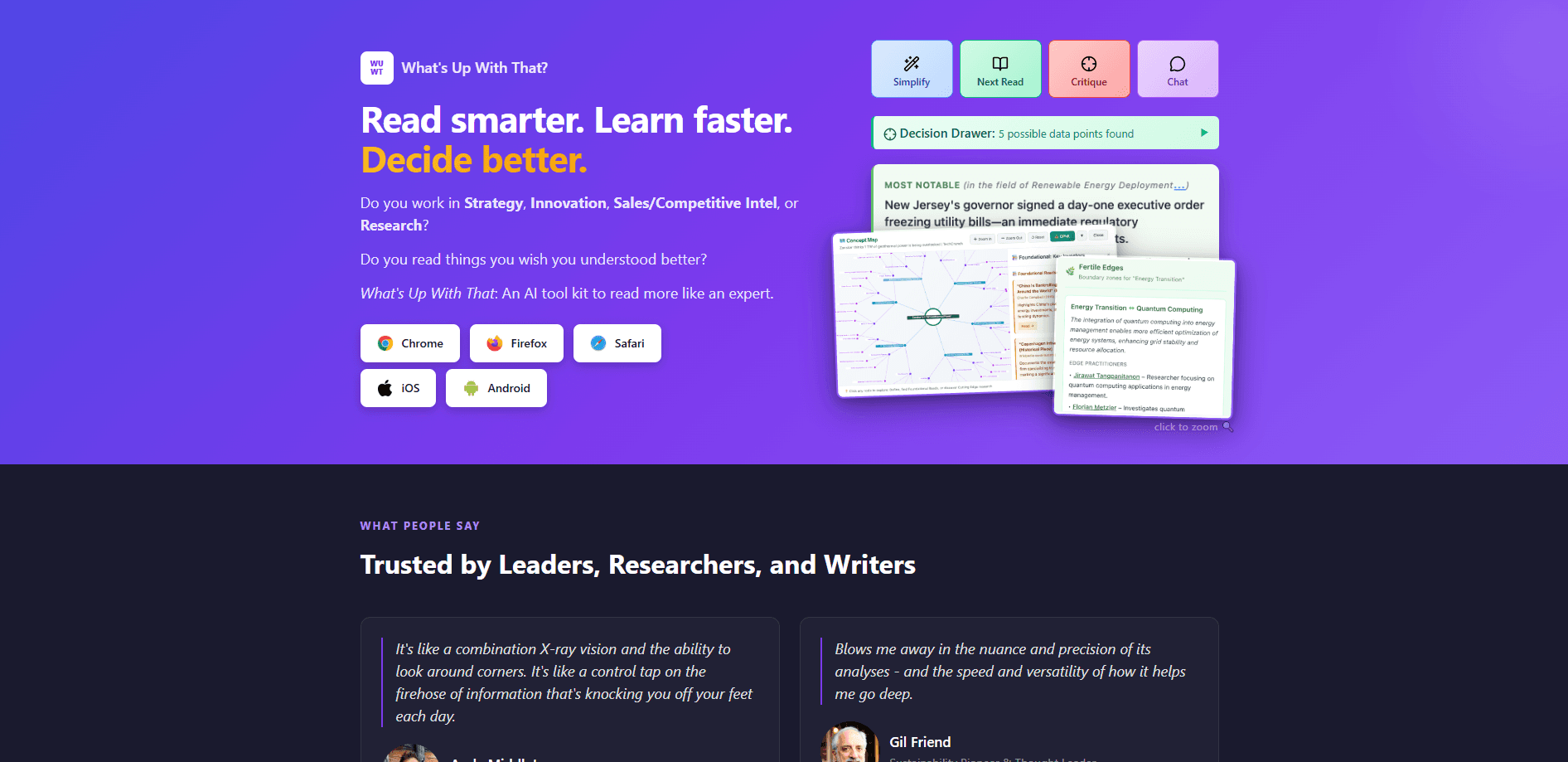
What's Up With That? is an AI-powered reading assistant that lives in your browser and analyzes any page you're on, from long articles and PDFs to newsletters and YouTube videos. One click pulls out key points, shows what's genuinely new in your field, and suggests where to read next. It's built for people whose thinking is their product: researchers, analysts, writers, and anyone who reads for a living and wants to keep what they learn.
About What's Up With That?
What Is What's Up With That?
What's Up With That? is a browser extension and research companion from Marshall Kirkpatrick, an analyst who's spent years building tools that distill value from large amounts of information. Click the extension on any page and it runs an analysis on demand, then lets you ask follow-up questions. Every account includes more than 40 analytical tools, and the extension keeps a personal archive of what you've read so the value compounds instead of evaporating.
The problem it solves is memory and depth. Most people skim an article, take away a vague impression, and lose the details that mattered. This tool captures the substantive points as you go, so a week later you still have the data points and findings you can build on. That makes it far more useful for people who write, brief, or make decisions than a plain bookmark list.
The main limitation is scope. It's a Chrome-family extension for desktop browsers, so it isn't a mobile reading app, and it isn't meant for teams out of the box. It runs only when you click, and it leans on a proprietary analysis engine, so you can't inspect how a given insight was generated. The free trial needs no sign-up, and full access runs through a conversation with the developer.
Getting Started
- Install the extension from your browser's store. Chrome, Edge, Brave, and Vivaldi are supported, and the free trial needs no account, personal details, or credit card.
- Open any article, PDF, newsletter, or video page and click the What's Up With That? icon in your toolbar.
- Read the instant analysis, which covers key points, what's new versus standard practice, related reading, and more.
- Follow up with your own questions, or save the piece into a folder so the analysis builds on everything you've saved before.
- Schedule a call with the developer when you want full access, team accounts, or collaboration features.
Product Information
A quick look at What's Up With That?'s pricing, supported platforms, and performance.
Best for
The users, tasks, and scenarios where this tool fits best.
Users
- Researchers and analysts who read across dozens of sources a week and need to keep the important findings straight, provided they work on a desktop browser.
- Writers and journalists who want a running store of evidence and quotes they can pull from later, rather than buried browser tabs.
- Consultants and strategists who brief other people and can't afford to lose the data point that made the argument.
Tasks
- Extracting key points and cutting an article down to what actually matters before a meeting.
- Deciding what to read next by following the tool's suggestions for related and adjacent material.
- Sorting a stack of sources into folders with automated deep analysis so nothing gets read and forgotten.
Scenarios
- Preparing for a call by reviewing a client's market in depth right before you dial in.
- Tracking a fast-moving field where new research lands weekly and you need to spot what's actually new.
- Building a personal research library that gets more useful the longer you use it.
Key features
Instant Analysis on Any Page
The core move is one click. Point the extension at an article, a PDF, a research paper, a news story, a newsletter, or a YouTube video, and it returns a breakdown without you copying text into a chat window. It works as a research assistant that reads with you. You see the key points extraction immediately, then dig into follow-up questions if you want more. The value here is speed. You decide in seconds whether a piece deserves your attention, and you walk away with a usable summary even when it doesn't.
What's New Versus Standard Practice
This is the feature no plain summarizer has. As you read, the tool maps the current state of the art in your field in the background and tells you which claims are genuinely new and which are common knowledge. For anyone tracking a technical or business niche, that distinction is the whole point. A summary tells you what a piece says. This tells you whether it changes anything.
Compounding Research Archive
You save articles into folders, and each one gets an automated deep analysis. When you read a review that builds on everything you'd saved before, the archive keeps paying off. Capture happens as you work, so proposed decision points and useful findings get logged without a separate note-taking session. It rewards consistency: the more you feed it, the sharper its reading reviews get.
40+ Analytical Tools and Research Plans
Every account includes more than 40 tools, covering the past, present, and future of whatever you're studying. You can run the ones you want by hand, or get a personalized research plan you trigger with a single click. If you analyze the same kind of material repeatedly, that plan turns a loose set of tools into a repeatable workflow.
Data Stays Under Your Control
Page text is analyzed on demand and isn't stored, according to the developer, and only metadata is kept. The extension runs only when you click it, and Google reviews it at every update. That matters if you read confidential or client material, since you're not feeding the full text of every page into a permanent server-side record.
Works Across Content Types
Articles and PDFs are the obvious targets, but the tool also handles research papers, newsletters, and YouTube videos, and the developer says it works on nearly any page. You don't juggle a different workflow for each format. One habit covers the breadth of what you actually read.
Pros and cons
Pros
- One click turns almost any page into a structured analysis, no copy-paste into a chatbot.
- The "what's new" angle separates fresh insights from standard practice, which generic summarizers can't do.
- Folders and saved analyses compound over time, so your research library gets sharper the more you use it.
- The free trial needs no account, card, or personal details, so trying it costs nothing.
- Page text isn't stored, which makes it workable for sensitive reading.
Cons
- It's a desktop Chrome-family extension, so there's no mobile reading experience and Firefox and Safari users are left out.
- It runs only on demand. If you don't click, nothing gets captured, so building the archive takes real discipline.
- Pricing for full access isn't published. You have to schedule a call with the developer to get terms, which is slow if you just want to pay and start.
Frequently asked questions
It's an AI reading assistant that analyzes whatever you're reading and pulls out the parts worth keeping. You click it on an article, PDF, paper, newsletter, or video and get key points, a read on what's new, and suggested next reading. Over time it builds an archive of those analyses so your research accumulates instead of slipping away.
Related content
Explore related tools, skills, and articles for What's Up With That?.
What's Up With That? Alternatives

HireKey
HireKey · Voice & Language · Productivity · LeaningHireKey is an AI job search copilot built by a former tech recruiter. It checks role fit, tailors resumes, runs interview practice and tracks every application.

Lune
Retrograde Labs · Productivity · LeaningLune is a research search engine for scientific AI agents. It runs as an MCP server that lets Claude, ChatGPT and Cursor search peer-reviewed computer science papers and cite them.
Coddy
Coddy · Coding · LeaningCoddy is a gamified platform to learn to code through short interactive lessons in 20+ languages, with a browser editor, an AI tutor and free certificates.