

Wisbox.ai
Wisbox (independent development team) · Image · Coding
Wisbox.ai is a macOS AI assistant that overlays your screen and walks you through complex creative software like Blender, Photoshop, and Final Cut step by step.
About Wisbox.ai
What Is Wisbox.ai
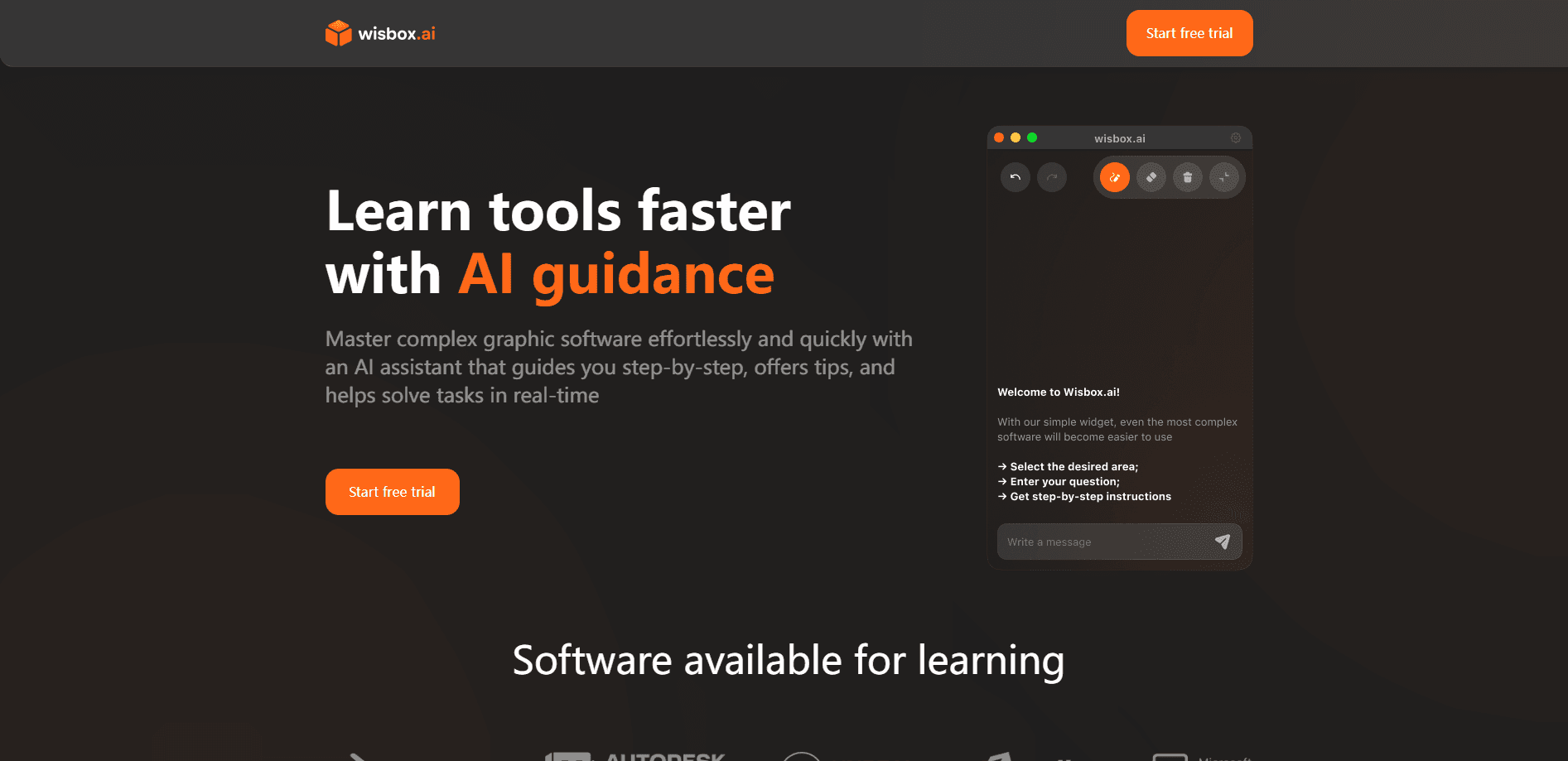
Wisbox.ai is an AI assistant for Mac that sits on top of whatever app you're using. You drag a box over a confusing part of the interface, type a question, and it comes back with numbered steps that point at the exact buttons and menus on your screen.
It targets a specific kind of frustration: the moment a powerful tool turns opaque. Blender, Photoshop, Maya, and Unity are packed with panels and shortcuts, and new users spend more time hunting through menus than making anything. Wisbox.ai treats your own screen as the context, so the answer matches the version you're running and the task in front of you.
The catch is scope. Right now it's macOS only, and Windows is still labeled as in development. It's also a young product from a small independent team, so the feature list and the software it supports are narrower than the big AI assistants. If you work on Windows or want deep integrations, that limits what you get today.
Getting Started
- Download the Mac app from the official site and install it.
- Open Wisbox.ai and grant it the screen-recording permission it needs to see your workspace.
- Launch the software you want help with, like Blender or Photoshop, and open a project.
- Select the area you're stuck on, type your question, and read the step-by-step instructions it returns.
- Follow the steps on screen and re-ask when a new problem comes up.
Product Information
A quick look at Wisbox.ai's pricing, supported platforms, and performance.
Best for
The users, tasks, and scenarios where this tool fits best.
Users
- Beginners learning Blender, Maya, or Unity
- Designers moving between Adobe apps
- Creators who learn by doing
Tasks
- Finding a specific tool in a crowded interface
- Working out a multistep edit or render
- Recovering when you forget a shortcut or menu path
Scenarios
- A first week with a new creative app
- Switching to a newer release of software you already know
- Late-night sessions where you'd rather not leave your work
Key features
On-Screen Visual Guidance
You select the exact region you're stuck on, ask a question, and Wisbox.ai returns numbered steps tied to what's visible on your screen. The help matches your current layout and version instead of a generic walkthrough.
Works Inside Your Creative Apps
The assistant is built for real production software, including Blender, Maya, Unreal Engine, Unity, Excel, Photoshop, Illustrator, and Lightroom. You keep working in the app while the guidance appears over it.
Real-Time Task Help
Beyond locating buttons, it helps you finish a task, like setting up a render or adjusting a layer. The steps come one after another, so you can pause, act, and continue without losing your place.
Plain-Language Questions
You type what you want in everyday words and get an answer in the same tone. There's no command syntax to memorize and no need to know the software's own terminology before you can ask.
Mac-First Desktop App
Wisbox.ai runs as a native macOS app with a full desktop and a compact mobile-style interface. It downloads directly from the official site, and a Windows build is listed as in development.
Free Trial and Simple Subscription
You start with a 3-day free trial and then move to a monthly plan through the app's checkout. That makes it cheap to test on a real project before you commit.
Pros and cons
Pros
- Answers are grounded in your actual screen, so the steps usually match the software version you're running.
- Covers the apps that give beginners the most trouble, from Blender to Photoshop and Unity.
- The overlay keeps you inside your project instead of sending you off to watch tutorials.
- The 3-day free trial lets you test it against a real task before paying.
Cons
- macOS only for now, so Windows users are left waiting on a build that's still in development.
- No public API means you can't wire it into your own tools or scripts.
- As a young product from a small team, the list of supported software and the depth of answers can trail more established assistants.
- The subscription keeps charging monthly, so it only pays off if you use it regularly.
Frequently asked questions
It's an AI assistant for Mac that helps you learn and use complex creative software. You select a part of the screen, ask a question, and it returns step-by-step instructions for the task at hand.
Related content
Explore related tools, skills, and articles for Wisbox.ai.
Wisbox.ai Alternatives

Google EmbeddingGemma 2
Google DeepMind · Writing · Image · CodingGoogle EmbeddingGemma 2 is a 740M-parameter open model that turns text, code, images, audio, and video frames into vectors in one 768-dimension space, running on phones and laptops.

Tractionwave
TractionWave · Image · MarketingTractionWave is an AI attention heatmap tool for static ads. Upload a PNG or JPG and it returns predicted attention, ranked hotspots, and fixes before you spend budget.

Imejis.io
Imejis.io · Image · MarketingImejis.io is an AI design studio for agents and marketing teams. Describe an image in plain words, and it writes the copy, builds the layout, reflows it to every size, then exports a finished file.