

Wudpecker - Your AI Meeting Assistant
Wudpecker · Productivity
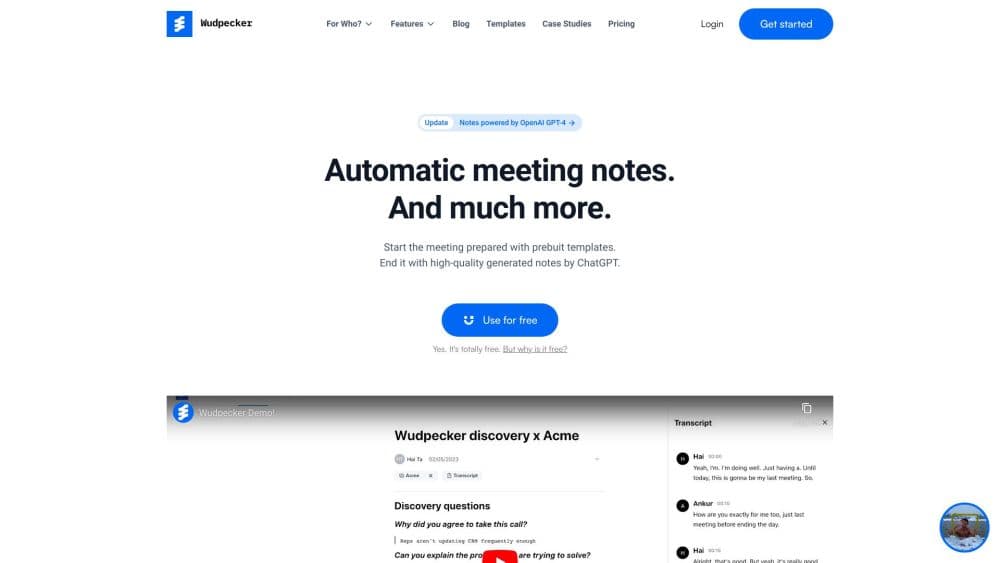
Wudpecker is an AI meeting assistant that joins your Zoom, Google Meet and Microsoft Teams calls, transcribes them, and writes notes in the structure you specify.
About Wudpecker - Your AI Meeting Assistant
What Is Wudpecker
Wudpecker records and transcribes online meetings, then turns the transcript into a note you can read in a minute. The difference from most AI notetakers sits in the instructions. You tell the assistant what your notes should look like once, and it follows that format on every call it attends.
Teams use it so nobody in a call has to type. A product manager can ask for a fixed set of headings, sales reps can ask for objections and next steps, and both get the same document every time. The notes stay editable, and a chat panel lets you ask questions about anything said in the meeting.
The limits are worth knowing before you sign up. A bot has to be invited into a call, so every participant sees it, and you need to tell people the meeting is being recorded. It handles one language per transcript, and a single account connects to one calendar and one workspace. Notes are still a draft to review, not a verbatim record you can quote in court.
Getting Started
- Sign up at wudpecker.io with a work email, then connect Google Calendar or Microsoft 365 so Wudpecker can see your schedule.
- Set the instructions that shape your notes. Choose the format you read fastest, list the details you care about, and add custom vocabulary for product names and people who get misspelled.
- Decide which meetings the notetaker joins. On paid plans the bot can be set to external calls, internal calls, all meetings, or none, and you can rename it so callers know what joined.
- Attend the meeting as usual. The bot records, transcribes, and emails you when the note is ready, usually a few minutes after the call ends.
- Review the note, correct speaker names if needed, then share it to a teammate's Wudpecker account or send a read-only link.
Product Information
A quick look at Wudpecker - Your AI Meeting Assistant's pricing, supported platforms, and performance.
Best for
The users, tasks, and scenarios where this tool fits best.
Users
- Product managers running several discovery calls a week
- Sales teams
- Consultants and researchers
- Small teams without an ops function
Tasks
- Turning a one hour call into a short digest
- Getting action items out of a discussion
- Asking follow-up questions about a past meeting
- Writing notes in a language your team reads
- Keeping interviews consistent
Scenarios
- Weekly customer calls where the same three questions come up
- Hiring interviews across time zones
- Sales handoffs
- Recording in person
Key features
Instruction Driven Notes
Most AI notetakers give you one fixed summary. Wudpecker takes written instructions instead. You describe the headings, the questions you want answered, and how much detail to keep, and the note is built that way. That makes the output feel less like a transcript digest and more like a document your team already uses.
Ask Wudpecker
A chat panel answers questions about a meeting using the discussion itself. Ask why a launch slipped or what the customer said about pricing, and the reply cites quotes from the transcript with a link to the timestamp. If the first answer is vague, you can highlight a section and ask a follow-up that stays in that context.
Accurate Transcription with Speaker Labels
The meeting transcription separates speakers, which matters in interviews and team calls, and you can rename them in the transcript afterward. Accuracy depends on audio quality, background noise, and accent, and uncommon technical terms can come out wrong. Around 40 languages are supported for recording, and you can switch the transcript language after the call if the wrong one was detected.
Custom Vocabulary
You can tell Wudpecker how to spell company names, product names, and people. It remembers them for later meetings, so a client called Nnamdi stops appearing as three different spellings across a quarter of calls. This is the feature that decides whether the notes feel usable in a real account.
Note Editor, Collections, and Sharing
Notes stay fully editable after they arrive, from the summary down to speaker names. Calls can be grouped into collections with their own colors, which is how most teams keep accounts or projects apart. A call can be shared into a colleague's Wudpecker account as an editable copy, or sent as a view-only link to someone outside.
Integrations and Desktop Recording
Wudpecker connects to Slack, Notion, HubSpot, Zoom, Google Meet, and Microsoft Teams, so notes can move into the tools a team already uses. The desktop and phone apps record without a bot, on Windows, Mac, iOS, and Android. In person meetings and ad hoc calls can be captured on any platform, and bot-free recording isn't capped by the monthly meeting limit.
Pros and cons
Pros
- Notes follow your own template, which saves the cleanup most AI summaries need before they're shared.
- Ask Wudpecker answers with quotes and timestamps, so you can verify a claim instead of trusting the summary.
- Recording without a bot on desktop and mobile covers in person meetings and calls on platforms the bot can't join.
- Notes can be written in about 35 languages, independent of the language spoken on the call.
- EU based storage with AES-256 encryption at rest and a public GDPR commitment.
Cons
- One calendar and one workspace per account. People juggling a work and a personal calendar need two accounts.
- A meeting is transcribed in a single language. If half the call switches to another language, that part may be unreadable.
- Calls are capped at 2 hours 15 minutes, so long workshops need to be split into separate recordings.
- Audio snippets can't be cut from a recording. You can share the full recording or a note, not a 30 second clip.
- The bot must be invited to video calls, and every participant sees it join, so you can't record silently.
Frequently asked questions
Wudpecker joins or records your meetings, transcribes the conversation, and writes a summary in the format you asked for. You can then ask follow-up questions, edit the note, and share it with your team. It works with Zoom, Google Meet, and Microsoft Teams, plus in person meetings through the desktop and mobile apps.
Related content
Explore related tools, skills, and articles for Wudpecker - Your AI Meeting Assistant.
Wudpecker - Your AI Meeting Assistant Alternatives

Udon
Udon · Coding · ProductivityUdon turns an Apple Silicon Mac into a home server you run from a browser, with container controls, file shares, and an optional AI sysadmin.

offstage
offstage cloud · Coding · Productivityoffstage gives AI coding agents and CI jobs a real Mac: a fresh macOS account on Apple silicon, driven over an API and billed by the second.
BotBus
Chengdu Tuyang Tusen Technology Co., Ltd. · Coding · ProductivityBotBus lets you control AI coding agents from your phone and watch: approve commands, start tasks and read results while the code stays on your desktop.