

Xcode
Apple · Coding
Xcode is Apple's integrated development environment, or IDE, for building software across every Apple platform: iOS, iPadOS, macOS, watchOS, tvOS, and visionOS. Think of it as the official Apple IDE for anyone doing iOS app development. It packs a code editor, an interface designer, a debugger, a performance profiler, and device simulators into one app that runs on the Mac. Want to ship anything to the App Store? Xcode is the tool you'll live in.
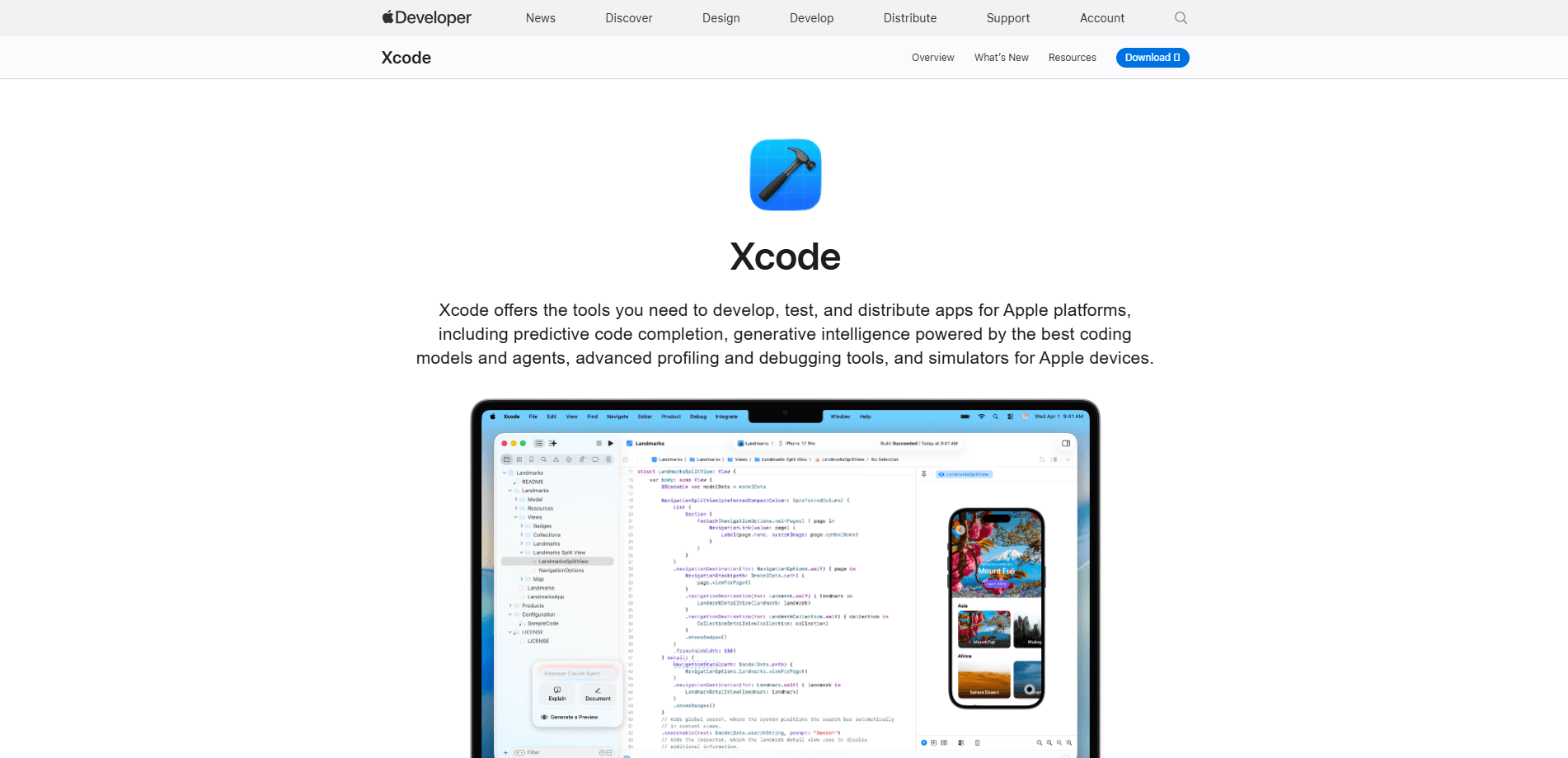
About Xcode
What Is Xcode
Xcode is the Swift IDE Apple expects you to use for app development on its platforms. That matters, because if you're after a Swift IDE or a macOS development tool, this is the one Apple supports end to end. You write Swift and Objective-C, design interfaces visually, run the result on a simulator or a real device, and then package it for the App Store without leaving the app. Apple ships it free. Every year the company refreshes it alongside new operating system releases.
The important limitation is scope. Xcode runs only on macOS. There's no Windows or Linux version, and no browser-based alternative from Apple. You need a Mac to build Apple software at all. It's also a heavy install. Simulator runtimes and SDKs add up fast.
Recent versions lean hard into intelligence features. Xcode 27 lets you bring coding agents from Anthropic or OpenAI directly into the editor, generate code documentation, and localize an app's strings through an agent conversation. Predictive completion still runs on-device, so it works without sending your code anywhere.
Getting Started
- Install Xcode from the Mac App Store, or download a specific version from the Apple Developer site if your macOS release needs an older one.
- Launch it once and let it finish installing components, which can take a while on a fresh machine.
- Choose a template like App and pick the interface style you want, such as SwiftUI or UIKit.
- Write code in the editor and preview your views in the canvas, or run the project on a Simulator device.
- Connect an Apple Developer account in Settings to archive a build and submit it to App Store Connect.
Product Information
A quick look at Xcode's pricing, supported platforms, and performance.
Best for
The users, tasks, and scenarios where this tool fits best.
Users
- Indie iOS and macOS developers
- Students learning Swift
- Teams shipping App Store apps
Tasks
- Building an iPhone or iPad app end to end
- Profiling performance problems
- Localizing an app into more languages
Scenarios
- Prototyping a UI idea quickly
- Testing across device models
- Fixing a crash reported by users
Key features
Coding intelligence and agents
Xcode combines on-device predictive completion with support for external large language models. You can bring in coding agents from Anthropic or OpenAI, ask them to draft code or documentation, and keep the decisions that matter, like architecture, in your hands. The agents also handle mechanical work such as adding languages or translating strings.
Xcode Previews
The preview canvas renders your SwiftUI, UIKit, or AppKit views as you change them. Select a control in the canvas and Xcode highlights the matching line in the editor, so you can trace layout problems back to code fast. Live mode even lets you interact with the view the way a user would.
Simulator
The Simulator runs your app across iPhone, iPad, Apple Watch, Apple TV, and Vision Pro layouts on the Mac. It can mimic location changes, memory warnings, and network throttling, which makes it possible to test edge cases you'd struggle to reproduce on a single physical device.
Instruments profiling
Instruments measures how your app actually performs. The Swift Concurrency instrument shows async task scheduling and actor contention, Time Profiler surfaces CPU bottlenecks, and System Trace digs into how the app talks to the OS and hardware. Run comparisons let you check whether a fix helped before you ship it.
Debugging tools
Xcode attaches a debugger to your running app, letting you pause at breakpoints, inspect the call stack, and read variable values in context. It works on both Simulator sessions and real devices, including the wireless debugging setups teams increasingly use.
Testing frameworks
The app bundles Swift Testing and XCTest so you can write unit tests and catch regressions early. Xcode Cloud adds continuous integration that builds, analyzes, and tests your project automatically as part of your workflow.
Interface design
Interface Builder gives you a visual way to lay out screens with Auto Layout, connecting views to code without hand-writing every constraint. You can design in a storyboard or mix visual layout with SwiftUI code, depending on how the project is structured.
Device Hub
Device Hub gathers physical devices and simulators into one view inside Xcode. You can inspect device state, reproduce issues, and manage testing without switching between separate tools.
Pros and cons
Pros
- Free to download and use, with no subscription for the core tool.
- Full integration with Apple platforms means SDKs, simulators, and submission all work together.
- Coding agents and predictive completion speed up routine coding and documentation.
- SwiftUI previews and Instruments give fast feedback on both UI and performance.
- Built-in Git support keeps version control inside the editor.
Cons
- Runs only on macOS, so you need a Mac to develop for any Apple platform.
- The install and simulator runtimes are large and eat a lot of disk space.
- Version compatibility is strict: newer Xcode releases require newer macOS versions.
- Submitting to the App Store still costs $99 a year for a Developer Program membership.
Frequently asked questions
Yes. Xcode itself costs nothing to download, and Apple has kept it free for years. The only recurring cost is the $99 annual Apple Developer Program fee if you want to distribute apps through the App Store.
Related content
Explore related tools, skills, and articles for Xcode.
Xcode Alternatives
Forefront
Forefront · CodingForefront is a web platform for building with open-source AI. It lets you fine-tune leading open-source language models on your own data, evaluate how they perform, and run them through an API or export them to host yourself. Developers who want the convenience of a closed-source platform but insist on owning their models and data are the target audience here.

Startkit
StartKit.AI · CodingStartkit is a boilerplate for building AI SaaS and AI wrapper products. Think of it as an AI startup boilerplate with the boring parts already wired up: authentication, Stripe and Lemon Squeezy payments, usage limits, transactional email, and an AI API starter that talks to OpenAI, Anthropic, Groq, or Llama. You clone the repo, set your price, and start on the part of your product that people actually pay for. It's Next.js under React and Tailwind, so most of the boilerplate code already feels familiar.
Testim
Tricentis · CodingTestim is an AI-powered test automation platform for building and running end-to-end tests across web, mobile, and Salesforce applications. It leans on machine learning to keep tests stable when an interface changes, so teams spend less time fixing broken selectors. Not bad for an automated testing tool you can start using today. You create tests by recording actions in a browser, then optionally add JavaScript when you need more control. It's a solid pick for busy QA teams.