

ABrush
ABrush · Image · Productivity
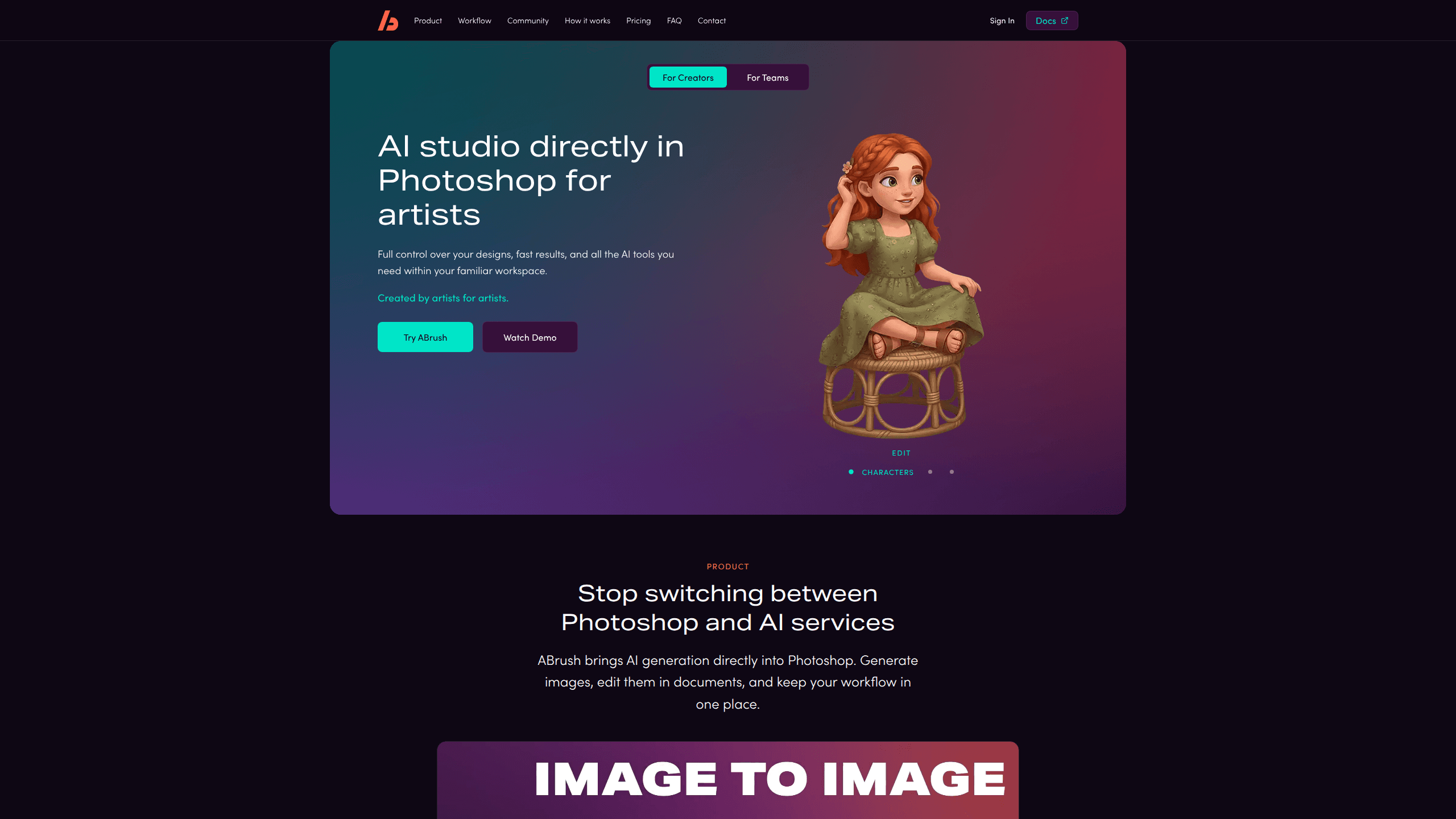
ABrush is an AI image generation plugin built straight into Adobe Photoshop, so artists can generate, edit and upscale images without jumping to a browser tab. Think of it as an AI art generator for Photoshop that lives in your layers panel. It bundles 23+ models, from Flux and Qwen to Nano Banana, behind the same layer and selection tools you already work with. You write a prompt, pick a region on the canvas, and the result lands as a new layer you can keep tweaking.
About ABrush
What Is ABrush
ABrush is a Photoshop extension made by a small team of working artists, and that background shows in how it treats the person holding the stylus. The pitch is simple: the AI is a tool, not a replacement. It sits in a panel next to your layers and does the generative heavy lifting while you keep the final say.
The problem it targets is the back-and-forth between Photoshop and separate AI image sites, where every trip to a browser costs you context because your selections, layer stacks, masks and color work simply don't travel with the screenshot. Why does that hurt? The image that comes back rarely lines up with what you built. ABrush closes that gap by generating on the canvas, as a layer, in place.
The main limit is that it needs Photoshop 26.1 or newer and a steady internet connection, since the heavy computation runs on cloud servers rather than your machine. Last I checked, that's a hard floor, not a soft one. That trade-off means low-end laptops work fine, but you can't generate offline. It also works best as an amplifier for people who already know their fundamentals, not as a shortcut around them. Know your basics first.
Getting Started
- Sign up on the ABrush website and claim your 300 free tokens, which you get automatically after registration.
- Download the plugin from your account and install it in Photoshop through Creative Cloud, or install the .ccx file manually if that fails.
- Open Photoshop and find the ABrush panel, then sign in with your account to load your token balance.
- Pick a work mode such as Txt2Img or Img2img, type a prompt, and set the region or reference you want it to use.
- Generate, then treat the result as a normal layer: mask it, blend it, or push it further with another pass.
None of that's complicated. The first pass usually takes minutes.
Product Information
A quick look at ABrush's pricing, supported platforms, and performance.
Best for
The users, tasks, and scenarios where this tool fits best.
Users
- Digital artists
- Concept artists
- E-commerce retouchers
Tasks
- Text to image
- Inpainting and edits
- Upscaling
Scenarios
- Turning a rough sketch into a polished base to paint over
- Extending a background for a wide banner
- Building a set of color or mood variations for a client
Key features
Five Work Modes in One Panel
ABrush covers Txt2Img, Edit, Upscale, Img2img and Actions from a single panel, so you don't need to learn a different tool for each job. That matters more than it sounds. Beginners can lean on Txt2Img and Actions, which are close to a one-click affair, while Edit and Img2img give pros finer control. The modes share the same interface, which cuts down on the muscle memory you have to build.
23+ Models from the Cloud
You get access to a large pool of neural networks, including Flux, Qwen, Seedream and Nano Banana 2/Pro, and can switch between whichever fits a given stage of work. No single model wins at everything. Because the models run on ABrush's servers, you don't need a powerful graphics card. Pick a quick model for thumbnails and throwaway ideation passes, then switch to a heavier one when it's time to render the version you'll actually deliver.
ControlNet and Reference Support
Pro controls include ControlNet and IP-Adapter style references, which let you steer pose, structure or overall look instead of relying on prompt wording alone. If you've ever fought a generator to keep a composition intact, this is the part that matters. You feed it a reference and it holds the shape you care about.
LoRA Styles and Prompt Presets
The plugin ships with predefined LoRA styles, so a consistent look is a matter of picking one rather than writing a long prompt. Less fiddling, more painting. You can also save prompts and settings as presets, then share them, which helps when a whole team needs to match a house style. Uploading your own custom LoRAs isn't supported yet, so you're working within the built-in set for now.
Layer-Native Output
Every generation arrives as a new pixel layer above your current work, which means masks, blend modes and opacity all behave the way Photoshop users expect after years of building compositions one layer at a time. Nothing overwrites what you already have, so a bad generation is a deleted layer instead of a lost afternoon. This is the core difference between ABrush and a browser-based generator.
History, Presets and Iteration
ABrush keeps a generation history and lets you return to earlier results without starting over. Combined with presets, that turns the messy trial-and-error of prompting into something closer to a normal editing workflow. For series work, where one product needs ten backgrounds, this is where the time savings stack up. No rebuilding settings from scratch each round.
Pros and cons
Pros
- Runs inside Photoshop, so selections, layers and masks stay intact across generations.
- Cloud processing means no expensive GPU is required, and it works on modest machines without asking you to buy a new rig just to try out a feature you might only use once or twice.
- 23+ models plus ControlNet and reference tools cover both quick drafts and careful work.
- 300 free tokens on signup let you test the real workflow before paying. No card required.
- Generation history and shareable presets reduce repetitive setup on series jobs.
Cons
- Requires Photoshop 26.1 or newer, so older installs won't run it.
- Needs a constant internet connection, which rules out generating while offline.
- You can't upload your own custom LoRAs yet, only the predefined styles.
- It leans on cloud servers for everything, so heavy or slow connections will drag on your sessions.
Frequently asked questions
It's an AI image generation plugin for Adobe Photoshop. You use it to generate, edit and upscale images from within Photoshop rather than switching to a separate AI website.
Related content
Explore related tools, skills, and articles for ABrush.
ABrush Alternatives

X Ray Interpreter
X-ray Interpreter · ImageX Ray Interpreter is a web-based AI radiology tool that turns X-rays, CT scans, MRI, ultrasound, and PET images into plain-language reports. You upload a scan, get a preliminary X-ray interpretation in moments, then ask follow-up questions if something needs explaining. It works as a second opinion and a learning aid, not as a medical diagnosis.

Aieasypic
AIEasyPic · ImageAIEasyPic is an AI image generator that turns plain text prompts into finished artwork in seconds. You can also train custom models on your own photos, swap faces in existing images, and create short video clips from text, all from a browser. It suits casual creators who want quick visuals and hobbyists who want to build a personal model without touching any code.

Chargen
Chargen · ImageChargen is an AI character generator and worldbuilding toolkit built for Dungeons & Dragons and other tabletop RPGs. It turns a one-line idea into a painted character portrait, spins up NPCs, monsters, maps and encounters from the same session, and keeps every creature's details close at hand. The tabletop RPG art side runs on a credit system called Gold, while the text generators stay free for everyone.