

Designhint Image to Image AI
Designhint · Image · Marketing
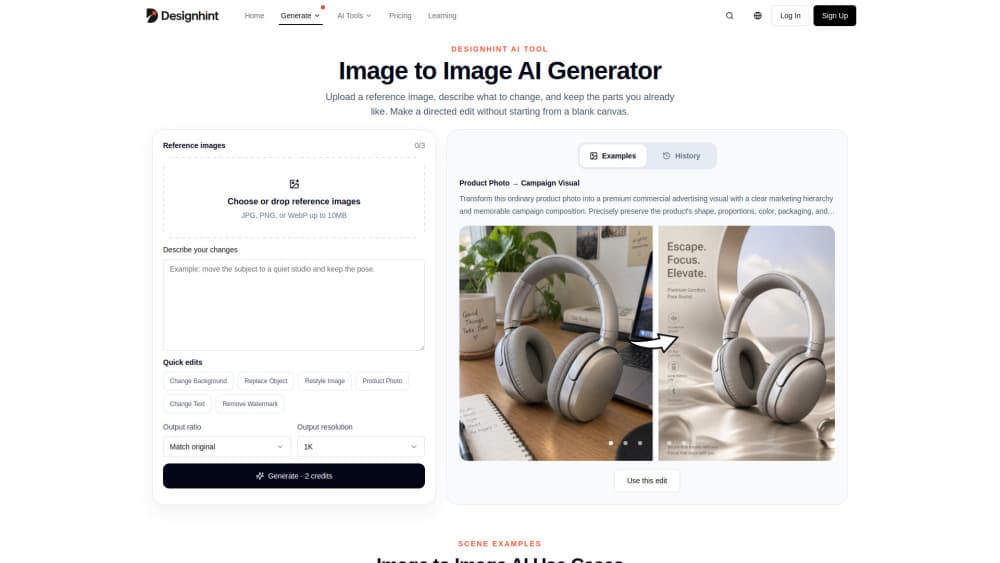
Designhint Image to Image AI is a browser-based editing tool that takes one reference image and rebuilds it for a new purpose. Send in a product photo and it comes back as a campaign visual. Hand it a rough sketch and it returns a finished render. The tool keeps the parts of your image that matter, like shape, proportions, and material, then changes the rest with a text prompt. In practice it works as an AI product photo render and an image remix tool in one. It's built for designers who already have something to work from and don't want to start over.
About Designhint Image to Image AI
What Is Designhint Image to Image AI
Designhint Image to Image AI is one part of Designhint, an AI prompt and artwork library aimed at designers. Where the main site is about browsing prompts and seeing example results, this tool is the working end of it: you bring an image, describe the outcome you want, and the model produces a directed variation instead of a random new picture.
The point is control. Text-to-image tools start from nothing, so every result drifts from what you pictured. An image-to-image AI generator starts from your reference, which means composition, subject, and view angle stay put while style, lighting, and background change. That matters most for product and interior work, where the actual object has to stay recognizable. So what's the catch? Results still depend on the model you pick.
The biggest limitation is that it's a web tool with no downloadable app, and results depend on which third-party model you pick. It also won't invent a perfect version of something your source image doesn't show. Garbage in still means garbage out, just faster.
Getting Started
- Create a free Designhint account, or sign in if you already have one. Browsing is open, but generating needs a login.
- Open the Image to Image tool and upload the reference image you want to build from.
- Pick an image model from the list and write a prompt describing the change you want, such as the new scene, lighting, or material.
- Adjust quality and reference settings if you're on a paid plan, then start the generation.
- Review the result, refine your prompt, and generate again until it matches your brief.
Product Information
A quick look at Designhint Image to Image AI's pricing, supported platforms, and performance.
Best for
The users, tasks, and scenarios where this tool fits best.
Users
- Product designers who need campaign-ready shots from ordinary photos, as long as the source object is clear.
- Interior and architectural designers turning a real room photo into a polished render without redrawing the floor plan.
- Brand and social media creators who want a fast set of variations from one approved image.
Tasks
- Turning a plain product photo into a commercial visual with new lighting, background, and depth.
- Converting a hand-drawn product sketch into a realistic render while keeping the original form.
- Restyling concept art or an illustration in a different direction without losing the core composition.
Scenarios
- Building a small batch of ad variations for a new product launch in an afternoon.
- Testing how one interior photo looks under several design styles before committing to a full render.
- Preparing a storefront or portfolio image when the only available shot is a quick phone photo.
Key features
Reference Image Control
The tool is built around one uploaded image, not a blank prompt box. It reads your source and preserves what you tell it to keep. The product documents that as shape, proportions, color, packaging, and material. For a product photo, the actual item survives the transformation. For a room, walls, windows, and camera angle hold steady. This is the core difference between a directed edit and a fresh generation.
Prompt-Driven Direction
Every output is steered by a text prompt that describes the new scene. The tool's own use cases run from "transform this product photo into a premium advertising visual" to "convert this sketch into a realistic render." You're not limited to preset filters, so the direction can be as specific as the brief demands. Vague prompts give vague results. The wording still does the heavy lifting.
Multiple Image Models
Designhint runs generation on several third-party models rather than one. The site lists Seedream (3.0 through 5.0), Nano Banana (Pro, 2, and Lite, built on Google Gemini), GPT Image (1.5 and 2), and Midjourney v8.1. These models differ in how they handle realism, text, and stylization. You can switch between them for the same source image and compare results. Model availability can change as providers rotate.
Built-In Use Cases
The page ships with worked examples that double as starting prompts. Six directions are shown, including product photo to campaign visual, skincare photo to luxury ad, room photo to interior render, and product sketch to render. Each example spells out what to preserve and what to change, so you can borrow the structure even if your subject is completely different from the ones shown on the page. That's more useful than a blank template.
Quality and Resolution Options
Paid tiers raise the output ceiling. Free generation is capped at 0.5K and 1K. Memberships open up 2K and 4K, plus medium and high quality modes. Free accounts also run one generation at a time, versus four concurrent tasks on paid plans. If you're doing detail-heavy work like packaging or print, the higher tiers are the ones that matter. Anything below 2K usually won't survive a print workflow.
Prompt Library and Community Works
The tool sits inside a larger Designhint library of prompt examples with real generated results. You can browse by category such as posters, photography, e-commerce, or 3D, then copy a prompt as a starting point. Community members can upload their own artworks and prompt settings, so there's a reference set beyond the official examples. It's a nice shortcut.
Pros and cons
Pros
- Keeps your source image's structure intact, which makes it reliable for product, interior, and packaging work.
- Runs multiple image models in one interface, so you can compare approaches without separate accounts.
- Worked examples come with full prompts you can adapt instead of writing from scratch.
- Free tier covers testing (10 credits, up to 10 images) before you pay anything.
Cons
- It's web-only, so there's no desktop or mobile app for offline or on-the-go editing, and if your workflow lives inside a phone or a desktop editor you'll be bouncing between tools more often than you might like.
- Output quality hinges on the source image, and a blurry or cluttered reference limits what you can fix.
- No public API is documented, which rules out automated or bulk pipelines for now.
- Paid memberships are billed monthly, with commercial use still subject to each model's own terms.
Frequently asked questions
It takes one image you upload and rebuilds it in a new direction based on a text prompt, keeping the parts you specify, like shape and material. The result is a directed variation of your source image rather than a completely new picture generated from scratch, which is the whole reason designers reach for an image-to-image workflow in the first place. Upload, prompt, generate.
Related content
Explore related tools, skills, and articles for Designhint Image to Image AI.
Designhint Image to Image AI Alternatives

X Ray Interpreter
X-ray Interpreter · ImageX Ray Interpreter is a web-based AI radiology tool that turns X-rays, CT scans, MRI, ultrasound, and PET images into plain-language reports. You upload a scan, get a preliminary X-ray interpretation in moments, then ask follow-up questions if something needs explaining. It works as a second opinion and a learning aid, not as a medical diagnosis.

Aieasypic
AIEasyPic · ImageAIEasyPic is an AI image generator that turns plain text prompts into finished artwork in seconds. You can also train custom models on your own photos, swap faces in existing images, and create short video clips from text, all from a browser. It suits casual creators who want quick visuals and hobbyists who want to build a personal model without touching any code.

Chargen
Chargen · ImageChargen is an AI character generator and worldbuilding toolkit built for Dungeons & Dragons and other tabletop RPGs. It turns a one-line idea into a painted character portrait, spins up NPCs, monsters, maps and encounters from the same session, and keeps every creature's details close at hand. The tabletop RPG art side runs on a credit system called Gold, while the text generators stay free for everyone.