

Dina
Dina · Video
Dina is a screen recorder for Mac that treats editing as part of recording rather than a job you do afterward. It captures your screen, camera, mic and keystrokes in one pass, then automatically adds cinematic zoom, smooth cursor motion and captions so a raw take looks ready to present. Think of it as an automatic screen recorder for demos. Everything runs on-device through Core ML, so you don't need an account or an internet connection.
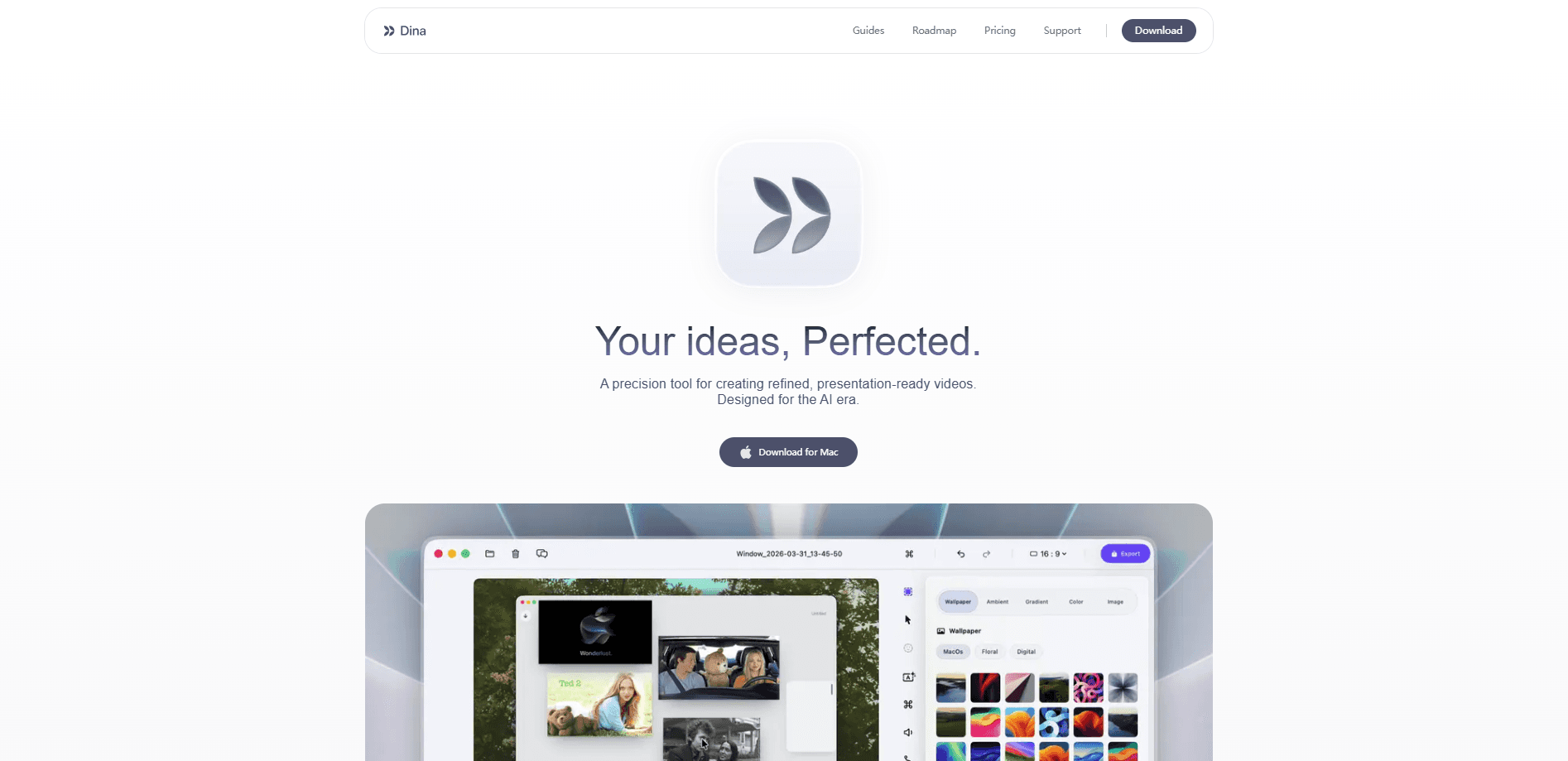
About Dina
What Is Dina
Dina is a macOS-only screen recording and editing app built for people who need to explain something on screen. Product demos, tutorials, bug reports, course videos: the kind of clip where a plain full-screen capture makes viewers squint at a tiny button. Dina's answer is to move the camera for them. It zooms into the interactions that matter, refines your cursor path, and turns your spoken audio into editable captions. So what separates it from the pile of other Mac recorders? Mostly the assumption that you never wanted to edit in the first place.
The app leans on Apple's own frameworks instead of third-party engines. Metal drives the GPU for real-time effects, SwiftUI handles the interface, and Core ML runs the AI features locally. That last detail decides a lot for anyone handling unreleased software or client work. Your recordings never leave your Mac, and nothing gets uploaded to a server for processing.
The trade-off is narrow reach. Dina won't run on Windows or Linux, and it needs macOS Sequoia or later on Apple Silicon hardware. Intel Mac? Not supported. It's also a one-time purchase, which sounds generous until you notice there's no free tier to test the auto-zoom before you commit.
Getting Started
- Download the installer from the Dina website and drag the app into your Applications folder.
- Launch Dina and grant the screen recording and microphone permissions macOS asks for.
- Pick what to capture: full screen, a single window, or a selected area, then choose camera and audio sources.
- Record your take. Dina handles zoom, cursor smoothing and captions as you go.
- Review the timeline, trim whatever you don't need, and export in 4K or a smaller format.
Product Information
A quick look at Dina's pricing, supported platforms, and performance.
Best for
The users, tasks, and scenarios where this tool fits best.
Users
- Product and UX teams
- Course creators and educators
- Developers writing bug reports
Tasks
- Recording a feature demo
- Making a narrated tutorial
- Capturing a reproducible bug
Scenarios
- Turning a quick internal screencast into something you'd send a customer.
- Producing short training clips without opening a separate editing suite.
- Recording when an offline screen recorder is the only option, like on a flight or a locked-down network.
Key features
Automatic Cinematic Zoom
Dina watches where your cursor goes and zooms into the area you're working in, without you setting keyframes. That's the whole pitch, and it removes the most tedious part of manual screen recording. You can still take over and place zoom points yourself when the automatic pass guesses wrong. Big difference.
Smooth Cursor Motion
Raw screen captures show a cursor that jerks across the display in uneven hops. Dina refines that path so movement reads as steady and deliberate. If you've ever watched a demo where the pointer teleported between buttons, you know why this matters. It's not a small fix.
On-Device Captions and Transcript
Speech in your recording gets transcribed by a Core ML model running on your Mac, and the result becomes editable captions tied to the timeline. Because it's local, the audio of an unreleased product never gets sent anywhere, which matters when the whole reason you're recording is a feature that hasn't shipped yet and can't appear in someone else's training data. You fix misheard words directly in the transcript rather than retyping a subtitle track.
Voiceover and Audio Tools
Dina lets you add or replace narration, so you can record a clean voiceover after the fact instead of talking over a live take and fumbling your words while you also try to drive the mouse accurately. Transcript and voiceover tools share the same on-device pipeline, which keeps the privacy story consistent across the app.
Visible Keystrokes
Every key you press can be shown on screen, which turns a shortcut-heavy workflow into something a viewer can follow. For software walkthroughs, this is the difference between "trust me, it's fast" and letting people count the steps themselves. Skeptical viewers stop second-guessing.
Backgrounds, Layouts and Camera
You can set a background, arrange the camera and screen layout, and adjust cursor size and highlight effects. It's the presentational layer that usually means a trip into another editor, handled inside the recording app. One app, start to finish.
4K Export and Fast Rendering
Dina outputs up to 4K in multiple formats, with rendering powered by Metal and Apple Silicon. For short demos the wait is minimal, which matters when you're iterating on a clip rather than publishing one final cut, because a fast export loop lets you watch the result, spot a mis-timed zoom, fix it and try again in the time a slower tool would spend just finishing the first file.
Fully Offline, No Account
Recordings stay on your Mac and the app works without an internet connection. There's no sign-in, no cloud sync and no upload step. Whether that's a feature or a limitation depends on how you share files, but the privacy angle is real. No server, no leak.
Pros and cons
Pros
- Automatic zoom and cursor smoothing remove the most time-consuming parts of screen recording for Mac.
- On-device processing via Core ML means sensitive footage never leaves your machine.
- One-time purchase instead of a subscription, with no recurring fees.
- Native Apple Silicon build keeps recording, effects and rendering responsive.
- Captions and transcript come from the same local pipeline as voiceover, so the workflow stays in one app.
Cons
- macOS only and Apple Silicon only, so Intel Mac, Windows and Linux users can't use it at all.
- No free tier or trial, which makes it hard to judge the automatic zoom before paying.
- Requires macOS Sequoia or later, so older but still-working Macs are excluded.
- No cloud sharing or collaboration features, meaning you handle delivery of finished files yourself.
Frequently asked questions
Dina records your Mac screen and automatically polishes the result with zoom, cursor effects and captions, so demos and tutorials look edited without you editing them. It's aimed at anyone who explains software on screen rather than at general video editing.
Related content
Explore related tools, skills, and articles for Dina.
Dina Alternatives

ngram 2.0
ngram · Video · Marketingngram 2.0 is an AI video generator for teams. It turns a prompt, a screen recording, or a product URL into a narrated explainer, product demo, or AI avatar video, and every scene stays editable.

OpenScreen 2
OpenScreen (open-source project) · Video · ProductivityOpenScreen 2 is a free, open-source screen recorder and demo video editor for Windows, macOS, and Linux, with automatic zooms, styled frames, local captions, and agent edits.

Skreno
Skreno · Video · ProductivitySkreno is a browser screen recorder that captures a tab, a window or your whole display, then attaches AI transcripts, summaries and console logs to one share link.