

OpenScreen 2
OpenScreen (open-source project) · Video · Productivity
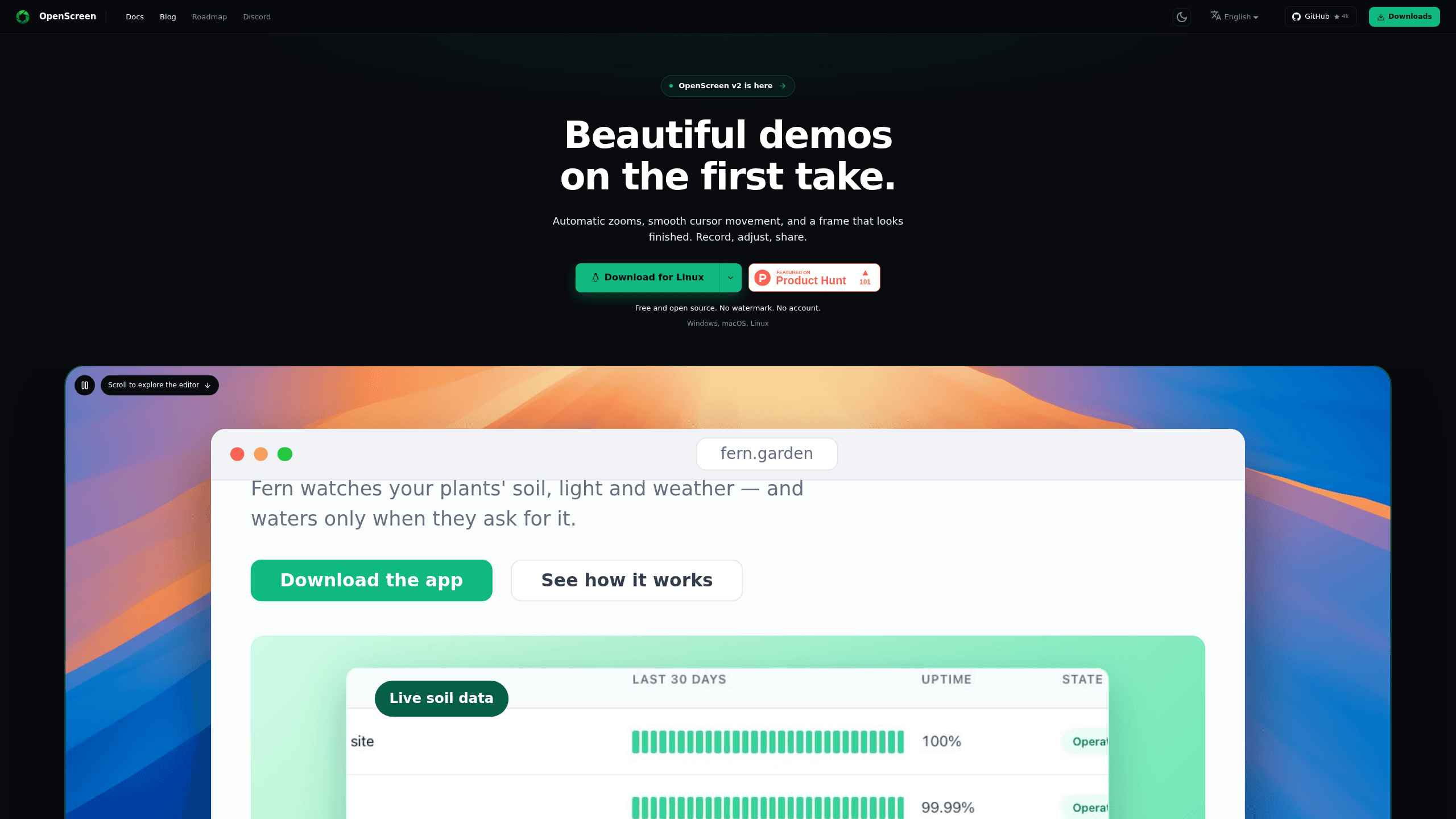
OpenScreen 2 is a free, open-source screen recorder and demo video editor for Windows, macOS, and Linux, with automatic zooms, styled frames, local captions, and agent edits.
About OpenScreen 2
What Is OpenScreen 2
OpenScreen 2 is a desktop app that turns a raw screen capture into a finished product demo. It records a window or a display through the capture path the operating system provides, then dresses the result: zooms that follow your clicks, a cursor you can restyle after the take, a background, padding, a shadow, rounded corners. What comes out is an MP4 or GIF written on your own disk.
The app is the official continuation of the original OpenScreen project, which its creator archived after version 1.5.0. It carries the MIT license, with no paid tier, no usage caps, and no watermark. There is no account and no upload step, because recording, transcription, and rendering all run locally on your machine. The project bills itself as a Screen Studio alternative: the same goal of a polished demo, reached with free software instead of a subscription.
Those choices set the limits too. This is desktop screen recording software only, so there is no browser recorder and no hosted link to send a client. Agent editing stays off until you connect a model provider with a key you supply. The Windows .exe is not code-signed, and SmartScreen warns before it runs.
Getting Started
- Download the build for your system from getopenscreen.com or the GitHub releases page. macOS gets a signed .dmg, Windows a Microsoft Store listing or an .exe, Linux a .deb, .rpm, Pacman package, AppImage, or Nix flake.
- Grant the permissions the recorder asks for. macOS needs Screen Recording, plus Accessibility before cursor shape and clicks are captured. Linux needs PipeWire and xdg-desktop-portal.
- Pick a window or a display in Record mode and start. Clicks place zooms as you go, and the frame, cursor, and background are already applied when the take ends.
- Open Edit mode to change zoom depth, cursor style, camera layout, captions, or aspect ratio. Deleting words in the transcript cuts the timeline without touching the source file.
- Export to MP4 in H.264 at 24, 30, or 60 fps, or to GIF. The file is written straight to your Movies folder, with no queue and no watermark.
Product Information
A quick look at OpenScreen 2's pricing, supported platforms, and performance.
Best for
The users, tasks, and scenarios where this tool fits best.
Users
- Product marketers and founders
- Developer advocates and engineers
- Course creators and technical writers
Tasks
- A product demo video for a launch page
- Bug reports and QA handoffs
- Tutorial and documentation clips
- Vertical clips for social
Scenarios
- Recording under time pressure
- Screen shares that contain private data
- A demo that has to live in a repo
Key features
Zooms placed by your clicks
Every click becomes a zoom under a fixed rule, with no model and no network call behind it. You can switch the behavior off in Record mode or adjust depth and easing afterward. On a five-minute walkthrough this removes the slow pass of placing zooms by hand, and the result is predictable because the rule never guesses.
A cursor you can restyle after the take
The pointer is stored as data instead of being burned into the pixels, so its size, smoothing, motion blur, and click bounce stay editable. Five cursor packs cover styles from a clean outline to a 3D object with a shadow. A take with a jumpy pointer can be fixed without recording again.
Frames, backgrounds, and 3D camera moves
Put an image, a color, or a gradient behind the recording and add padding, a shadow, rounded corners, and motion blur. A zoom can stay flat, turn the screen left or right, or orbit it while following the focus, with depth of field softening the far side. Laptop, phone, window, and plain screen frames sit on top of an animated background.
Editing by transcript
whisper.cpp ships with the app and transcribes about 100 languages on your machine after a one-time 264 MB model download. Delete a word or a silence in the text and the cut lands on the timeline in the same place. Captions can be styled, positioned, and burned into the render, and the whole transcript stays searchable while you edit.
Camera layouts and on-device background removal
A webcam take can be picture in picture, side by side, stacked, or full screen for a stretch of the timeline. A segmentation model separates you from the room on your own computer, so blur, cutout, and replacement work without a green screen. Nothing about that pass is uploaded, which matters for home offices that are not camera ready.
Agent editing from a chat panel
Describe the edit in plain language and the agent reads the transcript and the real timeline before it answers with timecodes. It can trim, zoom, change speed, add text, arrows and blurs, set the background and cursor, and turn captions on. This is AI video editing with a review step, since every change is an ordinary timeline operation with undo and a bad instruction costs one keystroke.
MCP server, CLI, and local export
The bundled MCP server gives an agent the whole job: record the app, edit the take with the editor's own tools, export the MP4, and check it frame by frame. A skill for Claude Code, Codex, and Cursor installs it and walks the agent through adding a video to a pull request. Exports cover 16:9, 9:16, 1:1, 4:3, 4:5, 16:10, and 10:16 at up to source resolution, or a GIF.
Pros and cons
Pros
- MIT licensed and free for commercial work, with no watermark, no account, and no usage cap.
- Recording, transcription, and rendering stay on your machine, so an unreleased product never appears on someone else's server.
- Clicks place the zooms automatically and the cursor stays editable as data, which removes the usual cleanup pass on a demo take.
- Native capture on Windows, macOS, and Linux, with packages for the Microsoft Store, .dmg, .deb, .rpm, Pacman, AppImage, and Nix.
- The agent and MCP server fit a workflow where the same coding agent ships the feature and the demo of it.
Cons
- Desktop only. There is no browser recorder and no hosted link, so review means sending the MP4 through your own channel.
- Agent editing needs a provider key and is billed by that provider, so the AI part costs money while the app itself is free.
- The Windows .exe is unsigned, and SmartScreen blocks it until you open More info and choose Run anyway.
- Linux capture depends on PipeWire and xdg-desktop-portal, so older distributions and some remote sessions have no working recorder.
Frequently asked questions
Yes. The app is MIT licensed, and every feature is available without payment for personal or commercial use. There is no premium tier, no watermark, and no cap on exports.
Related content
Explore related tools, skills, and articles for OpenScreen 2.
OpenScreen 2 Alternatives

ngram 2.0
ngram · Video · Marketingngram 2.0 is an AI video generator for teams. It turns a prompt, a screen recording, or a product URL into a narrated explainer, product demo, or AI avatar video, and every scene stays editable.

Skreno
Skreno · Video · ProductivitySkreno is a browser screen recorder that captures a tab, a window or your whole display, then attaches AI transcripts, summaries and console logs to one share link.

Claude Dashboards & Motion
Anthropic · Video · Productivity · BusinessClaude Dashboards & Motion are two Claude features from Anthropic: one turns company data into a live dashboard, the other builds an editable animated explainer as an MP4 file.