
Disney Pixar AI Image Generator
Disney Pixar AI Generator · Image
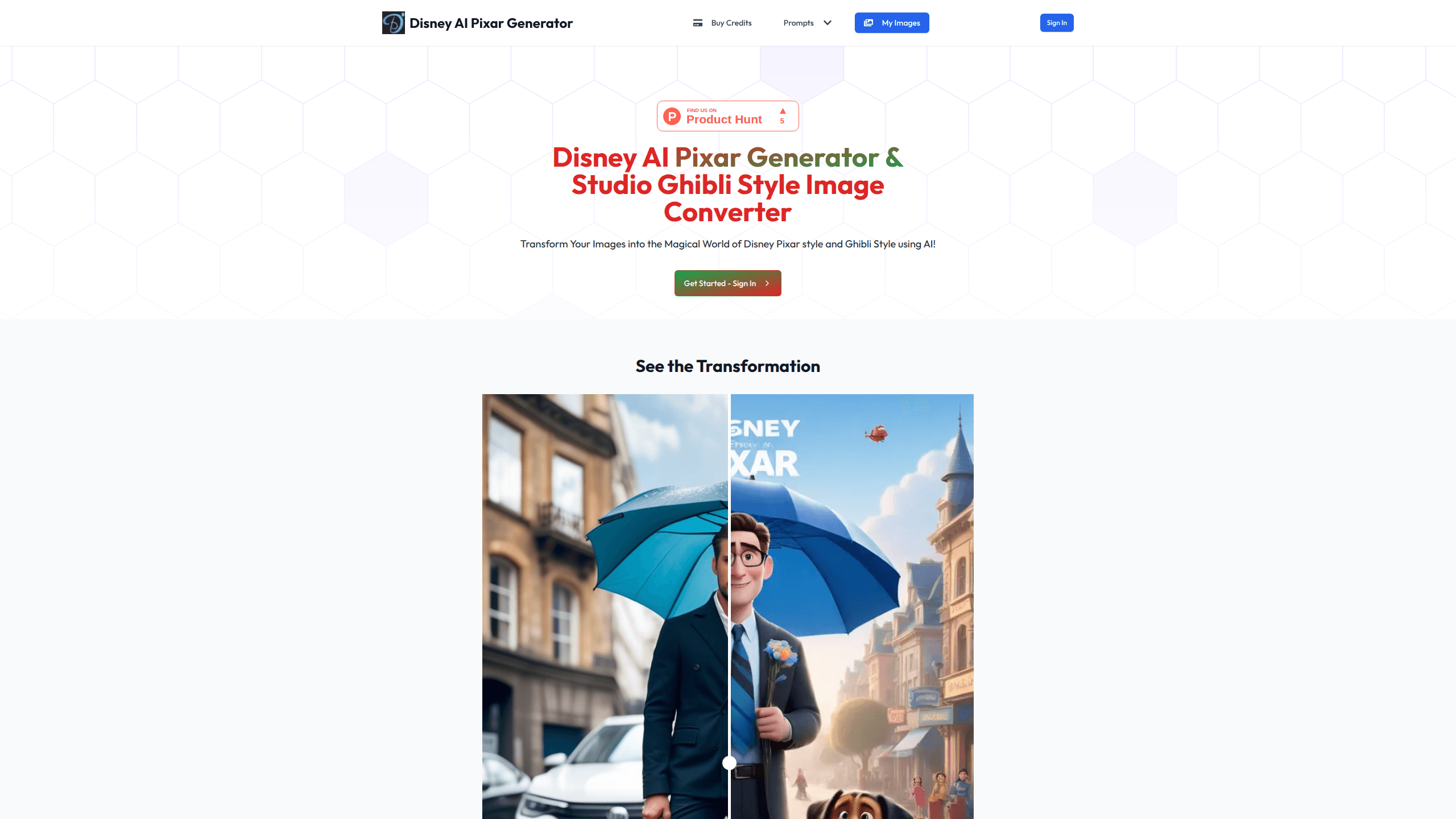
Disney Pixar AI Image Generator is a web-based AI image generator that turns ordinary photos into Pixar and Ghibli style artwork. It works as an AI cartoon photo converter: you upload a picture, describe the look you want, and the tool renders a new version in a few seconds. It runs in the browser with no software to install. You pay per image through one-time credit packs rather than a subscription. It suits people making gifts, profile pictures, or playful family portraits. It's not built for professional concept art in a studio pipeline.
About Disney Pixar AI Image Generator
What Is Disney Pixar AI Image Generator
Disney Pixar AI Image Generator is an online image-to-image converter. It takes a photo you already have, such as a family shot or a pet picture, and redraws it in the rounded, big-eyed look most people recognize from Pixar films. A second mode handles Ghibli style, the softer hand-painted aesthetic of Studio Ghibli animation. The name is descriptive rather than official. The site isn't affiliated with Disney, Pixar, or Studio Ghibli, and it produces fan-style art, not licensed studio assets.
The main problem it solves is access. Full image models usually demand a beefy GPU or a paid creative suite, and prompt engineering scares off casual users. Here you start from a photo instead of a blank prompt box. For anyone who just wants to turn a photo into a Disney character, that's a much lower bar. The workflow stays short: upload, describe, generate, download.
The limits matter too. Uploads cap at 1MB and only JPG, PNG, and WebP are accepted, so large camera files need resizing first. Every generation costs a credit, and there's no free tier beyond a preview. Results vary with the input photo. Flat, well-lit portraits with a clear face tend to convert better than busy group shots where several faces compete for the model's attention at once.
Getting Started
- Open the site and click the upload box. Pick a JPG, PNG, or WebP file under 1MB.
- Type a prompt describing the style and mood you want, for example "Pixar style family portrait, warm lighting." Add a negative prompt if there's something you want to keep out.
- Choose your output size, such as 1024x1024, then sign in to start generating.
- Buy a credit pack if you don't have credits yet, then run the generation and download the finished image.
Product Information
A quick look at Disney Pixar AI Image Generator's pricing, supported platforms, and performance.
Best for
The users, tasks, and scenarios where this tool fits best.
Users
- Parents and families
- Gift makers
- Social media users
- Casual creators with no design background
Tasks
- Converting a single portrait photo into Pixar or Ghibli style art
- Generating several style variations from one source image
- Making matching character art of pets or couples
- Producing low-cost images for personal projects
Scenarios
- Designing a gift for a birthday or anniversary
- Refreshing a social profile with a themed avatar
- Family projects with kids
- Testing a concept before hiring an illustrator
Key features
Photo-to-Cartoon Conversion
You start from an existing image rather than a text prompt alone. Upload a portrait, add a few words of direction, and the tool redraws it while trying to keep the subject recognizable. That preservation of facial features is the part reviewers mention most. It's what separates a usable AI cartoon photo converter from a generic one that loses the person entirely.
Disney Pixar and Ghibli Styles in One Place
The same generator offers two distinct looks. Pixar style gives the polished, three-dimensional animated feel, while the Ghibli style converter leans into flat, painterly backgrounds and softer color. Having both under one login means you don't juggle separate tools for two different projects. Which one fits a given photo? Pixar style usually handles detailed faces better, and Ghibli style shines on landscapes and wide shots.
Negative Prompts
A negative prompt field lets you name elements you don't want in the output, like extra limbs or cluttered backgrounds. It won't fix everything, but on busy source photos it noticeably cuts down on junk you'd otherwise have to regenerate.
Size Selection
You pick the output dimensions before generating, with 1024x1024 among the options. That's a practical size for social posts and small prints, and choosing up front saves you from upscaling a low-resolution result later.
Credit Packs That Never Expire
Pricing runs on one-time credit packs from $1.99 for 5 credits up to $9.99 for 100. Credits don't expire and there's no recurring subscription, so you buy when you have a project and come back later without losing what you paid for.
Browser-Based Workflow
Everything happens in the browser. There's no app to install and no GPU requirement on your end, which makes it usable from a phone, a laptop, or a shared computer. Sign-in is only needed at the generation step; you can preview the tool before committing.
Pros and cons
Pros
- No subscription. Credit packs are one-time purchases and unused credits never expire.
- Per-image cost drops with volume, from $0.40 each at 5 credits to $0.10 each at 100.
- Photo-first flow is far easier than writing prompts from scratch for a blank canvas.
- Two popular cartoon styles, Pixar and Ghibli, run through a single account.
- Runs entirely in the browser with no installation or local GPU.
Cons
- No free tier to speak of. You can preview the tool but not generate finished images without buying credits, so you can't judge output quality on your own photos first.
- Uploads are capped at 1MB and limited to JPG, PNG, and WebP, which means resizing most modern phone photos before they'll go through.
- Results depend heavily on the source image. Busy or low-light photos often come back muddled, and every retry costs another credit.
Frequently asked questions
No. You can try the uploader and see the interface without paying, but every finished image costs a credit, and credits must be purchased. The cheapest pack is $1.99 for 5 credits.
Related content
Explore related tools, skills, and articles for Disney Pixar AI Image Generator.
Disney Pixar AI Image Generator Alternatives

X Ray Interpreter
X-ray Interpreter · ImageX Ray Interpreter is a web-based AI radiology tool that turns X-rays, CT scans, MRI, ultrasound, and PET images into plain-language reports. You upload a scan, get a preliminary X-ray interpretation in moments, then ask follow-up questions if something needs explaining. It works as a second opinion and a learning aid, not as a medical diagnosis.

Aieasypic
AIEasyPic · ImageAIEasyPic is an AI image generator that turns plain text prompts into finished artwork in seconds. You can also train custom models on your own photos, swap faces in existing images, and create short video clips from text, all from a browser. It suits casual creators who want quick visuals and hobbyists who want to build a personal model without touching any code.

Chargen
Chargen · ImageChargen is an AI character generator and worldbuilding toolkit built for Dungeons & Dragons and other tabletop RPGs. It turns a one-line idea into a painted character portrait, spins up NPCs, monsters, maps and encounters from the same session, and keeps every creature's details close at hand. The tabletop RPG art side runs on a credit system called Gold, while the text generators stay free for everyone.