
DoneThat - Where do you spend your time?
DoneThat · Productivity
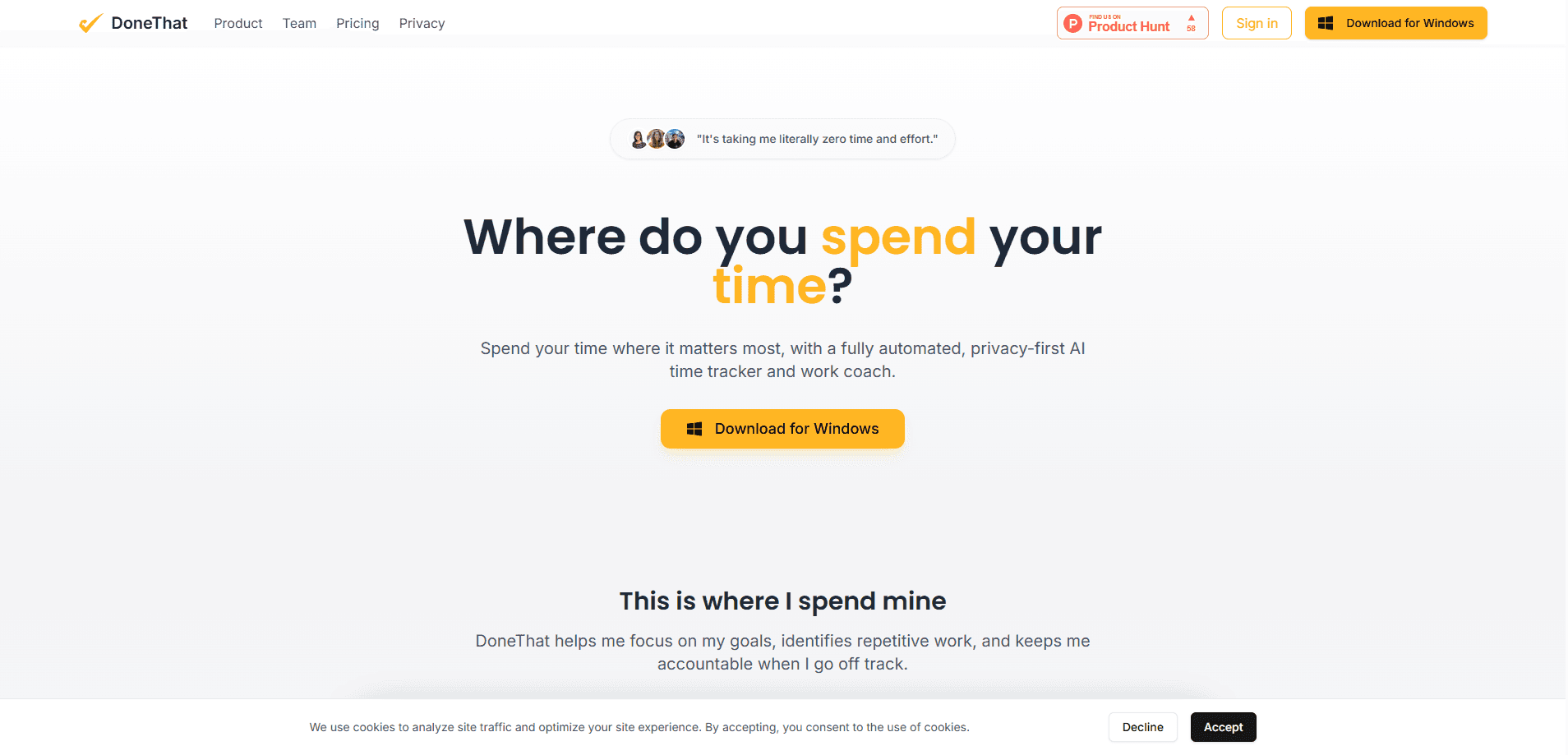
DoneThat - Where do you spend your time? is an automated AI time tracker and work coach that rebuilds your week from what you actually did on your computer. No timers. No tags. The desktop app watches your work quietly, groups raw activity into named tasks, and turns the result into a review you can read in seconds. It runs on macOS, Windows and Linux, keeps data inside European privacy rules, and adds an AI coach called Don for people who want feedback rather than just numbers. It's built for makers who deliver.
About DoneThat - Where do you spend your time?
What Is DoneThat - Where do you spend your time?
DoneThat is a privacy-first productivity tracker built for people who deliver work and want to know where the hours actually went. The core idea is frictionless time tracking: no start button, no end-of-day recall, no tags to invent. The app runs in the background on your machine, captures activity in short slices, and lets AI merge those slices into the tasks you'd name yourself.
It's aimed at freelancers, remote workers, and small teams who bill by project or who keep meaning to fix how they spend their week. For anyone comparing options, this is a privacy-first time tracker first and a coaching tool second. In short, a time tracking app that runs on your machine rather than in a browser tab. Because it works off the desktop, it also catches the tools you'd normally forget to log, like a local editor or a spreadsheet.
The main trade-off is scope. DoneThat is a desktop tool for macOS, Windows and Linux only. No phone app exists, so time spent on a mobile device won't show up in your week. The team is based in Amsterdam and stores data under European privacy rules, which matters if you handle client information. Setup takes a few minutes, and the first 14 days are free.
Getting Started
- Download the desktop app for macOS, Windows or Linux from the DoneThat website and install it.
- Create an account and sign in, then grant the permissions the app needs to observe activity on your machine.
- Let it run through a normal workday so it can collect enough frames to reconstruct your tasks.
- Open the daily or weekly review, rename or drop anything that landed in the wrong bucket, and check the time against your projects.
- Connect your calendar, Slack, Discord or inbox, then set weekly goals so DoneThat can compare the real week against the plan.
Product Information
A quick look at DoneThat - Where do you spend your time?'s pricing, supported platforms, and performance.
Best for
The users, tasks, and scenarios where this tool fits best.
Users
- Freelancers who bill by project and need an honest record of hours without running a timer all day.
- Remote workers on distributed teams who want their daily updates to write themselves instead of typing a status message.
- Developers and makers who bounce between an editor, a terminal and chat windows and lose track of where the afternoon went.
- Team leads who want async visibility into progress without asking people to file timesheets.
Tasks
- Rebuilding a week of work from actual activity instead of guessing at the end of it.
- Naming and grouping raw computer activity into tasks and projects you'd recognize.
- Comparing real hours against weekly goals set for each project.
- Sharing a short daily recap to Slack, Discord or an inbox with a review step before it posts.
- Exporting time data as CSV for invoicing or client reports.
Scenarios
- End-of-week invoicing when you can't remember which client got Tuesday afternoon.
- Preparing a stand-up update in seconds instead of reconstructing it from memory.
- Setting a target split across projects and checking at month end whether it held.
- Logging off-screen and meeting time through calendar import so live calls still count.
Key features
Fully automatic activity tracking
DoneThat captures your work in the background without a timer running, which means the log builds itself while you get on with the actual job. Every short frame lands as a five-minute sliver on your day, and those slivers merge into tasks at the end. The payoff is simple. You never have to remember to start or stop anything. It only sees what happens on the machine, so phone time stays invisible. That's the catch.
AI that names your tasks
The app doesn't just log app names and window titles. Its AI groups raw activity into the tasks you'd actually name, so a week of work reads like a week of work rather than a wall of timestamps. That naming is where automated time tracking earns its keep. If something lands in the wrong bucket, you can rename or drop it in the review. That takes seconds. The higher tiers use stronger models, and Pro raises the recording frequency so the detail is finer.
Meet Don, your AI coach
Don reads your work and responds in the style you pick: a coach, a cheerleader, or an accountability buddy. Call it an AI productivity coach that actually reads your week. Longer thinking time is reserved for the Pro plan, which matters if you want more considered feedback rather than quick notes, and the difference shows up in how specific the advice gets. This is the part that separates DoneThat from a plain tracker. It nudges you about how the week went, not just how long it was.
Goals and weekly review
You set where the time should go, then watch the real week land against that plan, and the gap between the two is what tells you whether the month is heading anywhere useful. No self-reporting. No end-of-month guessing. Reviewing the week project by project takes a few seconds, and the gaps are usually the interesting part. That's the whole point. It's a simple loop, but it's the one most time trackers never close.
Calendar, meetings and off-screen time
Live meetings get imported from your calendar, and DoneThat can schedule events on your behalf. Off-screen time can be logged too, so a client call or a whiteboard session still counts toward the day. This fills the biggest blind spot in passive tracking. Anything that doesn't happen on screen disappears otherwise. Simple, but it closes the gap.
Integrations and channel posting
Core and Pro connect DoneThat to tools you already run, including API access, MCP, Zapier and n8n. You can sync active projects, analyze your data, and post updates in both directions. Daily recaps can go to Slack, Discord or your inbox, and you review each day first so you can drop anything private before it shares. Only the task names are shared. Never the extra detail, and only with people you approve.
Privacy-first data handling
DoneThat is built around European data privacy, with the team based in Amsterdam and no surveillance-style extras bolted on. Not bad for a tracker. CSV exports let you move your own data whenever you want. That matters. For anyone tracking client work, that combination is often the deciding factor.
Pros and cons
Pros
- No timers, tags or end-of-day recall, since the desktop app logs activity on its own.
- AI groups raw activity into named tasks, so reports read like a normal work week.
- Don adds coaching on top of the numbers, which plain trackers don't offer.
- Privacy-first design with European data handling suits client and sensitive work.
- Starts at $4/mo with a 14-day free trial, and Core adds API, MCP, Zapier and n8n.
Cons
- Desktop only for macOS, Windows and Linux, so no phone tracking and no mobile review.
- It only sees on-screen activity, which means anything done on a mobile device or off the computer is missed unless you log it.
- The most accurate models, higher recording frequency and longer coach thinking sit behind the $16/mo Pro plan.
- Basic caps history at 90 days, so long-term trends need the Core plan or higher.
Frequently asked questions
It tracks activity on your computer, then uses AI to group that activity into named tasks and projects. You review the result rather than building the log yourself. No timer to start. No tags to keep tidy.
Related content
Explore related tools, skills, and articles for DoneThat - Where do you spend your time?.
DoneThat - Where do you spend your time? Alternatives

Swms
Swms AI · Writing · Productivity · BusinessSwms is an AI safety compliance tool that turns a plain description of a job into ready-to-use safety documents. Describe your project, trade, and known hazards, and it writes a safe work method statement, job hazard analysis, safe work procedure, RAMS, or safety data sheet in seconds. It also ships with Oscar, a chat assistant that answers workplace safety questions in any language. Teams in construction, mining, transport, and warehousing use it to cut the paperwork that usually eats into a workday.

Wordly AI Translation
Wordly · Voice & Language · ProductivityWordly AI Translation is a real-time AI translation and captioning platform built for meetings, conferences, and events. It delivers live translation, captions, transcripts, and summaries in more than 60 languages, and attendees join by scanning a QR code or opening a link instead of using dedicated headsets. The platform works with Zoom, Microsoft Teams, Google Meet, and Webex, and it's designed for organizations that want multilingual access without hiring human interpreters for every session. Simple as that.

Rows
Rows (Superhuman) · Productivity · BusinessRows is an AI spreadsheet and data analysis tool that imports live data from more than 50 sources, then lets you work with it using plain language instead of SQL queries or nested formulas. You can pull numbers out of PDFs, connect ad platforms, databases, and bank accounts, and ask the AI to build reports, merge datasets, or set up models that recalculate themselves. It runs in the browser, works like a spreadsheet, and now sits under the Superhuman umbrella.