
FocuSee
iMobie · Video
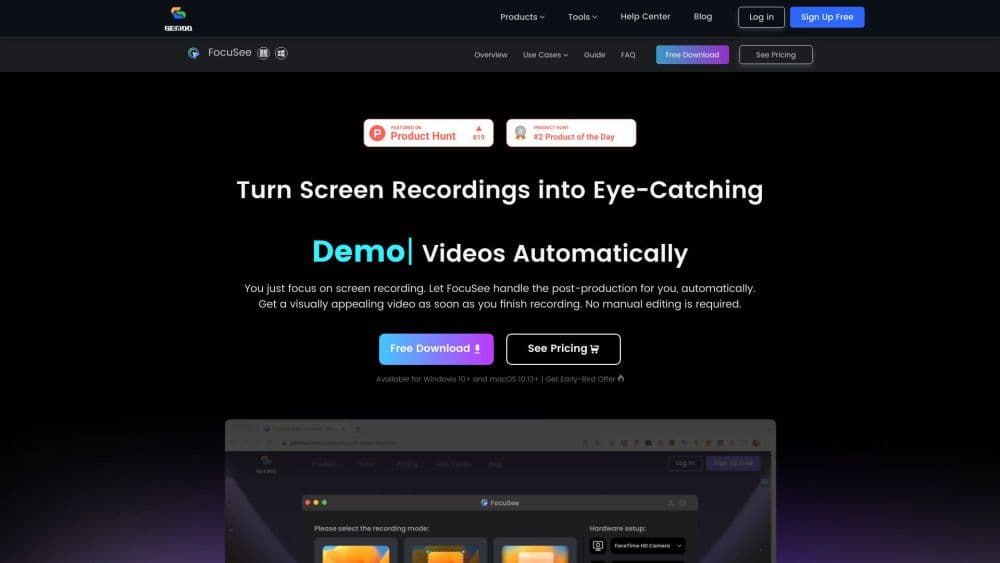
FocuSee is an AI screen recorder for Mac and Windows that turns raw clips into polished demo and tutorial videos. It auto adds zoom, captions, and cursor effects, so editing stays light after you stop recording.
About FocuSee
What Is FocuSee
FocuSee is a screen recorder and demo video maker built by iMobie, the company behind several consumer data and utility apps. It records your screen, webcam, and system audio, then applies an editing pass on top. The pitch is simple: most people can capture their screen, but few want to spend an afternoon keyframing zoom and cleaning audio.
The tool records screen content and mouse movement as separate data layers instead of baking the cursor into the frame. That design choice is why it can add smooth mouse tracking, resize the cursor, or hide it during quiet moments well after the recording ends. A recorder that captures everything in one pass cannot do any of that.
The limits are worth knowing before you commit. The AI editing features run on credits, and credits only come with the Advanced plans. The free trial lets you export one video in up to 4K, but the second export needs a license. Recordings stay local by default, which is good for privacy but means you handle your own backups.
Getting Started
- Download FocuSee for Windows or Mac and install it. You can also connect an iPhone or Android device by USB to record a mobile screen.
- Record with full screen, a chosen window, or a custom area while the app captures your microphone, camera, and system sound together.
- Let the automatic pass run: FocuSee detects clicks and typing and adds zoom, then generates captions and applies the cursor style you set.
- Refine anything by hand in the editor, from spotlight and annotations to background and camera layout.
- Export as 4K video or GIF, or share through a link with password protection.
Product Information
A quick look at FocuSee's pricing, supported platforms, and performance.
Best for
The users, tasks, and scenarios where this tool fits best.
Users
- Product managers
- Online instructors
- Solo content creators
Tasks
- Recording a software tutorial
- Making a silent product demo
- Polishing a previously recorded clip
Scenarios
- Publishing a weekly onboarding video for new hires
- Recording a mobile app walkthrough
- Producing a quick marketing short
Key features
Auto Zoom and Smart Tracking
FocuSee watches where you click and type, then adds smooth zoom to focus on that part of the screen. You can also add, delete, or tweak any zoom effect by hand if the automation picks the wrong moment. This is the feature that replaces manual keyframing for most tutorial footage.
AI Virtual Avatar
If you would rather not appear on camera, FocuSee swaps your webcam feed for a virtual presenter. There are more than 100 avatar styles, and the app keeps your voice and screen action intact. It is aimed at people who want a consistent on-camera presence without lighting a real one, and it uses AI credits.
Auto Captions in 55+ Languages
Speech recognition generates subtitles in over 55 languages, with iMobie claiming accuracy above 98 percent. You can edit the text, fix timing, split or merge caption blocks, or import an SRT file. That matters for accessibility and for viewers who watch on mute.
AI Audio Cleanup
The audio tools remove filler words like "um" and "ah," cut out silence, reduce background noise, and lift voice clarity. On a long recording this saves real editing time. These features consume AI credits, so they are part of the Advanced plans rather than the basic one.
Annotation and Spotlight Tools
Text, shapes, arrows, callouts, spotlights, and blur masking let you explain on-screen detail and hide sensitive data in the same pass. Stacking several elements keeps a complicated step easy to follow, and the blur tool is useful when a demo shows real account information.
Flexible Export and Sharing
Recordings export at up to 4K and 60fps, or as a GIF for quick sharing. You can resize one recording to fit YouTube, Shorts, TikTok, Instagram, Facebook, or X, which avoids recording the same clip several times. Shared links can carry password and permission controls.
Built-In Teleprompter and Camera Tools
The on-screen teleprompter keeps your script in view so you do not miss lines and restart takes. Camera layouts switch between picture-in-picture and full screen, and a beautify control smooths your webcam image without extra hardware.
Pros and cons
Pros
- Records screen, webcam, microphone, and system audio together, which cuts down on sync work after the fact.
- Handles the boring parts of tutorial editing, like zoom, captions, and filler word removal, automatically.
- Records iOS and Android screens over USB with the same editing effects as the desktop app.
- Keeps recordings on your device by default, and the cursor tracking runs locally rather than in the cloud.
- One clip resizes for vertical and square formats, so a single recording covers several platforms.
Cons
- The most useful AI features, like avatars and noise reduction, need an Advanced plan and consume credits that expire, so heavy users have to watch usage.
- The free version allows only one export, which can catch people off guard after they have already recorded a long session.
- It works only on Windows and macOS. There is no Linux build or a browser-based option for teams on mixed machines.
- Advanced plans cap you at three computers, which is tight for a small team that shares work across devices.
Frequently asked questions
FocuSee records your screen and then edits the footage for you. It adds zoom on your clicks, generates captions, cleans up audio, and applies cursor and background effects, so a plain screen capture comes out looking like a finished demo.
Related content
Explore related tools, skills, and articles for FocuSee.
FocuSee Alternatives

ngram 2.0
ngram · Video · Marketingngram 2.0 is an AI video generator for teams. It turns a prompt, a screen recording, or a product URL into a narrated explainer, product demo, or AI avatar video, and every scene stays editable.

OpenScreen 2
OpenScreen (open-source project) · Video · ProductivityOpenScreen 2 is a free, open-source screen recorder and demo video editor for Windows, macOS, and Linux, with automatic zooms, styled frames, local captions, and agent edits.

Skreno
Skreno · Video · ProductivitySkreno is a browser screen recorder that captures a tab, a window or your whole display, then attaches AI transcripts, summaries and console logs to one share link.