

Gling AI
Gling · Video
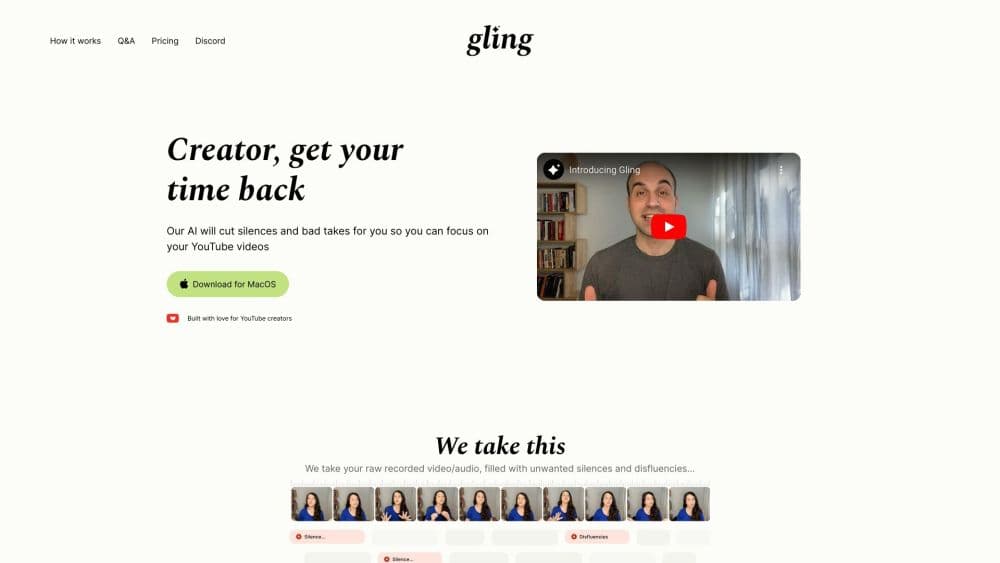
Gling AI is an AI video editing tool for YouTube creators that removes bad takes, silence, and filler words from raw footage, then adds captions, titles, and chapters.
About Gling AI
What Is Gling AI
Gling AI is a YouTube video editor and AI video editing software that runs in a browser and as a desktop app, built for talking head YouTube videos. You upload a raw recording, the tool transcribes it, and it proposes cuts for repeated takes, long pauses, and filler such as "um" and "uh." You review the suggestions in the transcript, fix whatever the machine got wrong, and export a finished MP4 or a timeline for an editor.
The problem it addresses is volume, not craft. A single talking head video can carry hundreds of small dead moments. Cutting them by hand in Premiere or Resolve takes hours, and the work is dull enough that many creators skip it. Gling does the first pass, which leaves the creative decisions to you.
The limit is scope. Gling cleans up spoken footage and dresses it for YouTube. It won't help with cinematic sequences, heavy visual effects, or multi layered color work. If your videos depend on those, this is a companion to your main editor, not a replacement for it.
Getting Started
- Sign up at gling.ai and open the web app, or install the desktop app for Mac or Windows if you plan to export editor timelines.
- Upload a video or audio file. Gling transcribes it and analyses the speech for bad takes, silences, and filler words.
- Review the proposed cuts in the transcript, restore any take or pause you want to keep, and edit further by changing text or trimming the timeline.
- Add captions, adjust auto framing, and let the tool draft a title and chapters if you want a YouTube ready package.
- Export as MP4 or MP3 with SRT captions, or send an XML timeline into Premiere Pro, Final Cut Pro, or DaVinci Resolve. Editor timeline exports need a paid desktop plan.
Product Information
A quick look at Gling AI's pricing, supported platforms, and performance.
Best for
The users, tasks, and scenarios where this tool fits best.
Users
- YouTube talking head creators
- Creators editing their own videos without a team
- Podcasters repurposing audio for video
- Editors who want a rough cut before the real edit
Tasks
- Cutting repeated takes from one recording
- Removing silence and filler words
- Generating captions and subtitles
- Writing titles and chapters for a video
Scenarios
- A weekly upload with a two day turnaround
- A long interview that needs trimming
- A recording made on a noisy day
Key features
Automatic Removal of Bad Takes
Gling reads the transcript and spots the moments where you restarted a sentence or repeated a line. Those segments get flagged for removal rather than deleted outright, so you can listen back and keep the version that fits. For a creator who rambles while recording, this is the step that recovers most of the editing time.
Silence and Filler Word Cutting
Press play and Gling will auto remove filler words and silences: long pauses and verbal tics such as "um" and "uh" get detected and trimmed automatically. The tool marks proposed cuts, and you can restore a pause when it carried dramatic weight or separated two ideas. Short silences that glue a sentence together usually stay, which keeps the delivery natural.
Text Based Video Editing
The transcript doubles as the timeline, which makes this a text based video editor rather than a timeline first one. Delete a sentence in the text and the matching footage disappears from the video. It turns editing into proofreading, and it removes the need to learn a timeline interface before you can clean up a recording.
AI Captions and Subtitle Export
Captions are generated from the transcript with one click, and you can export them as an SRT file for YouTube. The site lists caption languages that include English, Spanish, Portuguese, French, German, Russian, Italian, Dutch, and Hebrew. Burned in captions keep silent viewers watching, and the SRT gives you the searchable transcript YouTube indexes.
Auto Framing and Multicam Editing
Auto framing zooms in and out on key moments on its own, which gives a single camera setup some variety without manual keyframes. Multicam editing lets you switch between angles in one session, useful for podcasts or interviews recorded on several cameras.
YouTube Titles, Chapters, and Next Video Ideas
Gling works as a YouTube title generator and drafts titles it says are built to rank, generates chapter markers from the transcript, and suggests topics for the next video. The suggestions are starting points. You still know your audience better than the model does, so treat the output as a first draft.
Timeline Export to Pro Editors
Paid desktop plans export an XML timeline that opens in Premiere Pro, Final Cut Pro, or DaVinci Resolve. Your cuts, captions, and clip selections arrive in the editor you already know, so Gling handles cleanup and the real edit stays where you want it.
Pros and cons
Pros
- Removes bad takes, silence, and filler words in one pass, which is where most of the editing hours go for talking head video.
- Cutting by editing text is faster to learn than a timeline interface, so beginners can clean a video on the first try.
- Free plan gives one hour of AI edited media per month with watermarked exports, enough to judge whether the cuts suit your recording style.
- Timeline export to Premiere Pro, Final Cut Pro, and DaVinci Resolve keeps your existing workflow intact.
- Captions, titles, chapters, and noise reduction sit in the same tool, so a YouTube ready package comes out of one upload.
Cons
- Free exports carry a watermark and the free tier stops at one hour of media per month, so regular publishers need a paid plan.
- Editor timeline export requires a paid desktop plan, which means the web app alone can't hand a project to Premiere.
- The automated cuts still need review. A repeated line that changes meaning or a deliberate pause can be flagged wrongly, and fixing those takes attention.
- It's built for spoken video. Footage driven by action, b roll, or effects gets little from the cleanup features.
Frequently asked questions
It edits talking head video automatically. Gling AI transcribes your recording, proposes cuts for bad takes, silences, and filler words, and adds captions, titles, and chapters before you export an MP4 or an editor timeline.
Related content
Explore related tools, skills, and articles for Gling AI.
Gling AI Alternatives

ngram 2.0
ngram · Video · Marketingngram 2.0 is an AI video generator for teams. It turns a prompt, a screen recording, or a product URL into a narrated explainer, product demo, or AI avatar video, and every scene stays editable.

OpenScreen 2
OpenScreen (open-source project) · Video · ProductivityOpenScreen 2 is a free, open-source screen recorder and demo video editor for Windows, macOS, and Linux, with automatic zooms, styled frames, local captions, and agent edits.

Skreno
Skreno · Video · ProductivitySkreno is a browser screen recorder that captures a tab, a window or your whole display, then attaches AI transcripts, summaries and console logs to one share link.