

Google Mixboard
Google · Image
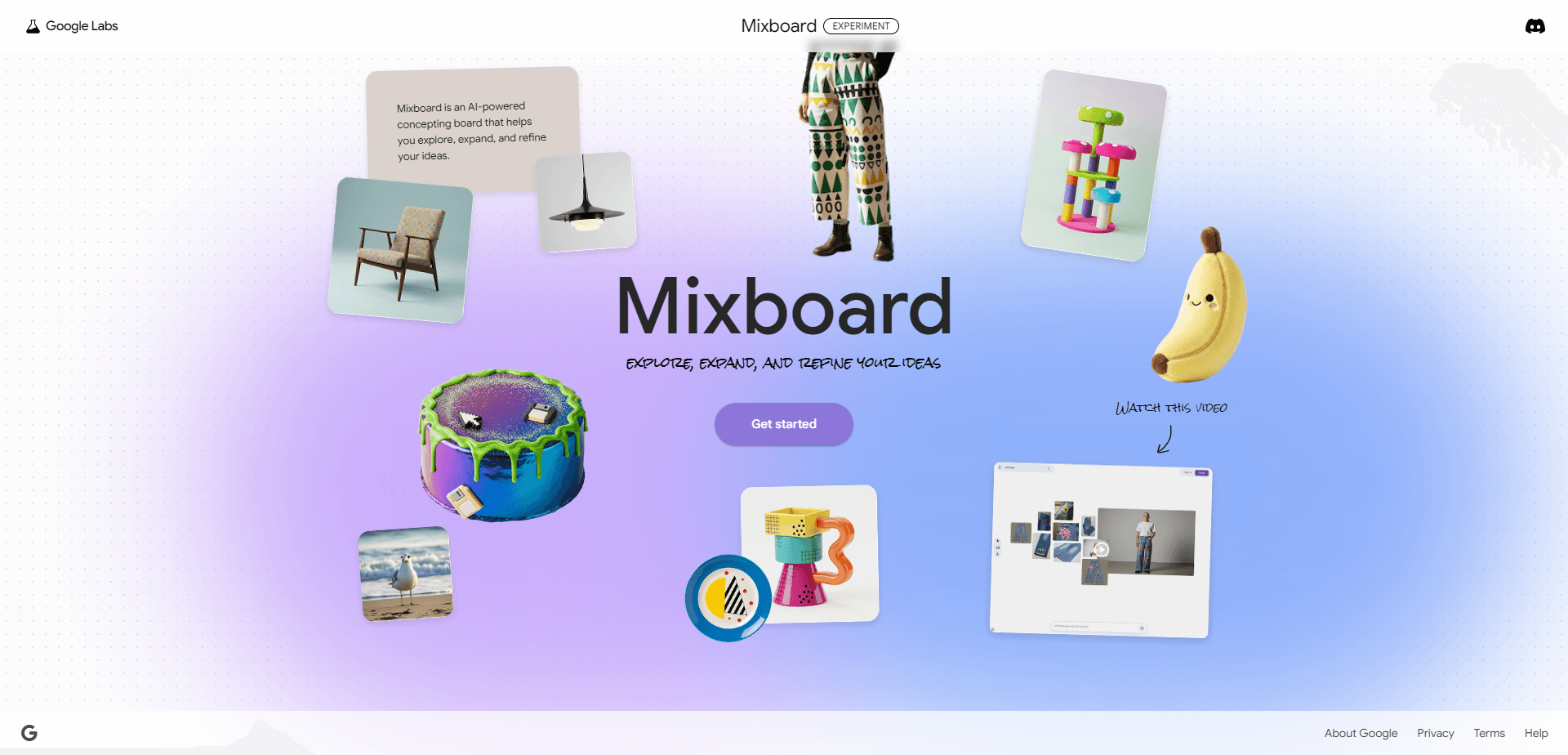
Google Mixboard is a free, experimental AI concepting board from Google Labs that turns a plain text prompt into a board full of editable images. You type what you're thinking about, and the tool fills an infinite canvas with related visuals you can then remix with natural language. It's built for people who plan mood boards, mockups, and visual ideas without wanting to fight design software, which is a longer list of people than most design tools admit. The catch? It's still a US-only public beta, and the feature set keeps shifting.
About Google Mixboard
What Is Google Mixboard
Google Mixboard is an AI mood board generator that lives entirely in your browser. You describe an idea, and it produces a cluster of images on a shared canvas rather than a single output buried in a chat thread. That board, not the prompt, becomes the workspace.
The thing that separates it from a standard AI image tool is the mixing. You can pull in your own photo, drop in a reference image, and tell Mixboard to rework one using the style of another. Selecting an image and typing a change, like "make the lighting warmer" or "swap the mug for a matte ceramic one," edits just that region. It won't redraw everything from scratch. That restraint is the whole point.
It runs on Google's Nano Banana image model for the visuals and Gemini 2.5 Flash for understanding your prompts. Access is limited right now. Mixboard rolled out as a US-only public beta, and Google hasn't said when it opens up elsewhere. Some features also change with little notice. That comes with the Google Labs territory.
Getting Started
- Sign in with a Google account and open Mixboard at labs.google.com/mixboard.
- Type a starting prompt, or pick one of the preset boards if you want a ready-made direction.
- Review the images that land on the canvas, then click any that are close to what you want.
- Select images and describe your edits in plain language, or upload your own photos to mix in.
- Download the results, or keep stacking new blocks, tweaking text, colors, and layout, until the board finally matches the idea you had in your head all along.
Product Information
A quick look at Google Mixboard's pricing, supported platforms, and performance.
Best for
The users, tasks, and scenarios where this tool fits best.
Users
- Designers
- Marketers and event planners
- Hobbyists
Tasks
- Building a mood board
- Style transfer
- Product mockups
- Quick concept sketches
Scenarios
- Early project research
- Interior and decor planning
- Social content ideation
- Client or team reviews
Key features
Infinite canvas with a built-in chat
Unlike a chatbot where every image scrolls out of view, Mixboard keeps everything on one board with a chat box and a toolbar beside it. You generate images, edit them, and arrange them in the same space. It sounds small. It isn't. That layout is the main reason the tool feels closer to a design surface than a conversation.
Natural language editing on selected images
You point at an image and say what to change. Mixboard understands which block you mean, so the edit lands on that one image. Style, color, objects, and backgrounds are all fair game. This is where the tool earns its keep for anyone who's tried to re-describe an image from scratch just to tweak one detail.
Powered by Nano Banana and Gemini
The visuals come from Nano Banana, Google's image model, while Gemini 2.5 Flash handles prompt comprehension. In practice, edits stay close to your original composition instead of drifting into something unrecognizable. Google's pitch is simple: make visual ideation approachable for people without a design background.
One-click image tools
Each image carries quick actions: regenerate, generate more like this, remove background, copy, and download. These are the edits people ask for most often, so Mixboard folds them into single clicks. Removing a background takes a few seconds. Handy for stickers, icons, or post images.
Mixing and combining elements
You can blend two images by asking for one to borrow the style or a specific object from the other, like putting a color from one image onto an object in another. Since the tool reads the whole board, you only describe the part you want changed. It's part style transfer and part collage. It's also the feature early users kept poking at.
Batch selection and editing
Select several images at once and apply the same change to all of them. This matters when you're producing a set of matching assets, such as a run of social posts or a group of icons that need a consistent look. One image at a time gets old fast.
Pros and cons
Pros
- Free to use while in public beta, with no credit card required.
- The canvas layout keeps a whole project visible instead of buried in chat history.
- Natural language editing targets single images, so you don't lose work you liked.
- Built on strong Google models. Image quality and prompt handling are solid.
- Handy one-click tools cover the edits people actually need most.
Cons
- Limited to the US during the beta. It's simply unavailable in most countries.
- No API, which rules it out for anyone wanting to automate image generation.
- Being an experimental Google Labs product, features can change or vanish with little warning.
- There's no paid tier yet. There's also no guarantee on long-term availability or data retention.
Frequently asked questions
Yes. It's free to use during its public beta, and there's no paid plan right now. Google hasn't announced pricing for after the beta ends.
Related content
Explore related tools, skills, and articles for Google Mixboard.
Google Mixboard Alternatives

X Ray Interpreter
X-ray Interpreter · ImageX Ray Interpreter is a web-based AI radiology tool that turns X-rays, CT scans, MRI, ultrasound, and PET images into plain-language reports. You upload a scan, get a preliminary X-ray interpretation in moments, then ask follow-up questions if something needs explaining. It works as a second opinion and a learning aid, not as a medical diagnosis.

Aieasypic
AIEasyPic · ImageAIEasyPic is an AI image generator that turns plain text prompts into finished artwork in seconds. You can also train custom models on your own photos, swap faces in existing images, and create short video clips from text, all from a browser. It suits casual creators who want quick visuals and hobbyists who want to build a personal model without touching any code.

Chargen
Chargen · ImageChargen is an AI character generator and worldbuilding toolkit built for Dungeons & Dragons and other tabletop RPGs. It turns a one-line idea into a painted character portrait, spins up NPCs, monsters, maps and encounters from the same session, and keeps every creature's details close at hand. The tabletop RPG art side runs on a credit system called Gold, while the text generators stay free for everyone.