

Kling Motion Control
MotionControl · Image · Video
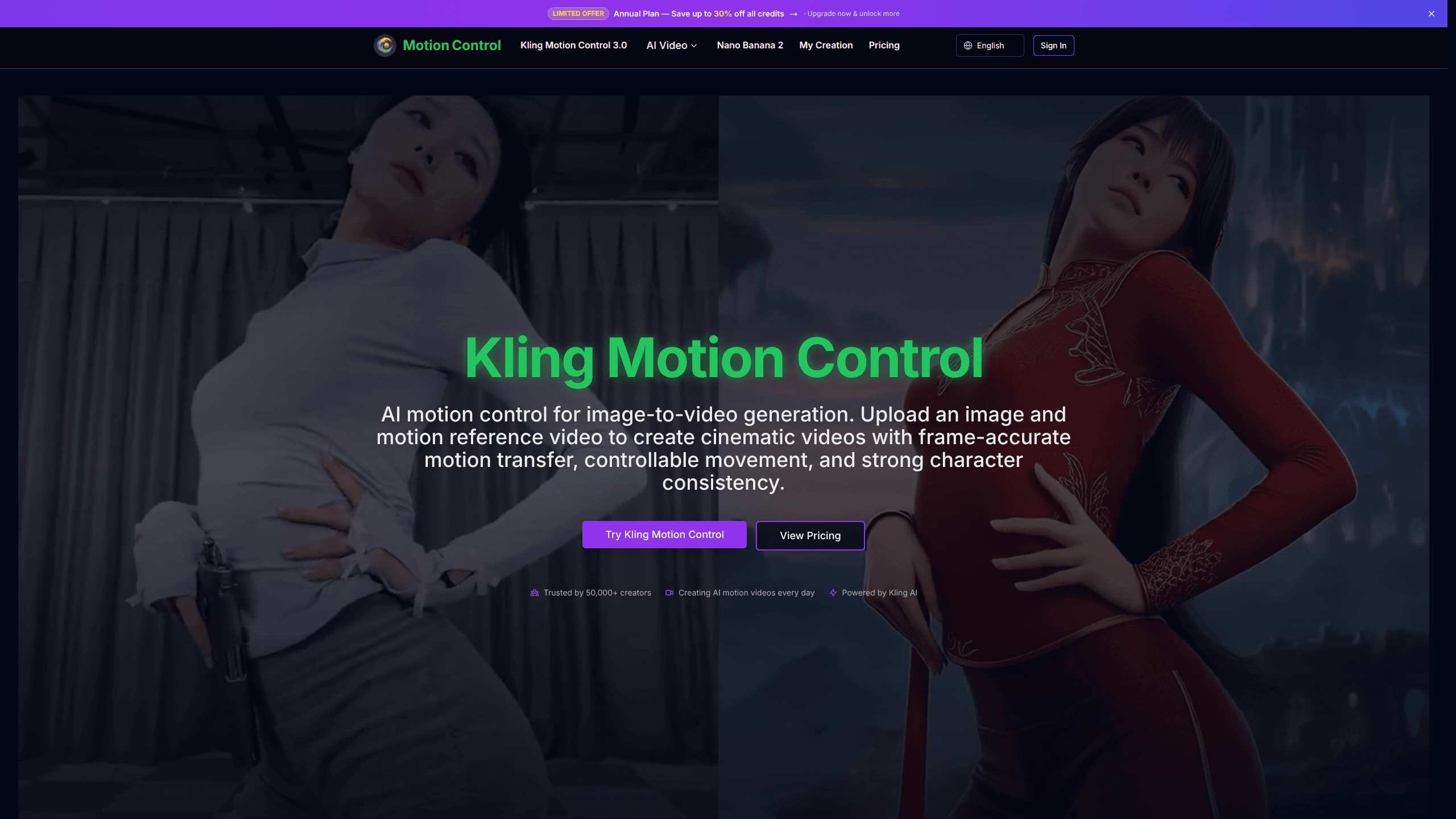
Kling Motion Control is an AI motion control tool that turns a single still image into a moving video by copying the body movement from a reference clip. You upload a character portrait, product photo, or any clear still, pair it with a short motion video, and the system transfers that movement to your subject while holding the character's look steady the whole way through. This is a character animation tool for people who want controllable image-to-video results without a full animation pipeline.
About Kling Motion Control
What Is Kling Motion Control
Kling Motion Control is a web based image-to-video creator built around motion transfer. The idea is simple: instead of describing motion in words and hoping the model guesses right, you show it a clip. The tool reads the body movement, gestures, and timing from that reference video, then applies them to the subject in your image.
This solves a common frustration with AI motion control. General video generators tend to drift in identity, so a face changes shape halfway through a dance or a walk cycle fights the camera. Motion Control is designed to keep the character consistent while it follows the movement path you gave it. You can also add a text prompt to steer scene details, outfit, or styling, and pick between the Kling Motion Control 2.6 and 3.0 models depending on how much stability and detail you need.
So what actually holds the output back? Input quality, mostly.
The main limit is input quality. Framing, lighting, and clip cleanliness all matter. Garbage in, garbage out still applies here. A mismatched or blurry motion reference is the fastest way to a shaky result. You also get short clips rather than long scenes, which is fine for social edits but not for a full narrative.
Getting Started
- Open motioncontrol.app and sign up; new accounts get free credits with no card needed.
- Upload a reference image (PNG or JPG) with one clear subject you want to animate.
- Add a motion reference video in MP4, 3 to 30 seconds, under 100MB, showing the movement to copy.
- Write a short prompt for scene, background, or outfit details, then set character orientation and quality.
- Pick the 2.6 or 3.0 model and generate; download the finished clip when it's ready.
Product Information
A quick look at Kling Motion Control's pricing, supported platforms, and performance.
Best for
The users, tasks, and scenarios where this tool fits best.
Users
- Social media creators
- Indie animators
- Marketers
Tasks
- Dance motion transfer
- Full-body movement with expression sync
- Scene restyling
Scenarios
- Building a quick vertical clip for a campaign post without shooting new footage.
- Previsualizing a character's movement before a longer animated project.
- Turning a single hero image into a short cinematic teaser.
Key features
Motion Transfer from a Reference Clip
The core of the tool is copying movement rather than inventing it. You supply a video showing the body movement, gesture, or action, and Kling Motion Control maps that path onto your still image. This gives you far more control over the result than a text prompt alone. It's the main reason people pick this for a cinematic AI video over a general AI video generator.
Character Consistency Across Frames
Identity drift is the usual weak spot in image to video work, and this tool is built to fight it. The model works to preserve the subject's look as motion plays out, so a face or outfit doesn't morph mid-clip. According to the site, the 3.0 model improves facial consistency further over the 2.6 foundation.
Prompt-Guided Scene Control
Text prompts handle everything around the motion. You can set outfit details, background elements, and overall visual styling while the motion transfer stays locked to your reference video. It's a useful split: movement comes from the clip, look and finish come from your words.
Choice of 2.6 and 3.0 Models
You aren't stuck with one engine. The 2.6 model covers standard motion work, while 3.0 adds stronger facial consistency and steadier results on complex scenes and longer sequences. Switching between the two lets you trade generation cost against output quality depending on the job you're working on and how much polish the final clip actually needs.
Flexible Input and Quality Settings
The workflow takes PNG and JPG images and MP4 clips up to 30 seconds and 100MB, with character orientation and quality controls in the panel. Higher quality settings raise the credit cost per second, so you can keep early tests cheap and spend more on the final render.
Credit-Based Generation
The platform runs on credits rather than flat per-video pricing. Free credits go first at sign-up, then subscription credits, then credit packs. This means you can try the image-to-video creator before paying anything, and scale spend only when you're happy with the output rather than committing to a fixed monthly bill up front.
Pros and cons
Pros
- Motion transfer gives more precise control than prompt-only video generation.
- Character consistency holds up better than many general AI video tools.
- Free credits let you test before committing to a plan.
- Two model tiers (2.6 and 3.0) let you balance cost and quality.
Cons
- No public API, so it can't plug into an automated pipeline or app.
- Output is limited to short clips, which rules out long-form scenes.
- Results depend heavily on input quality; a mismatched reference video produces shaky motion.
- Credit costs climb fast at 1080p, so heavy use gets expensive.
Frequently asked questions
It's used to turn a still image into a moving video by copying motion from a reference clip. Typical jobs include character animation, dance transfer, and turning product shots into short cinematic clips.
Related content
Explore related tools, skills, and articles for Kling Motion Control.
Kling Motion Control Alternatives

X Ray Interpreter
X-ray Interpreter · ImageX Ray Interpreter is a web-based AI radiology tool that turns X-rays, CT scans, MRI, ultrasound, and PET images into plain-language reports. You upload a scan, get a preliminary X-ray interpretation in moments, then ask follow-up questions if something needs explaining. It works as a second opinion and a learning aid, not as a medical diagnosis.

Aieasypic
AIEasyPic · ImageAIEasyPic is an AI image generator that turns plain text prompts into finished artwork in seconds. You can also train custom models on your own photos, swap faces in existing images, and create short video clips from text, all from a browser. It suits casual creators who want quick visuals and hobbyists who want to build a personal model without touching any code.

Chargen
Chargen · ImageChargen is an AI character generator and worldbuilding toolkit built for Dungeons & Dragons and other tabletop RPGs. It turns a one-line idea into a painted character portrait, spins up NPCs, monsters, maps and encounters from the same session, and keeps every creature's details close at hand. The tabletop RPG art side runs on a credit system called Gold, while the text generators stay free for everyone.