

knooth
knooth · Video
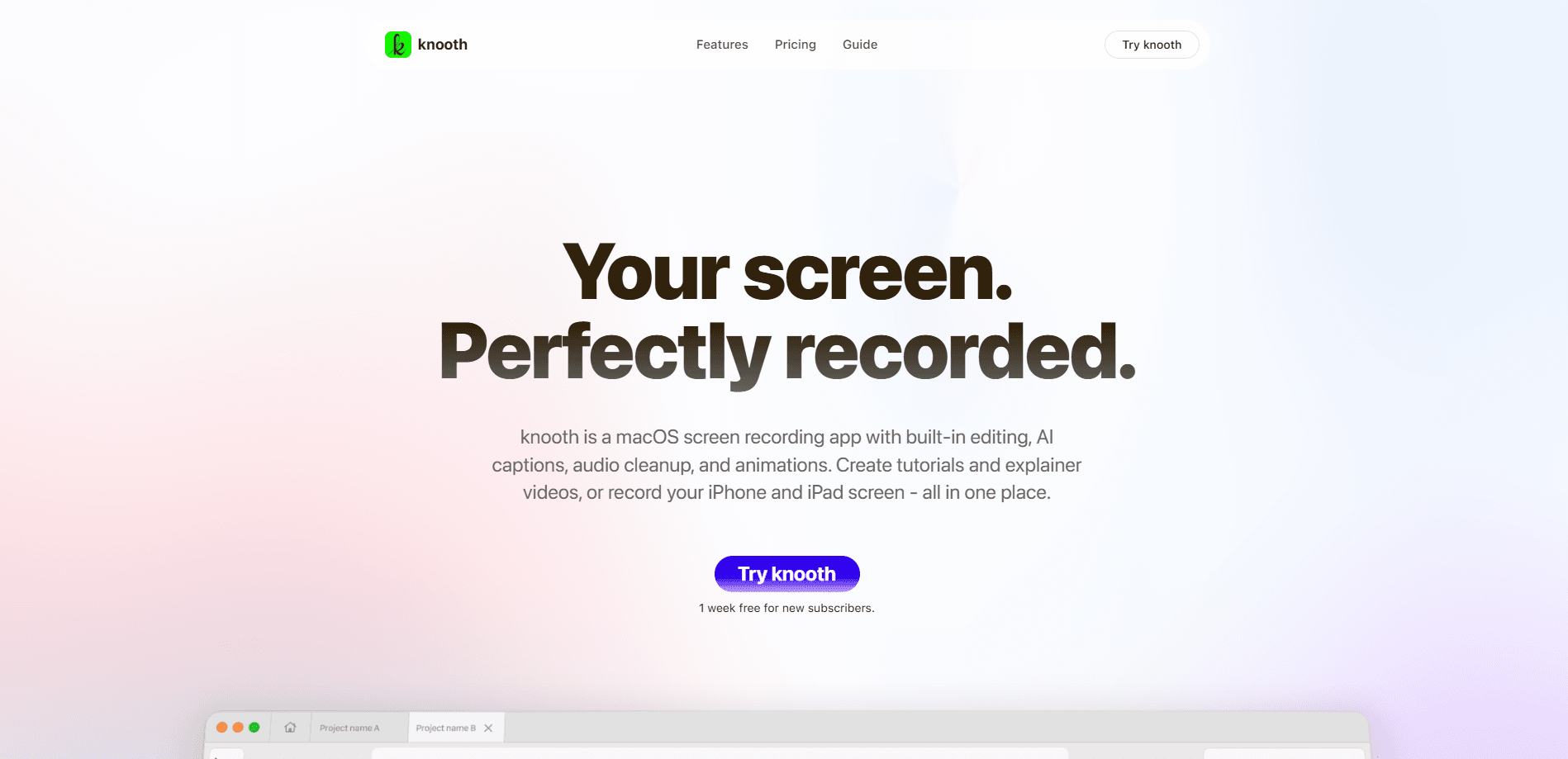
knooth is a privacy-first Mac screen recorder that turns raw captures into finished videos without leaving the app. It records your screen, then lets you edit on a timeline, layer media, animate keyframes, add captions, and export in several aspect ratios. Every file stays on your Mac, so nothing gets uploaded to a server. One license covers all your Macs under the same Apple ID, and a one-week free trial unlocks everything before you pay.
About knooth
What Is knooth
knooth is screen recording software for Mac that treats recording as the first step, not the whole job. Most recorders hand you a flat video file and send you off elsewhere. It also works as a video editor for Mac, keeping the editing inside the same window: a timeline for clips, tools for layering media, and animation controls for polish. No app switching. No export-import dance.
The app leans hard on local processing. Files stay on your device, and the company says it collects no data. If your work involves client material, internal demos, or anything you'd rather not push through a cloud service, that matters. You also skip the usual upload-and-wait step.
The tradeoff is platform reach. This is Mac only, so Windows and Android users are out of luck. The AI features are also narrower than the pitch suggests. They cover things like cursor-driven zoom and audio cleanup rather than full generative editing. So what do you actually get? A fast local recorder with just enough editing to publish, not a creative suite. I haven't seen a public API anywhere, so treat it as a self-contained tool rather than something you'll wire into a pipeline.
Getting Started
- Download knooth from the App Store or the official website, then open it on your Mac.
- Grant screen recording and, if you want voiceovers, microphone permissions when the app asks.
- Start a recording from the menu bar and pick what to capture: the full display, a single window, or a selected area.
- Open the recording on the timeline. Trim clips, layer images or video, and turn on Auto Zoom Cursor to zoom into the moments that matter.
- Add captions or audio cleanup if you need them, then export in the aspect ratio that fits your target: widescreen for a demo, vertical for social.
Product Information
A quick look at knooth's pricing, supported platforms, and performance.
Best for
The users, tasks, and scenarios where this tool fits best.
Users
- Product teams and developers
- Course creators and tutorial makers
- Privacy-conscious professionals
Tasks
- Recording and polishing a product demo
- Turning a long capture into a short social clip
- Writing captions for a silent-friendly tutorial
- Cleaning up narration audio
Scenarios
- A remote team shares a feature walkthrough in Slack and wants it tight, captioned, and vertical-ready.
- A solo creator films a coding tutorial at night and needs fast edits without subscribing to a full NLE.
- A consultant records a client dashboard during a call and needs the file to stay on their machine.
Key features
Auto Zoom Cursor
This is the feature knooth leads with, and it's the one that saves the most time. Turn it on and the app zooms into cursor actions automatically as you record. The generated keyframes stay editable, so you can nudge, retime, or delete any zoom after the fact. For demos where the action happens in one corner of the screen, it removes a whole layer of manual keyframing.
Built-In Timeline Editing
knooth records and edits in the same window, which is the core pitch here. You get a timeline for arranging clips, plus the usual trim and cut tools. There's no round trip to Premiere or Final Cut for a simple cleanup, which is exactly the kind of overhead that makes people skip editing altogether. Layer media on top of the recording when a plain screen capture isn't enough.
Media Layering and Animation
Beyond a straight screencast, knooth lets you stack images, video, and other assets on the timeline and animate them. Think a logo that slides in, a callout box over a button, or a picture-in-picture of your face. The animation tools are aimed at quick polish, not motion-design work, so expect a few solid moves rather than a full keyframe engine.
Captions and Audio Enhancement
The app can add captions and clean up audio without a separate tool. That's handy when you're publishing to feeds where people watch on mute, or when your microphone picked up more room noise than you'd like. The audio enhancement is the kind of AI feature knooth bundles in; it's a help, not a studio fixer, so record in a decent space if you can.
Multiple Aspect Ratio Export
You can export in several aspect ratios from the same project, which saves re-cutting a video for different platforms. Record once, then output widescreen for YouTube and vertical for Reels, Shorts, or TikTok. That single-project approach is a genuine convenience if you publish the same content across feeds and don't want to manage two edits.
Local-Only, Privacy-First Storage
knooth keeps your recordings and edits on your Mac and says it collects no data. One license covers every Mac tied to your Apple ID, so there's no per-device upgrade to worry about. For anyone whose screen shows confidential material, keeping files off a vendor's servers is the whole point of choosing this screen recorder over a cloud-based one.
Pros and cons
Pros
- Recording and editing live in one app, cutting the export-import step that kills most quick edits.
- Auto Zoom Cursor handles the tedious zoom work and leaves the keyframes editable.
- Local-only storage with no data collection makes it a fit for sensitive screen content.
- One license covers all your Macs under the same Apple ID, with no feature gating between plans.
Cons
- Mac only. If you work across Windows, this screen recording app isn't an option at all.
- The AI features are limited to cursor zoom, captions, and audio cleanup. Don't expect generative editing or auto-cutting.
- No confirmed public API, so you can't script exports or fold it into an automated workflow.
- The free tier is a one-week trial, not a lasting free version, so you'll be paying after seven days if you keep it.
Frequently asked questions
There's a one-week free trial with full access to every feature and recording mode. After that you pick Explorer at $9.99 per month or Professional at $59.99 per year, which works out to about $4.99 a month. There's no permanent free tier.
Related content
Explore related tools, skills, and articles for knooth.
knooth Alternatives

ngram 2.0
ngram · Video · Marketingngram 2.0 is an AI video generator for teams. It turns a prompt, a screen recording, or a product URL into a narrated explainer, product demo, or AI avatar video, and every scene stays editable.

OpenScreen 2
OpenScreen (open-source project) · Video · ProductivityOpenScreen 2 is a free, open-source screen recorder and demo video editor for Windows, macOS, and Linux, with automatic zooms, styled frames, local captions, and agent edits.

Skreno
Skreno · Video · ProductivitySkreno is a browser screen recorder that captures a tab, a window or your whole display, then attaches AI transcripts, summaries and console logs to one share link.