
Livesync
Livesync · Video
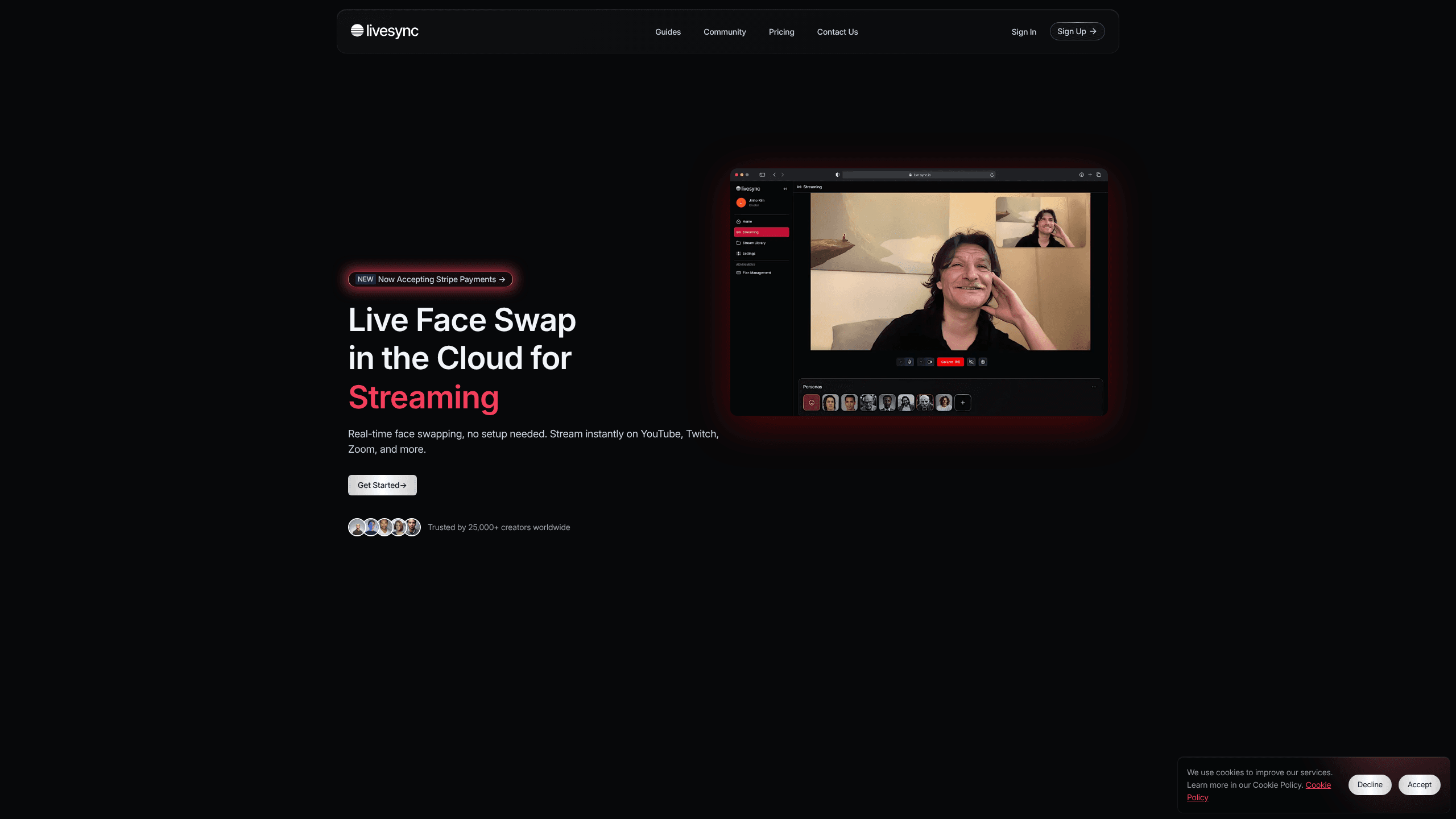
Livesync is a cloud-based live face swap tool that turns your webcam feed into someone else's face in real time, with no GPU, no downloads, and no complicated setup to work through first. It runs in the browser and connects to the tools you already broadcast with, such as OBS, Zoom, YouTube, and Twitch. Streamers, VTubers, and video call hosts use it to appear as a virtual avatar or a different character while staying live. For face swap for streaming, setup takes minutes.
About Livesync
What Is Livesync
Livesync handles real-time face swapping entirely in the cloud. You point your camera at your face, pick a target face or avatar, and the platform swaps your features onto it during a live stream or video call. The processing happens on remote GPUs, so a basic laptop or phone is enough to get going.
The tool fits creators who want a different on-camera identity: a VTuber avatar, a masked character for a prank call, or a branded face for a marketing livestream. Because everything runs server-side, you don't buy a graphics card or install heavy software. Just open a browser tab. That's the main draw for creators who don't own a high-end gaming rig and never wanted to build one.
The trade-off is that you're tied to the internet. If your connection drops, the swap drops with it. That gets annoying fast. Will a weak Wi-Fi signal kill a live stream? Yes, and that's the risk with any cloud face swap tool that depends on remote GPUs for every frame.
Pricing also works on a credit system. One credit equals one minute of streaming. So long sessions eat through a plan quickly. How fast? A three-hour stream burns 180 credits, which most entry plans don't cover.
Getting Started
- Create an account on the Livesync website and pick a plan, starting with the free tier if you just want to test it.
- Connect your camera and select a source face to swap onto, either from a built-in avatar or your own upload.
- Open the Livesync studio and pick your output mode: recording, streaming, or broadcasting.
- Route the output into OBS, Zoom, or YouTube through the browser source or virtual camera.
- Go live, then stop and save the recording as a video file if you want it for editing later.
Product Information
A quick look at Livesync's pricing, supported platforms, and performance.
Best for
The users, tasks, and scenarios where this tool fits best.
Users
- Streamers
- VTubers
- Content creators
- Marketers
Tasks
- Live streaming a face swap
- Recording face swap clips
- Video calls
- Virtual events and education
Scenarios
- Running a daily VTuber stream where a full face rig would cost too much for a solo creator.
- Hosting a themed livestream for a launch or holiday, using a character face instead of a personal one.
- Testing creative ideas in short recordings before committing to a public broadcast.
- Keeping your real face off camera during a public call while still showing something expressive.
Key features
Real-Time Cloud Face Swap
The core feature swaps your face live with no local processing. No GPU needed. The tool works on any device with a browser and a camera. Latency stays low enough for talking-head streams. That's what makes it usable on a live call, not just in edited video.
OBS, Zoom, and YouTube Integration
Livesync connects to the platforms creators already use, including OBS, Zoom, and YouTube, so you don't rebuild your whole setup. OBS integration works through a browser source, and you feed the swapped video in as a camera. For enterprise clients, the team also supports custom workflows through its API.
Streaming, Recording, and Broadcasting Modes
You can run a session in three modes: recording for clips, streaming to a platform, or broadcasting for longer live output. Each plan caps how long you can record or broadcast. The range runs from a short 10-minute test on the free tier up to 12 hours on the top plans. Ingest support arrives on the higher tiers.
Credit-Based Video Plans
Every plan runs on video credits, where one credit equals one minute of streaming. You buy or subscribe at a credit level, then spend it on live time. Higher tiers give you more credits. They also raise resolution up to 2K and push the frame rate higher. So the price scales with how much you actually stream.
No Watermark and Priority Queue
Paid plans remove the watermark and give you a priority queue for processing. That matters on a live stream. Waiting in a slow queue means a frozen or delayed face on camera. The free tier keeps a watermark and skips the queue priority, which is the main reason most creators upgrade once they start streaming regularly.
Privacy and Encryption Controls
Livesync states that data is protected with standard encryption during transmission and storage, and the company positions itself against deepfake misuse. If you're swapping a real person's face, you're responsible for getting their permission and checking the rules of the platform you stream on, since a livestream reaches viewers the moment it goes out.
Pros and cons
Pros
- Runs fully in the cloud, so a basic laptop or an older desktop can handle a live face swap.
- Works with streaming tools creators already use, including OBS, Zoom, and YouTube.
- Free lifetime tier with 10 credits lets you test the swap before paying.
- Enterprise plans add API access and an SLA for custom integrations.
- Paid plans strip the watermark and add a priority queue for smoother live output.
Cons
- Credit model means long streams burn through your plan quickly, since one credit equals one minute.
- Free tier tops out at 480p and 24 fps, which looks soft on a modern stream.
- Cloud-only design needs a stable connection, and a drop in bandwidth visibly breaks the swap.
- Higher-resolution and longer-broadcast tiers get expensive fast, with the Business plan at $2200 per month, which is far beyond what most solo creators can justify for a face swap tool.
Frequently asked questions
You can use it for live streaming, video calls, virtual events, online classes, and recording face-swapped clips. It's built for situations where you're on camera in real time and want a different face, whether that's an avatar, a character, or another person's likeness with their permission.
Related content
Explore related tools, skills, and articles for Livesync.
Livesync Alternatives

Vadu AI
Vadu AI · Image · VideoVadu AI is a web-based AI video generator that turns written prompts or still images into short clips, and it can also generate images on its own. You type what you want, pick a model and style, and the platform renders the result in minutes. A free plan covers light testing, while paid tiers run from $9 to $77.40 per month based on how many credits you burn.

Mykaraoke Video
MyKaraoke Video · VideoMykaraoke Video is an online karaoke video maker and lyric video maker that turns any song into a finished, lyrics-synced video right in your browser. It handles the slow part for you. The AI pulls vocals out of the mix and locks the lyrics to the beat, then lets you customize background, fonts, and colors before exporting in 1080p MP4. If you make lyric videos for social media, party nights, or music promotion, it skips the software installs and manual timing work entirely. Want a karaoke video generator that doesn't eat your whole evening? That's the pitch here.

Finalframe
Finalframe · VideoFinalframe is a set of free, browser-based tools for grabbing exact frames out of a video clip. Its best-known feature, the Final Frame Extractor, lets you extract the last frame of any video so you can use it as the starting image for AI video tools like Luma Dream Machine, Runway, or Kling. Want to keep a clip going? That last frame is your starting point. The tool runs locally in your browser, needs no sign-up, and costs nothing. A separate paid AI video-generation app from the same team is currently offline while it's rebuilt.