

Lunagraph
Lunagraph · Image · Coding
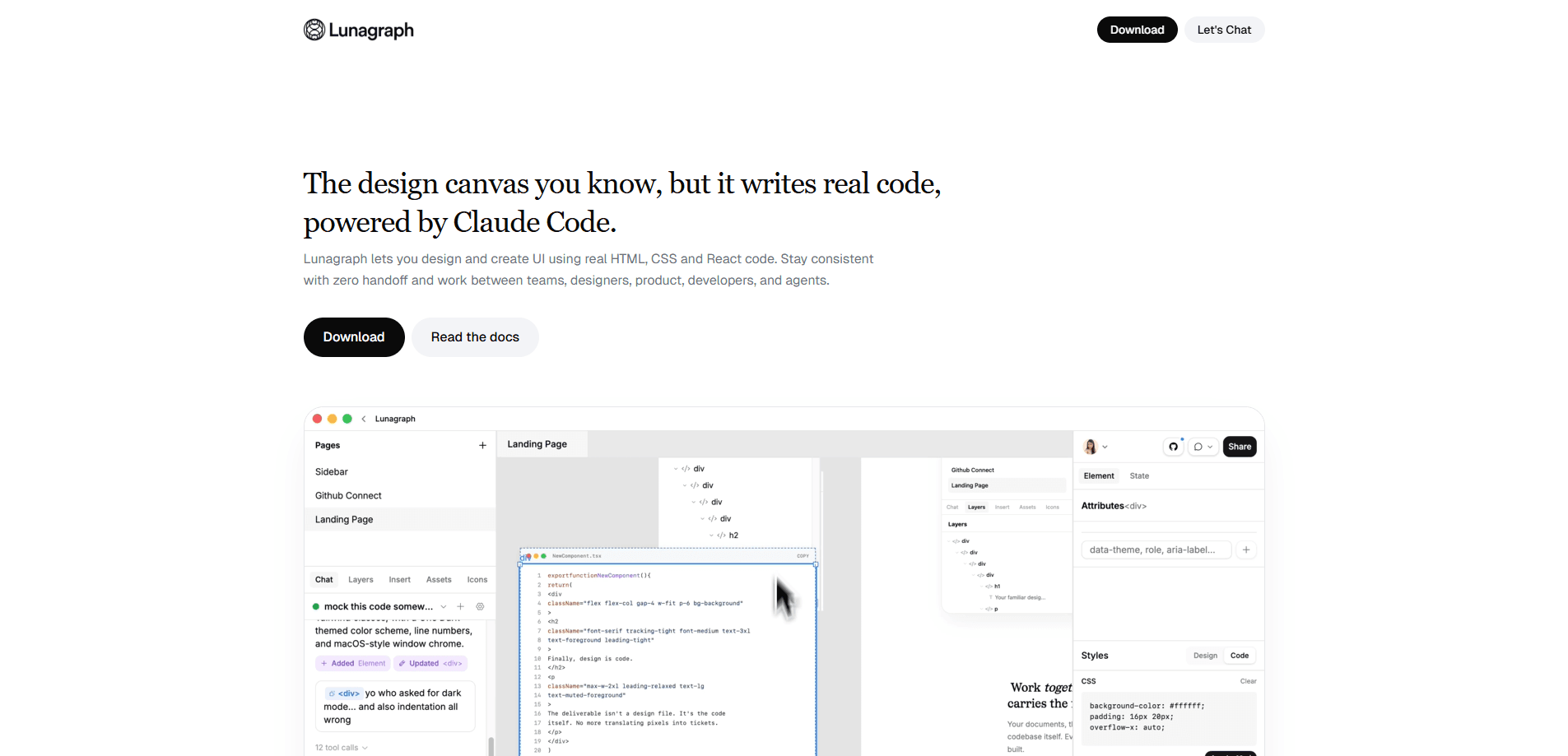
Lunagraph is an AI design canvas built for design engineers. You draw screens on a canvas, add states and interactions, then copy out React code that matches what you drew, or send it straight to your coding agent. Think of it as a UI design tool and a React code generator in one place. It targets people who want to design and ship together instead of passing files across a wall.
About Lunagraph
What Is Lunagraph
Lunagraph is a canvas that writes code as you design. The pitch is simple enough: instead of drawing a screen in one tool and rebuilding it in another, you draw the screen and get the React code from the same place. The company describes it as made for design engineers, people who care about both how something looks and how it's built.
The problem it goes after is the handoff, which is still the slowest part of most product workflows today. Most teams still do a slow loop where a designer finishes a mockup, an engineer reads it, asks questions, and rebuilds it in code. Lunagraph skips that by keeping the design and the code tied together. Every state, every interaction, then the code. That's the whole idea.
There's an important catch, and you should know it up front. Lunagraph doesn't hand you a built-in AI from a subscription of its own, so there's no model bundled in that you can lean on without setup. You bring your own agent and your own subscription. That means the quality of the code you get depends on the agent you connect. It also means Lunagraph is a companion to tools you probably already pay for rather than a boxed replacement for them.
Getting Started
- Open Lunagraph in your browser at lunagraph.com and sign in to start a new canvas. It takes a minute.
- Draw your first screens on the canvas and tune the styles until the layout looks right.
- Add states, transitions, and props so each piece behaves like a real component, not a static picture. This is the step that matters.
- Connect your own coding agent, either in Lunagraph's chat panel or over MCP, so it can work on the canvas with you.
- Copy the React code, or send the finished design back to your agent to drop into your codebase.
Product Information
A quick look at Lunagraph's pricing, supported platforms, and performance.
Best for
The users, tasks, and scenarios where this tool fits best.
Users
- Design engineers
- Front-end developers
- Small product teams
Tasks
- Turning a mockup into a working component
- Prototyping an interactive flow
- Reusing real components in a design
Scenarios
- A solo builder shipping a side project who doesn't want a separate design file
- A design engineer exploring an idea on a Friday and handing the code to themselves on Monday
- Iterating on feedback
Key features
Design-to-code canvas
The core of Lunagraph is a full canvas where you draw screens and then pull out code that matches. The company frames the whole flow as three steps that run in order: design the screen, wire it into a component, then deliver it as code. You draw the layout, add states and interaction, and copy the React or send it to your agent when it looks right. The code reflects what you actually designed, so the rebuild step just disappears.
Bring your own agent
Lunagraph's chat panel puts your own agent right on the canvas. Select a button, a row, or a frame, and the agent knows what you mean. Detailed changes land where you pointed instead of somewhere vague. You keep your existing agent subscription. That keeps costs closer to what you already pay, but it also means Lunagraph isn't doing the heavy lifting on its own.
MCP connections
Over MCP, you can hook Lunagraph into tools you already use. Bring in an idea you've been chatting about, pull a component from your repo, or send a finished design back as code. If your workflow already runs through agents and MCP servers, this slots in without much setup.
Interactive components with states
A component on the canvas can actually run. You add transitions and props, which turns a static frame into something with behavior. Ever tried explaining a hover state to an engineer over Slack? Having the state baked into the artifact is the real win here, because the interaction is part of the file rather than a note in a message thread.
Flow prototyping and sharing
You can draw a flow, ask chat to prototype it, and send your team a link so reviewers can click through the whole thing without installing anything. People click through, leave feedback, and you iterate, all on the same canvas. As a prototyping tool, it beats exporting images and writing a paragraph about how the screens connect.
Chrome extension for live UI capture
The docs mention a Chrome extension that captures live UI, which is useful when the thing you want to redesign already exists in the browser. Grabbing what's there beats redrawing it from scratch. If you've ever rebuilt a page pixel by pixel just to tweak it, you'll appreciate the shortcut.
Pros and cons
Pros
- Code and design live together, so there's no separate handoff document to maintain. Nothing gets lost.
- Works with your existing agent and subscription instead of locking you into a new one.
- MCP support means it talks to the repos and tools you already use.
- The canvas handles states and interaction, which makes prototypes clickable rather than static.
Cons
- You need your own agent and subscription to get real value. Without one, the code side is limited, and there's no bundled AI to fall back on.
- The output is React code. If your stack is Vue, Svelte, or something else, the delivered code won't drop in as cleanly.
- We couldn't confirm current pricing from the site, so check the official page before you plan around any figure.
Frequently asked questions
It's a design canvas that produces React code as you work. You draw screens, add states and interactions, then copy the code out or send it to your coding agent. The idea is to remove the gap between designing a screen and building it.
Related content
Explore related tools, skills, and articles for Lunagraph.
Lunagraph Alternatives

X Ray Interpreter
X-ray Interpreter · ImageX Ray Interpreter is a web-based AI radiology tool that turns X-rays, CT scans, MRI, ultrasound, and PET images into plain-language reports. You upload a scan, get a preliminary X-ray interpretation in moments, then ask follow-up questions if something needs explaining. It works as a second opinion and a learning aid, not as a medical diagnosis.

Aieasypic
AIEasyPic · ImageAIEasyPic is an AI image generator that turns plain text prompts into finished artwork in seconds. You can also train custom models on your own photos, swap faces in existing images, and create short video clips from text, all from a browser. It suits casual creators who want quick visuals and hobbyists who want to build a personal model without touching any code.

Chargen
Chargen · ImageChargen is an AI character generator and worldbuilding toolkit built for Dungeons & Dragons and other tabletop RPGs. It turns a one-line idea into a painted character portrait, spins up NPCs, monsters, maps and encounters from the same session, and keeps every creature's details close at hand. The tabletop RPG art side runs on a credit system called Gold, while the text generators stay free for everyone.