

Motion Software
Motion Software · Video · Productivity
Motion Software is a screen recorder and video editor built for Windows that turns ordinary captures into smooth, professional-looking clips. It records your screen, then handles the boring parts itself: cursor movements, zoom animations, and background styling all get applied automatically. You record, trim, and export without learning a full editing suite, and a free plan lets you try the whole workflow before paying anything. Sound too good to be true? Need to polish a demo and don't know where to start with keyframes? That's exactly the problem this tool was built to erase.
About Motion Software
What Is Motion Software
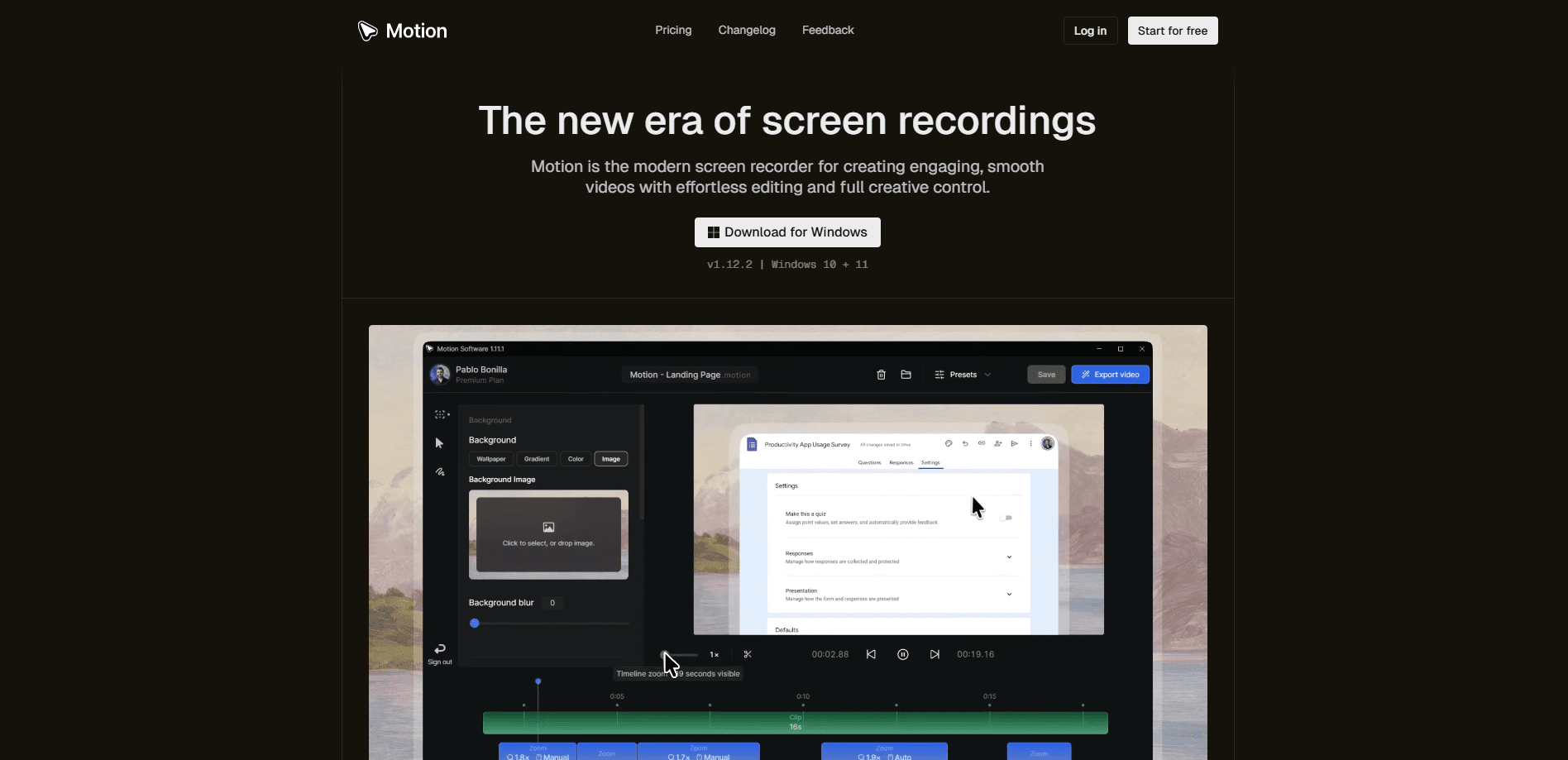
Motion Software is a modern screen recording tool for Windows 10 and Windows 11. The pitch is simple: record your screen, and the software adds the polish for you. Cursor motion gets smoothed out, important clicks trigger smart zoom animations, and your background can be swapped or blurred without a green screen.
That automatic layer is the whole point. Most people recording a tutorial or a product demo don't want to become video editors. They want to hit record, talk through their screen, and end up with something that looks intentional. Motion Software targets exactly that gap.
No timelines. No keyframes. You just talk.
The catch is platform scope. It runs on Windows only, so Mac and Linux users are out of luck. The free tier also stamps a small watermark on every export, and removing it means paying for Premium.
Getting Started
- Download the installer from the official site and run it on a Windows 10 or 11 machine.
- Launch the app and pick what to capture, whether that's your full screen, a single window, or a custom region.
- Record your session. Motion Software logs cursor position and click events in the background as you work.
- Open the recording in the built-in editor to apply smart zooms, background settings, and cursor styling.
- Export as MP4 with your preferred frame rate, resolution, and quality settings.
Product Information
A quick look at Motion Software's pricing, supported platforms, and performance.
Best for
The users, tasks, and scenarios where this tool fits best.
Users
- Solo creators and YouTubers
- Product and UX teams
- Teachers and course authors
Tasks
- Recording software tutorials
- Making app demo videos
- Documenting bugs and beta feedback
Scenarios
- Quick social clips
- Client presentations
- Internal training
Key features
Automatic Cursor Smoothing
Raw screen recordings show every jitter and sudden jump of your mouse. Motion Software records cursor movement and replays it as a smooth, natural path. The result reads as deliberate instead of twitchy, which matters most when you're recording fast UI actions.
Smart Zooms
The editor detects where activity happens on screen and suggests zooms to those spots automatically. You can accept them, tweak the timing, or cut them entirely. It's the feature that saves the most time, because manual zoom keyframing is where hobbyist editors usually give up. Anyone who has hand-placed a hundred zoom keyframes across a twenty-minute tutorial knows exactly how much tedium this one feature removes.
Custom Background Settings
Replace a dull desktop with a clean background, or blur it to hide private windows and messy files. You can also add padding and rounded corners so the recording sits on screen like a framed video rather than a raw capture.
Timeline Editor
A built-in timeline lets you cut dead air, reorder clips, and adjust timing without exporting to another program. It's not a substitute for a full NLE, but for trimming a demo or a tutorial it covers the usual edits. Good enough for most people, and far faster than watching a two-hour course on a pro editor you'll never use again.
One-Click MP4 Export
Exports land as MP4 with configurable frame rate, resolution, quality, and smart compression. You choose whether you want a small file for sharing or a sharper one for a client deliverable.
Cloud Workspace and Shareable Links
An online account syncs your videos to cloud storage and generates shareable links. Presets let you save a look you like and reuse it across future recordings instead of rebuilding the same setup each time.
Pros and cons
Pros
- Cursor smoothing and smart zooms remove the two tasks that make screen recordings look amateur, and they're automatic.
- The free plan covers recording, editing, and exporting, so you can judge the output before paying.
- Windows 10 and 11 support with no strict hardware requirements means most modern PCs can run it.
- Commercial usage rights are included, so client work and marketing videos are fine under the same license.
Cons
- Windows only. If you work on a Mac, you can't use it at all.
- Free exports carry a watermark, which rules the free tier out for anything client-facing.
- Premium is sold as a yearly $6 per month plan, so there's no cheap month-to-month option if you only need it once.
Frequently asked questions
It records your screen and edits the result in one app, mainly for tutorials, product demos, walkthroughs, and social clips. The automatic cursor and zoom handling is what separates it from a plain screen capture tool.
Related content
Explore related tools, skills, and articles for Motion Software.
Motion Software Alternatives

ngram 2.0
ngram · Video · Marketingngram 2.0 is an AI video generator for teams. It turns a prompt, a screen recording, or a product URL into a narrated explainer, product demo, or AI avatar video, and every scene stays editable.
OpenScreen 2
OpenScreen (open-source project) · Video · ProductivityOpenScreen 2 is a free, open-source screen recorder and demo video editor for Windows, macOS, and Linux, with automatic zooms, styled frames, local captions, and agent edits.

Skreno
Skreno · Video · ProductivitySkreno is a browser screen recorder that captures a tab, a window or your whole display, then attaches AI transcripts, summaries and console logs to one share link.