
OwnClip
OwnClip · Video
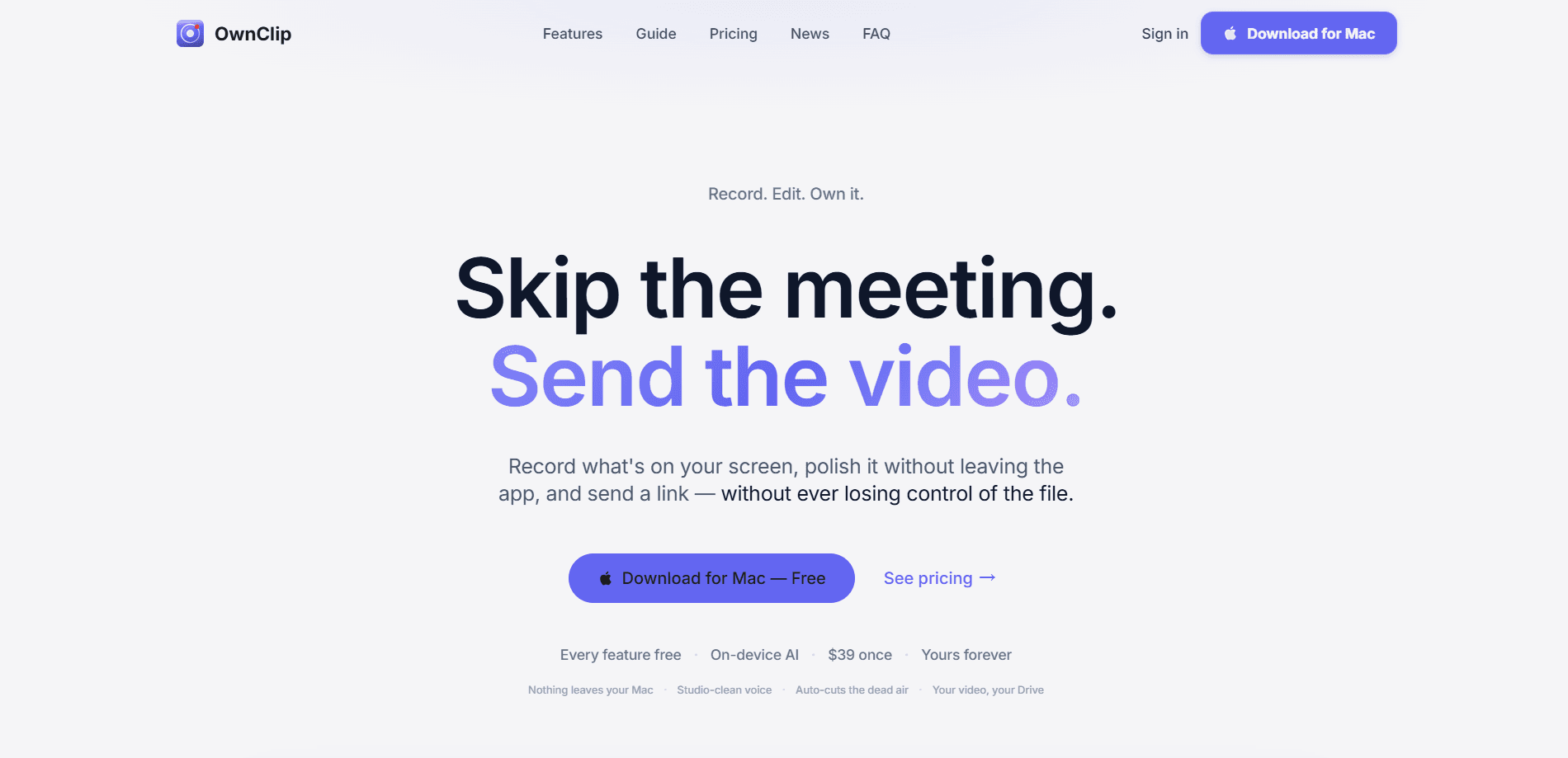
OwnClip is a native macOS screen recorder and editor that keeps your footage on your own Mac. It records your screen, adds AI camera effects like background blur and eye contact in real time, trims dead air and "umm" pauses for you, and turns each take into a searchable transcript. You pay $39 once for Pro, and every v1 update lands on your machine with no subscription to cancel.
About OwnClip
What Is OwnClip
OwnClip is a screen recorder for Mac built only for the Mac, and its whole pitch is that nothing leaves your computer. Unlike browser-based recorders, it runs as a real macOS app, so it can capture the screen, a webcam, an iPhone or iPad, and system audio without uploading anything to a cloud account.
The app also works as a video editor for Mac. It cuts silences automatically, adds a cinematic zoom that follows your clicks, and pulls captions straight from your own transcript rather than sending audio to a server. For people who record demos, tutorials, or walkthroughs, that mix of speed and privacy is the main draw.
The biggest limit is scope. OwnClip is Mac only. It's still in public beta, and there's no team or seat option. If you need a shared cloud library or Windows support, this isn't the tool. There's also no free tier beyond the capped version, and Studio is the only plan that lets you use one license on two Macs.
Getting Started
- Download the DMG from ownclip.io/download and drag the app into Applications.
- Launch OwnClip and grant Screen Recording and Camera permissions when macOS asks.
- Pick a source in the recording panel, then assign a single keyboard shortcut for starting a take from any app.
- Hit record, draw on screen or add camera effects while you talk, then stop when you're done.
- Open the take in the built-in editor to auto-cut pauses, add a zoom or captions, and export as MP4, GIF, or ProRes.
Product Information
A quick look at OwnClip's pricing, supported platforms, and performance.
Best for
The users, tasks, and scenarios where this tool fits best.
Users
- Solo creators who record demos, tutorials, or product walkthroughs on a Mac and want a finished clip without a separate editing tool.
- Privacy-minded professionals who handle client or internal material and don't want footage uploaded to a cloud recorder.
- Teachers and support teams who explain software on screen and need captions and clear zoom without manual timeline work.
Tasks
- Recording a screen demo with a webcam bubble and applying background blur live, so the take looks right before editing starts.
- Cutting dead air and "umm" pauses automatically instead of scrubbing an audio waveform by hand.
- Turning a screenshot into a short step-by-step video with a moving cursor and narration, no keyframe work required.
- Searching an old recording by word because OwnClip writes a local transcript for every take.
Scenarios
- You need to send a walkthrough to a teammate but don't want to schedule a meeting
- You're out of disk space on a paid cloud plan and want a screen recorder that saves files to storage you already own, like iCloud Drive, Google Drive, or OneDrive.
- You record on an external 4K display and want an hour-long take without the fan spinning up or the battery dropping fast.
Key features
Native macOS Recording
OwnClip runs as a real Mac app, not a browser tab. One shortcut starts a take from any application, and floating controls stay out of the way. You can draw on the screen while you talk. The app also recovers a recording if the take ends early, whether the window closes, the lid shuts, or you quit by mistake. A good take isn't lost.
Live AI Camera Effects
The recorder layers AI camera effects on your webcam feed as you record. Background blur, virtual scenes, smart framing, and auto-light get applied in real time, so the take looks finished before you open the editor. Nothing to fix later. This is the difference from a basic screen recorder, where you'd fix your framing in post or live with a messy background.
Automatic Cut and Zoom
The editor trims dead air and "umm" pauses on its own and places a cinematic zoom that follows your clicks as you glide the cursor. Recordings come out looking directed rather than lost in a full-screen blur. Your original file is never touched. The auto edits stay reversible.
On-Device Transcription and Captions
Every recording writes its own transcript on your Mac, which powers captions in 18+ languages and lets you search a recording by word later. Because the transcription runs locally, your audio never has to leave the machine. That matters for client calls or anything under an NDA. No server sees it.
Screenshot and PDF Tools
Beyond video, OwnClip handles screenshots and PDFs. You get 220 backdrops, adaptive shadows, brand palettes, and scroll capture for long pages, plus a PDF editor that fills real form fields, signs, and annotates without uploading the document. Useful if you bounce between a recorder and a screenshot tool. And the file never leaves your Mac.
Step Movie from a Screenshot
You can turn a single screenshot into a walkthrough video. Point at what matters or let OwnClip propose the steps, then it glides a cursor between them, zooms into each one, reads your script aloud, and renders a finished clip. No timeline. No keyframes. Output ships as MP4, GIF, or a share link people open in a browser.
One-Time Pricing with Free Updates
OwnClip is sold as a one-time purchase, not a subscription. Pro costs $39 once and includes all v1 updates, and the app updates itself in the background without an App Store or admin password. That's a real contrast with per-seat or monthly screen recording plans that keep charging. You pay once.
Pros and cons
Pros
- Files stay on your Mac, with optional backup to Google Drive, iCloud Drive, or OneDrive that you already own.
- Live AI camera effects and auto-cut editing remove most of the manual cleanup in a screen recording app.
- One-time pricing at $39 for Pro, with all v1 updates included and no subscription to cancel.
- Auto-zoom and smooth cursor make raw screen recordings look directed without timeline editing.
- Local transcripts power captions and word search without sending audio to a server.
Cons
- macOS only, so there's no Windows or browser version if your team mixes platforms.
- Still in public beta, meaning features can shift and you may run into bugs.
- No team seats, SSO, or admin console, so it's awkward for larger organizations.
- The free tier caps you at 3-minute recordings, 720p, a watermark, and 25 saves. That's tight. For quick takes it's fine. For longer demos it isn't.
Frequently asked questions
Yes, there's a free tier with every feature switched on but hard caps: 3-minute recordings, 720p export, a watermark, 25 saves, and 5 OCR uses a month. It's a real way to test the app before paying. Pro at $39 removes those caps and unlocks 4K 60fps export and no watermark.
Related content
Explore related tools, skills, and articles for OwnClip.
OwnClip Alternatives

ngram 2.0
ngram · Video · Marketingngram 2.0 is an AI video generator for teams. It turns a prompt, a screen recording, or a product URL into a narrated explainer, product demo, or AI avatar video, and every scene stays editable.

OpenScreen 2
OpenScreen (open-source project) · Video · ProductivityOpenScreen 2 is a free, open-source screen recorder and demo video editor for Windows, macOS, and Linux, with automatic zooms, styled frames, local captions, and agent edits.

Skreno
Skreno · Video · ProductivitySkreno is a browser screen recorder that captures a tab, a window or your whole display, then attaches AI transcripts, summaries and console logs to one share link.