

Pickle
Pickle · Productivity
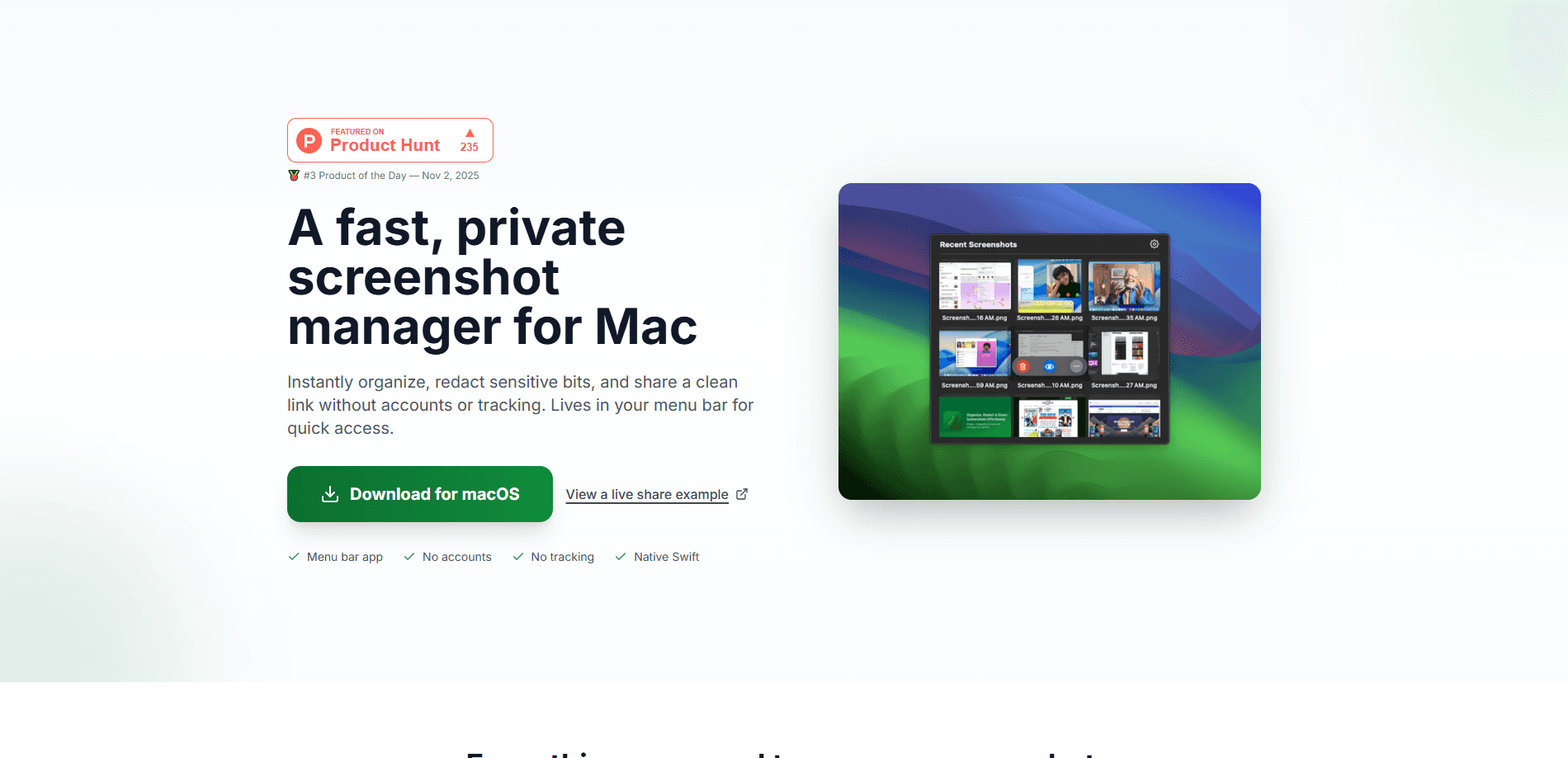
Pickle is a private screenshot app for macOS that lives in your menu bar and sorts captures as you take them. It groups shots by date, acts as a screenshot organizer for your whole library, hides phone numbers, emails, and addresses with one click, and turns any capture into a shareable link that uploads in the background. Everything stays on your Mac unless you decide to share it, and there are no accounts or trackers to sign up for.
About Pickle
What Is Pickle
Pickle is a screenshot manager built for macOS, and its whole pitch is that your screenshots never have to leave your machine unless you say so. Most capture tools push you toward cloud storage and a login. That means every screenshot you take sits on someone else's server. Pickle flips that. It watches for new captures, files them by day, and asks nothing of you beyond a click when you want to redact or share something.
The problem it solves is the mess behind your screenshots. On a Mac you end up with dozens of files named "Screen Shot 2026-09-19 at 3.42.11 PM." Finding the one you need later is a chore. Pickle renames on the fly, groups by Today, Yesterday, and weekday, and keeps the whole library one click away in the menu bar. Redaction matters too. If a capture has a phone number, an email, or a home address in it, one click blurs them before anything gets shared.
The main limit is the platform. Pickle is macOS only and asks for Sonoma 14.0 or newer. Anyone on an iPhone, a PC, or an older Mac is out. It also trades deep editing tools for speed. You won't find layers, arrows, or annotation libraries here. Need to redact screenshots with arrows and callouts, or mark up a capture heavily? This isn't the tool for that.
Getting Started
- Download Pickle from the official site and drag it into your Applications folder.
- Open the app and let it sit in your menu bar. There's no account to create and no email to confirm.
- Take a screenshot the way you normally do with the macOS keyboard shortcut. Pickle spots the new file on its own.
- Click the menu bar icon to see your captures grouped by date, then rename, redact screenshots, or copy a share screenshot link from there.
- If you want usage metrics that help improve the app, turn them on in settings. They're off by default.
Product Information
A quick look at Pickle's pricing, supported platforms, and performance.
Best for
The users, tasks, and scenarios where this tool fits best.
Users
- Developers and designers
- Remote workers and support staff
- Privacy-conscious Mac users
Tasks
- Organizing a crowded screenshot folder
- Redacting sensitive details before sharing
- Sending a quick share link
Scenarios
- Filing a bug report with a screenshot
- Sharing a design or code snippet with a teammate during a call
- Cleaning up a Mac that's drowning in screenshots
Key features
Menu Bar Access
Pickle sits in the menu bar, so your whole screenshot library is one click away no matter what app you're in. You don't switch windows or hunt through Finder to find an old capture. That matters. For people who take screenshots constantly, the shortcut adds up over a day.
One-Click Redact
When a capture contains a phone number, email, link, or address, Pickle spots it and lets you obscure it with one click. The detection runs locally, so the image isn't sent anywhere to be scanned. That matters if you're sharing work screenshots that happen to include a client's contact details.
Instant Share Link
Copy a private link and the upload happens in the background, which means no progress bar and no waiting before you paste. Links stay alive for seven days, then delete themselves. An old screenshot won't linger online forever. It's a cleaner default than leaving every shared image hosted indefinitely.
Group by Date
Captures are organized into Today, Yesterday, and weekday buckets as you take them. Scanning back through a busy week is quick. Everything has a place already. You also get drag-and-drop between groups and instant renaming, so the library stays tidy without a filing ritual.
Local-First Privacy
Your screenshots stay on your Mac unless you choose to share one, and there's no cloud sync by default. Anonymous usage metrics are opt-in only, which is a rare default in a category that usually tracks first and asks later. No account is required. Not to use it, not to install it, not to share a link.
Native Swift Build
Pickle is written in native Swift, so it behaves like a Mac app rather than a web wrapper. It supports both Apple Silicon and Intel machines running Sonoma 14.0 or newer, and it starts fast because there's no browser engine underneath. That native footing also keeps menu bar interactions responsive while you work.
Pros and cons
Pros
- No account and no tracking, so there's nothing to sign up for and no personal profile tied to your captures.
- Screenshots stay local, which keeps private work off third-party servers unless you deliberately share.
- One-click redact catches phone numbers, emails, links, and addresses before they leave your machine.
- Share links expire after seven days, so old screenshots don't stay hosted indefinitely.
- Menu bar access keeps the whole library one click away without breaking your flow.
Cons
- macOS only, and it needs Sonoma 14.0 or newer, so PC, iPhone, and older Mac users can't run it.
- Light on editing tools. There are no arrows, shapes, or annotation layers, so heavy markup still needs a second app.
- Share links are temporary by design. If you need a permanent hosted image, you'll want a different workflow.
Frequently asked questions
Yes. Pickle is free to use, with no subscription and no paid tier listed on its site. You download it, it lives in your menu bar, and there's no account gate or credit card step to get started with the screenshot manager.
Related content
Explore related tools, skills, and articles for Pickle.
Pickle Alternatives

Swms
Swms AI · Writing · Productivity · BusinessSwms is an AI safety compliance tool that turns a plain description of a job into ready-to-use safety documents. Describe your project, trade, and known hazards, and it writes a safe work method statement, job hazard analysis, safe work procedure, RAMS, or safety data sheet in seconds. It also ships with Oscar, a chat assistant that answers workplace safety questions in any language. Teams in construction, mining, transport, and warehousing use it to cut the paperwork that usually eats into a workday.

Wordly AI Translation
Wordly · Voice & Language · ProductivityWordly AI Translation is a real-time AI translation and captioning platform built for meetings, conferences, and events. It delivers live translation, captions, transcripts, and summaries in more than 60 languages, and attendees join by scanning a QR code or opening a link instead of using dedicated headsets. The platform works with Zoom, Microsoft Teams, Google Meet, and Webex, and it's designed for organizations that want multilingual access without hiring human interpreters for every session. Simple as that.

Rows
Rows (Superhuman) · Productivity · BusinessRows is an AI spreadsheet and data analysis tool that imports live data from more than 50 sources, then lets you work with it using plain language instead of SQL queries or nested formulas. You can pull numbers out of PDFs, connect ad platforms, databases, and bank accounts, and ask the AI to build reports, merge datasets, or set up models that recalculate themselves. It runs in the browser, works like a spreadsheet, and now sits under the Superhuman umbrella.