

Pixelicious
Scenario · Image
Pixelicious converts photos and illustrations into pixel art in the browser, with 16 to 256 px grids, editable palettes, and one-click background removal.
About Pixelicious
What Is Pixelicious
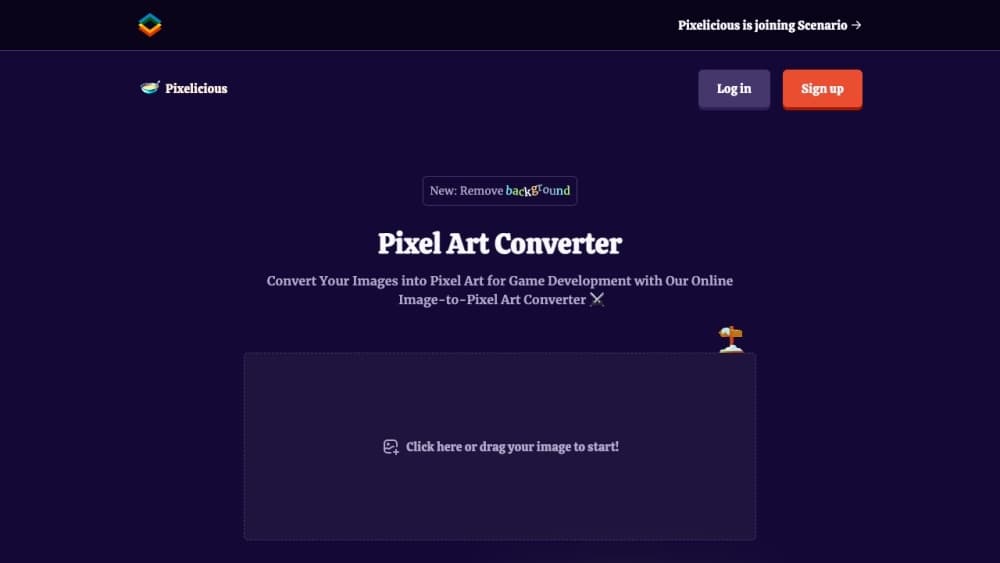
Pixelicious is a browser-based image to pixel art converter. You upload a photo or an illustration, pick how coarse the pixel grid should be, choose the colors, and download the result as an image file. There's nothing to install and no editor to learn. The whole job happens in one panel with a preview.
The tool started as a free side project and drew a following among indie game developers who needed quick sprites without opening Aseprite. It now runs as Pixelate inside Scenario's creative AI platform, and pixelicious.xyz still opens it. That move changed two things: you sign in with a Scenario account, and generation draws on the platform's daily credit allowance.
What it does well is controlled pixelation. You decide the block size and the color count, so the same photo can come out as a chunky 8-bit sprite or a finer 256 px piece for a poster. It doesn't invent detail. The conversion is a downscale plus a palette map, which means a sharp, well-lit source image gives a much better result than a blurry one. That's also why it isn't an AI pixel art generator in the diffusion sense: nothing is redrawn, the pixels are remapped.
The limits follow from that. There's no animation timeline, no sprite sheet slicing, and no way to hand-fix individual pixels in the browser. This is the step before an art tool, not a replacement for one. If you need retouching per pixel, export the PNG and finish it elsewhere.
Getting Started
- Open pixelicious.xyz and sign in with a Scenario account. New accounts start on the free daily credit allowance, so you can test the output before paying.
- Upload a high-resolution image by dragging it into the panel or picking one from your library. Start from the largest version you have.
- Set the palette. Keep the colors pulled from the image automatically, or add your own by hex code, then adjust the palette size for a 4 to 8 color look or a richer 16+ color result.
- Choose a grid size: 16, 32, 64, 128, or 256 px. Smaller numbers give chunkier blocks and read better as sprites.
- Turn on Remove Noise for smoother edges or Remove Background to isolate the subject, then generate, review, and download the file.
Product Information
A quick look at Pixelicious's pricing, supported platforms, and performance.
Best for
The users, tasks, and scenarios where this tool fits best.
Users
- Indie game developers
- Illustrators and hobbyists
- Streamers and social media creators
Tasks
- Turning a character portrait into a sprite
- Building matching UI icons for a mobile game
- Restyling photos for a retro-themed post
- Blocking out art direction early
Scenarios
- A game jam with a two-day deadline
- Testing a retro brand direction
- Preparing placeholder art for a prototype
Key features
Grid Sizes from 16 to 256 Pixels
Five presets cover the range from classic 8-bit blocks to a fine pixel treatment that still reads at print size. A 16 px grid is the coarse end, best for tiny sprites and icons where every block counts. The 256 px setting keeps far more detail, which suits posters, avatars, and anything viewed large. Switching between them is one click, so comparing outcomes is quick.
Automatic and Custom Color Palettes
The converter pulls a palette from your image by default, which is usually the fastest way to a coherent result. You can also build a palette by hand, entering hex codes and setting how many colors the output is allowed to use. Fewer colors push the art toward an old console look. More colors preserve gradients and skin tones, which matters for portraits.
Remove Noise for Cleaner Edges
Pixelation tends to leave stray single pixels around edges, and they look like dust once the image is enlarged. Remove Noise smooths those spots out, so silhouettes read as shapes instead of speckle. It's the difference between a sprite that looks deliberately made and one that looks like a shrunk photo.
Remove Background for Isolated Sprites
The background removal option cuts the subject out of the frame, which saves a manual selection step in another editor. For game work, that's the usual requirement: a character on transparency, ready to drop into a scene. For avatars, it lets you place the result on any flat color you like.
Saved Palettes and Settings for Consistency
Custom palettes and settings can be saved and reused, which is the part that matters once a project grows past one image. A character, its weapon, and a matching UI icon all need the same color set. Reusing a saved palette keeps the whole set looking like it came from one artist instead of five separate conversions.
Runs in the Browser on Scenario Credits
There's no download and no local install. The tool runs on Scenario's platform, which handles storage, generation, and account access. Free accounts get a daily credit allowance with no card required. Paid plans add monthly credits, priority queues, and larger storage, and the same account covers the rest of Scenario's image and video tools if you need them.
Pros and cons
Pros
- The conversion takes seconds and needs no design skill, which makes it practical for prototyping and jam work.
- Grid size and palette are exposed as plain controls, so the output is predictable instead of a one-click black box.
- Background removal and noise smoothing are built in, which removes two manual steps from a typical sprite workflow.
- Saved palettes keep a multi-image set consistent, a detail most free converters skip.
- The free daily credit allowance lets you judge the output on your own images before paying.
Cons
- You need a Scenario account now. The old no-signup version of the site is gone, which adds a step for a quick one-off conversion.
- The result is a pixelated copy of your image, not a redrawn illustration. Busy or low-contrast photos stay muddy no matter which grid you pick.
- There's no pixel-level editor, no animation support, and no sprite sheet export, so final cleanup happens in another program.
- Credits are consumed per generation, and iterating on several palettes can eat through the daily allowance faster than expected.
Frequently asked questions
It converts an existing image into pixel art. You upload a photo or illustration, choose a grid size and a color palette, and download a pixelated version. Game developers use it for sprites, tiles, and icons, while other users make avatars, posters, and retro-styled headers.
Related content
Explore related tools, skills, and articles for Pixelicious.
Pixelicious Alternatives

X Ray Interpreter
X-ray Interpreter · ImageX Ray Interpreter is a web-based AI radiology tool that turns X-rays, CT scans, MRI, ultrasound, and PET images into plain-language reports. You upload a scan, get a preliminary X-ray interpretation in moments, then ask follow-up questions if something needs explaining. It works as a second opinion and a learning aid, not as a medical diagnosis.

Aieasypic
AIEasyPic · ImageAIEasyPic is an AI image generator that turns plain text prompts into finished artwork in seconds. You can also train custom models on your own photos, swap faces in existing images, and create short video clips from text, all from a browser. It suits casual creators who want quick visuals and hobbyists who want to build a personal model without touching any code.

Chargen
Chargen · ImageChargen is an AI character generator and worldbuilding toolkit built for Dungeons & Dragons and other tabletop RPGs. It turns a one-line idea into a painted character portrait, spins up NPCs, monsters, maps and encounters from the same session, and keeps every creature's details close at hand. The tabletop RPG art side runs on a credit system called Gold, while the text generators stay free for everyone.