

Prompting Sheets
Prompting Sheets · Productivity
Prompting Sheets is a Google Sheets add-on that builds AI project plans, to-do lists, formulas, and tables from a short written brief.
About Prompting Sheets
What Is Prompting Sheets
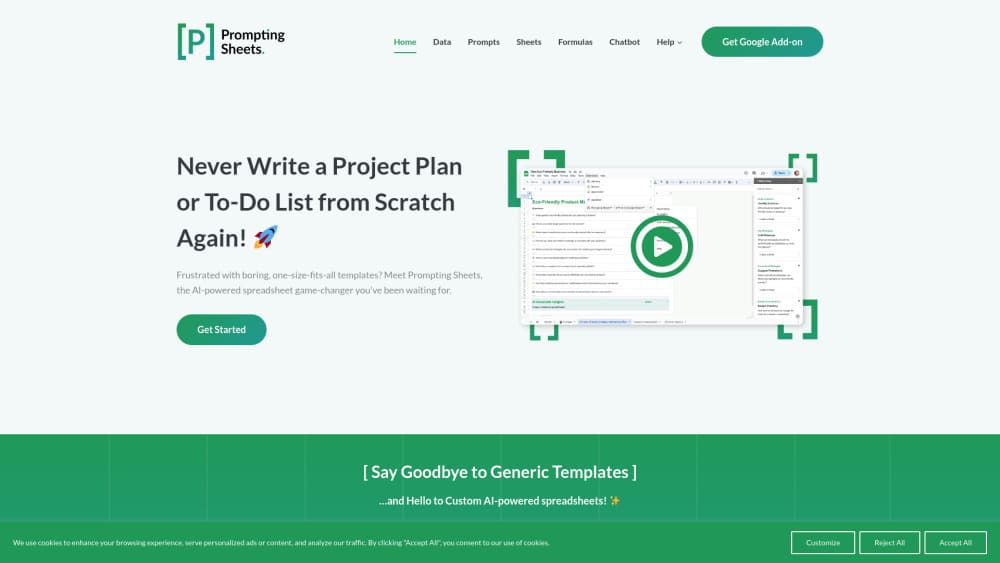
Prompting Sheets is an AI spreadsheet add-on for Google Sheets that generates the skeleton of a working spreadsheet. You answer a few questions about a project, and it lays out a plan or a to-do list in cells you can edit, sort, and share like any other sheet. The vendor is direct about the problem it targets: most templates were built for someone else's business, so the first hour goes into deleting rows that don't apply.
The more useful part sits underneath the plan generator. The add-on installs custom functions like =PROMPT(), =PROMPTLIST(), =PROMPTTABLE(), and =PROMPTAUDIT() into your sheet, so a single cell can hold an AI answer that updates as your data changes. That's the difference between a document and a working tool. You write one formula, drag it down a column, and the whole column answers back.
Two limits decide whether it fits. It runs only inside Google Sheets, so an Excel or desktop-only workflow gets nothing from it. And the paid tiers aren't on public sale yet: the site lists a free tier, an unlimited tier, and a Teams tier, with subscriptions marked as coming soon. The free tier is live, which means you can judge the output before anyone asks for a card.
Getting Started
- Install the add-on. The Prompting Sheets site links to the Google Workspace Marketplace listing, and installation asks for the standard Google permissions that let an add-on read and write your spreadsheets.
- Open the [P] Prompting Sheets menu inside Google Sheets and pick Get Started.
- Answer the setup questions about your project. This is the context step, and it's where the tool learns if the project is a launch, a content calendar, or a hiring round.
- Let it generate the sheet. You get a plan or to-do list with columns already named and rows already filled with the tasks it inferred from your answers.
- Refine from there. Add AI formulas to empty columns, or open the sidebar chatbot when you want to interrogate the data you just created.
Product Information
A quick look at Prompting Sheets's pricing, supported platforms, and performance.
Best for
The users, tasks, and scenarios where this tool fits best.
Users
- Marketers and content planners
- Small business owners without an ops team
- Educators and students
Tasks
- Turning a rough brief into a project plan
- Writing AI formulas without memorizing syntax
- Summarizing or restructuring data that's already in the sheet
- Auditing a web page from a cell
Scenarios
- Kicking off a client project on a Monday morning
- Weekly status reporting
- Early research on a niche
Key features
From a Prompt to a Finished Plan
The Get Started flow asks what the project is about and builds the sheet from your answers, naming columns and pre-filling tasks rather than dropping a generic template. That step separates it from the template galleries built into Sheets, and it's closer to an AI project plan generator than to a picker of pre-made layouts. The output is meant to be edited, and the vendor treats the first pass as a starting point for your own rows.
Prompting Context and Sheet Personas
Context is controlled with tags in ordinary places. Adding [P] to a sheet name pulls that sheet into the AI's view, and putting [-P] in the first cell of a row excludes that row, which is how you keep salaries or client names out of a prompt. Industry words in sheet titles also nudge the model toward a matching tone, so a finance sheet gets finance-flavored answers. It's a simple mechanism, and it's the one worth learning first.
Formula Functions That Fill Cells
The add-on adds six functions: =PROMPT() for a single answer, =PROMPTLIST() for a list that spills down a column, =PROMPTTABLE() for a decoded table of rows and columns, =PROMPTIMAGE() for generated images, =PROMPTAUDIT() for page reviews, and =PROMPTFILL() for mapping an example range onto new data. Each one accepts optional data and context arguments, so the prompt can reference a URL or a block of cells. You can insert a formula as static text or as a live formula, which is the difference between a snapshot and something that keeps working.
Dynamic Prompts with Placeholders and Logic
Prompt templates can carry placeholders and conditional blocks. Typing "Business Name?" on its own defines a variable you then call as {Business Name} inside a template, so one prompt template serves every row. Conditions are supported too: {IF:Sales > 1000} writes text only when the value clears the threshold, with {ELSE:} and {END:IF} closing the block, and the comparisons cover equality, inequality, greater and less than, plus AND and OR. Saved prompts get IDs, local ones prefixed with L and global ones with G, so a long prompt can be reused as =PROMPT("P:L0001").
AI Chatbot in the Sidebar
A sidebar chatbot answers questions about the sheet you have open and can look up specific values on request. It ships with a button that rewrites your prompt before sending it, which helps when you know the answer you want but not the wording that gets you there. Results land in the conversation, not the grid, so this is the exploratory tool rather than the production one.
Sheet Library and Web Scraping
The Sheet Library lists pre-built prompting sheets you can search, favorite, and clone with a Create Prompting Sheet button, which is handy when you want a known-good starting structure instead of a generated one. Separately, any prompt formula can take a website address as its data argument and read the page before answering, with cached copies of recently fetched pages to keep responses quick.
Pros and cons
Pros
- The formula layer is the real product. Six functions that read your own cells do more than a plan generator alone ever could.
- Context control is unusually granular for a Sheets add-on: include a sheet, exclude a row, and the prompt follows.
- Placeholders and IF blocks let one prompt serve hundreds of rows, so you build a template once instead of copying text around.
- The free tier is genuinely usable for evaluation and covers context, generated sheets, and formulas.
- Installation is a Marketplace click, and everything stays in a file your team already shares.
Cons
- Google Sheets only. Excel users and anyone who wants an offline file are out of luck.
- No public API, so you can't call the model from scripts, Zapier, or another app. Formulas are the only automation surface.
- Paid tiers aren't on public sale yet. Pricing shows as a subscription marked coming soon, which makes budgeting awkward.
- Vague input produces vague sheets. The tool mirrors your description back with structure, and a one-line brief returns a plan you'll rewrite.
Frequently asked questions
It generates and runs AI-assisted spreadsheets inside Google Sheets. The guided setup produces project plans and to-do lists from your description, and the installed functions let cells hold prompts, lists, tables, images, and page audits that update with your data.
Related content
Explore related tools, skills, and articles for Prompting Sheets.
Prompting Sheets Alternatives

Melete
Melete · Productivity · AI Assistant · ChatbotMelete is an AI workspace for teams where agents research, draft, and act in Slack, Notion, Linear, and GitHub. Shared memory and approval gates keep people in control.

Phonable
Frits Polman · Voice & Language · ProductivityPhonable is a smarter voicemail app for iPhone that texts missed callers back and sends you a transcript plus a one-line AI summary.

HeyPi
Proactive Intelligence Ltd. · Coding · Productivity · BusinessHeyPi is an AI meeting platform where an assistant called Pi listens to the call, remembers context from earlier sessions, works inside your connected apps, and builds pages, decks, and videos live.