

Recorded
Recorded · Video
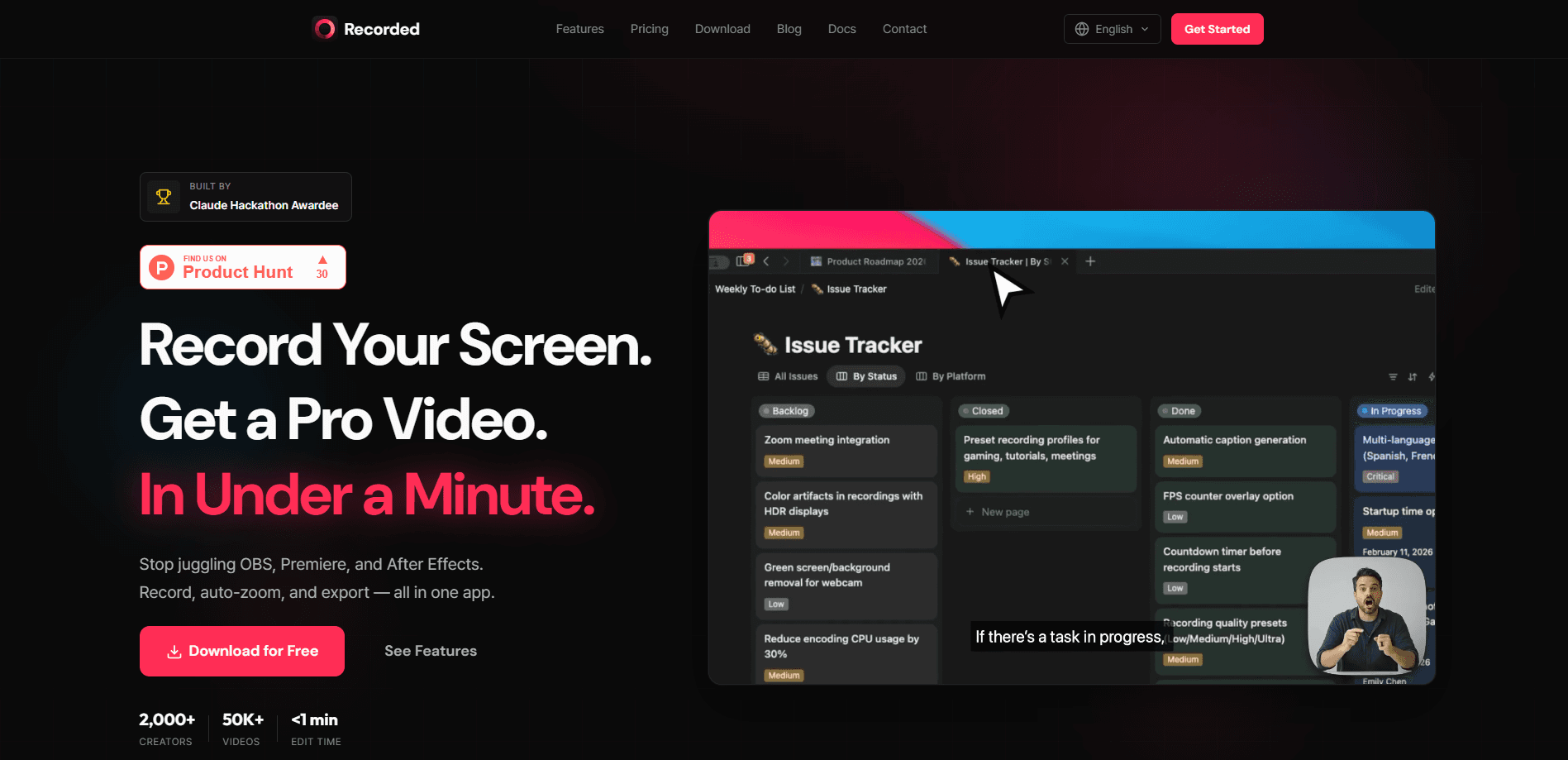
Recorded is a screen recorder for Mac and Windows that turns a raw capture into a polished, zoomed-in video without you touching a timeline. Think of it as an AI screen recorder that edits as you go. It watches where you click, adds cinematic zoom automatically, and exports an MP4 in one pass. The pitch is simple: what used to take an editor an afternoon now takes about a minute. No editing suite required.
About Recorded
What Is Recorded
Recorded is a desktop app built for anyone who records a screen and then dreads the editing. It's aimed at developers, educators, marketers, and support teams who make walkthroughs, tutorials, and product demos but don't want to learn keyframes or sit through post-production. You record, it auto-zooms on your clicks, and you export.
The idea is simple. Most screen videos look amateurish for one reason: the camera never moves. Recorded fixes that by watching your cursor and applying smooth zooms the way a human editor would, then layering on backgrounds, cursor highlights, and a webcam bubble so the result looks staged rather than accidental.
The catch is scope. Recorded runs on macOS and Windows only, so there's no mobile or browser version and no way to capture a phone screen if that's what your walkthrough actually needs. It's a local app, not a cloud service, which is good for privacy but means you manage your own files. Pricing also isn't published on the site beyond a free trial, so check the current terms before committing a whole team to it. What if you only need the basics? The trial covers that.
Getting Started
- Download the app from the official site and install it on your Mac or Windows machine. No account signup is required to start.
- Pick your capture mode: full screen, a single window, or a drawn area.
- Hit record and work through whatever you're demonstrating. Recorded logs your clicks as you go.
- Watch the auto-zoom pass run, then trim or rearrange clips in the built-in timeline if you want changes.
- Export to MP4. Hardware acceleration keeps the render quick even on longer clips.
Product Information
A quick look at Recorded's pricing, supported platforms, and performance.
Best for
The users, tasks, and scenarios where this tool fits best.
Users
- Developers
- Educators and course creators
- Developers and engineers
- Support and customer-success teams
Tasks
- Product demos
- Bug reports
- Onboarding clips
Scenarios
- Recording on a laptop while on a call
- Replacing a cumbersome OBS plus Premiere workflow
- Making a background look professional without a green screen
Key features
Smart Auto-Zoom
Recorded watches where you click and adds zoom automatically, no keyframes involved. The zooms use motion blur to stay smooth, and you can still take manual control when the AI guesses wrong. For a demo where the audience needs to see small UI details, this is the feature that does the heavy lifting.
One-Click Recording
You choose a capture mode, hit record, and that's the setup done. There are no complex profiles or scene configurations to build first, which matters if you record occasionally and don't want to relearn the tool each time.
Timeline Editor
A drag-and-drop timeline lets you trim, cut, and reorder clips after recording, and while reviewers consistently say it's more capable than it first looks, it still favors speed over the frame-accurate control you'd get from a dedicated video editor. If you need frame-accurate color grading, this isn't that, but for tightening a walkthrough it's plenty.
Backgrounds
Gradients, patterns, and solid colors sit behind your recording so it looks composed rather than raw. It's a small thing that changes how a video reads, and it saves the green-screen-and-post dance some creators do.
Cursor Highlight
Your clicks become visible on screen, so viewers track the action without you saying "look here" every few seconds. It's subtle. But it's the difference between a video people follow and one they abandon.
Webcam Overlay
Add a floating camera bubble to put your face in the corner while you demo. Handy for tutorials and team updates where a bit of presence keeps people watching.
Fast MP4 Export
Export goes to MP4 with hardware acceleration, so renders finish fast. That speed matters when you publish close to daily and can't afford to babysit a render queue every single evening. It just saves time.
Pros and cons
Pros
- Auto-zoom removes the most tedious part of screen video editing, the manual zoom keyframing.
- One app covers capture, basic editing, backgrounds, and export, so there's no OBS-plus-editor handoff.
- No account required to record, which is rare among sharing-first screen recorders.
- Hardware-accelerated MP4 export keeps turnaround short.
- Runs natively on both Mac and Windows with a consistent interface.
Cons
- No mobile or browser version, so phone and tablet demos aren't covered.
- Pricing beyond the free trial isn't published on the site, which makes budgeting awkward.
- The timeline editor is intentionally basic, so anyone needing advanced effects or multi-track audio will outgrow it.
Frequently asked questions
It's a screen recording app for making product demos, tutorials, and walkthroughs on Mac and Windows. The auto-zoom and background tools aim to get you a presentable video without a separate editor.
Related content
Explore related tools, skills, and articles for Recorded.
Recorded Alternatives

ngram 2.0
ngram · Video · Marketingngram 2.0 is an AI video generator for teams. It turns a prompt, a screen recording, or a product URL into a narrated explainer, product demo, or AI avatar video, and every scene stays editable.

OpenScreen 2
OpenScreen (open-source project) · Video · ProductivityOpenScreen 2 is a free, open-source screen recorder and demo video editor for Windows, macOS, and Linux, with automatic zooms, styled frames, local captions, and agent edits.

Skreno
Skreno · Video · ProductivitySkreno is a browser screen recorder that captures a tab, a window or your whole display, then attaches AI transcripts, summaries and console logs to one share link.