

Removefrom Video
Removefrom Video · Video
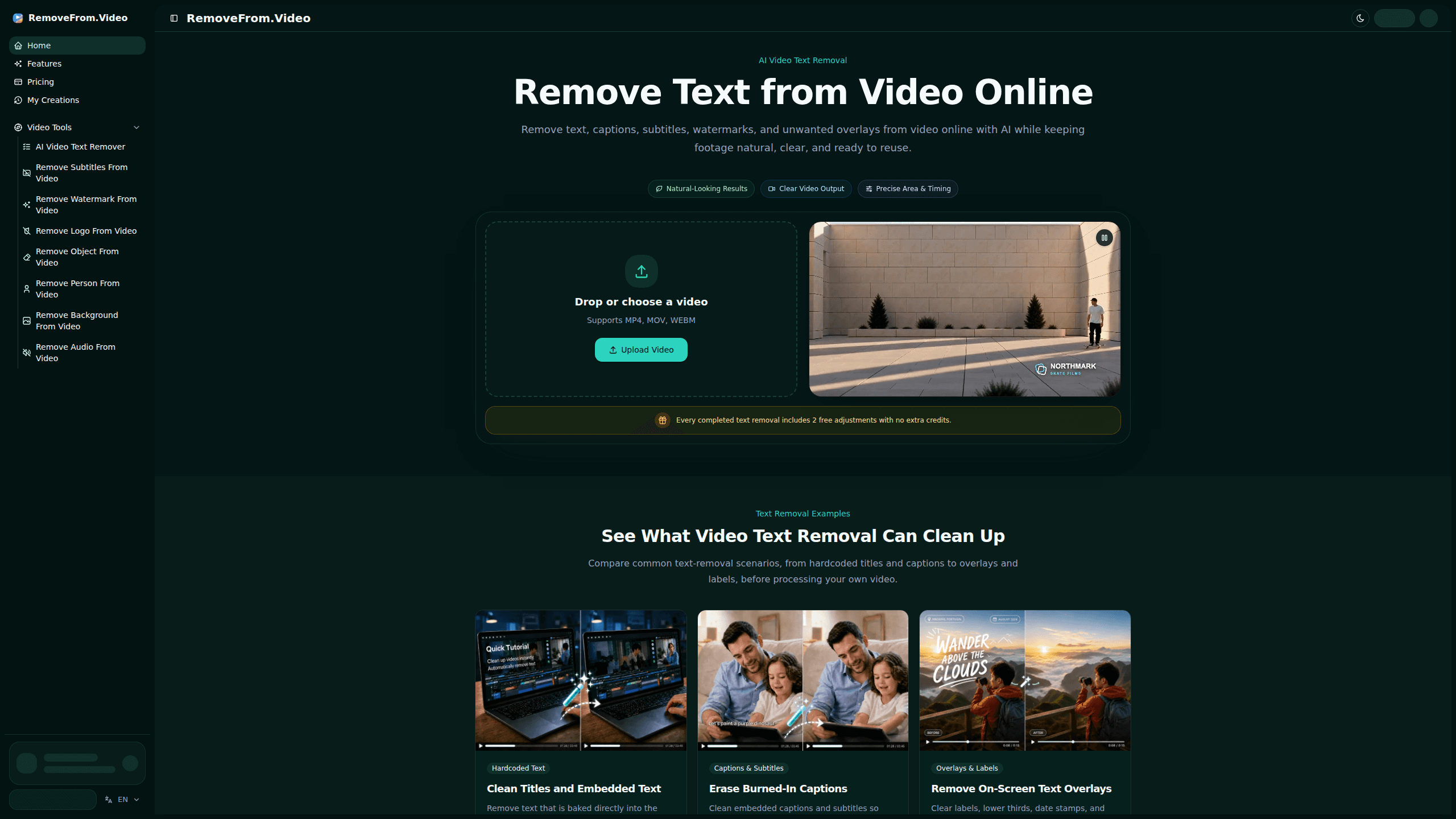
Removefrom Video is a browser-based AI video text remover that erases captions, subtitles, watermarks, labels, and timestamps baked into a clip, then rebuilds the covered background instead of blurring it. You upload an MP4, MOV, or WEBM file, mark the text you want gone, and download a cleaned version that keeps the original frame size. It's aimed at creators, marketers, and anyone repurposing footage who wants a clean plate without touching full editing software.
About Removefrom Video
What Is Removefrom Video
Removefrom Video handles one job: getting unwanted text out of a video frame. That text can be hardcoded titles, burned-in captions, subtitles, lower thirds, usernames, date stamps, or watermark overlays. Rather than cropping the edges or slapping a blur bar over the words, the tool uses AI video inpainting to reconstruct the pixels hidden behind the text while keeping surrounding motion and detail intact.
The main appeal is accessibility. There's no timeline to learn and no desktop app to install. Everything runs in a browser, and the workflow mirrors how people actually work with quick clips online: drag the file in, pick the text, download the result. For social repurposing, localization, or cleaning archival footage, that's usually faster than rebuilding a scene by hand in a professional editor. That gap matters.
There are limits worth knowing up front. Because each second of processed video consumes a credit, long or high-resolution clips get expensive fast. The tool also works best on text that sits over relatively stable backgrounds; heavy motion behind large text regions is a harder case for any inpainting model. And since processing is cloud-based, your video leaves your machine and sits on the service's servers during the job.
Getting Started
- Open removefrom.video in your browser and drop in an MP4, MOV, or WEBM file, or click to browse for one from your device.
- Choose the text to remove. Let Auto Detect find visible text automatically, or draw a Select Area box over the exact region you want cleaned.
- Start the removal. The AI erases the text across the video and rebuilds the background underneath it frame by frame.
- Review the result in the preview. Every completed job includes two free adjustments, so you can refine the selection without spending extra credits.
- Download the finished clip for editing, publishing, or reuse.
Product Information
A quick look at Removefrom Video's pricing, supported platforms, and performance.
Best for
The users, tasks, and scenarios where this tool fits best.
Users
- Social media creators repurposing clips
- Video editors cleaning up B-roll
- Localization teams
- Marketers reusing campaign footage
Tasks
- Removing hardcoded text
- Erasing captions and subtitles
- Deleting overlays and lower thirds
- Cleaning timestamps and labels
Scenarios
- Repurposing old TikToks or Reels for a new account
- Preparing clips for subtitling in another language
- Tidying screen recordings before a tutorial
- Restoring archival or client footage
Key features
AI Video Inpainting Instead of Blurring
The core of Removefrom Video is that it reconstructs the area behind the text rather than covering it. Most quick fixes either crop the frame or drop a blur rectangle on top of the words. Both leave a scar. Inpainting reads the surrounding frames and rebuilds the hidden pixels, so the cleaned region blends into the scene. On a stable background this looks close to untouched. On fast motion under large text, expect softer results.
Auto Detect and Manual Area Selection
You get two ways to tell the tool what to remove. Auto Detect scans for visible text and picks out its own regions, which is the fastest path for straightforward captions. Select Area gives you a box to define the exact zone, which matters when captions are styled, repositioned, or sitting somewhere the automatic pass might miss. More control. Both routes feed into the same removal process, so switching between them doesn't change output quality.
Removal Without Cropping the Frame
Cropping is the lazy fix for embedded text, and it costs you picture. Removefrom Video works inside the existing frame, keeping the original width, height, and composition. Is that worth it? Usually, yes. If the text sits low in the shot, cleaning it there means the subjects and scene detail nearby stay in the video. That's the difference between a usable clean plate and a clip that suddenly looks zoomed or awkwardly framed.
Handles Multiple Text Types
The tool isn't limited to one kind of overlay. It works as an AI subtitle remover for burned-in captions and open captions, and it can remove watermark from video along with titles, lower thirds, usernames, promotional text, date stamps, location labels, and screen-recording tags. That range matters because the same clip often carries several of these at once, and you don't want to run three different tools to clear one video.
Credit-Based Pricing Tied to Video Length
Credits are charged at roughly one credit per second of generated video, so a 30-second clip costs about 30 credits. That pricing model keeps short jobs cheap but makes long, high-resolution footage expensive in a hurry. Plan around it. The upside is transparency: you can estimate cost before you commit, and every completed removal comes with two free adjustments that don't burn extra credits.
MP4, MOV, and WEBM Support in the Browser
Support for the three most common formats covers most consumer and prosumer footage without a conversion step. Because it all runs in the browser, you don't install anything or worry about OS compatibility. Simple. The tradeoff is that your file uploads to the cloud for processing, which is worth weighing if the footage is sensitive.
Pros and cons
Pros
- Rebuilds the covered background with AI inpainting instead of blurring or cropping
- Keeps the original frame dimensions, so subjects and edge detail stay in the picture
- Handles several text types at once. Clean captions, subtitles, watermarks, and date stamps in one pass.
- Two free adjustments included with every completed removal
- Runs entirely in the browser. No install. Direct MP4, MOV, and WEBM support.
Cons
- Credit cost scales with video length, so long or high-resolution clips get pricey
- Inpainting struggles with large text regions over fast or complex motion, which may mean manual cleanup afterward
- Cloud processing means your video leaves your device and lives on remote servers while the job runs
- Map of exact paid-tier prices isn't published on the page, so you have to check at checkout before committing
Frequently asked questions
It removes text from video, including captions, subtitles, watermarks, overlays, lower thirds, and timestamps. The AI clears the text and rebuilds the background behind it instead of blurring or cropping the frame.
Related content
Explore related tools, skills, and articles for Removefrom Video.
Removefrom Video Alternatives

Vadu AI
Vadu AI · Image · VideoVadu AI is a web-based AI video generator that turns written prompts or still images into short clips, and it can also generate images on its own. You type what you want, pick a model and style, and the platform renders the result in minutes. A free plan covers light testing, while paid tiers run from $9 to $77.40 per month based on how many credits you burn.

Mykaraoke Video
MyKaraoke Video · VideoMykaraoke Video is an online karaoke video maker and lyric video maker that turns any song into a finished, lyrics-synced video right in your browser. It handles the slow part for you. The AI pulls vocals out of the mix and locks the lyrics to the beat, then lets you customize background, fonts, and colors before exporting in 1080p MP4. If you make lyric videos for social media, party nights, or music promotion, it skips the software installs and manual timing work entirely. Want a karaoke video generator that doesn't eat your whole evening? That's the pitch here.

Finalframe
Finalframe · VideoFinalframe is a set of free, browser-based tools for grabbing exact frames out of a video clip. Its best-known feature, the Final Frame Extractor, lets you extract the last frame of any video so you can use it as the starting image for AI video tools like Luma Dream Machine, Runway, or Kling. Want to keep a clip going? That last frame is your starting point. The tool runs locally in your browser, needs no sign-up, and costs nothing. A separate paid AI video-generation app from the same team is currently offline while it's rebuilt.