

Screen Studio
Screen Studio · Video
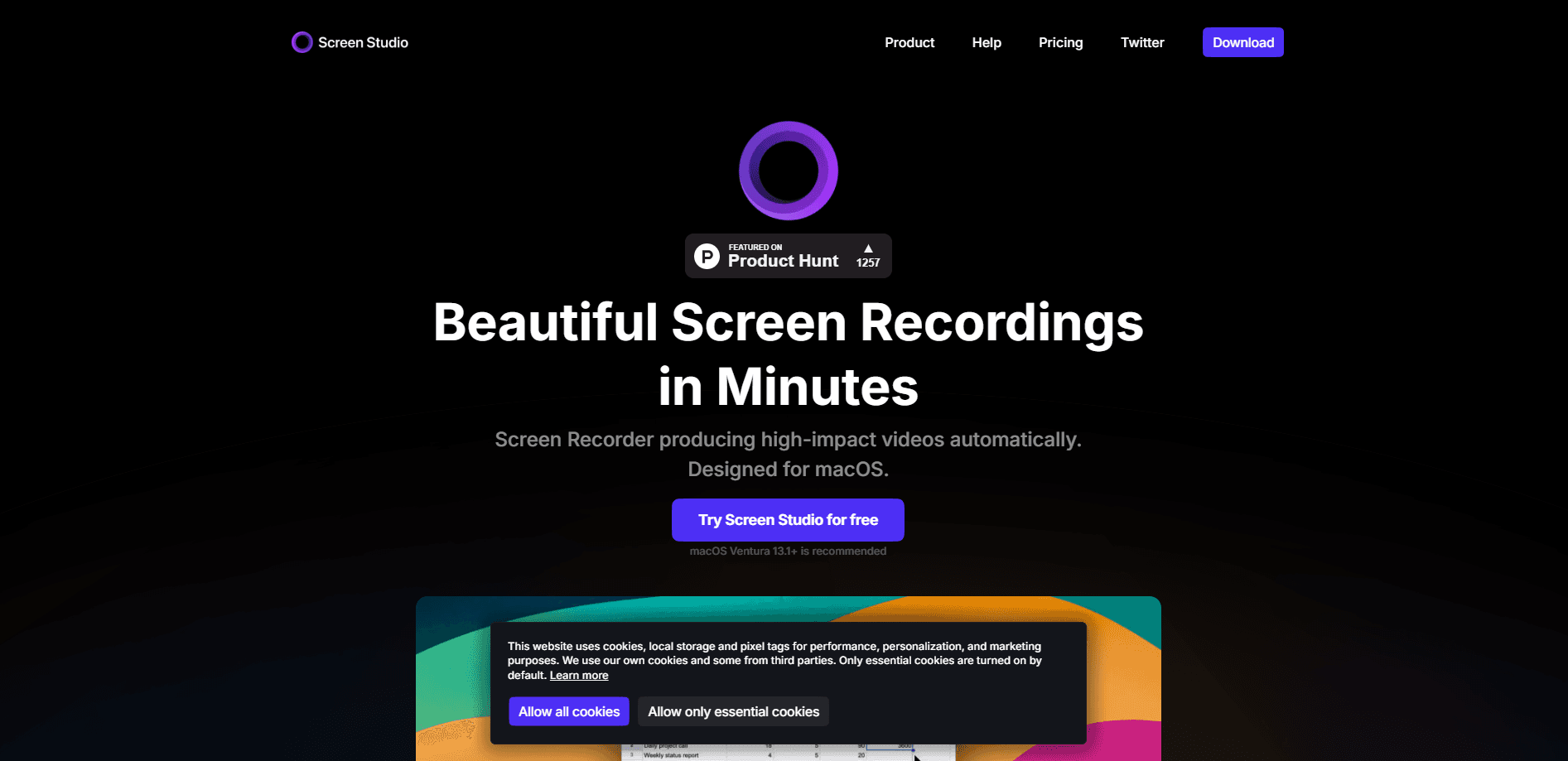
Screen Studio is a screen recorder for macOS that turns raw captures into polished videos. It adds automatic zoom, smooth cursor motion and animations without manual editing.
About Screen Studio
What Is Screen Studio
Screen Studio is a screen recording app built only for macOS. Its pitch is simple: record your screen once, and the app applies the editing decisions that would normally take hours in a timeline. It zooms in on the actions you perform, enlarges and smooths the cursor, and adds motion so a plain capture reads like a produced demo. Add cursor animation and the recording starts to look finished.
The tool targets people who record their screen often but do not edit video for a living. Product teams record demos. Teachers record lessons. Developers record walkthroughs. Creators record social clips. For all of them, the bottleneck is the same: the raw recording is fine, but making it watchable means cropping, zooming and keyframing by hand. Screen Studio removes that step. The company calls it an opinionated recorder, which is accurate, because it makes a lot of choices for you on purpose.
Two things define the product. First, it is Mac only, with macOS Ventura 13.1 or later recommended, so Windows and Linux users are out. Second, the processing happens on your Mac rather than in the cloud, which the company frames as a privacy choice and also as a speed one. There is no upload step before you can watch what you recorded.
Getting Started
- Install the app on your Mac and grant it screen recording and microphone permissions in System Settings
- Pick what to capture, a full screen, a single window or a selected area, and start recording with the shortcut
- Let the app handle the zooms automatically, or drag your own zoom points on the timeline afterward
- Style the result with cursor effects, backgrounds and padding, then export to MP4, 4K or GIF, or share a link directly
Product Information
A quick look at Screen Studio's pricing, supported platforms, and performance.
Best for
The users, tasks, and scenarios where this tool fits best.
Users
- Product and marketing teams
- Developers and technical writers
- Educators and course creators
- Creators and founders
Tasks
- Automatic zoom
- Cursor and click styling
- Camera and audio capture
- Vertical and square export
- Subtitle and caption generation
Scenarios
- A demo video for a launch
- A coding tutorial
- A course lesson
- A recurring how-to series
- A quick bug report
Key features
Automatic Zoom and Smart Framing
The core feature is automatic zoom. As you record, the app watches what you do and zooms in on the active area, so clicks and text stay legible on small screens. You can also place manual zooms on the timeline, and the app animates every one of them, so you are choosing where to look rather than building the motion. Smart framing keeps the webcam overlay from covering the part of the screen you are working on.
Smooth Cursor and Click Effects
Raw screen recordings have a jumpy cursor that is hard to follow. Screen Studio smooths that movement into a glide, lets you change the cursor size after recording, and can hide a static cursor entirely when it adds nothing. Clicks and keystrokes can be highlighted so viewers track what you did. These touches are the difference between a recording and something that reads as intentional.
Multiple Camera Layouts
Recording a person and a screen at the same time is where most tools get awkward. Screen Studio offers several layouts: fullscreen camera, split screen, camera overlay and camera cutout. The cutout layout removes the background behind the presenter so the screen shows through. That range covers a talking-head lesson, a corner webcam for a demo and a person narrating over their own slides.
Webcam, Audio and iOS Capture
The app records a webcam, a microphone and system audio in the same take, so a voiceover and the audio playing on your Mac land together. It can also capture an iPhone or iPad over USB, which is useful when you need to show a mobile app on a Mac screen, complete with a device frame. For teams that present mobile flows, that removes a separate capture rig.
Backgrounds, Padding and Presets
Recordings rarely look finished against a plain desktop. For a tutorial video maker, the gap is usually styling, not capture. Screen Studio adds a background, padding, rounded corners and a shadow, and lets you tune each one. When a look works, you save it as a preset and apply it to the next recording, so a series keeps a consistent style without rebuilding it every time. Teams can share presets so everyone exports to the same look.
Export and Instant Sharing
You export to MP4 at up to 4K, and to GIF when a clip needs to loop in a doc or a chat. There is a vertical mode that reworks the zooms for a phone screen. The app also generates a shareable link at 1080p and 60fps, capped at 30 minutes, so you can send a video without uploading a file yourself. Finished clips paste straight into Slack and Linear.
On-Device Processing and Privacy
Every step runs on your Mac, and nothing uploads to a server unless you choose to share a link. That matters for teams recording internal dashboards, customer data or unreleased features. It also means there is no render queue and no account to make before you record. The trade-off is the platform lock: this is a Mac app, and it stays one.
Pros and cons
Pros
- Automatic zoom and cursor smoothing remove the manual editing step from most screen recordings
- Multiple camera layouts with a cutout option cover both screen-only and presenter-led videos
- Exports to 4K MP4, GIF and vertical formats, plus a shareable link, so one recording fits many channels
- Records webcam, microphone and system audio together, and captures iOS devices over USB
- Processing stays on the Mac, which suits teams with sensitive or unreleased content
Cons
- Mac only, so Windows and Linux users cannot use it at all
- No free plan, and no self-serve trial without paying first
- The automatic zooms are opinionated, so some recordings still need manual zoom points
- The share link caps at 1080p and 30 minutes, which is short for long trainings
Frequently asked questions
Screen Studio is a screen recording app for macOS. You record your screen, and the app adds automatic zoom, smooth cursor motion and animations, plus backgrounds and effects, so the result looks edited without a manual timeline pass. It records webcam, microphone, system audio and iOS devices too.
Related content
Explore related tools, skills, and articles for Screen Studio.
Screen Studio Alternatives

ngram 2.0
ngram · Video · Marketingngram 2.0 is an AI video generator for teams. It turns a prompt, a screen recording, or a product URL into a narrated explainer, product demo, or AI avatar video, and every scene stays editable.

OpenScreen 2
OpenScreen (open-source project) · Video · ProductivityOpenScreen 2 is a free, open-source screen recorder and demo video editor for Windows, macOS, and Linux, with automatic zooms, styled frames, local captions, and agent edits.

Skreno
Skreno · Video · ProductivitySkreno is a browser screen recorder that captures a tab, a window or your whole display, then attaches AI transcripts, summaries and console logs to one share link.