

ScreenSmooth
ScreenSmooth · Video
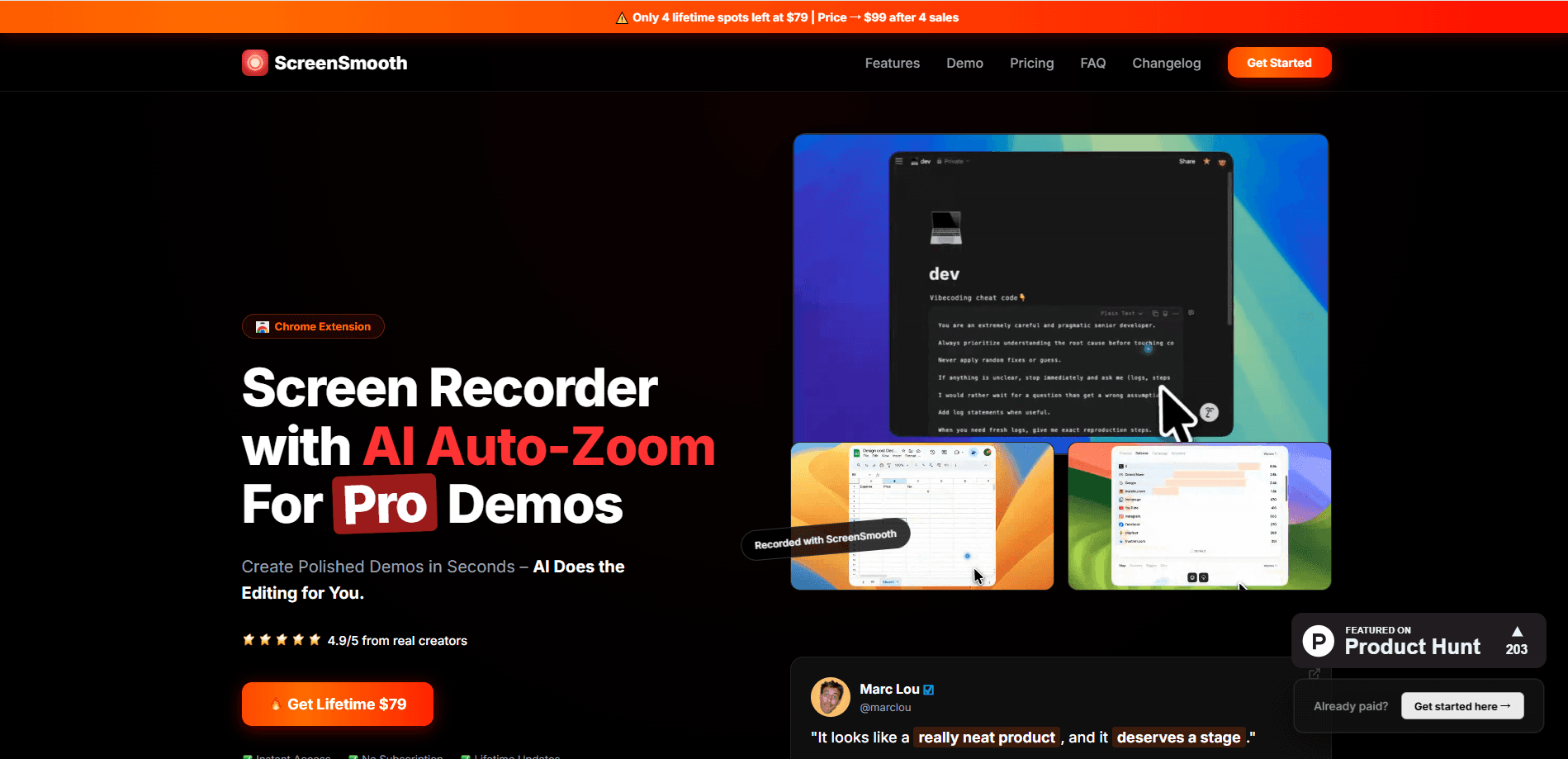
ScreenSmooth is a Chrome extension screen recorder that turns plain browser captures into polished demo videos. It adds automatic zoom on the spots you click and smooths out shaky mouse movement, so a rough walkthrough comes out looking like a studio recording. Because it runs inside Chrome, Edge, or Brave, it works the same on MacOS, Windows, and Linux, and exports to MP4, WebM, or GIF.
About ScreenSmooth
What Is ScreenSmooth
ScreenSmooth is a screen recording tool that lives in your browser as an extension. Instead of installing a desktop app, you add it once from the Chrome Web Store and record any tab, window, or screen from the toolbar. The pitch is simple. Most people don't want a raw capture. They want a video that looks edited. ScreenSmooth handles the two hardest parts of that edit on its own, which is why it's become a common pick for screen recording for demos.
The first is zoom. When you record a browser walkthrough, the viewer can't tell where you're pointing. ScreenSmooth detects where you click during recording and zooms in on those areas, and you can still add or adjust zooms by hand if the automatic pass misses something. The second is the cursor. Raw screen recordings show every jitter and overshoot of a real mouse. ScreenSmooth turns those movements into smooth glides, which matters a lot when the whole point of the video is a product demo.
The biggest limitation is scope. ScreenSmooth only records what happens in your browser, so it isn't the tool for filming your whole desktop, a native app, or a game. If your demo stays inside a browser tab, it fits. If it doesn't, you'll need a full desktop recorder. Pricing is a one-time $79 with a commercial license included, and recordings stay local in your browser.
Getting Started
- Buy the Lifetime plan on the official site and check your email for a link to the Chrome Web Store.
- Click "Add to Chrome" to install the extension, then pin it to the toolbar so you can start a recording in one click.
- Open the page you want to demo and press record, choosing the tab, window, or screen you want to capture.
- Walk through your demo normally. ScreenSmooth logs your clicks and auto-zooms on them while you record.
- Review the recording, tweak any zooms or backgrounds, then export to MP4, WebM, or GIF.
Product Information
A quick look at ScreenSmooth's pricing, supported platforms, and performance.
Best for
The users, tasks, and scenarios where this tool fits best.
Users
- Product marketers
- Indie developers and founders
- Course creators and educators
Tasks
- Recording a web app demo
- Making short social clips
- Documenting a bug or feature
Scenarios
- Filming a SaaS onboarding walkthrough
- Turning a support answer into a GIF
- Pitching a product on a budget
Key features
Automatic Zoom on Clicks
ScreenSmooth watches where you click while recording and zooms in on those spots on its own, so the finished video naturally focuses on whatever you're interacting with right when you interact with it. You can also edit or add zooms manually when the automatic pass lands in the wrong spot. For a browser demo, this is the single feature that decides whether the video looks professional. Miss it, and the viewer is lost.
Smooth Cursor
Real mouse movement is jumpy. ScreenSmooth rewrites the recorded path into smooth glides, which makes a demo feel deliberate instead of nervous. It's a small touch that has an outsized effect on how polished a recording feels. That's usually a paid-editor fix. Not here.
Flexible Aspect Ratios and Exports
You can record in any dimension and export in the format that fits your destination. ScreenSmooth supports MP4, WebM, and GIF, so the same session can become a YouTube upload, a social clip, or a quick GIF for a support thread. That range of formats saves you from re-recording a whole demo just to match a platform's preferred shape.
Local, In-Browser Recording
ScreenSmooth runs locally in your browser rather than uploading your screen to a server. For people recording internal tools, customer data, or unreleased features, that removes a real privacy worry. There's no cloud account to create and no footage sitting on someone else's infrastructure.
Custom Backgrounds
You can place your recording on custom backgrounds and choose from wallpapers, solid colors, or your own uploads. This is the framing step that turns a flat browser capture into something you'd actually post. It's a presentation feature, not a core one, but it's the difference between a screen grab and a shareable clip.
One-Time Pricing with a Commercial License
The Lifetime plan is a single $79 payment, and the commercial license is included, so you can use the videos anywhere. Compared with subscription recorders that charge monthly, the cost math is easy to do. There's no team plan by default, so larger groups need to contact support about bulk licensing.
Pros and cons
Pros
- Automatic zoom and smoothing remove the two most tedious parts of editing a screen demo by hand.
- Runs as a Chrome extension, so the same tool works on MacOS, Windows, and Linux instead of locking you to one OS.
- One-time $79 payment with a commercial license, versus monthly subscriptions from comparable recorders.
- Records locally in the browser, so your footage isn't uploaded to a third-party server.
- Exports to MP4, WebM, and GIF, covering both long videos and quick shareable clips.
Cons
- It only records browser content, so it can't capture a native desktop app, a game, or your full screen outside the browser.
- No free plan exists, so you have to pay before you can properly test it on your own recordings.
- There's no public API, which limits automated or programmatic recording workflows.
- The price climbs as early-bird slots sell out, so waiting raises what you'll pay.
Frequently asked questions
It records browser content, meaning tabs, windows, and screens shown through Chrome, Edge, or Brave. It's built for web demos, walkthroughs, and tutorials rather than capturing native desktop applications. So what happens if your demo leaves the browser? It stops there.
Related content
Explore related tools, skills, and articles for ScreenSmooth.
ScreenSmooth Alternatives

ngram 2.0
ngram · Video · Marketingngram 2.0 is an AI video generator for teams. It turns a prompt, a screen recording, or a product URL into a narrated explainer, product demo, or AI avatar video, and every scene stays editable.

OpenScreen 2
OpenScreen (open-source project) · Video · ProductivityOpenScreen 2 is a free, open-source screen recorder and demo video editor for Windows, macOS, and Linux, with automatic zooms, styled frames, local captions, and agent edits.

Skreno
Skreno · Video · ProductivitySkreno is a browser screen recorder that captures a tab, a window or your whole display, then attaches AI transcripts, summaries and console logs to one share link.