

Slide2Video
VoyCrew · Video · Productivity
Slide2Video is a browser-based tool that turns PDF and PowerPoint presentations into narrated videos without a microphone or a recording studio. You upload a deck, the AI drafts a page-by-page narration script, you fine-tune the wording, and the tool exports an MP4 with synthesized voiceover and your original slides. Sound faster than a recording session? It usually is. It's built for training and L&D teams who need to publish a video every time a slide changes instead of rebooking a recording session.
About Slide2Video
What Is Slide2Video
Slide2Video is an AI presentation to video converter from VoyCrew. It reads a slide deck, writes a narration script for each slide, and renders a finished video with AI voiceover on top of your visuals. The whole pipeline runs in your browser, so there's nothing to install and no PowerPoint license needed on your machine.
The problem it targets is a familiar one. Training decks, onboarding walkthroughs, and compliance modules usually sit in a folder until someone finds time to record narration. That recording goes stale the moment a slide changes. As a PowerPoint to video converter, Slide2Video removes that step entirely. Change a slide, re-upload, and the tool regenerates the script from the revised content instead of starting from scratch.
The biggest limitation is scope. This is a presentation video maker, not a full editor. There's no timeline, no stock footage library, no manual scene stitching. If your video needs b-roll, motion graphics, or footage you shot yourself, Slide2Video won't do it. It also leans on Google sign-in for account access, so you can't hand it to an anonymous guest.
Getting Started
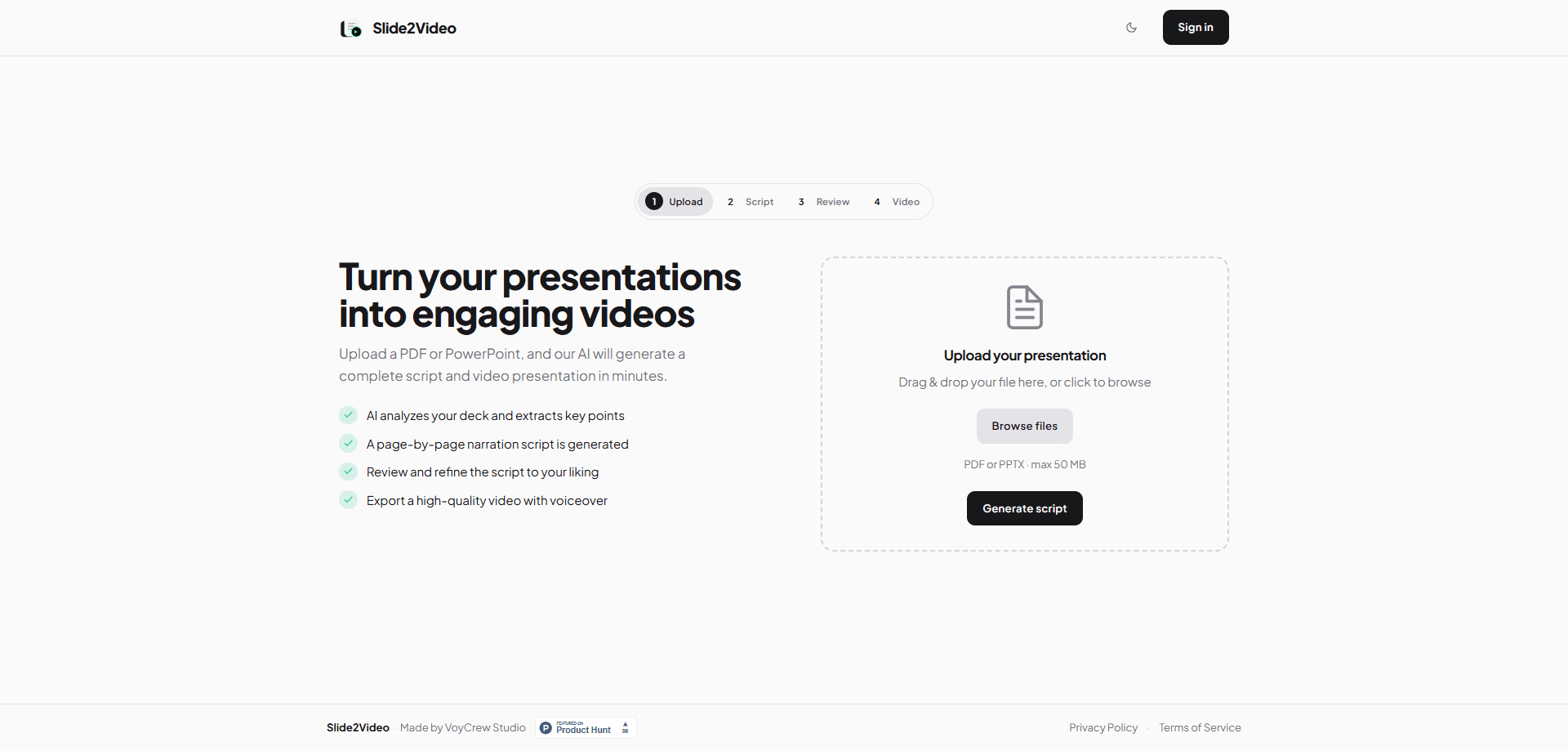
- Sign in with your Google account and open the upload screen.
- Drag in a PDF or PowerPoint (.pptx) file, up to 50 MB.
- Wait for the AI to analyze the deck and draft a narration script for each slide.
- Review the script slide by slide and edit any line before audio is generated.
- Approve the script and export the narrated MP4, then download it to your LMS or shared drive.
Product Information
A quick look at Slide2Video's pricing, supported platforms, and performance.
Best for
The users, tasks, and scenarios where this tool fits best.
Users
- L&D and training teams
- Team leads and managers
- Instructors and coaches
Tasks
- Converting a PowerPoint training deck into a narrated MP4
- Turning a PDF handbook into a walkthrough video
- Re-recording after a content update
Scenarios
- Onboarding material that needs to ship before a new hire's first day
- Quarterly compliance refreshers
- Course modules for an online class
Key features
AI Narration Script Generation
Slide2Video analyzes your uploaded deck and writes a page-by-page narration script before any audio is made. The script is the core of the workflow. It gives you a readable draft you can fix for terminology and tone, and it means the final voiceover reflects content you actually approved rather than an opaque black box.
Inline Script Editing Before Export
You can rewrite any line of the draft narration before the video renders. Fix a product name, tighten a sentence, or shift the tone slide by slide. This is deliberate. A wrong pronunciation or a stale figure in an auto-generated voiceover is hard to catch once the MP4 is finished. Editing the text first saves a re-render.
Browser-Based Processing
Upload, script generation, audio synthesis, and video export all run in the browser. There's no desktop app to install and no Microsoft PowerPoint required on your machine. Slide2Video reads the .pptx or PDF server-side. A laptop with a modern browser is enough to produce a finished training video.
Narrated MP4 Export
Once you approve the script, Slide2Video renders a complete video with AI voiceover layered over your slide visuals. The output is a standard MP4. You can drop it straight into an LMS, an internal wiki, or a shared drive. There's no separate export step or conversion tool in between.
Regeneration for Updated Decks
When slides change after you've exported, you upload the revised deck and Slide2Video generates a new script from the updated content. You only need to re-approve the sections that changed. For teams that update training material often, this is the difference between a five-minute refresh and a full re-record.
Pros and cons
Pros
- Script-first workflow lets you correct terminology and numbers before the voiceover is generated.
- Runs entirely in the browser, so no PowerPoint install or recording gear is needed.
- PDF and .pptx support covers most standard training and onboarding decks.
- Regenerating from an updated deck avoids re-recording the whole video.
- Free tier covers the full upload-to-export flow with no credit card required.
Cons
- No manual video editing: there's no timeline, so you can't add footage, b-roll, or complex transitions beyond what the slides give you.
- 50 MB upload cap means very large, image-heavy decks have to be trimmed first.
- Google sign-in is required, which rules out anonymous or guest access for one-off users.
- Pricing beyond the free tier isn't documented on the site, so teams planning long-term use have to ask before committing.
Frequently asked questions
It converts a PDF or PowerPoint presentation into a narrated video. The AI drafts a script for each slide, you edit and approve it, and the tool exports an MP4 with AI voiceover and your slide visuals.
Related content
Explore related tools, skills, and articles for Slide2Video.
Slide2Video Alternatives
Griffin by Tavus
Tavus · Voice & Language · Video · ChatbotGriffin by Tavus is the first Human Interaction Model: a full-duplex, video-to-video system that watches, listens, and answers during a live video call in real time.

Syllaby AI Avatar 2.0
Syllaby · Video · MarketingSyllaby AI Avatar 2.0 turns a script into a presenter-led video with a reusable AI avatar, natural voice, B-roll and automatic subtitles, all in one browser workflow.

Vitra.ai
Vitra.ai · Voice & Language · Video · MarketingVitra.ai is an agentic content platform that creates, translates, reviews, and publishes video, images, documents, and app content in 120 languages from one shared brief.