

Stanley Studio
Stanley AI (getstanley.ai) · Video
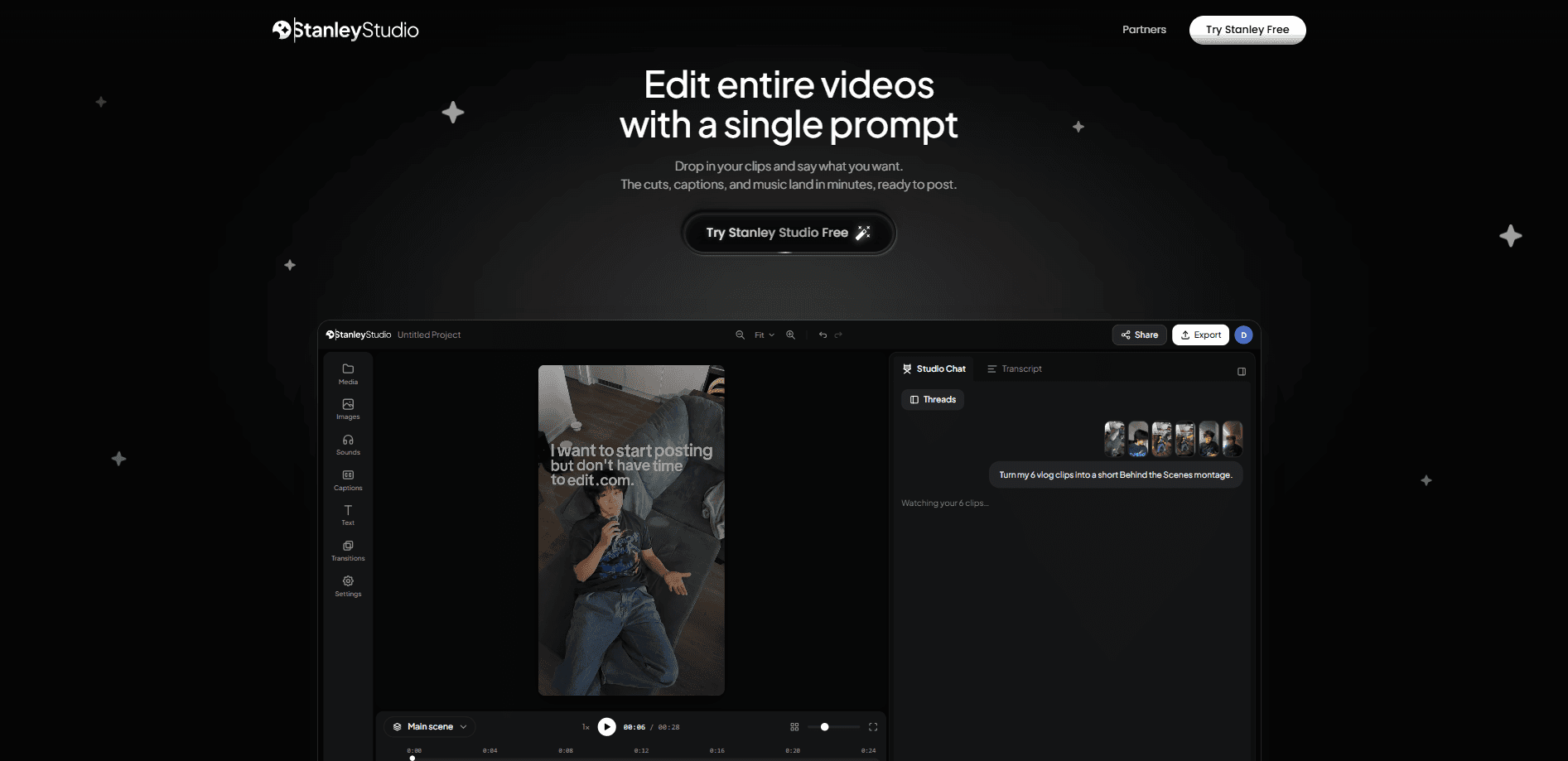
Stanley Studio is a browser-based AI video editor that turns raw clips into a finished cut from a written prompt. You drop in your footage, describe what you want, and it picks takes, tightens pacing, generates timed captions, adds music, and exports in the aspect ratio you post. It targets creators who publish short-form video daily and want to skip the manual timeline work.
About Stanley Studio
What Is Stanley Studio
Stanley Studio is an AI video editor for short-form creators, built by the team behind getstanley.ai. Instead of dragging clips on a timeline, you type instructions in a chat and the editor applies them to the whole video. It handles the tedious parts of post-production: cutting silences and filler words, styling captions, timing music to the cut, and framing shots for different platforms.
The tool is aimed at people who post to TikTok, Reels, Shorts, or YouTube on a regular schedule and can't afford to spend hours on every single edit they publish. For a solo creator with a batch of raw takes, that's the difference between publishing today and publishing next week.
It isn't a full cinema-grade suite. There's no multi-track audio mixing for feature work, and the free tier caps how much AI editing you get. So who is it for? Anyone who needs a fast first cut, not a finishing tool. If you need frame-by-frame color grading or complex motion graphics, you'll still want a traditional editor alongside it.
Stanley Studio leans on speed over control. That's the whole pitch.
Getting Started
- Sign up at the Stanley Studio site with an email or existing account. No download is needed since it runs in the browser.
- Upload your raw clips, such as A-roll takes from a phone or camera.
- Type a prompt describing the edit you want, like "cut silences and fillers" or "animate the first three seconds of text."
- Review the cut, then ask for changes in plain sentences, such as swapping a shot or adding music.
- Export in the size you post, whether that's 9:16 for TikTok and Shorts, 16:9 for YouTube, or 1:1 for feed posts.
Product Information
A quick look at Stanley Studio's pricing, supported platforms, and performance.
Best for
The users, tasks, and scenarios where this tool fits best.
Users
- Daily short-form creators
- Solo podcasters and talking-head YouTubers
- Social media managers handling several accounts
Tasks
- Cutting silences and filler words
- Generating timed captions
- Reframing for vertical or square formats
Scenarios
- Batching a week of content in one sitting
- Turning a long recording into clips
- Last-minute posts
Key features
Prompt-Based Editing
The core idea is that you describe the edit and Stanley Studio executes it. This is prompt video editing in its simplest form. A sentence like "tighten the pacing and cut the filler" applies across the whole video, not clip by clip. It's closer to directing an editor than operating software, which lowers the learning curve for people who don't enjoy timelines. The trade-off is real. You give up some precision. But you gain speed.
Automatic Silence and Filler Removal
Spoken video is full of pauses and "ums" that drag on pacing. Stanley Studio detects and removes them in one pass. That's it. For podcasters and talking-head creators, this alone can save the bulk of editing time, since trimming dead air by hand is repetitive and slow.
Timed Captions
The editor generates captions and syncs them to the spoken audio. You can also prompt for effects, such as text that animates left to right in the first few seconds. Captions matter for retention on muted autoplay feeds, and getting them without manual timing is a real time saver. No timing. No typing.
B-Roll and Shot Selection
Stanley picks from your takes and can add b-roll to cover cuts. It evaluates footage and assembles a sequence rather than leaving you to choose every angle. The result is a watchable first cut you can refine, not a finished film that needs no review. Think starting point, not final answer.
Face-Tracking Crops
For vertical video, the editor reframes around faces so the subject stays in frame when you cut a wide shot down to 9:16. This solves a common problem for creators shooting on a wide camera and posting to Reels or Shorts, where a static center crop often cuts off the speaker.
Audio Balancing
Music timing and levels are handled as part of the edit. You don't have to duck tracks manually to keep speech clear. Big difference. It's a practical convenience for creators who add background music but lack audio-engineering experience.
Editable Output, Not a Black Box
Every cut Stanley makes stays open to change. You can reopen a project, tweak a clip, or share the file, and the studio keeps the edit yours to adjust. That matters if you've used AI tools that produce a locked result you can't fine-tune. You stay in control. Nothing is final until you export.
Pros and cons
Pros
- Browser-based, so there's nothing to install and you can edit from most machines.
- The prompt workflow removes the timeline learning curve for beginners.
- Silence and filler removal plus auto captions cover the two most time-consuming editing chores.
- Free tier lets you try the full prompt flow with one exportable project.
Cons
- The free plan limits AI usage, so regular creators will likely need to upgrade to keep editing at volume.
- The Pro plan price isn't shown on the pricing page, which makes budgeting harder before you commit.
- There's no public API, so it won't slot into an automated content pipeline.
- Deep manual control, like multi-track audio mixing or fine color work, is limited compared to desktop editors.
Frequently asked questions
It edits videos from written prompts, mainly for short-form content. You upload clips, describe the edit, and it cuts silences, adds captions, and exports in the format you need.
Related content
Explore related tools, skills, and articles for Stanley Studio.
Stanley Studio Alternatives

ngram 2.0
ngram · Video · Marketingngram 2.0 is an AI video generator for teams. It turns a prompt, a screen recording, or a product URL into a narrated explainer, product demo, or AI avatar video, and every scene stays editable.

OpenScreen 2
OpenScreen (open-source project) · Video · ProductivityOpenScreen 2 is a free, open-source screen recorder and demo video editor for Windows, macOS, and Linux, with automatic zooms, styled frames, local captions, and agent edits.

Skreno
Skreno · Video · ProductivitySkreno is a browser screen recorder that captures a tab, a window or your whole display, then attaches AI transcripts, summaries and console logs to one share link.