

Submagic
Submagic · Video
Submagic is an AI video editor for short-form content. It writes captions in 123 languages, cuts silences, adds B-roll, and turns long videos into ready clips.
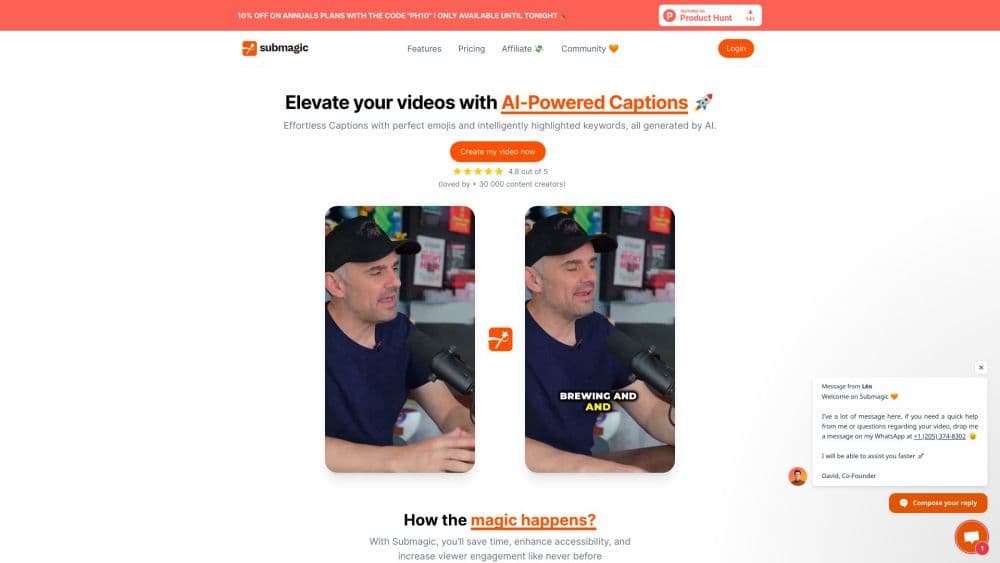
About Submagic
What Is Submagic
Submagic is a browser-based AI video editor built for people who publish shorts. It doubles as a subtitle generator. You drop in a video or a YouTube link, and the tool writes captions, strips out silences and filler words, drops in B-roll, and marks the moments worth keeping. The editing happens on the transcript, so you fix a clip by changing the text instead of scrubbing a timeline.
The product targets a specific job: turning raw footage into captions styled for TikTok, Reels, and Shorts. Its caption engine claims 99% accuracy, and Magic Clips finds highlights in a long recording and splits them into separate shorts you can post one by one.
The limits matter too. Video creation is credit-based, so every generated video draws from a monthly pool and longer clips cost more credits. The entry plan caps videos at 2 minutes and exports at 1080p. Teams that need longer clips, 4K output, or custom branding have to step up a plan or pay for the Business tier.
Getting Started
- Sign up at submagic.co and open the editor. No card is needed to try it.
- Upload a video file or paste a YouTube link. Podcasts, interviews, and phone footage all work.
- Let the AI process the clip. It adds captions, removes silences and filler words, and inserts B-roll automatically.
- Edit by text. Fix wording, restyle captions, or trim scenes by editing the transcript rather than the timeline.
- Export or publish. Download in up to 4K or schedule the post straight to your social channels.
Product Information
A quick look at Submagic's pricing, supported platforms, and performance.
Best for
The users, tasks, and scenarios where this tool fits best.
Users
- Solo content creators
- Podcasters and interview hosts
- Marketing teams and agencies
Tasks
- Adding captions to a clip
- Removing silences and filler words
- Turning a long video into shorts
- Translating captions for another market
- Publishing on a schedule
Scenarios
- Running a daily shorts channel
- Repurposing a podcast episode
- Producing client content on a deadline
Key features
AI Auto Captions
Submagic writes subtitles automatically and applies word-synced caption styles built for short-form viewing. The engine covers 123 languages and the company states a 99% accuracy rate. You pick a template and restyle the whole clip at once, which keeps a channel looking consistent without hand-placing every line.
Magic Clips
Magic Clips turns one long video into several shorts. It scans a recording, finds the moments with the most pull, and exports them as separate clips. For a weekly podcast or a long interview, that means one upload produces a batch of posts instead of a single file you still have to cut down.
Text-Based Editing
The editor replaces the usual timeline with the transcript. You trim, cut, and reorder by editing words, so removing a bad take means deleting a sentence rather than hunting for a frame. It's the feature that makes the tool feel fast for people who don't edit video for a living.
AI Clean Up Tools
Several AI passes run alongside captions. The tool removes silences and filler words, cleans up audio, corrects eye contact toward the camera, and adds auto zooms. Together they handle the small fixes that add up to an hour of manual work on a single short.
B-Roll and Templates
You can drop in B-roll from a built-in library or pull movie clips on higher plans, and place them without leaving the transcript view. Caption templates, custom fonts, and a brand kit let you match a channel's look, and the Business plan allows custom templates for repeatable formats.
Scheduling and Publishing
You pick a date and the target platforms, and Submagic publishes from inside the editor. Publishing profiles per platform let you manage several accounts, which is aimed at agencies and teams running content for more than one brand.
API and Integrations
Submagic exposes an API for automating video editing. Each plan includes a monthly API allowance measured in minutes, and you can buy extra credit packs once you're on a paid tier. Teams that generate shorts at volume can wire the editor into their own pipeline instead of uploading by hand.
Pros and cons
Pros
- Captions come out styled and word-synced in minutes, which removes the slowest part of a shorts workflow.
- Magic Clips turns one long recording into several posts, so a single upload fills a posting calendar.
- Text-based editing keeps the learning curve low for people who don't edit video professionally.
- Publishing and scheduling live in the same tool, so there's no separate scheduler to pay for.
- Plans scale from a solo creator at $19/mo up to a team tier with 4K export and multiple publishing profiles.
Cons
- Video creation runs on credits, so heavy months cost more. A 2-minute cap on the Starter plan limits longer clips.
- Starter exports stop at 1080p and 30 FPS. You need the Business plan for 4K and 60 FPS.
- Publishing profiles and custom templates are capped by tier, so a multi-brand agency outgrows the lower plans quickly.
- The API allowance is small on the entry tiers, which means automation at scale needs extra credit packs.
Frequently asked questions
Submagic edits videos into shorts. You upload a clip or link, and it adds captions, removes silences, inserts B-roll, and finds highlight moments. Most people use it to produce TikTok, Reels, and Shorts content faster.
Related content
Explore related tools, skills, and articles for Submagic.
Submagic Alternatives

ngram 2.0
ngram · Video · Marketingngram 2.0 is an AI video generator for teams. It turns a prompt, a screen recording, or a product URL into a narrated explainer, product demo, or AI avatar video, and every scene stays editable.

OpenScreen 2
OpenScreen (open-source project) · Video · ProductivityOpenScreen 2 is a free, open-source screen recorder and demo video editor for Windows, macOS, and Linux, with automatic zooms, styled frames, local captions, and agent edits.

Skreno
Skreno · Video · ProductivitySkreno is a browser screen recorder that captures a tab, a window or your whole display, then attaches AI transcripts, summaries and console logs to one share link.