

ツSupercut
Float Labs Limited · Video · Productivity
Supercut is an AI screen recorder for teams that captures screen and camera video in up to 4K, then auto-edits, chapters, and shares the result through a single link.
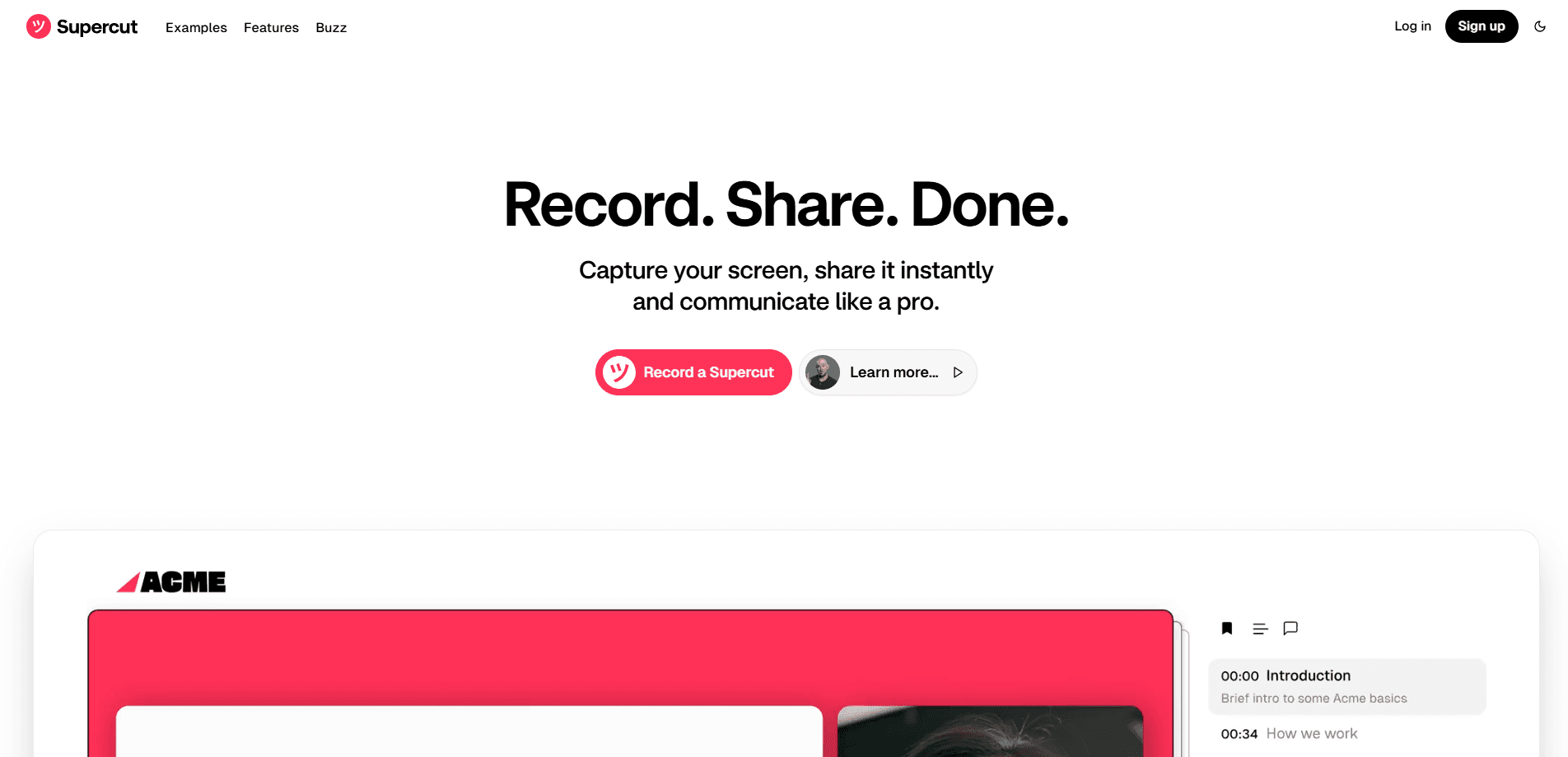
About ツSupercut
What Is Supercut
Supercut is screen recording software built for macOS and Windows by Float Labs, the same studio behind the design tool Figma rival. The pitch is simple. Product, sales, and support teams spend hours jumping on calls to explain work, and Supercut replaces those calls with a short recorded video you share the second you stop talking.
The recording is only half of it. Once you finish, the tool trims silences and filler, adds AI chapters and a summary, applies your brand, and hands you a link with time-stamped comments. You can then route the video into the next step of a workflow by asking the built-in AI assistant or connecting your own agents through MCP.
The catch is scope. Supercut aims at business communication, not filmmaking. There's no multi-track timeline, no color grading, and no motion graphics, so anyone cutting a trailer or a YouTube essay will need a full editor. Clips also cap at one hour each under the standard plan.
Getting Started
- Sign up at supercut.ai. The 14-day free trial starts when you record or upload your first video, not when you register, so you can look around first.
- Install the native app on macOS or Windows. Both build the recorder into the OS, which keeps capture stable at high frame rates.
- Start a recording and pick a layout: screen, camera, or both. Choose full screen, a single window, or a drawn area, and set resolution up to 4K.
- Stop and let the AI pass run. Auto-Edit cuts mistakes and dead air while chapters, a summary, and captions get written for you.
- Share the link by email, Slack, or embed code, then collect comments, reactions, and form responses on the same page.
Product Information
A quick look at ツSupercut's pricing, supported platforms, and performance.
Best for
The users, tasks, and scenarios where this tool fits best.
Users
- Product teams
- Sales reps
- Customer support agents
Tasks
- Replacing a status meeting
- Filing a reproducible bug report
- Walking a customer through onboarding
Scenarios
- A distributed team spread across time zones
- A SaaS company standardizing demos
- An enterprise rolling out a tool company-wide
Key features
Native macOS and Windows Recording
The recorder runs as a native app instead of a browser tab, so capture stays smooth even at 4K and high frame rates. You can record the full screen, one window, or a drawn area, and layer in camera, multi-stream, and system sound.
Auto-Edit and Silence Removal
Auto-Edit cleans up a take without a manual timeline pass. It strips mistakes, long pauses, and filler words, so a rough recording comes out looking rehearsed. You keep final say on every cut.
AI Chapters, Summaries, and Transcription
The AI writes chapter markers, a text summary, and captions the moment a recording ends. Viewers can skim or search the video like a doc, and captions cover multiple languages for global teams.
Instant Sharing and Engagement Tools
Videos go out by link, email, or embed code as soon as you stop recording. Password protection, expiration dates, custom domains, and custom thumbnails keep sharing under control, while comments, reactions, and forms collect feedback in one place.
Branding, Layouts, and Backgrounds
Themes, layouts, logos, and virtual backgrounds make every recording look intentional without a design pass. Cut-outs remove your background, and volume balancing evens out the audio.
AI Assistant and MCP Agent Connections
A built-in assistant answers questions about a recording, and MCP support lets you wire the video into your own agent workflows. That turns a watched clip into a triggered task instead of a dead end.
Pros and cons
Pros
- Native capture on macOS and Windows holds a stable frame rate at up to 4K, where browser recorders often stutter.
- Auto-Edit, chapters, and summaries remove most of the manual cleanup that slows down async video messaging.
- A fair Looms alternative on price: at $15 per seat it undercuts Loom's paid seats while keeping 4K capture and AI cleanup.
- MCP and API access let teams route recordings into automations instead of treating them as a one-off message.
- Enterprise controls like SSO, SCIM, and PII detection make it deployable across a large org, not just a small team.
Cons
- There's no free tier beyond the 14-day trial, so you cannot keep using it indefinitely without paying $15 per seat.
- Clips cap at one hour each, which rules out recording long webinars or full-length courses in a single take.
- It's built for walkthroughs, not editing: no multi-track timeline or color tools, so creative video work has to happen elsewhere.
Frequently asked questions
Supercut is a screen recorder teams use to explain work over video instead of holding a meeting. You record your screen or camera, and it turns the file into a polished, shareable clip with chapters and a summary.
Related content
Explore related tools, skills, and articles for ツSupercut.
ツSupercut Alternatives

ngram 2.0
ngram · Video · Marketingngram 2.0 is an AI video generator for teams. It turns a prompt, a screen recording, or a product URL into a narrated explainer, product demo, or AI avatar video, and every scene stays editable.

OpenScreen 2
OpenScreen (open-source project) · Video · ProductivityOpenScreen 2 is a free, open-source screen recorder and demo video editor for Windows, macOS, and Linux, with automatic zooms, styled frames, local captions, and agent edits.

Skreno
Skreno · Video · ProductivitySkreno is a browser screen recorder that captures a tab, a window or your whole display, then attaches AI transcripts, summaries and console logs to one share link.