

TransMov
Cong Chen · Image · Video
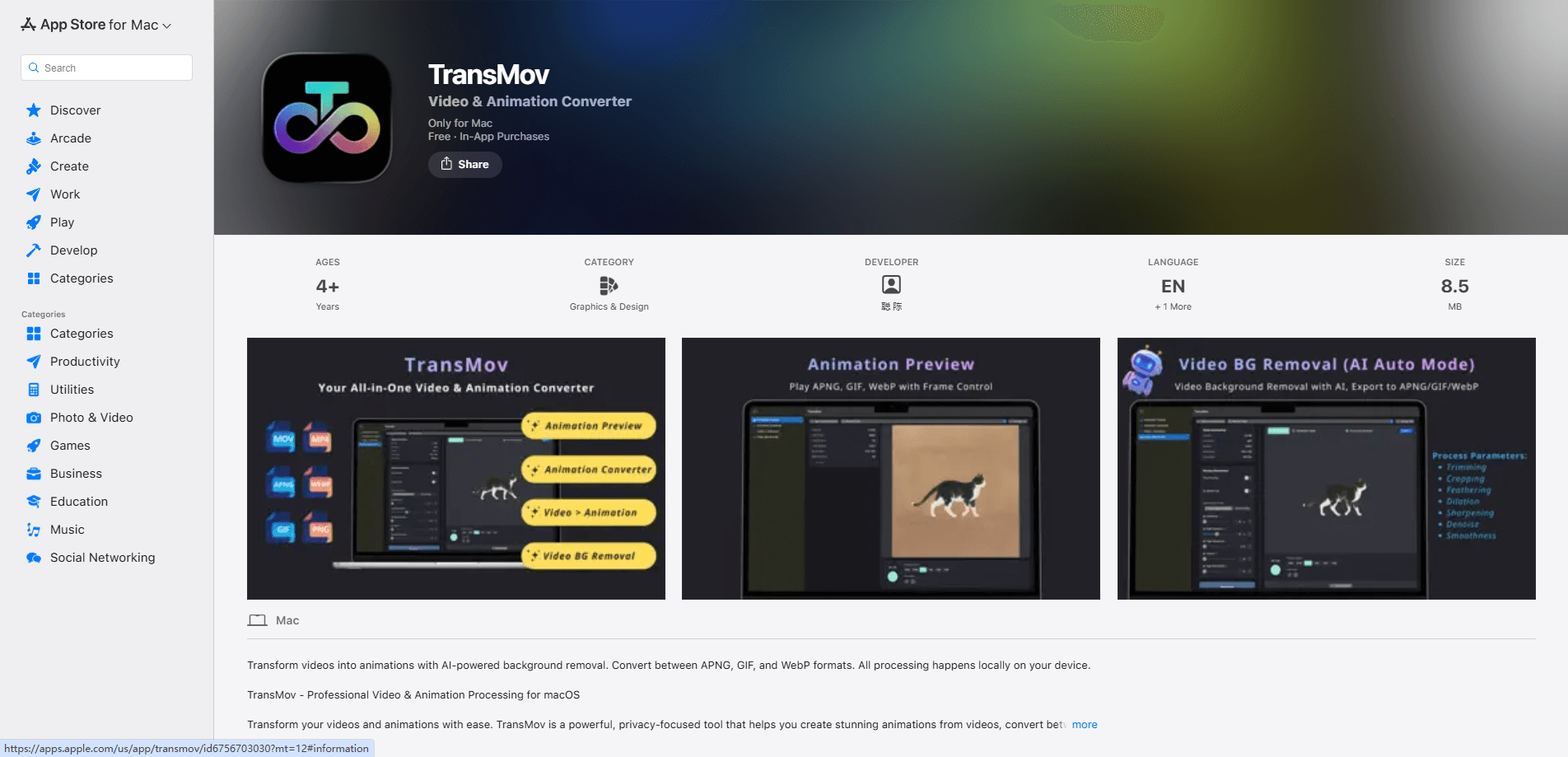
TransMov is a macOS app for turning videos and images into animated files. It does one thing well. It converts MP4 and MOV videos into GIF, APNG, and WebP animations, removes video backgrounds with on-device AI or chroma key, and converts between animation formats. Nothing gets uploaded to a server. If you make stickers, memes, UI mockups, or product demos and want to keep the files on your own machine, this is the kind of tool that fits.
About TransMov
What Is TransMov
TransMov is a native Mac animation studio that bundles four jobs under one roof: video to animation conversion, AI background removal, format conversion, and an animation previewer. It's built for people who work with short moving images every day. They got tired of juggling a GIF maker, a background remover, and a viewer as separate downloads.
The pitch is privacy. Everything runs locally. Nothing you drop into the app gets uploaded anywhere. No account, no cloud queue, no waiting on a server to finish a render. That matters most if you handle client work or NDA material, where sending assets to a random upload page isn't an option.
The catch is the platform and the paywall. TransMov only runs on macOS 14 or later. Windows and Linux users are out of luck. The free version also watermarks exports and caps how long a video you can process, which pushes anyone with serious output to the Pro upgrade. Worth it? Depends on how often you export.
Getting Started
- Download TransMov from the App Store and open it. No sign-up or login is needed.
- Pick a mode from the main screen: Video to Animation, Background Removal, Format Converter, or Preview.
- Drop in an MP4 or MOV file (for conversion and cutout) or an existing GIF, APNG, or WebP (for preview and format switching).
- Trim the range, crop the frame, and set frame rate, size, and compression options.
- Export to GIF, APNG, WebP, or a PNG sequence, then check the estimated file size before you save.
Product Information
A quick look at TransMov's pricing, supported platforms, and performance.
Best for
The users, tasks, and scenarios where this tool fits best.
Users
- Social media creators
- Designers and product teams
- Privacy-conscious professionals
Tasks
- Turning MP4 or MOV clips into GIF, APNG, or WebP
- Removing a video background
- Converting between animation formats
- Inspecting an animation
Scenarios
- Making transparent stickers that need to sit on any background
- Preparing lightweight UI animations for a website
- Cleaning up a green-screen clip for a product walkthrough
Key features
Video to GIF, APNG, and WebP
Drop in an MP4 or MOV and export it as an animated GIF, APNG, WebP, or a zipped PNG sequence. What if you just need one short clip as a GIF right now? Paste it in and export. You control the trim range, crop area, frame rate, size, and aspect ratio. The app shows an estimated export size as you go. No guessing whether the result will fit under a platform's upload limit. GIF palette options of 256, 128, or 64 colors let you trade color depth for a smaller file.
Local AI Background Removal
The app can cut the subject out of a video without a green screen, using AI that runs on your Mac through Apple's Vision framework and the Neural Engine on Apple Silicon. Chroma key is there too for footage that already has a clean backdrop. Either way, the cutout happens on-device, so the frames never leave your machine.
Alpha-Channel Transparency and Edge Refinement
APNG and WebP exports support 8-bit alpha, which means genuinely transparent backgrounds rather than a faked solid color. A preview mode lets you swap the backdrop to spot jagged edges, and the refinement controls include feather, expand, sharpen, smooth, and denoise to clean up the outline.
Frame Editor and Eraser
After a cutout you can step through the animation frame by frame. Delete a bad frame. Save a single frame as a PNG for editing elsewhere. The Pro eraser removes leftover background bits that the AI missed on a single frame. That per-frame fixing is the difference between a cutout that works for a still and one that holds up across a whole loop.
Format Converter
Import an existing GIF, APNG, or WebP, preview it, and convert it to one of the other two formats. You can also resize and change the aspect ratio during conversion, then balance GIF palette size or WebP quality to bring the file down. Handy when a client hands you a GIF and the platform you're publishing to wants WebP.
Animation Previewer
A dedicated viewer for GIF, APNG, and WebP files with frame-by-frame and continuous playback, adjustable speed, and looping controls. It reports file size, duration, and frame info, and lets you switch the preview background so transparent animations are easy to judge against light and dark interfaces.
Pros and cons
Pros
- Fully offline processing, so videos and client assets never get uploaded.
- One app covers conversion, background removal, format swapping, and previewing.
- True alpha-channel export for APNG and WebP, plus edge controls to fix rough cutouts.
- Real-time export size estimates take the guesswork out of hitting a file-size limit.
- Native macOS build that leans on Apple Silicon for fast, on-device AI segmentation.
Cons
- macOS only (14.0 or later), so there's no Windows or Linux version.
- The free tier watermarks exports and limits video length, so watermark-free work needs Pro.
- The exact Pro price and processing limits aren't clearly published on the site, so you'll have to check inside the app.
Frequently asked questions
It converts MP4 and MOV videos into GIF, APNG, and WebP animations, removes video backgrounds, converts between animation formats, and previews animated files. All of it runs locally on your Mac.
Related content
Explore related tools, skills, and articles for TransMov.
TransMov Alternatives

Tractionwave
TractionWave · Image · MarketingTractionWave is an AI attention heatmap tool for static ads. Upload a PNG or JPG and it returns predicted attention, ranked hotspots, and fixes before you spend budget.

Imejis.io
Imejis.io · Image · MarketingImejis.io is an AI design studio for agents and marketing teams. Describe an image in plain words, and it writes the copy, builds the layout, reflows it to every size, then exports a finished file.

Layoutr
Van Dijk Ontwikkeling · Image · China AILayoutr is a browser floor plan tool that scales your own plan, places furniture at true size, shows the room in 3D and renders it with AI.