

uTerminal
uTerminal · Coding · Productivity
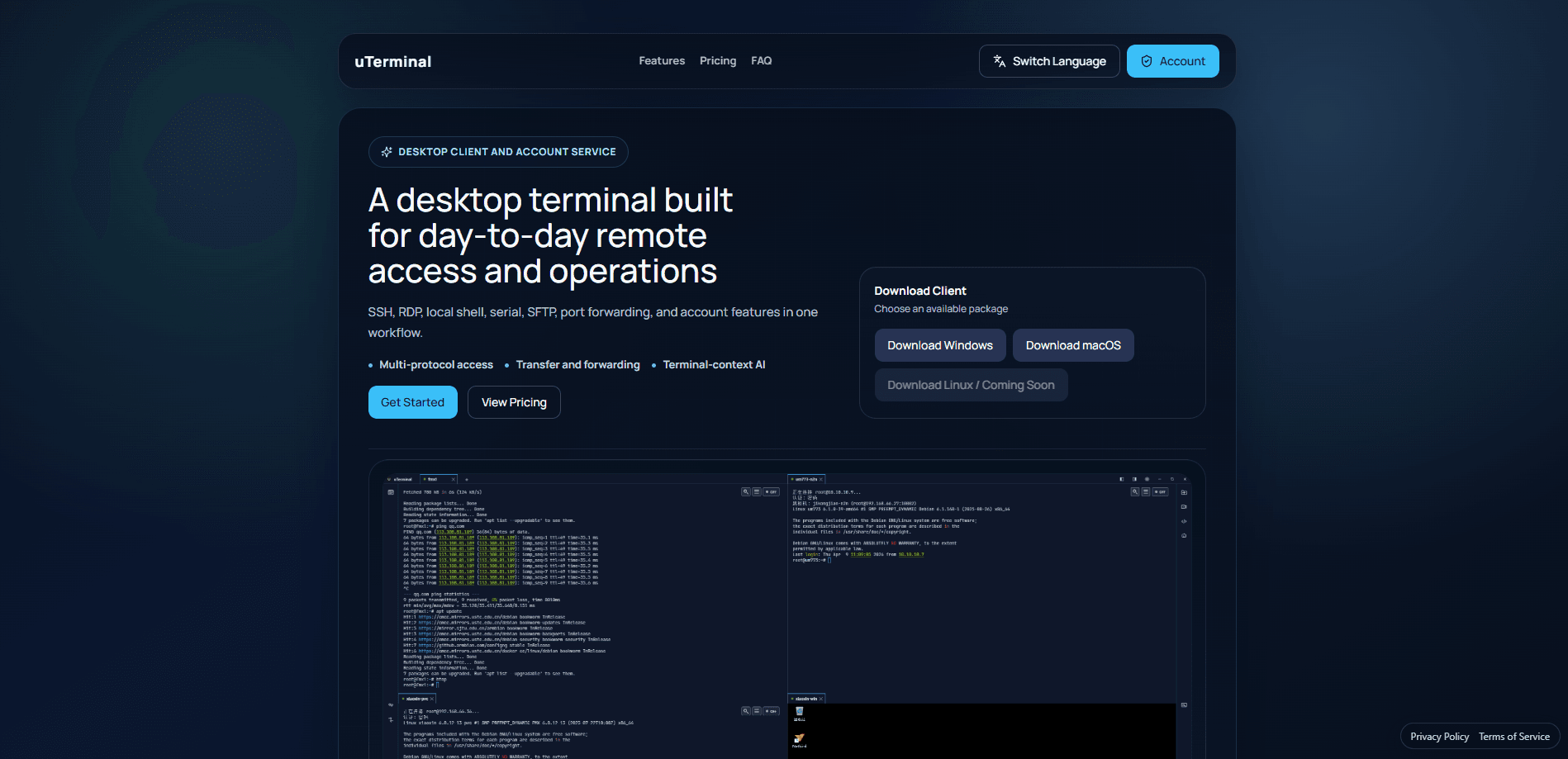
uTerminal is a desktop terminal application that gathers SSH, RDP, local shell, serial connections, SFTP and port forwarding into one workspace, so you stop bouncing between four or five separate clients. It runs on Windows, macOS and Android. It also adds an AI assistant that reads your terminal context, plus cloud sync for your host list. If your daily work means jumping from a Linux box to a Windows server to a file upload and back, this remote access tool is built for that loop.
About uTerminal
What Is uTerminal
uTerminal is a remote access workspace for people who manage servers and devices all day. Instead of keeping Xshell open for SSH, mstsc for the Windows desktop, and a separate SFTP client for moving files, you run every connection type from one window with shared tabs and a shared host list. It's a desktop terminal app, not a browser console. Sessions run natively on your machine.
The problem it solves is context switching. Every extra tool means another place to store IPs, another password prompt, and another session you can't find when a production issue lands at 2 a.m. That's a real cost. uTerminal treats your connections as one searchable inventory and keeps file transfer and forwarding inside the same workspace.
The biggest limitation is scope. This isn't a full bastion host or an audited jump server. It doesn't do role-based access control, session recording for compliance teams, or integration with LDAP, so it fits individuals and small teams better than enterprises that need a formal access gateway. Linux support is listed as coming soon. That leaves Linux users waiting.
Getting Started
- Download the client for your platform (Windows, macOS Apple Silicon, macOS Intel, or Android) from the official site.
- Sign in to your account so your host list and settings can sync across devices.
- Add your connections: pick SSH, RDP, local terminal or serial, then enter the host, port and credentials.
- Open sessions in tabs or panels and arrange the layout to match how you work.
- Turn on the AI assistant or check the sidebar panels when you want command suggestions or system info.
Product Information
A quick look at uTerminal's pricing, supported platforms, and performance.
Best for
The users, tasks, and scenarios where this tool fits best.
Users
- Sysadmins who manage both Linux and Windows machines
- Developers who SSH into cloud servers daily
- Solo consultants and small IT teams
Tasks
- Running commands on a remote Linux server
- Uploading and downloading files over SFTP
- Tunneling a service through port forwarding
Scenarios
- Morning triage when one dashboard, one Linux box and one Windows server all need checking
- Debugging a network device over a serial connection
- Reviewing what happened yesterday
Key features
Multi-Protocol Workbench
uTerminal runs SSH, RDP, local terminal, serial and SFTP connections from one application. For anyone juggling mixed infrastructure, that means the Linux box, the Windows server and the network switch console are all entry points in the same list. It's a single RDP client and SSH client in one window. You pick a protocol when you add a connection, and the app routes it to the right engine underneath.
Tabs, Panels and Layouts
The workspace supports multiple tabs and resizable panels, which matters once you're watching three hosts at once. You can arrange terminals side by side or stack sessions and switch between them without hunting through a taskbar. It sounds minor. Then you lose a session in a sea of windows and change your mind.
SFTP and Port Forwarding Inline
File transfer and forwarding are built into the workspace rather than bolted on as separate tools. You can drop an SFTP panel next to the terminal for the same host, or set up a port forward tied to a session. Fewer windows, less risk of acting on the wrong machine.
Host and Credential Management
Connections can be grouped, and credentials stored for reuse across sessions. This is the feature that makes the tool worth keeping open long term: your inventory of servers lives in one place instead of in your head. The free tier covers basic account state, while sync enhancements come with paid plans.
AI Assistant and System Info
An AI assistant tied to your terminal context can suggest commands based on what you're doing, and a sidebar surfaces system information and helper panels. It's aimed at reducing the pause before you type a command you half-remember. Treat the suggestions as a starting point and check them before running anything on production.
Session Logs and Replay
Sessions are recorded and can be replayed, which helps when you need to reconstruct a sequence of commands after something broke. It's a practical fit for troubleshooting and for handoffs, where showing a colleague the exact steps beats describing them. Just know the limit: this is a personal record, not a compliance-grade audit system.
Pros and cons
Pros
- One remote access tool for SSH, RDP, serial, SFTP and port forwarding cuts down on switching.
- Cross-platform: it's a terminal app for Windows, macOS and Android from the same synced account.
- Free tier is genuinely usable for basic connecting, so you can evaluate before paying.
- Affordable paid options: Plus runs $9.9 per year and Lifetime is a one-time $19.9.
- Session logs and replay make troubleshooting and handoffs easier than screenshots.
Cons
- No Linux desktop client yet, so Linux users can't run it natively.
- No team access controls, LDAP or compliance-grade auditing, which rules it out for strict enterprise setups.
- AI assistance and sync enhancements sit behind paid plans, so the free tier is limited to basics.
- API availability isn't documented, so you can't count on programmatic integration.
Frequently asked questions
It's a desktop application for remote access. You use it to connect to servers and devices over SSH, RDP, serial or a local shell, transfer files over SFTP, and manage port forwards, all from one window.
Related content
Explore related tools, skills, and articles for uTerminal.
uTerminal Alternatives
Forefront
Forefront · CodingForefront is a web platform for building with open-source AI. It lets you fine-tune leading open-source language models on your own data, evaluate how they perform, and run them through an API or export them to host yourself. Developers who want the convenience of a closed-source platform but insist on owning their models and data are the target audience here.

Startkit
StartKit.AI · CodingStartkit is a boilerplate for building AI SaaS and AI wrapper products. Think of it as an AI startup boilerplate with the boring parts already wired up: authentication, Stripe and Lemon Squeezy payments, usage limits, transactional email, and an AI API starter that talks to OpenAI, Anthropic, Groq, or Llama. You clone the repo, set your price, and start on the part of your product that people actually pay for. It's Next.js under React and Tailwind, so most of the boilerplate code already feels familiar.
Testim
Tricentis · CodingTestim is an AI-powered test automation platform for building and running end-to-end tests across web, mobile, and Salesforce applications. It leans on machine learning to keep tests stable when an interface changes, so teams spend less time fixing broken selectors. Not bad for an automated testing tool you can start using today. You create tests by recording actions in a browser, then optionally add JavaScript when you need more control. It's a solid pick for busy QA teams.