

VideoAI
VideoAI · Video
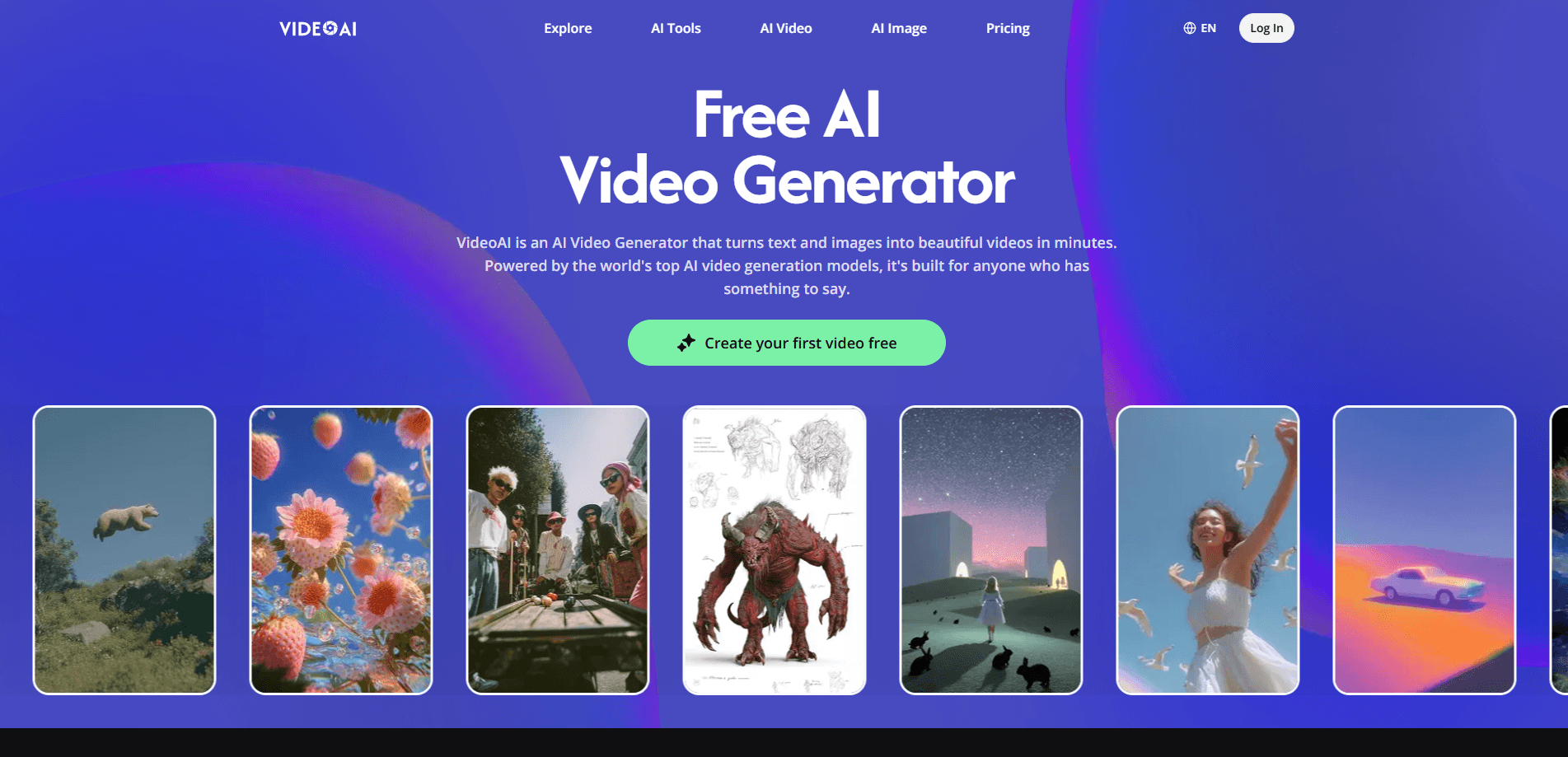
VideoAI is a free AI video generator that turns text prompts and images into short clips, pulling from several top models in one place: Kling, Wan, Seedance, and Veo. You don't pick a tool and hope it works. You pick the model that matches the look you want, generate, and keep going until the output feels right. It also packs pro tools around the core generator, so you can extend a clip, control motion, upscale a source image, or add a soundtrack without leaving the site.
About VideoAI
What Is VideoAI
VideoAI is a web-based AI video generator built around one idea: give people access to strong generation models without making them pay per tool or juggle accounts. Instead of locking you into a single engine, it routes your prompt through Kling, Wan, Seedance, or Veo. You choose based on style, not on brand loyalty. The whole flow runs in the browser, and the site says every one of those models is free to use on its platform.
The main problem it addresses is fragmentation. Most quality text to video and image to video work normally means bouncing between separate services, each with its own credits and quirks. VideoAI folds that into a single workspace, then layers editing tools on top. Extend a clip that cuts off too early, set camera direction before you generate, clean up a background, and you're building a small production pipeline rather than running one-off generations.
The biggest limitation is scope. This is short-form AI video, not a full editing suite. You won't find timeline editing, color grading, or multi-track audio here. Treat it as a generator plus a set of finishing tools, and it does its job. Treat it as Premiere and you'll be disappointed.
Getting Started
- Go to videoai.ai and sign in. The site lets you start generating without a heavy setup step.
- Choose your mode: text to video if you're starting from a written prompt, or image to video if you already have a photo or an AI-generated image.
- Pick the model. Kling holds together over longer durations, Wan leans on the motion in your source image, and Seedance and Veo give you different looks to test.
- Write your prompt, or upload the image and describe what should happen. For finer control, set camera direction, speed, and subject behavior first.
- Generate, review the clip, and download it. If it needs more runway, use the extend tool rather than starting over.
Product Information
A quick look at VideoAI's pricing, supported platforms, and performance.
Best for
The users, tasks, and scenarios where this tool fits best.
Users
- Social media creators
- Marketers and small teams
- Hobbyists testing models
Tasks
- Short promo clips
- Animated stills
- Continuing a cut
- Quick concepting
Scenarios
- Building a week of social content
- Storyboarding before a shoot
- Making a personal project
Key features
Multiple Generation Models in One Place
The core draw is choice. VideoAI routes your prompt through Kling, Wan, Seedance, or Veo, and each brings a different feel. Kling holds subjects together over longer durations where other generators start flickering and losing consistency. Wan responds to what's actually in your source photo, so the motion follows the image instead of fighting it. Test a few models on the same prompt. It's the fastest way to find the look you want.
Text to Video
Type a description and the generator builds a clip from it. You describe the subject, the setting, and the action, and the model fills in motion, framing, and lighting. There's no timeline to learn and no keyframes to set. The catch? You're steering with words. A clear, specific prompt does far more work than a vague one.
Image to Video
Upload a photo or an AI-generated image, then describe what should happen. Because the source already carries composition and color, the output tends to stay truer to your starting point. This is the mode to reach for when you have a product shot, a portrait, or a piece of art you want moving. You'd rather not gamble the whole look on a text prompt.
Extend Videos
Got a clip that cuts off before the interesting part? The extender continues an AI-generated video without forcing you to regenerate from scratch. Motion stays smooth across the seam. That matters. Mismatched motion at a join is the fastest way to make a clip look fake. It's a small tool, but it saves whole generations.
Motion Control
You set camera direction, speed, and subject behavior before the model runs. That upfront control means fewer wasted attempts and less guessing after the fact. If you need a specific camera move or a particular gesture, describe it here. Don't hope the generator guesses right. First-generation accuracy is the difference between one run and five.
Audio and Image Tools
The platform wraps smaller tools around the generator rather than leaving you to find them elsewhere. Image upscaling sharpens your source before it hits the video model, which shows most in close-ups and product shots. Background removal gives the model a cleaner input for image to video work. A music generator adds a matching soundtrack, and style transfer keeps a consistent look across a set of images or a full campaign. There's also an AI avatar path for talking-head style content, useful when you'd rather not put yourself on camera.
Built for Browser Use
Everything runs in a web browser, so there's nothing to install and no device lock-in beyond having a modern browser and an internet connection. That makes it easy to start on one machine and check results on another. Simple enough. It also means your work depends on the site being up, so plan around that if you're on a deadline.
Pros and cons
Pros
- Free access to Kling, Wan, Seedance, and Veo in one workspace
- Text to video and image to video both covered without extra tools
- Extend, motion control, and upscaling tools reduce wasted generations
- Runs in the browser with no install or heavy setup
- Quick to test different models against the same prompt
Cons
- No timeline editing or multi-track audio, so it's not a full editing suite
- Browser-only means your work depends on the site staying available
- Prompt quality drives results, so weak prompts produce weak clips
- Pricing details beyond the free tier are hard to pin down on the site
Frequently asked questions
Yes. The site states that the supported models, including Kling, Wan, Seedance, and Veo, are free to use. Most free tools cap how much you can make, and this one is no exception.
Related content
Explore related tools, skills, and articles for VideoAI.
VideoAI Alternatives

ngram 2.0
ngram · Video · Marketingngram 2.0 is an AI video generator for teams. It turns a prompt, a screen recording, or a product URL into a narrated explainer, product demo, or AI avatar video, and every scene stays editable.

OpenScreen 2
OpenScreen (open-source project) · Video · ProductivityOpenScreen 2 is a free, open-source screen recorder and demo video editor for Windows, macOS, and Linux, with automatic zooms, styled frames, local captions, and agent edits.

Skreno
Skreno · Video · ProductivitySkreno is a browser screen recorder that captures a tab, a window or your whole display, then attaches AI transcripts, summaries and console logs to one share link.