

Zen Editor
Zen Editor · Productivity
Zen Editor is a clean, browser-based AI text editor built for people who want to write inside Google Docs without the clutter. It connects straight to your Google account, so the documents you open in Zen Editor stay in your own Drive while an on-board AI assistant helps you draft, rewrite, and expand text. You pick the AI model, set how edits show up, and keep working in a distraction-free writing app. No clutter. No setup. It's free while the product is in Alpha, and there's no app to install: everything runs in a desktop browser.
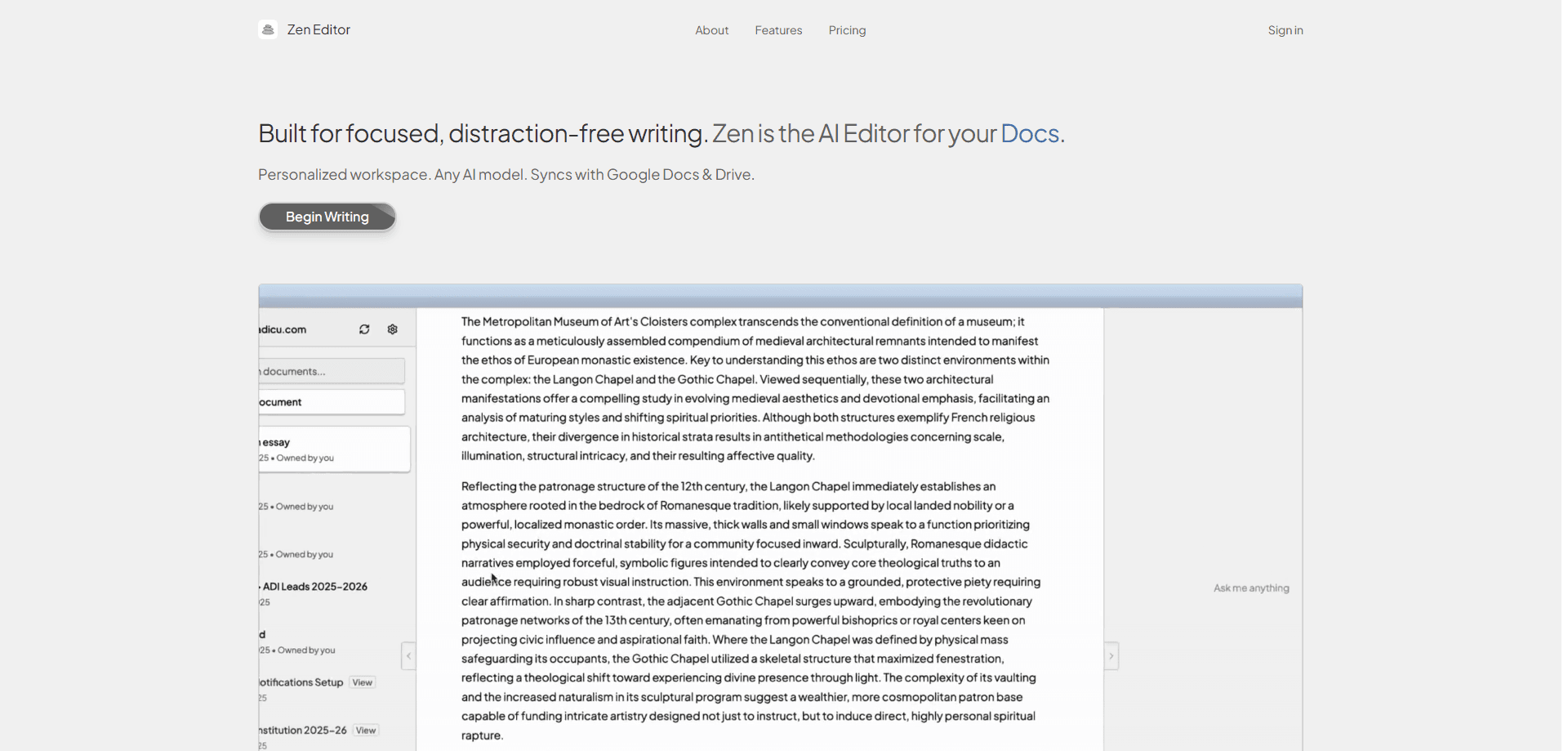
About Zen Editor
What Is Zen Editor
Zen Editor is an AI text editor that sits on top of Google Docs. Instead of locking your work into a separate silo, it edits the documents already living in your Google Drive and writes the changes back as you go. That means no export, no copy-paste, and no second place to hunt for the latest version. Think of it as an AI writing tool that lives where your files already do.
The point of the tool is focus. The interface strips away toolbars and menus until what's left is the page and a prompt box. An AI writing assistant is never more than a keystroke away, and you choose which model handles the work instead of accepting a single default.
The catch is that Zen Editor is still in Alpha. It runs in desktop browsers only, and there's no mobile app or public API yet. If you need something on your phone or a way to script it into a bigger pipeline, you'll have to look elsewhere for now. Not ideal.
Getting Started
- Open the Zen Editor site in a desktop browser and sign in with your Google account.
- Grant access to Google Drive and Google Docs so the editor can read and save your files.
- Pick your AI model and adjust the workspace settings, including the theme and how edit suggestions appear.
- Open a document or start a new one, then type or highlight text and ask the AI assistant to rewrite, expand, or rework it.
- Keep writing; changes auto-save back to Drive, so there's nothing to export when you're done.
Product Information
A quick look at Zen Editor's pricing, supported platforms, and performance.
Best for
The users, tasks, and scenarios where this tool fits best.
Users
- Writers and bloggers who draft in Google Docs and want AI help without moving their files
- Students and researchers juggling long documents
- Privacy-conscious users
Tasks
- Rewriting and tightening drafts
- Expanding rough notes into full paragraphs
- Editing Google Docs in one place
- Switching between AI models for the same draft
Scenarios
- A long writing session where toolbars and sidebars get in the way
- Working across several devices with one Drive account
- Comparing AI output styles on a single paragraph
Key features
Google Drive and Google Docs integration
Zen Editor works on the documents already in your Google Drive rather than in its own storage. You connect your Google account once, open a doc, and every edit syncs back automatically. For anyone whose writing already lives in Docs, this removes the usual export-and-upload shuffle. No converting. No re-uploading.
AI assistant with model choice
An AI assistant handles the rewriting, expanding, and transforming. The difference from most built-in helpers is that you pick the model. Zen Editor lets you set your preferred model in the workspace settings, so you can match the tool to the job instead of accepting whatever ships by default. Want sharper edits? Swap the model.
Your data stays in your account
Documents live in your Google Drive, and Zen Editor states that it never stores or accesses your content. That's the core privacy promise, and it matters if you'd rather not hand a new AI site a copy of your work. The trade-off is that everything depends on Google's own access and permissions.
Distraction-free writing workspace
The interface is deliberately sparse. Themes, workspace layout, and the diff view are configurable, but the defaults keep the page and the prompt box in view. It's aimed at people who lose time to menus, and the settings let you dial the look to your taste. Simple on purpose.
Real-time auto-save and cross-device sync
Changes save as you type and sync through Google Drive, so the same document is waiting on any other browser where you sign in. There's no manual save step and no version to export, which keeps long writing sessions simple. It just works.
Customizable diff view
You control how AI responses appear in the text. The diff view settings decide whether suggestions show inline or as clearly marked changes, so you can review each edit before it sticks rather than accepting a wall of new text. Review first, keep what fits.
Pros and cons
Pros
- Edits sync straight into Google Drive, so your documents stay in one place.
- You choose the AI model instead of being locked to a single one.
- The stripped-down interface keeps distractions out of a writing session.
- Free during the Alpha period, with no credit card required.
- Documents stay in your own Google account rather than a vendor's storage.
Cons
- Still in Alpha, so features and stability can change without warning.
- Desktop browsers only, which leaves out anyone who writes on a phone or tablet.
- No public API, so it can't be scripted into other tools or workflows.
- Tied to Google: without a Google account and Drive access, there's nothing to edit.
Frequently asked questions
It's an AI writing assistant that edits Google Docs documents directly. You write in a minimal workspace and use an AI model to rewrite, expand, or transform text, with edits saving back to your Google Drive.
Related content
Explore related tools, skills, and articles for Zen Editor.
Zen Editor Alternatives

Swms
Swms AI · Writing · Productivity · BusinessSwms is an AI safety compliance tool that turns a plain description of a job into ready-to-use safety documents. Describe your project, trade, and known hazards, and it writes a safe work method statement, job hazard analysis, safe work procedure, RAMS, or safety data sheet in seconds. It also ships with Oscar, a chat assistant that answers workplace safety questions in any language. Teams in construction, mining, transport, and warehousing use it to cut the paperwork that usually eats into a workday.

Wordly AI Translation
Wordly · Voice & Language · ProductivityWordly AI Translation is a real-time AI translation and captioning platform built for meetings, conferences, and events. It delivers live translation, captions, transcripts, and summaries in more than 60 languages, and attendees join by scanning a QR code or opening a link instead of using dedicated headsets. The platform works with Zoom, Microsoft Teams, Google Meet, and Webex, and it's designed for organizations that want multilingual access without hiring human interpreters for every session. Simple as that.

Rows
Rows (Superhuman) · Productivity · BusinessRows is an AI spreadsheet and data analysis tool that imports live data from more than 50 sources, then lets you work with it using plain language instead of SQL queries or nested formulas. You can pull numbers out of PDFs, connect ad platforms, databases, and bank accounts, and ask the AI to build reports, merge datasets, or set up models that recalculate themselves. It runs in the browser, works like a spreadsheet, and now sits under the Superhuman umbrella.