

Zumie
Zumie · Video · Productivity
Zumie is a screen recorder that turns ordinary screen captures into polished videos using automatic zoom. It runs as a Chrome extension, follows your mouse and clicks to zoom in on the right moments, and opens an editor with the smart zoom already applied. No timeline keyframing, no subscription, and no editing experience required.
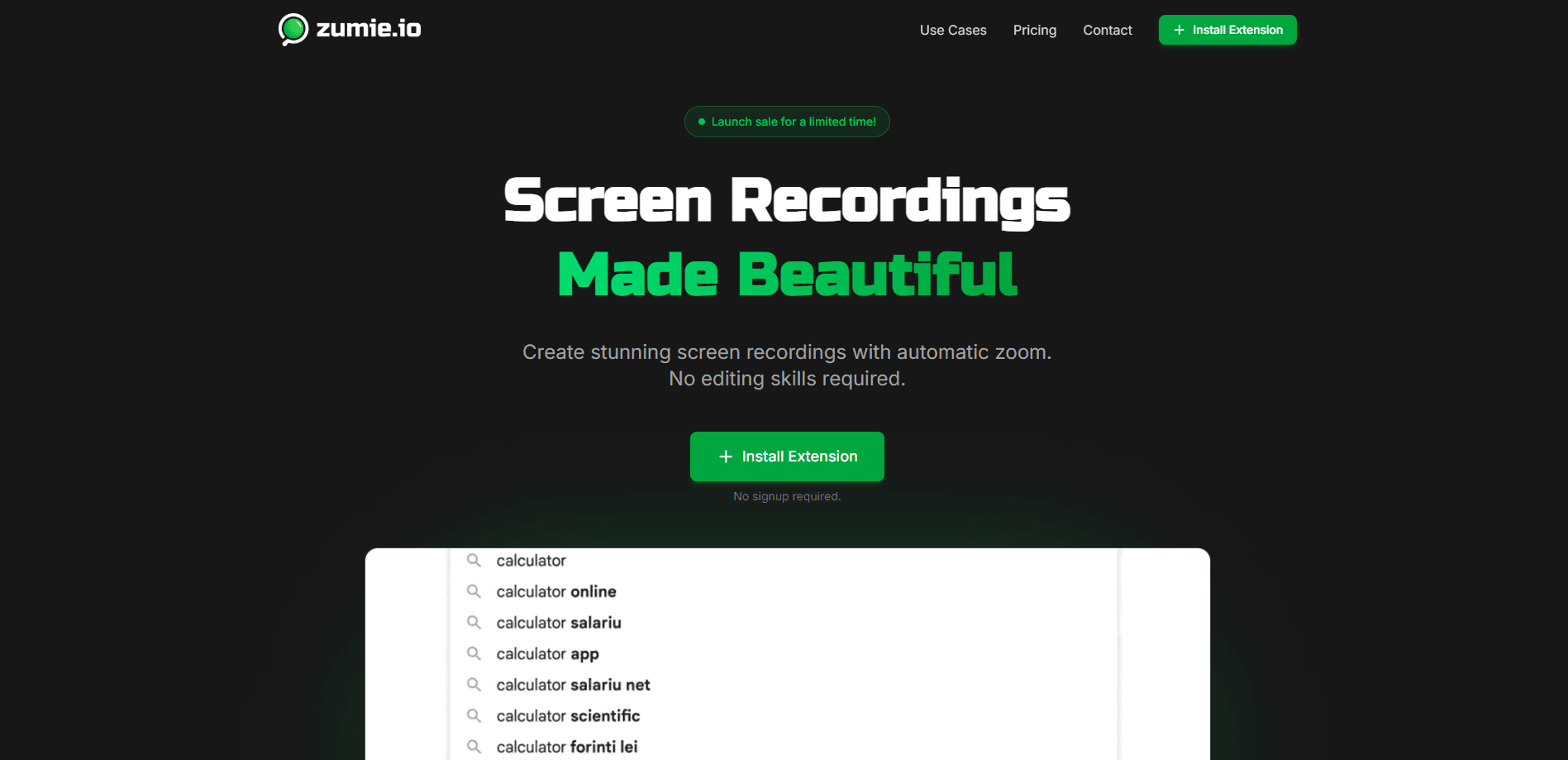
About Zumie
What Is Zumie
Zumie is a lightweight screen recorder built for people who want clean video output but dread the editing that usually comes with it. It watches what you do on screen, tracks your cursor and keystrokes, and zooms in automatically to highlight the areas that matter. The result looks deliberate rather than raw, and you get it without touching a single keyframe.
The product solves a specific pain: most screen recordings look flat. Why? Recordings of a tutorial, a bug report, or a product demo all suffer the same problem, where everything sits at the same zoom level and viewers lose focus. Zumie's automatic zoom fixes that by mimicking the camera work a human editor would add by hand.
The main limitation is scope. It's a Chrome extension, so it lives in your browser and captures your screen, specific windows, or any application, but it isn't a full video production suite. There's no multi-track editing, no advanced color work, and no mobile version. If you need cinematic post-production, this isn't the tool for you. If you need a recording that looks professional in minutes, it's exactly right.
Getting Started
- Install the Zumie Chrome extension from the Chrome Web Store.
- Open the extension and choose what to capture: your whole screen, a single window, or a specific application.
- Hit record and work as you normally would. Zumie captures your screen, mouse, keyboard, and webcam.
- When you stop, the editor opens with automatic zoom already applied. Adjust the zoom, timing, or positions if you want, or leave it as-is.
- Export the video, or generate a share link that anyone can open without an account.
Product Information
A quick look at Zumie's pricing, supported platforms, and performance.
Best for
The users, tasks, and scenarios where this tool fits best.
Users
- Content creators
- Support teams
- Product managers and designers
- Teachers and course authors
Tasks
- Recording software walkthroughs
- Capturing bug reproductions
- Making quick product demos
- Filming browser-based app tours
Scenarios
- Turning a rough screen capture into a shareable clip before a standup meeting.
- Documenting a workflow for a teammate without opening a full editing suite.
- Putting together a first tutorial video with zero prior editing experience.
- Recording on a shared or work machine where recordings stay local by default.
Key features
Automatic Zoom
This is the core of Zumie. Intelligent tracking algorithms follow your mouse and analyze screen activity in real time, then zoom in on the areas that matter with smooth transitions. It's fast. It replaces the manual keyframing that eats up most of a screen recording editor's time, and it works the moment your recording stops.
Click and Keyboard Highlights
Zumie visually marks your clicks and keystrokes during recording. Big difference for demos. For tutorials and bug reports, that small cue is the difference between a viewer guessing what you did and knowing exactly where you clicked. It pairs naturally with the automatic zoom to keep attention on the active part of the screen.
Built-In Editor With Smart Zoom Preloaded
When you finish recording, the editor opens with automatic zoom already in place. You can fine-tune zoom levels, timing, and positions, or remove the automatic zoom entirely if you'd rather control it yourself. It's a good middle ground: no editing required by default, full control available if you want it.
Capture Beyond Browser Tabs
Zumie installs as a Chrome extension, and it records your entire screen, a specific window, or any application. Not just browser tabs. That means you can demo desktop apps, system settings, or anything else on your display and still get the same polished output.
Screen, Webcam, and Input Capture
Zumie records your screen, mouse, keyboard, and webcam together. Adding a webcam overlay gives tutorials a personal touch without a second tool, and the combined capture means less syncing work after the fact.
Instant Share Links
Export your video as a file, or generate a share link that the recipient can open without creating an account. For quick reviews and client handoffs, that removes the friction of asking someone to sign up just to watch your clip.
Local-First Storage
Recordings are stored locally on your device. Zumie doesn't upload anything to its servers unless you use the share link feature, which gives you a clean default for sensitive or work-related content.
Pros and cons
Pros
- Automatic zoom removes the most tedious part of editing screen recordings.
- No subscription: a free tier works forever, and the lifetime deal is a one-time $39 payment.
- Works on any window or application, not just browser tabs.
- Recordings stay on your device by default, which suits work and support use.
- Share links let viewers watch without an account.
Cons
- It's a Chrome extension, so there's no standalone desktop app or mobile version, which limits use outside Chrome.
- The free tier watermarks exports and caps output at standard quality.
- It's built for quick, clean recordings rather than deep editing, so there's no multi-track or advanced color work. Deep post-production isn't the point here.
Frequently asked questions
Zumie records your screen and automatically zooms in on the areas that matter, so tutorials, demos, and bug reports look polished without manual editing. It's a screen recorder for tutorials, demos, and support clips, and it doubles as lightweight video recording software for anyone who wants professional-looking output without a full editing suite.
Related content
Explore related tools, skills, and articles for Zumie.
Zumie Alternatives

Vadu AI
Vadu AI · Image · VideoVadu AI is a web-based AI video generator that turns written prompts or still images into short clips, and it can also generate images on its own. You type what you want, pick a model and style, and the platform renders the result in minutes. A free plan covers light testing, while paid tiers run from $9 to $77.40 per month based on how many credits you burn.

Mykaraoke Video
MyKaraoke Video · VideoMykaraoke Video is an online karaoke video maker and lyric video maker that turns any song into a finished, lyrics-synced video right in your browser. It handles the slow part for you. The AI pulls vocals out of the mix and locks the lyrics to the beat, then lets you customize background, fonts, and colors before exporting in 1080p MP4. If you make lyric videos for social media, party nights, or music promotion, it skips the software installs and manual timing work entirely. Want a karaoke video generator that doesn't eat your whole evening? That's the pitch here.

Finalframe
Finalframe · VideoFinalframe is a set of free, browser-based tools for grabbing exact frames out of a video clip. Its best-known feature, the Final Frame Extractor, lets you extract the last frame of any video so you can use it as the starting image for AI video tools like Luma Dream Machine, Runway, or Kling. Want to keep a clip going? That last frame is your starting point. The tool runs locally in your browser, needs no sign-up, and costs nothing. A separate paid AI video-generation app from the same team is currently offline while it's rebuilt.