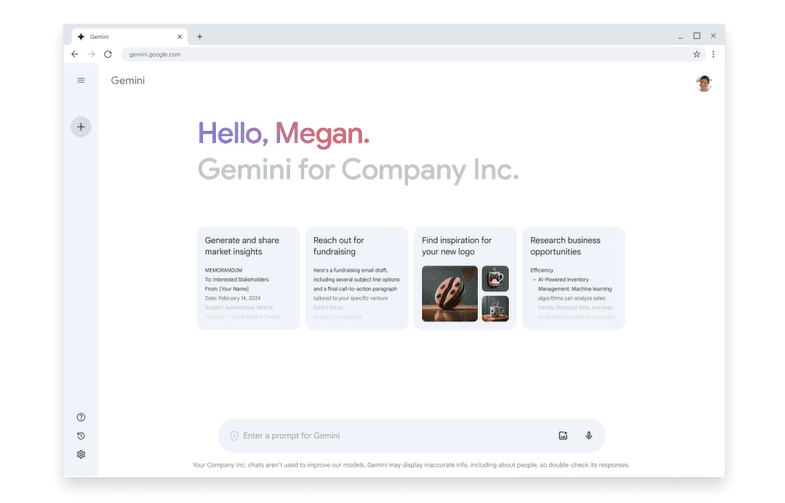
Google Gemini is Google's AI assistant, built by Google DeepMind, and it shows up almost everywhere Google already runs. You use it to draft and edit text, question long documents, generate images and video, write code, and plan trips or study sessions. It sits alongside ChatGPT and Claude as one of the main general AI assistants, and its pull comes from a deep stack of Google models plus tight links to Search, Gmail, Drive, and YouTube.
The paid plans carry a name most people still recognize. The old Gemini Advanced label now lives inside the Google AI plans: Plus, Pro, and Ultra. Free access is genuinely useful, Pro is the plan most paying users land on, and Ultra opens the frontier features. Each tier buys more model access, more compute per day, more cloud storage, and more agentic tools rather than a single fixed message count.
What separates Gemini from a plain chatbot is the reach. It reads images, video, and audio, so a screenshot, a spreadsheet, or a YouTube link can join the conversation. Features like Deep Research, Canvas, Gems, and Gemini Live turn it into a working tool, not just a text box. The main catch is access. The strongest models and agents stay behind Pro and Ultra, and every major feature has country, device, or language limits.
Getting Started
- Open gemini.google.com or install the Gemini app on iOS or Android and sign in with a Google account.
- Type a prompt, or attach a file, image, or link to bring your own material into the chat.
- Turn on Deep Research or Canvas when you want a full report or a document you can edit in place.
- For coding and heavier work, open Google AI Studio or the API, or install the Gemini CLI against your own repository.
- Upgrade to Google AI Plus, Pro, or Ultra when free limits and frontier models hold you back.